 By
By
Ever wanted to turn your server into a fully automated, self-hosted media hub? QuickBox makes it possible. You get torrent clients, media managers like Sonarr and Radarr, and Plex—all in one clean dashboard. QuickBox is built for DIYers who want control without juggling a bunch of apps.
But here’s the twist: QuickBox was declared “dead” in 2023. Still, GitHub commits and updates on the official site hint that someone’s keeping it alive.
In this guide and review, we’ll look at what still works, what doesn’t, and whether it’s time to move on to something newer or easier.
Disclaimer: This material has been developed strictly for informational purposes. It does not constitute endorsement of any activities (including illegal activities), products or services. You are solely responsible for complying with the applicable laws, including intellectual property laws, when using our services or relying on any information herein.
Table of Contents
- What is QuickBox and How Does It Work?
- QuickBox Features Overview
- QuickBox Update (News)
- Setup & Installation Guide
- QuickBox Daily Use & Operations
- QuickBox Review
- Alternatives vs QuickBox: Comparison
- Final Thoughts
1. What is QuickBox and How Does It Work?
QuickBox is an open-source, self-hosted media server dashboard that transforms any Linux VPS into a comprehensive seedbox automation platform. You can think of QuickBox as a control panel that bundles essential torrenting, media management, and streaming applications into a single convenient web-based interface.
Unlike managed seedbox services, QuickBox gives you complete control over your server environment. You install it on your own VPS or dedicated server, then use its dashboard to manage everything from torrent downloads to Plex streaming without having to jump between different applications. The official sources are:
The QuickBox platform handles the complex installation and configuration of popular applications like qBittorrent, Deluge, Sonarr, Radarr, and Plex. But it also provides user management, API access, and monitoring tools. This solution is ideal if you want the power of a custom seedbox setup without having to spend hours configuring individual applications.

2. QuickBox Features Overview
QuickBox gives you the whole set of features that make media server management straightforward:
- Pre-Installed Application Support: QuickBox supports over 30 pre-configured applications, including essential tools for any serious media setup. Popular torrent clients like qBittorrent, Deluge, and rTorrent also come ready to use, while automation tools like Sonarr, Radarr, Sonarr, and Lidarr handle content discovery and management. Streaming is covered through Plex, Jellyfin, and Emby integration.
- Centralized Dashboard Control” The web-based control panel provides real-time monitoring of various system metrics and stats. You can start, stop, and configure applications without SSH access. So your day-to-day management of the seedbox is much simpler than traditional command-line setups.
- User Management & API Access: Quickbox’s multi-user support is a unique feature. It allows you to create separate accounts with customized permissions. This is perfect for sharing your server with family or friends. Plus, it also comes with a built-in API that enables advanced automation and integration with external tools.
- Privacy & Security Settings: QuickBox includes VPN integration options and privacy-focused configurations out of the box. All applications are pre-configured with security best practices. This way, you avoid the risk of misconfigurations that could expose your server.
- Resource Monitoring & Optimization: The built-in monitoring tools track bandwidth usage, storage allocation, and more. This helps you optimize your server resources and identify potential issues before they impact performance.
3. QuickBox Update (News)
In December 2023, a key QuickBox staff member publicly announced (over Reddit) the end of the project.
The reasons? He mentioned the prolonged absence of leadership, lack of support, and internal collapse of the volunteer team. He advised the users to stop using QuickBox, with many long-time contributors stepping away out of respect for the community they helped build since 2015.

Despite the announcement, the official QuickBox website remains online and continues to offer services.
However, there is no indication that active development or support is ongoing. We recommend that you treat the project as abandoned unless a clear relaunch is communicated.
GitHub Activity Confirms Some Ongoing Maintenance
Despite the December 2023 staff announcement declaring the end of QuickBox, GitHub repositories under the QuickBox organization are still being updated:
- The pro-v3 repository was updated this month (June 2025)
- Several related plugins (e.g., rutorrent_filemanager, rutorrent_logoff, compiled-packages) were updated in 2026
- The legacy QB repo was last updated in March 2022
All this activity means that someone is maintaining or modifying the codebase, particularly for QuickBox Pro v3. However, this does not necessarily mean the full project (community, support, documentation, onboarding) is active or healthy.
| ⚠️ Heads up: QuickBox isn’t officially dead, but it’s not exactly alive either. GitHub shows some signs of life, but with the core team already gone and no clear leadership, it feels more like a zombie project—still moving, but not somewhere you want to rely on. If you want to join Quickbox, you should tread carefully. |
🧬 Don’t Get Left Behind
Early adopters are already enjoying hassle-free seedboxes—why not you?
See What You’re Missing4. Setup & Installation Guide
Installing QuickBox requires a Linux VPS and basic command-line knowledge, but the process is more straightforward than setting up individual applications manually.
Before You Begin: Requirements Checklist
Below is a simple list of what you will need to start using QuickBox.
- Server Requirements: Ubuntu 16.04+ or Debian 8+ with root access
- Minimum Specs: 2GB RAM, 20GB storage, 1 CPU core
- Recommended Specs: 4GB+ RAM, 100GB+ storage for media libraries
- Network: Dedicated IP address and unrestricted port access
- Technical Knowledge: Basic Linux command-line familiarity
| ⚠️ Note: QuickBox only supports Ubuntu 18.04 and Debian 9. If you’re using a newer version or another, the installer will exit automatically. You can bypass the version check by editing the script, but this may break the installation—use Ubuntu 18.04 for full compatibility. |
Installation Process
- Step 1: Prepare Your Server. Connect to your VPS via SSH and ensure your system is updated:
sudo apt update && sudo apt upgrade -y

- Step 2: Download and run QuickBox. Installer QuickBox provides an automated installation script that handles dependencies and configuration:
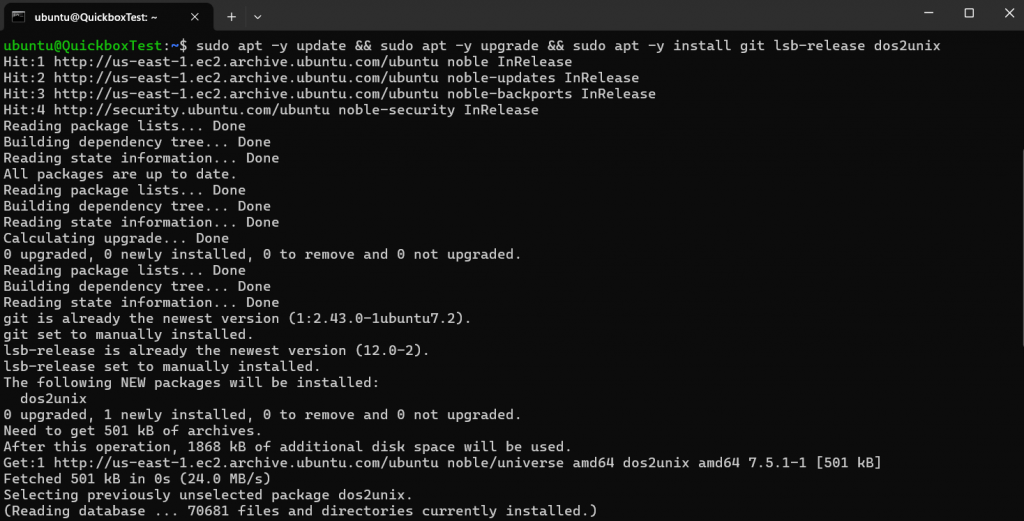
sudo apt -y update && sudo apt -y upgrade && sudo apt -y install git lsb-release dos2unix
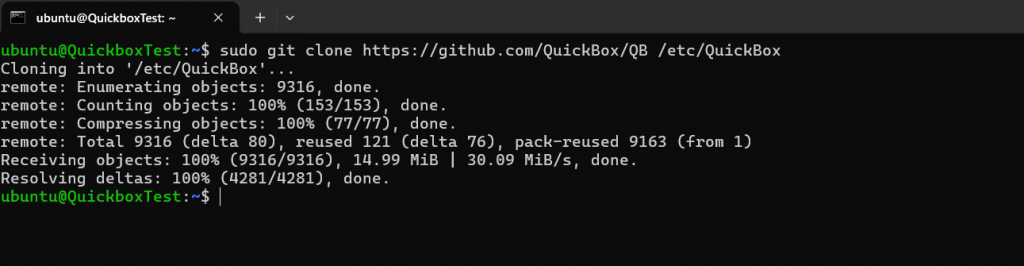
sudo git clone https://github.com/QuickBox/QB /etc/QuickBox
sudo dos2unix /etc/QuickBox/setup/quickbox-setup
sudo bash /etc/QuickBox/setup/quickbox-setup
| ⚠️ Note: QuickBox only supports Ubuntu 18.04 and Debian 9. If you’re using a newer version or another, the installer will exit automatically. You can bypass the version check by editing the script, but this may break the installation—use Ubuntu 18.04 for full compatibility. |

- Step 3: Initial Configuration. The installer will prompt you to:
- Create your primary user account
- Select which applications to install initially
- Configure basic security settings
- Set up SSL certificates for secure access
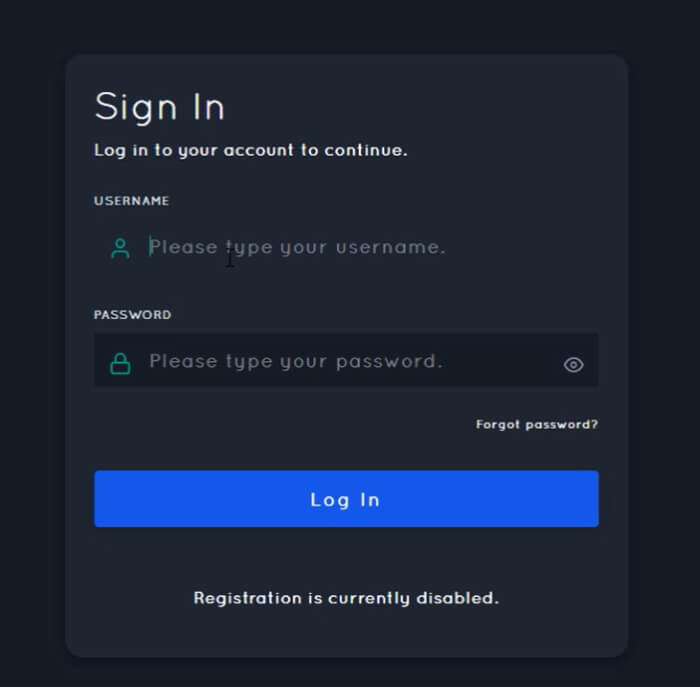
- Step 4: Access Your Dashboard. Once installation completes, access your QuickBox dashboard at https://your-server-ip using the credentials you created. The first login will guide you through the final configuration options.
| 🔧 Note: The entire process typically takes between 30 to 60 minutes, but this, of course, would depend on your server specifications and selected applications. |
5. QuickBox Daily Use & Operations
Using QuickBox day-to-day feels very similar to using a managed seedbox service, despite running it on your own hardware.
So, how to use QuickBox?
Log in: As stated in the previous section, access the QuickBox dashboard by going to https://your-server-ip and using the credentials you created in the installation phase.
a. System Monitoring and Maintenance
Access QuickBox System Dashboard: Toggle between Live Network, CPU, Memory, Top Processes, and Disk.

This dashboard displays real-time information about disk usage, bandwidth consumption, and system performance. The built-in tools help you monitor which applications are consuming the most resources and optimize performance accordingly.
🧭 What to expect
- From the moment you log in, you’ll see live system stats like CPU, RAM, and bandwidth usage, along with charts showing real-time upload and download activity.
- The left sidebar gives you access to key features: app management, user settings, file tools, and server monitoring.
- The interface also displays details about logged-in users, service versions (like Nginx and PHP), and system uptime.
b. Installing an App.
The app’s dashboard allows you to install and uninstall apps with a simple click.

- Click on “The Dashboard” on the left-hand menu. To install an app, go to the tab Service Control.

This section of the QuickBox dashboard lets you install, control, and manage apps like torrent clients, subtitle fetchers, and media servers—all from one place, without using terminal commands.
🧭 What to expect
- One-click Install/Uninstall buttons for each app
- Descriptions for tools like AutoDL, Bazarr, Deluge, etc.
- Disk usage and active torrent client display
- Search bar to quickly find apps
- A clean interface to manage everything from downloads to streaming

The Application Management tab in the QuickBox dashboard gives you a simple interface to browse, install, and configure seedbox-related apps. This is perfect if you are looking to build a full media automation stack with minimal effort.
🧭 What to expect
- Categorized list of supported apps (e.g., Emby, Sonarr, Radarr)
- App descriptions to understand each tool’s role
- Install status with quick Install/Uninstall actions
- Integrated search and pagination for easier browsing
- Central control of downloaders, media servers, and automation tools
In the Service Control, you will also be able to reset, stop, or start services. Additionally, you will also have access to some advanced configurations like “Editing Nginx Config.”

User Account Management
In this section, you will be able to create separate user accounts for family members or friends, each with customized access permissions. You can limit which applications each user can access and set individual bandwidth or storage quotas.
- Click on the left-hand menu > then “User Admin”

- To create a new user, go to User Actions > Create a User

- Fill out the required data to create a new user.

Additional QuickBox Utilities.
- Managing Downloads and Media: The dashboard provides one-click access to all your applications. Adding new torrents is as simple as clicking through to your preferred torrent client and uploading the files. Sonarr and Radarr automatically handle content discovery, downloading, and organization based on your preferences.
- Remote Access and Streaming: QuickBox configures secure remote access for all applications, so you can manage downloads and stream content from anywhere. Plex integration allows you to stream your media library to any device, while the API enables automation through external tools or mobile apps.
- Automation and API Integration: Advanced users can leverage QuickBox’s API for custom automation workflows. Connect external tools, set up automated backups, or create custom scripts that interact with your media server setup.
| 💡Verdict: Except for the initial setup, most daily operations require no command-line access, making QuickBox feel like a professional seedbox service while maintaining complete control over your environment. |
6. QuickBox Review
So, are you thinking about rolling your own seedbox with QuickBox?
Before you dive into the command line, let’s break down what you’re really signing up for. From full control and powerful customization to the hidden costs of DIY maintenance (plus, consider QuickBox as a zombie project… 🧟 still moving but not entirely live)—here’s the good, the bad, and the nerdy.
✅ Pros of Using QuickBox
- Complete Control: You get full server access, allowing deep customization and total command over your media environment—ideal for power users and tinkerers who want to self-host with precision.
- Cost Efficient: After the initial setup and VPS costs, there are no recurring software subscription fees—making it a wallet-friendly solution for long-term use.
- Privacy First: Your data stays on your own server, untouched by third-party services—perfect for those who prioritize security and personal control.
- Beginner-Friendly UI: QuickBox offers a polished web dashboard that simplifies media and torrent management with one-click installs, making it more approachable than traditional command-line-only setups.
- Open Source & Customizable: For developers, it’s a modifiable platform. You can fork the code, tweak features, or automate tasks to suit your specific needs.
- Learning Opportunity: Running QuickBox teaches valuable Linux and server management skills that translate well across other IT and self-hosting projects.
- Dedicated Resources: You’re not sharing performance with anyone. Expect better speeds and reliability (if your server is solid).
❌ Cons of Using QuickBox
- Steep Learning Curve: It requires familiarity with Linux for installation, updates, and troubleshooting—potentially frustrating for users without technical experience.
- No Official Support: With most community staff gone and Discord unmoderated, you’re on your own. Community support is hit-or-miss, and bug fixes are rare.
- Uncertain Development: The future of the platform is unclear. While some components like QuickBox Pro v3 are still updated, others (like the legacy version) seem abandoned.
- Security Concerns: A lack of active maintenance and no formal auditing could expose your server to vulnerabilities—especially if you’re using it in production.
- Server Management Burden: You’re responsible for maintaining uptime, securing the server, handling updates, and solving issues as they come. There is no managed service safety net.
QuickBox Pricing & Plans
QuickBox offers flexible pricing through both monthly and yearly subscriptions. The plans are tiered based on the number of API activations, which correspond to how many simultaneous installations you’re allowed. Every plan includes:
- Access to priority support
- Regular updates
- Access to private channels
💳 QuickBox API Activation Plans
| API Activations | Price (Monthly) | Price (Yearly) | Notes |
| 1 Activation | $5/month | $45/year | Most popular for single-instance setups |
| 2 Activations | $10/month | $90/year | Solid for small home labs |
| 3 Activations | $15/month | $115/year | Great balance for developers |
| 5 Activations | $20/month | $190/year | Ideal for managing multiple environments |
| 10 Activations | $40/month | $380/year | Highest value per install, best for teams |
What Are API Activations? API Activations define how many QuickBox installs you can run at once per subscription. This is crucial for users managing multiple servers or client setups.
Which Plan Should You Choose?
Casual users or solo self-hosters are best suited with 1 API Activation ($5/month or $45/year). Developers and admins managing multiple seedboxes or media servers should consider 3–5 Activations for better scalability. For businesses or heavy power users, 10 Activations offer the best value for large-scale deployments.
💡Tip: Yearly plans offer the best savings and are ideal for users managing multiple servers or setting up long-term environments. Monthly plans are flexible, making them perfect for short-term use or testing.
Who Should Use QuickBox?
QuickBox is best for Linux-savvy users who value control and long-term cost savings over convenience. So, if you enjoy hands-on server management, want full ownership of your data, value privacy and are willing to invest time into learning and maintaining your setup, then we recommend trying out QuickBox. However, it’s not a fit for beginners or anyone needing guaranteed uptime and professional support. As a reminder, the project has been dead for a while, but someone is till mainaining it (so there is no guarantee). So, if you have time to setup, maintain, troubleshoot your server, and want a customizable, subscription-free setup for the long haul, QuickBox might be worth checking out.
Why Do We Recommend QuickBox?
After actively testing QuickBox, we found this tool to be more suitable for advanced users who want full control over their seedbox setup. We love their polished, web-based dashboard (but takes time an knowledge to get it). The seedbox also bundles torrent clients, media automation tools (like Sonarr and Radarr), and streaming platforms (like Plex) into a single interface. So that means your daily operations will not need that much command-line. The one-click installs and real-time monitoring give it the feel of a managed seedbox service while remaining fully self-hosted and customizable.
However, there are important downsides to consider. The project was declared abandoned in 2023, and while some GitHub activity continues, there’s no clear support or roadmap. It also only supports Ubuntu 18.04 and Debian 9—newer OS versions require risky manual edits. If you’re comfortable with Linux and are willing to self-maintain, we consider QuickBox to be a powerful tool. But if you need stability, support, or guaranteed security, a managed seedbox is a safer choice.
7. QuickBox vs Alternatives Comparison
From Docker-based tools to full-fledged home server platforms and managed ‘seedbox’ solutions, here’s how QuickBox compares—so you can pick the setup that best fits your needs and tech comfort level.
a. QuickBox vs DockSTARTer
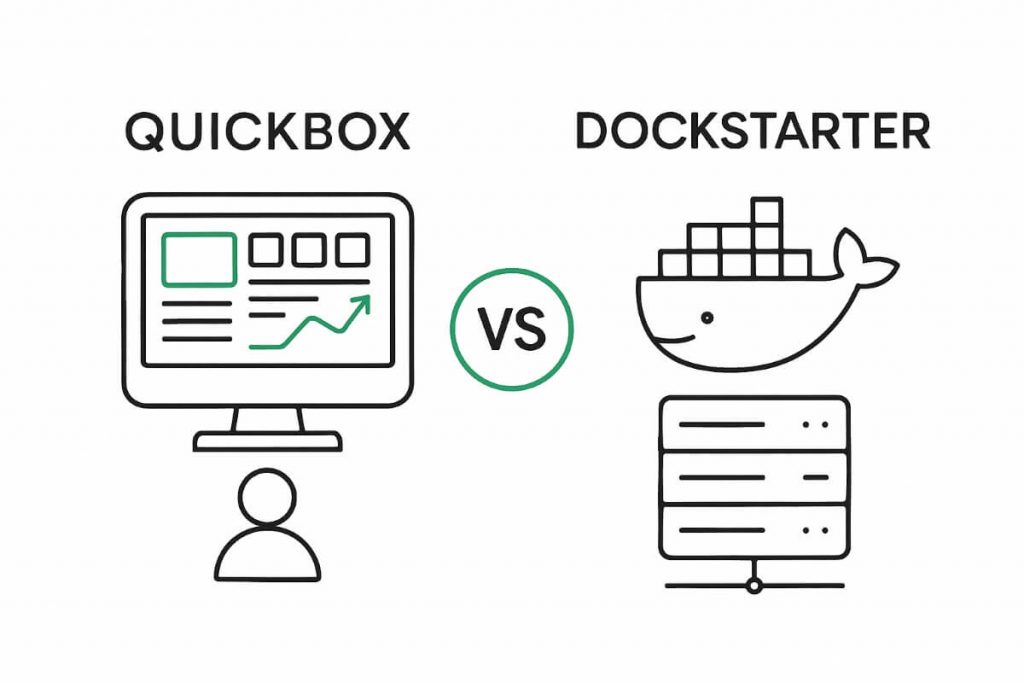
Both QuickBox and DockSTARTer are designed to simplify self-hosted environments—but they take very different approaches. Here’s a quick breakdown to help you decide which tool aligns better with your setup preferences.
QuickBox Advantages:
- Integrated dashboard with unified management
- Optimized configurations specifically for seedbox use
- Built-in user management and security features
- More beginner-friendly installation process
DockSTARTer Advantages:
- Docker-based architecture for better application isolation
- Easier application updates and rollbacks
- More flexible container management
- Growing community and application support
Best For: QuickBox is better for you if you want a complete seedbox solution, while DockSTARTer is a much better option to those preferring Docker-based setups. If you are a Docker enthusiast, you will love this one: Learn how to setup Plex on Docker.
QuickBox vs Unraid

While both platforms support media servers, QuickBox and Unraid serve different needs. If you’re focused on torrenting and seedbox functionality, QuickBox is a better choice. It offers a streamlined cost-effective path to getting hands on your seedbox. Unraid, on the other hand, is a powerhouse for full home server setups with advanced storage, Docker, and VM features. Here’s how they stack up.
QuickBox Advantages:
- Free and open-source with no licensing costs
- Specifically designed for seedbox and media server use
- Simpler setup for torrenting-focused applications
- Better integration between applications
Unraid Advantages:
- Professional NAS features with parity protection
- Excellent Docker and VM support
- Active commercial development and support
- Hardware compatibility and plugin ecosystem
Best For: QuickBox is ideal for dedicated seedbox setups, while Unraid for comprehensive home server solutions. If you love home servers and NAS (and building up your media), you’ll love this blog post: Configuring Plex on your Synology NAS.
QuickBox vs Managed Seedboxes (RapidSeedbox)

Choosing between QuickBox and a managed seedbox like RapidSeedbox comes down to how hands-on you want to get. QuickBox is perfect for tech-savvy users who enjoy control and customization. Managed seedboxes, on the other hand, are ideal for those who prefer a plug-and-play experience with professional support, highe speeds, convinience and zero maintenance. Here’s how they compare.
QuickBox Advantages:
- Complete server control and customization
- No monthly subscription fees
- Privacy with no third-party data access
- Learning opportunity for Linux and server management
Managed Seedbox Advantages like RapidSeedbox:
- Professional setup and ongoing maintenance
- 24/7 technical support and guaranteed uptime
- Optimized performance and security configurations
- No technical knowledge required
- High speeds and large online storage.
Best For: Consider QuickBox if you are a high technical user who wants control and learning opportunities. Managed seedboxes on the other hand, are ideal if you prioritize convenience, speed and professional support.
8. Final Thoughts
QuickBox hits a good balance between manual setups and managed seedbox services. It’s great, but only if you want full control and don’t mind getting hands-on. Also, consider that you will need some time and tech know-how, which is especially true, since the open-source project has been declining and nearly dead.
If you enjoy tinkering and customizing, QuickBox is a solid choice. But if you’d rather skip the setup and just download and stream, a managed ‘seedbox’ service might be the better fit.
🔧 Backed by the Pros
Managed by experts, trusted by thousands—RapidSeedbox delivers peak performance with zero guesswork.
View Trusted Plans
0Comments