 By
By
A home media server is a centralized computing system that stores, organizes, and streams digital media content, including movies, TV shows, music, and photos, to other devices across a local or remote network. Think of it as your own personal Netflix, built from hardware you own and content you control.
Whether you are running Plex Media Server, Jellyfin, or Kodi on an old PC, a dedicated NAS device, or a Raspberry Pi, the core concept is the same: one machine serves media to all other devices in your home.
This guide covers everything you need to know about home media servers: what they are, what hardware and software they require, their key limitations, and why a seedbox is increasingly the smarter, more capable alternative for power users.
Table of Contents
- What Is a Home Media Server?
- Software
- Hardware: What You Actually Need
- The Real Limitations of a Home Media Server
- What Is a Seedbox, and How Does It Compare?
- Seedbox vs. Home Media Server: Side-by-Side Comparison
- How a Seedbox Works as a Remote Media Server
- When a Home Media Server Still Makes Sense
- FAQs
- Final Words
What Is a Home Media Server?
A home media server is a type of personal media management system that functions as both a storage repository and a streaming engine. It sits on your home network, connected either via Ethernet or Wi-Fi, and serves media files on demand to client devices such as smart TVs, smartphones, tablets, laptops, and streaming sticks like Chromecast or Amazon Fire TV.
Unlike consumer cloud storage services such as Google Drive or Dropbox, a home media server typically runs locally on your own hardware, giving you complete control over your media library without recurring subscription fees or data limits.
According to the definition of a media server, a media server is “a computer appliance or an application software that stores digital media (video, audio, or images) and makes it available over a network.” That is precisely what a home media server does – just at the personal, household scale.
Key Attributes of a Home Media Server
- Storage: Holds large libraries of video, audio, and image files – often measured in terabytes
- Transcoding: Converts media to compatible formats for different client devices in real time
- Metadata management: Automatically fetches posters, descriptions, ratings, and subtitles
- Remote access: Streams your library outside your home network via the internet
- Multi-user support: Serves multiple household members simultaneously from a single device

Home Media Server Software
The media server software you choose defines most of your experience. These applications are the brain of any home media server setup. Here are the most widely used platforms:
Plex Media Server
Plex is arguably the most popular home media server application in the world. Developed by Plex, Inc., it is a client-server media platform that organizes your personal media collection and streams it to Plex clients on virtually any device. Plex offers a free tier as well as a Plex Pass subscription that unlocks hardware-accelerated transcoding, offline sync, and live TV features.
Plex is particularly well-known for its polished, consumer-friendly interface and its automatic metadata scraping from sources like The Movie Database (TMDb) and MusicBrainz.
Read our complete Plex guide.
Jellyfin
Jellyfin is a free and open-source media server that emerged as a fork of Emby. Unlike Plex, Jellyfin has no premium subscription tier – all features are free. It is maintained by a community of volunteers and has become the go-to choice for privacy-conscious users who want zero telemetry and full control over their data.
Kodi
Kodi, formerly known as XBMC (Xbox Media Center), is an open-source media player and home theater software developed by the XBMC Foundation. While Kodi can function as a server via add-ons, it is primarily a media player rather than a dedicated server application. It is often used as the client-side companion to Plex or Jellyfin.
Emby
Emby is a personal media server similar to Jellyfin (which forked from it). It offers a hybrid model with free and paid (Emby Premiere) tiers, sitting between Jellyfin’s fully open-source model and Plex’s commercial approach.
Home Media Server Hardware: What You Actually Need
A home media server requires dedicated hardware that remains powered on and connected to your network at all times. This is where the reality of running a home media server starts to show its costs and complexities.
Option 1: Repurposed PC or Laptop
Many users start by repurposing an old desktop PC or laptop as a home media server. This is the most budget-friendly entry point. However, older hardware often lacks the processing power needed for real-time transcoding (especially for 4K content), leading to buffering and playback failures.
Option 2: Dedicated NAS Device
A NAS (Network Attached Storage) device – from manufacturers like Synology, QNAP, or Western Digital, is purpose-built for always-on network storage. Synology’s DiskStation lineup and QNAP’s TurboStation lineup are the most recognized NAS brands in the home server space. NAS devices are power-efficient and quiet, but mid-range units struggle with transcoding 4K HDR content.
Option 3: Mini PC or Intel NUC
Compact computers like the Intel NUC (Next Unit of Computing) or devices like the ASUS PN series offer a strong balance of performance, size, and power consumption. These are popular for dedicated Plex or Jellyfin servers because they support hardware-accelerated transcoding via Intel Quick Sync.
Option 4: Raspberry Pi
The Raspberry Pi is a single-board computer developed by the Raspberry Pi Foundation. It is a popular choice for DIY home media server enthusiasts. While affordable and power-efficient, the Raspberry Pi 4 and 5 have limitations with 4K transcoding and storage throughput that make it unsuitable for large libraries or multiple simultaneous streams.
The Real Limitations of a Home Media Server
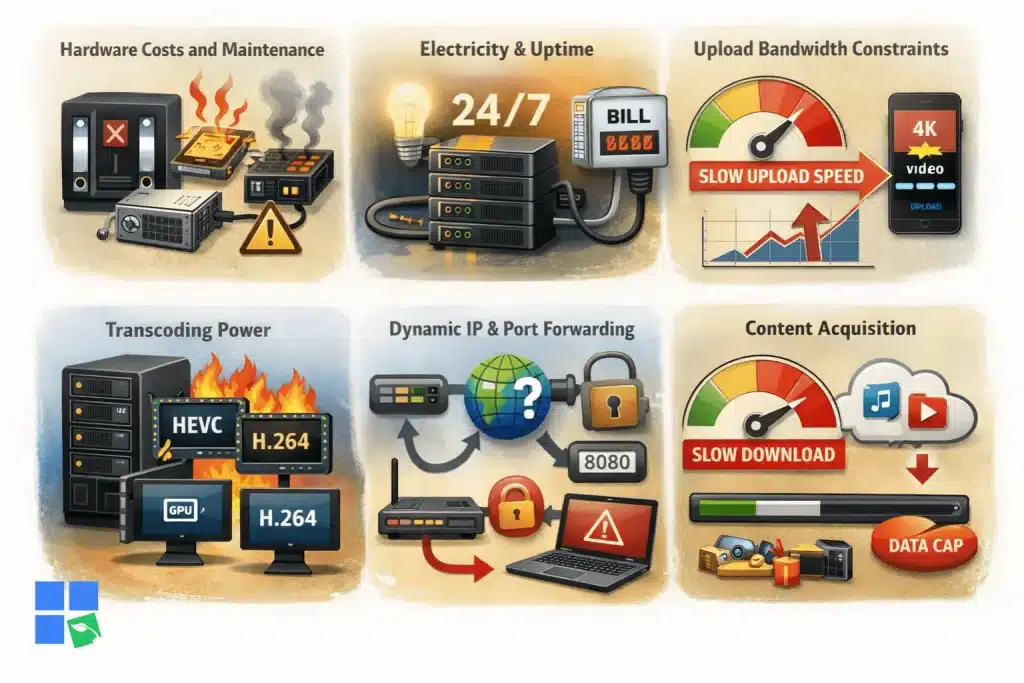
Building and maintaining a home media server sounds compelling. And for many users, it genuinely is a rewarding experience. But there are significant, often underestimated challenges:
1. Hardware Costs and Maintenance
The upfront cost of a capable home media server is not trivial. A NAS with two or more drives, a mid-range mini PC, or a repurposed machine with an SSD all require investment. Beyond purchase, hardware eventually fails. This includes drives failing, CPUs overheating, and power supplies dying. You are responsible for all of it.
2. Electricity and Uptime
A home media server must run 24/7 to be useful. Even a power-efficient NAS consuming 20–30 watts continuously adds up over a year. A more powerful dedicated server can consume 80–150 watts or more, especially when transcoding. Energy costs are a real and ongoing expense.
3. Upload Bandwidth Constraints
When you access your home media server remotely, your content streams over your home internet connection’s upload bandwidth. In most countries, residential internet plans are heavily asymmetrical – fast for downloads, slow for uploads. Streaming a 4K file at 40-80 Mbps to a remote device will quickly saturate a typical home upload connection, causing buffering and degraded quality.
4. Transcoding Power
Transcoding means converting a media file from one format to another in real time, which is computationally expensive. When a device cannot play a file in its native format (e.g., a 10-bit HEVC file on a device that only supports H.264), the server must transcode it on the fly. Without a powerful CPU or a GPU with hardware acceleration support, transcoding multiple streams simultaneously is simply not possible.
5. Dynamic IP and Port Forwarding
Remote access to a home media server requires either a static IP address or a dynamic DNS (DDNS) service, plus correct port forwarding configuration on your router. For non-technical users, this is a genuine barrier. For everyone, it introduces security exposure.
6. No Integration With Content Acquisition
A home media server stores and streams media, but it does not help you acquire that media efficiently. Downloading large media files directly to a home server over a residential connection is slow and consumes your ISP bandwidth cap. This is where the fundamental gap between a home media server and a seedbox becomes most apparent.
Is your home media server struggling with slow downloads and limited storage?
Upgrade your setup with a powerful Seedbox from RapidSeedbox and transform the way you manage your media library. Download at ultra-fast speeds, automate torrents, and sync effortlessly with Plex or Jellyfin while keeping your home IP private. Free up local bandwidth, eliminate buffering, and access your movies and shows from anywhere—without putting strain on your home network.
What Is a Seedbox, and How Does It Compare?
A seedbox is a remote, dedicated server hosted in a professional data center that is specifically designed for high-speed file transfer (typically via the BitTorrent protocol) and media management. Unlike a home media server, a seedbox runs in the cloud on enterprise-grade hardware, connected to a data center’s gigabit or multi-gigabit network.
RapidSeedbox is the leading seedbox provider, offering managed seedbox plans that combine high-speed downloading, Plex and Jellyfin integration, and remote access. All this, without touching your home network.
Seedbox vs. Home Media Server: Side-by-Side Comparison
| Feature | Home Media Server | RapidSeedbox |
|---|---|---|
| Hardware cost | $150–$500+ upfront | Included in subscription |
| Download speed | Limited by ISP (5–100 Mbps) | 1 Gbps–10 Gbps dedicated |
| Upload/streaming bandwidth | Limited by home upload speed | Data center bandwidth |
| Transcoding power | Depends on home hardware | Powerful server-grade CPUs/GPUs |
| Always-on reliability | Depends on your hardware & power | 99.9% uptime SLA |
| Remote access quality | Varies with home ISP | Consistent, high-quality |
| Energy cost | Ongoing (paid by you) | Included in subscription |
| Setup complexity | High (hardware + software + network) | Low (managed, pre-configured) |
| Plex/Jellyfin support | Manual setup | One-click install |
| Privacy | High (local) | High (no traffic logging) |
| Scalability | Limited by hardware | Upgrade plan as needed |
How a Seedbox Works as a Remote Media Server
A seedbox plan gives you a dedicated remote server with pre-installed torrent clients (such as qBittorrent, ruTorrent, or Deluge), Plex Media Server or Jellyfin, and direct access via a web dashboard or apps.
Here is how the workflow compares to a home media server:
Home Media Server Workflow:
- Search for content
- Download to home PC (slow, uses ISP bandwidth)
- Move files to server
- Wait for Plex/Jellyfin to scan
- Stream (limited by home upload speed)
Seedbox Workflow:
- Add torrent to seedbox
- Files download at 1-10 Gbps to the remote server
- Plex/Jellyfin automatically scans
- Stream instantly at data center speeds
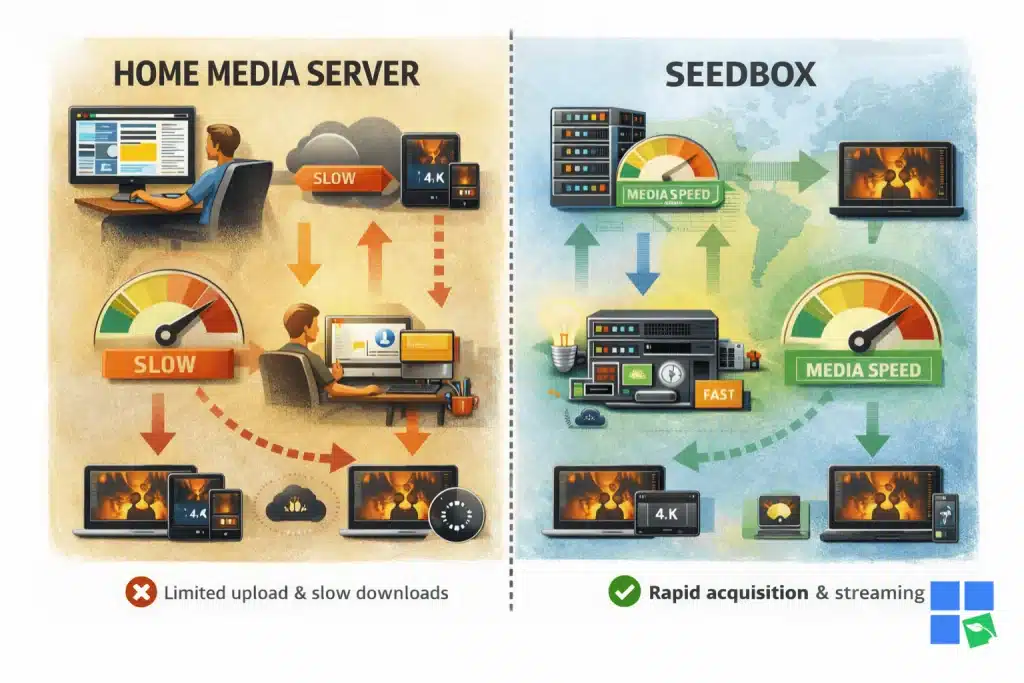
The seedbox eliminates the two biggest bottlenecks of a home media server: slow acquisition speed and limited home upload bandwidth for remote streaming.
Some RapidSeedbox plans also support Plex, meaning you can share your library with family members, enable hardware-accelerated transcoding on the server side, and access your content from any device in the world, without touching your home router or exposing your home network.
When a Home Media Server Still Makes Sense
A home media server is still a valid solution in specific scenarios:
- You already own content on physical hard drives and want to serve it locally with no monthly fee
- Your internet upload speed is fast (fiber symmetrical connections of 500 Mbps or higher reduce the bandwidth bottleneck)
- You value complete physical control over your data and hardware at all times
- Your use case is local-only – you only stream within your home, never remotely
- You enjoy the DIY process of building, configuring, and maintaining server hardware
For these users, Plex or Jellyfin running on a Synology NAS or a mini PC remains an excellent solution. A home media server and a seedbox can also be used together: download content at high speed on a seedbox, then transfer files to your home server for local storage and playback.
FAQs
A home media server is a computer or dedicated device that stores and streams your personal media library, including movies, TV shows, music, and photos, to other devices on your home network and over the internet.
The most widely used home media server applications are Plex Media Server, Jellyfin, and Emby. Plex is the most polished commercial option, while Jellyfin is the best fully free and open-source alternative.
At minimum, you need a computer or NAS device with sufficient storage (2TB+), a network connection, and enough CPU power for transcoding. For 4K content and multiple simultaneous streams, a mid-range mini PC with Intel Quick Sync or a dedicated GPU is recommended.
Yes, but remote access is limited by your home internet connection’s upload speed. If you frequently stream remotely, a seedbox provides significantly better performance because it uses data center bandwidth rather than your residential upload connection.
A home media server runs on hardware in your home. A seedbox is a remote server hosted in a professional data center, offering much faster download and upload speeds, higher reliability, and no dependency on your home network or electricity. Seedboxes like RapidSeedbox also include Plex and Jellyfin support.
For users who acquire content via torrents and want reliable remote streaming, yes, a seedbox is generally better. It eliminates hardware costs, maintenance, bandwidth limitations, and setup complexity. For local-only playback of files you already own, a home media server may still be preferable.
A basic home media server can cost $100-$200 using repurposed hardware. A capable NAS-based server with drives costs $300-$600+. A seedbox plan from RapidSeedbox starts at a fraction of that with no upfront hardware investment and no ongoing electricity costs.
Final Words: Home Media Server or Seedbox?
A home media server is a powerful concept – the ability to own your media library and stream it anywhere is genuinely compelling. But the practical reality involves ongoing hardware investment, maintenance, electricity costs, and the hard ceiling imposed by your home internet connection’s upload bandwidth.
A seedbox removes those constraints. It gives you the same Plex or Jellyfin experience you would get from a home media server, but hosted on enterprise infrastructure with gigabit speeds, reliable uptime, and no hardware to manage. For users who value performance, convenience, and privacy, the seedbox is the evolved form of the home media server.
Whether you are building your first media setup or looking to upgrade from a struggling home server, check our seedbox plans and see why thousands of media enthusiasts have made the switch.
Want to stream your home media server remotely without buffering, throttling, or privacy risks?
Power up your home media server with a high-performance Seedbox from RapidSeedbox. Enjoy lightning-fast downloads, seamless Plex streaming, secure torrent automation, and remote access to your media library from anywhere in the world. Offload heavy traffic from your home network, protect your IP, and stream your movies, TV shows, and music in flawless quality – 24/7.
0Comments