 By
By
Managing large digital libraries and making sure you can access them easily on different devices can be tricky. It can lead to storage limitations and slow transfer speeds. That’s where a rclone seedbox comes in.
It’s a solid choice for managing files, moving data around quickly, and blending with the cloud. Rclone, a handy command-line program, teaming up with a seedbox, creates an optimized environment for torrenting, media streaming, and automated cloud synchronization.
Table of Contents
- What is an Rclone Seedbox?
- Rclone Seedbox: Key Facts
- What is Rclone?
- What is a Seedbox?
- Why Combine Rclone with a Seedbox?
- How to Set Up Rclone on Your Seedbox
- Essential Rclone Commands for Seedbox Management
- Automating Rclone Tasks on Your Seedbox
- Rclone for Seamless Media Streaming with Plex
- Security and Privacy with Rclone Seedbox
- Choosing the Best Rclone Seedbox Provider: A Comparative Analysis
- Who Should Use an Rclone Seedbox?
- How Rclone and Seedboxes Actually Work
- Common Mistakes and Limitations with Rclone Seedbox Setups
- Final Words
What is an Rclone Seedbox?
An rclone seedbox is a high-speed, remote server that’s been specifically optimized for torrenting and data management.
It’s integrated with Rclone, which is a powerful command-line tool for syncing files to and from various cloud storage providers. It provides a dedicated environment where users can download, upload, and manage large files with exceptional speed, then seamlessly transfer or mount these files to their preferred cloud storage. This effectively extends local storage capabilities and enables advanced media workflows.
Rclone Seedbox: Key Facts
- What it is: A remote server (seedbox) pre-configured or optimized for torrenting and high-speed data transfers, integrated with the Rclone utility for seamless cloud storage management.
- How it works: Files are downloaded to the seedbox, then Rclone is used to transfer, sync, or mount these files to various cloud storage services, treating cloud storage as local drives.
- Main components: Seedbox server (with high bandwidth and storage), Rclone software, and various cloud storage providers (Google Drive, Dropbox, OneDrive, etc.).
- Key benefits: High-speed torrenting, automated cloud synchronization, enhanced privacy, remote media streaming capabilities (e.g., with Plex), and flexible data management.
- Difficulty level: Intermediate (requires basic command-line familiarity for advanced configurations).
- Best for: Media enthusiasts, data hoarders, users requiring fast and private file transfers, and those looking to integrate cloud storage with their media servers.
- Alternatives: Direct cloud storage solutions, traditional VPNs with local torrent clients, or dedicated servers without seedbox-specific optimizations.
- Last updated: 2026
What is Rclone?
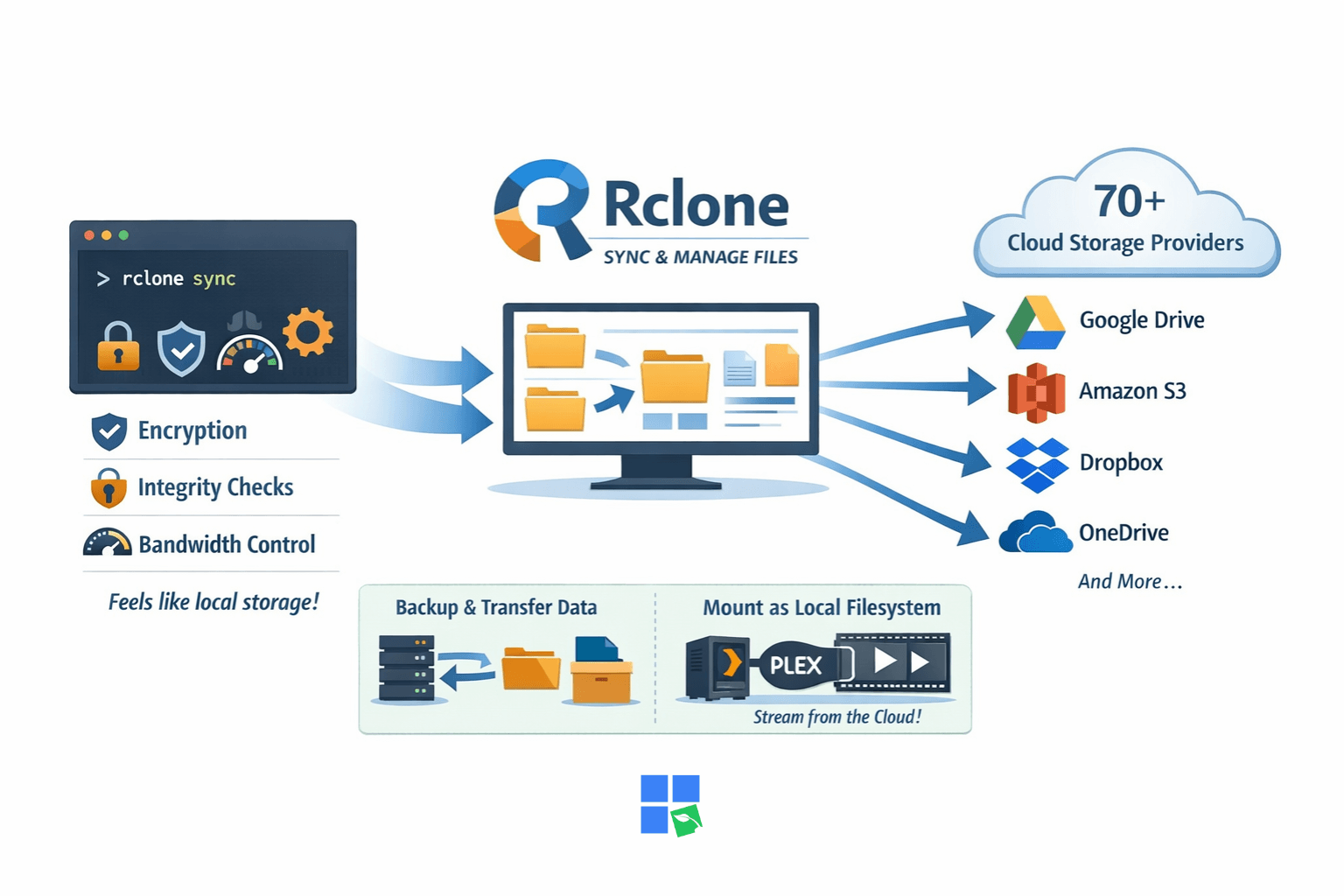
Rclone is an open-source command-line program that can sync files and directories to and from over 70 different cloud storage providers, including popular services like Google Drive, Amazon S3, Dropbox, OneDrive, and many more.
It works by providing a unified interface to manage data across these diverse platforms, abstracting away the complexities of each individual cloud API.
This utility is great for backing up your data, moving your data around, and using cloud storage as a local filesystem. It makes remote data feel like it’s right on your machine. It’s got all the bells and whistles, including encryption, integrity checks, and bandwidth throttling, making it a must-have for anyone handling a lot of data in the cloud.
Rclone is ideal for users who need to manage files across multiple cloud storage services, automate data transfers, or integrate cloud storage with local applications like media servers. It excels in scenarios requiring precise control over data movement and synchronization.
However, for simple, one-off file uploads or downloads to a single cloud service, using the provider’s native client or web interface might be simpler for novice users. Still, for any advanced use case, Rclone quickly becomes the superior choice.
A user with a large media library stored on Google Drive can use Rclone to mount that drive on their seedbox, allowing a media server like Plex to access and stream content directly from the cloud without consuming local seedbox storage.
What is a Seedbox?
A seedbox is a remote server that’s all about speed and security. It’s used for uploading and downloading digital files, mostly through the BitTorrent protocol. These servers are usually in data centers with super-fast internet connections, often with speeds of 1 Gbps or even 10 Gbps, which is way faster than most home internet connections.
Seedboxes give you a safe and private space for torrenting. Everything happens on the remote server, which hides your IP address. On top of torrenting, seedboxes often come with apps already installed for media management, streaming, and file synchronization, making them handy tools for digital content fans.
When to use it:
A seedbox is perfect for users who frequently download or upload large files, want to maintain a high upload ratio on private trackers, or require a secure and private environment for their online activities. It’s also excellent for those who want to stream media directly from their server.
When NOT to use it:
For users with minimal downloading needs or those who prefer to manage all their files locally, a seedbox might be overkill. However, the benefits of speed, privacy, and remote access often outweigh the cost for many.
Real-world example:
A user wants to download a large Linux distribution ISO file quickly and privately. They can initiate the download on their seedbox, which completes in minutes due to the high-speed connection, and then transfer the file to their local machine at their leisure.
Why Combine Rclone with a Seedbox?
Rclone and a seedbox work really well together to create an awesome ecosystem for managing digital content. A seedbox gives you the raw speed and resources you need to get files quickly, and Rclone has the tools to integrate that content with basically any cloud storage provider.
This lets users move storage-heavy media to cheap cloud options, automate transfers, and even stream content straight from the cloud using apps like Plex or Emby, all while using the seedbox’s high bandwidth.
The seedbox acts as a high-speed intermediary, handling the initial downloads and uploads, and then Rclone takes over to manage the long-term storage and accessibility in the cloud. This setup effectively bypasses local storage limitations, enhances privacy, and streamlines media workflows, making it a cornerstone for modern digital libraries.
This combination is ideal for users with extensive media collections, those who need to maintain high torrent ratios without impacting local bandwidth, or anyone looking for an automated, secure, and scalable solution for managing large files across various platforms.
How to Set Up Rclone on Your Seedbox
Setting up Rclone on a seedbox is a simple process that makes the most of its cloud integration features. Most reputable seedbox providers, including Rapidseedbox, often come with Rclone pre-installed or offer one-click installation options, which makes the initial setup a breeze.
If you need to do a manual install, you’ll usually need to access your seedbox via SSH, download the Rclone binary, and place it in an executable path.
The main part of the setup process is configuring “remotes,” which is what Rclone calls cloud storage connections. It’s basically an interactive command-line wizard where you pick your cloud provider (like Google Drive or Dropbox), sign in to your account, and set your encryption settings if you want.
Once you’ve configured it, Rclone stores those remote settings in a configuration file, usually located in your ~/.config/rclone/rclone.conf. This makes it easy to reference your cloud storage by its remote name in later commands.
After logging into your seedbox via SSH, you would run rclone config to start the interactive setup. You’d choose ‘Google Drive’ as your remote type, follow the authentication steps (often involving copying a URL to your local browser and pasting back an authorization code), and then name your remote, for instance, gdrive. This gdrive remote can then be used in all subsequent Rclone commands.
Essential Rclone Commands for Seedbox Management
If you want to efficiently manage your files between your seedbox and cloud storage, you’ve got to master a few essential Rclone commands.
- The copy command is key for moving files from your seedbox to a cloud remote, or the other way around, making sure your data stays intact during the transfer.
- When you need to keep two locations the same, the sync command is super helpful. It makes the destination match the source, and it deletes extra files at the destination if they’re not there at the source.
- The move command moves files and then deletes them from the source, which is useful for offloading completed downloads.
- One of the most powerful commands for seedbox users is mount, which lets you treat a cloud storage remote as a local filesystem on your seedbox. This enables apps like Plex to access cloud-stored media directly.
- Also, LS and Tree are handy for listing directory contents, and Size gives you info on the total storage used.
Each command supports various flags and options for fine-tuning behavior, such as –progress for transfer status, –checksum for verification, and –dry-run for testing commands before execution.
These commands are used daily for routine file transfers, backups, synchronization, and integrating cloud storage with other seedbox applications. They form the backbone of an automated media management workflow.
For very small, infrequent transfers, a graphical SFTP client might be sufficient. However, for bulk operations or automation, Rclone commands are far more efficient.
Example:
To copy a newly downloaded movie from your seedbox’s downloads folder to your Google Drive remote named gdrive, you would use rclone copy /home/user/downloads/movie.mkv gdrive:movies/ –progress. To then mount your entire Google Drive to a local folder /mnt/gdrive for Plex, you’d use rclone mount gdrive: /mnt/gdrive –allow-other –vfs-cache-mode full.
Automating Rclone Tasks on Your Seedbox
Automating Rclone tasks on your seedbox changes manual file management into a hands-off, efficient process, making your setup much more useful.
The main way to schedule these automated tasks on Linux-based seedboxes is cron, a time-based job scheduler.
You can create cron jobs to have your seedbox run Rclone commands at certain times, like every day, every hour, or even every few minutes.
Some common uses for this are moving completed torrents from your seedbox to cloud storage, syncing specific folders, or refreshing mounted cloud drives.
To keep things running smoothly, it’s a good idea to use full paths to Rclone and its configuration file in your cron scripts. Also, be sure to log the output of these jobs for troubleshooting.
A lot of users also create bash scripts that group together multiple Rclone commands and conditional logic. This gives you a more solid automation solution that can handle different scenarios, like checking for file existence before moving or syncing.
Automation is key for keeping your media library organized, making sure you have backups on time, and getting the most out of your seedbox by getting rid of repetitive manual tasks. It’s a great fit for users with big, constantly changing content libraries.
Rclone for Seamless Media Streaming with Plex
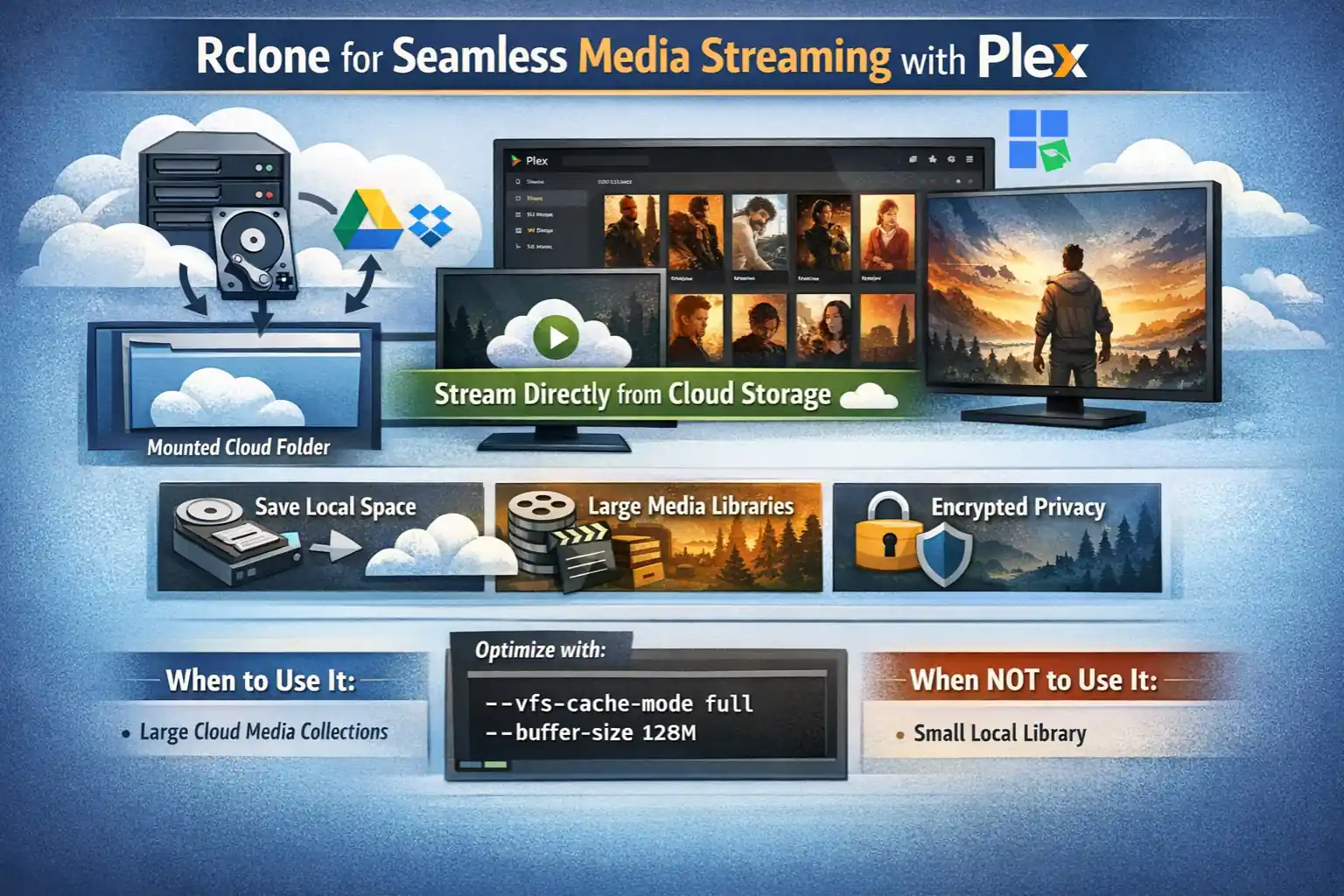
For anyone into media, using Rclone with Plex on a seedbox is a game-changer. It lets you stream content straight from your cloud storage without using up space on your local seedbox.
You can do this with the rclone mount command, which makes your cloud drive show up as a local folder on your seedbox. Plex Media Server can then scan this mounted cloud folder as if it were local storage, indexing your entire media library regardless of its physical location.
This setup is great for big media collections, since cloud storage is usually cheaper and more flexible than a dedicated seedbox.
To get the most out of streaming, it’s important to use specific Rclone mount options like –vfs-cache-mode full and –buffer-size.
These options are key to efficient caching and pre-loading media files, which minimizes buffering and ensures a smooth playback experience. Plus, using an encrypted Rclone remote adds an extra layer of privacy for your media files stored in the cloud.
When to use it:
This integration is perfect for users who want to build a huge, easy-to-access media library without the limitations of local storage. It’s also great for those who care about privacy and having a smooth streaming experience on different devices.
When NOT to use it:
If your media library is small and fits comfortably within your seedbox’s local storage, or if you prefer to keep all media strictly local, this advanced setup might not be necessary. But when it comes to scalability and flexibility, it’s hard to beat.
Real-world example:
A user has terabytes of movies and TV shows stored on an encrypted Google Drive remote named cryptgdrive. They mount this remote to /mnt/cloudmedia on their Rapidseedbox using rclone mount cryptgdrive: /mnt/cloudmedia –allow-other –vfs-cache-mode full –buffer-size 128M. Then, within Plex, they add /mnt/cloudmedia/movies and /mnt/cloudmedia/tvshows as library folders, allowing Plex to index and stream all their cloud-based content.
Security and Privacy with Rclone Seedbox
When it comes to online data, security and privacy are super important. An rclone seedbox setup is a great way to keep your digital assets safe and sound. The seedbox itself provides a layer of anonymity by masking your home IP address during torrenting activities, as all traffic originates from the seedbox’s IP. Rclone takes it even further with its solid encryption features.
When you set up a remote, you can choose to encrypt your files before they’re uploaded to the cloud. That way, even if your cloud storage provider’s security is compromised, your data remains unreadable. This encryption is client-side, meaning you’re the only one with the keys, so it’s super private.
Rclone supports various secure protocols like SFTP and WebDAV for transfers, and when combined with a seedbox that offers SSH access and VPN capabilities, the entire data pipeline becomes highly secure.
It’s really important to use strong, unique passwords for your seedbox and cloud accounts, and to regularly review Rclone configurations to make sure you’re following the best security practices. A seedbox’s privacy benefits and Rclone’s encryption features team up to create a super secure environment for managing sensitive data.
Use it all the time, especially when dealing with personal or sensitive data, or when you want to make sure your online activities stay private and secure from prying eyes. The encryption feature is a must-have for peace of mind.
Choosing the Best Rclone Seedbox Provider: A Comparative Analysis
Picking the right rclone seedbox provider is key to getting the most out of your file management and cloud integration workflows. A lot of providers offer seedbox services, but their support for Rclone, their infrastructure, pricing, and features can differ a lot.
Below, we’ll go over some of the top seedbox providers that work well with Rclone.
| Feature / Provider | Rapidseedbox | Ultra.cc | Seedhost.eu | Whatbox.ca |
| Rclone Support | Excellent (Pre-installed, guides, dedicated support) | Good (Pre-installed, documentation) | Good (Manual install, documentation) | Excellent (Pre-installed, wiki) |
| Network Speed | 10 Gbps (Premium plans) | Up to 50 Gbps (Shared) | 1 Gbps, 10 Gbps, 40 Gbps options | 40 Gbps (Shared) |
| Storage Options | 1.2 TB – 5.6 TB | 500 GB – 10 TB+ | 1 TB – 10 TB+ | 1 TB – 10 TB+ |
| Bandwidth | Unlimited | Varies (some plans have caps) | Unlimited | Unlimited |
| One-Click Apps | 80+ (Plex, Emby, Sonarr, Radarr) | Many popular apps | Many popular apps | Many popular apps |
| SSH Access | Yes (with root credentials) | Yes | Yes | Yes |
| Dedicated IP | Yes (on most plans) | No (shared IP) | Varies by plan | No (shared IP) |
| Pricing (Monthly) | Starts ~$15/month | Starts ~$5/month | Starts ~$15/month | Starts ~$15/month |
| Customer Support | 24/7 Live Chat, Prioritized | Ticket system | Ticket system | Ticket system |
| Plex Optimization | Highly optimized, guides | Good | Good | Good |
Choose Rapidseedbox when:
You’re all about top-tier performance, dedicated resources, and great documentation and customer service. You also want a streamlined environment for media streaming with Plex. Their dedicated IP and root SSH access offer unparalleled control and privacy, making them ideal for power users and those running critical services.
Struggling with slow rclone sync speeds or unstable transfers?
Upgrade your workflow with a RapidSeedbox Seedbox and unlock lightning-fast rclone syncing, uninterrupted transfers, and massive bandwidth for handling large files. Perfect for automated backups, cloud mounts, and media management – your rclone setup deserves a powerful backend.
Boost Your rclone Performance
Consider Ultra.cc when:
You’re on the lookout for an affordable option with solid Rclone support and decent speeds, especially when you’re just getting started. Keep in mind that some plans have bandwidth caps.
Seedhost.eu is a decent choice when:
You need a reliable provider with a range of storage and speed options, and you are comfortable with a more hands-on approach to Rclone installation and configuration.
Choose Whatbox.ca when:
You care about having Rclone already set up and a solid community reputation for speed and reliability, especially for regular seedbox use. If you’re dealing with really big, long-lasting Rclone transfers, you might want to think about using their shared network.
Who Should Use an Rclone Seedbox?
For Media Enthusiasts and Cord-Cutters
Profile: People who have big collections of movies, TV shows, and music and want to stream it to different devices without having to spend a lot on storage or use expensive streaming services.
Why it works: With a seedbox for fast acquisition and Rclone for seamless cloud integration, users can build massive, accessible media libraries. They can use Rclone to set up cloud storage and then use Plex or Emby to stream content straight from the cloud. This lets them get around any limitations on local storage while still having really good playback quality.
Getting started: First, set up a Rapidseedbox, install Plex, and set up an Rclone remote for a cloud provider like Google Drive. Then, use rclone mount to make the cloud drive accessible to Plex.
For Data Hoarders and Archivists
Profile: People who collect, organize, and archive a lot of digital data like software distributions, historical documents, or large datasets, need strong storage and management solutions.
Why it works: Rclone’s awesome synchronization and transfer features, along with the high bandwidth of a seedbox, make it a perfect tool for handling huge datasets. They can automate backups, verify data integrity with checksums, and use client-side encryption to keep their important archives secure, organized, and easily accessible across multiple cloud platforms.
Getting started: Try to get a handle on the Rclone sync and copy commands, and set up automated cron jobs on the seedbox to regularly back up important data to encrypted cloud remotes.
For Privacy-Conscious Downloaders
Profile: People who care about anonymity and security when downloading files, especially via BitTorrent, want to make sure their online activities aren’t tracked by their ISP or other third parties.
Why it works: A seedbox gives you more privacy by hiding your home IP address. When you combine that with Rclone’s encryption features, the whole process – from downloading the file on the seedbox to storing it in the cloud is super secure. Even if the cloud provider gets hacked, the encrypted data is still safe because it’s protected by the user’s unique key.
Getting started: Pick a seedbox provider that has solid privacy policies and dedicated IPs, like Rapidseedbox. Set up an encrypted Rclone remote (crypt) and make sure all transfers to the cloud use this encrypted connection.
How Rclone and Seedboxes Actually Work
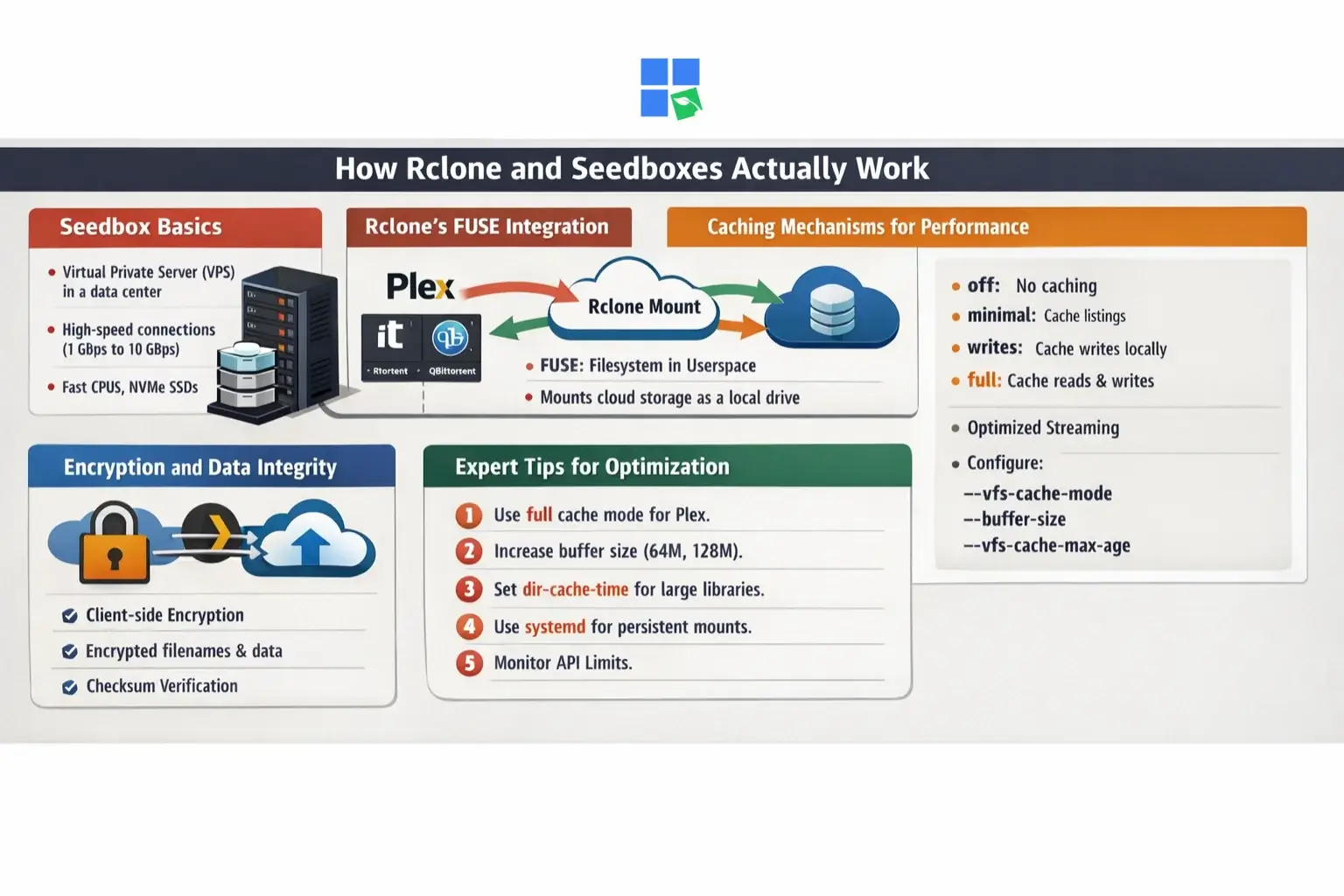
If you understand how Rclone and seedboxes work, you can get the most out of them and make them work better. A seedbox is basically a virtual private server (VPS) or a dedicated server in a data center, usually running a Linux-based operating system.
These servers are decked out with high-performance hardware, like fast CPUs, plenty of RAM, and often NVMe SSDs, along with network connections ranging from 1 Gbps to 10 Gbps or even higher.
When you start downloading a torrent on a seedbox, the torrent client (like rTorrent, Transmission, or qBittorrent) connects straight to the network, which lets you get and share data super fast. The server environment is usually optimized for I/O operations, so there aren’t any bottlenecks during heavy torrenting activity.
Rclone’s FUSE Integration
Rclone uses something called the Filesystem in Userspace (FUSE) kernel module on Linux (and similar technologies on other operating systems) to achieve its mount functionality. FUSE lets regular users make their own file systems without messing with kernel code.
When you run rclone mount, it basically acts like a user-space daemon, translating standard filesystem operations (like reading, writing, listing directories) into API calls to the remote cloud storage provider.
For example, when Plex tries to read a file from an Rclone-mounted Google Drive, Rclone intercepts the request, fetches the necessary data chunks from Google Drive via its API, and presents them to Plex as if they were local files. This abstraction is key for seamless integration, but it also introduces potential latency, since every file operation involves a network request to the cloud provider.
Caching Mechanisms for Performance
To mitigate the latency inherent in cloud interactions, Rclone employs sophisticated VFS (Virtual File System) caching mechanisms. The –vfs-cache-mode flag is paramount for optimizing performance, especially for media streaming .
- off: No caching. Every read/write operation directly hits the cloud. Suitable for small, infrequent accesses.
- minimal: Caches directory listings and file metadata. Reads are still direct from the cloud.
- writes: Caches writes locally before uploading to the cloud. This improves write performance and reduces the risk of data loss during intermittent network issues.
- full: Caches both reads and writes. When a file is read, it’s downloaded to a local cache directory. Subsequent reads of the same file (or parts of it) are served from the local cache, significantly speeding up access. This mode is highly recommended for media streaming with applications like Plex, as it allows for efficient buffering and reduces API calls to the cloud provider. However, it consumes local disk space on the seedbox for the cache.
Proper configuration of cache-related flags like –vfs-cache-max-age, –vfs-cache-max-size, and –buffer-size is essential to balance performance with disk space usage on your seedbox.
For example, a larger –buffer-size (e.g., 128M) can help pre-load more data for smoother streaming of high-bitrate media.
Encryption and Data Integrity
Rclone’s crypt remote type provides strong client-side encryption. When you set up a crypt remote, Rclone encrypts file names and contents on your seedbox before sending them to the cloud storage. This means that the data stored on the cloud provider’s servers is completely unintelligible without your encryption password and salt.
This is a critical security feature because it protects your data even if the cloud provider’s security is breached. Rclone also performs checksum verification during transfers, ensuring that the data copied to the destination is identical to the source. This maintains data integrity across different storage locations.
Expert Tips for Optimization
- Choose the right –vfs-cache-mode: For Plex streaming, full is almost always the best choice, but monitor your seedbox’s disk space. For archival or backup, writes or minimal might be sufficient.
- Optimize buffer size: Increase this for high-bitrate media to reduce buffering. A value of 64M or 128M is often a good starting point.
- Manage dir-cache-time: A longer dir-cache-time (e.g., 12h or 24h) reduces API calls for directory listings, which can be beneficial for large libraries, but means changes might take longer to appear.
- Use systemd or screen for persistent mounts: For automated and persistent Rclone mounts, especially after reboots, use systemd services or screen/tmux sessions to keep the Rclone process running reliably in the background.
- Monitor API limits: Be aware of your cloud provider’s API rate limits. Excessive API calls, often due to misconfigured caching or frequent scanning by media servers, can lead to temporary bans. Rclone has built-in retry mechanisms, but proactive optimization is better.
Common Mistakes and Limitations with Rclone Seedbox Setups
An rclone seedbox is a powerful and flexible tool, but there are a few common issues that can cause performance issues or just get frustrating. It’s important to understand these challenges to keep things running smoothly and efficiently.
1. Ignoring Cloud Provider API Rate Limits
A lot of cloud storage providers, especially Google Drive, have API rate limits in place to prevent abuse and make sure everyone’s using it fairly. If you’re doing a lot of Rclone operations that aren’t optimized, like doing a bunch of directory listings in a row or a lot of file reads and writes without proper caching, you can quickly hit these limits.
That can lead to temporary bans or throttled access. This is especially common when media servers like Plex are configured to scan large libraries too frequently or without enough Rclone VFS caching.
How to avoid:
Implement robust VFS caching (–vfs-cache-mode full) for mounted remotes, especially for media streaming. Adjust dir-cache-time to a longer duration (e.g., 12h or 24h) to reduce frequent directory scans. Use rclone rc commands to clear the cache manually when necessary, rather than relying on constant re-scans. Consult your cloud provider’s API documentation for specific limits and best practices.
2. Inadequate VFS Caching for Streaming
If you try to stream high-bitrate media directly from a cloud mount without enough VFS caching, you might see constant buffering and a poor user experience. Rclone needs time to fetch data chunks from the cloud, and without a local cache, every read request becomes a direct network call, which is often too slow for real-time streaming.
How to avoid:
Always use –vfs-cache-mode full when mounting cloud drives for media streaming. Allocate enough local disk space on your seedbox for the VFS cache. Experiment with –buffer-size (e.g., 64M or 128M) and –vfs-read-chunk-size to find optimal settings for your specific media and network conditions. Ensure your seedbox has enough RAM and CPU resources to handle the caching operations.
3. Misunderstanding Rclone Encryption (Crypt Remotes)
Some users think that using Rclone provides end-to-end encryption, but that’s not the case. You need to explicitly configure a crypt remote. Some people might lose their encryption password or salt, which would make their data permanently inaccessible.
How to avoid:
If you want to encrypt your data, you’ll need to set up a crypt remote in Rclone. This remote acts as a wrapper around another remote (e.g., your Google Drive remote), encrypting files before they’re sent to the underlying storage.
It’s also important to keep your encryption password and salt safe and secure. If you don’t have them, you can’t recover your encrypted data. Hey, just a heads-up: before you start moving a lot of data, it’s a good idea to test your crypt remote with a small, non-essential file to make sure it’s working right.
4. Overlooking Seedbox Resource Limitations
Even high-performance seedboxes have limited resources (CPU, RAM, disk I/O). Using a bunch of demanding applications at the same time (like a torrent client, Plex, and a few Rclone sync jobs) can really put a strain on your resources, causing your system to slow down, apps to crash, or Rclone transfers to fail.
How to avoid:
Keep an eye on how your seedbox is using its resources (CPU, RAM, disk I/O, network bandwidth). Try to schedule intensive Rclone tasks (like large syncs) during off-peak hours. If you’re always hitting resource limits, it might be time to upgrade your seedbox plan. You can also optimize your applications by configuring Plex to avoid frequent library scans or transcode only when necessary.
5. Initial Setup Complexity
For new users, the command-line nature of Rclone and the intricacies of seedbox environments can present a steep learning curve. Configuring remotes, understanding various flags, and setting up automation scripts require a certain level of technical proficiency.
6. Dependence on Cloud Provider Policies
Your Rclone seedbox setup depends on the terms of service and technical limits of your cloud storage provider. Changes in how APIs are accessed, stored, or priced by providers can mess with the functionality and cost-effectiveness of your setup.
7. Latency for Direct Cloud Access
Even though rclone mount makes cloud storage seem like local storage, it’s still accessing data over the internet. This can lead to some lag compared to local storage, which might show up as slight delays in file operations or initial buffering during media playback, even with optimal caching.
Final Words
The rclone seedbox combo is a whole new way of managing, accessing, and securing your digital content. It takes the raw power and speed of a dedicated seedbox and combines it with the versatility of Rclone.
This gives users an ecosystem that goes beyond the limitations of traditional local storage and conventional cloud services.
This dynamic duo gives you super-fast torrenting, automatic file transfers, and easy integration with Plex and other media servers. Plus, it keeps your data safe and sound with client-side encryption.
Rclone will give you the tools and infrastructure to take your digital experience to the next level. The initial setup might require some knowledge of command-line operations, but the long-term benefits of efficiency, scalability, and control make it a worthwhile investment.
Get with the future of data management and take full advantage of your cloud storage with a rclone seedbox that’s set up right.
Want to make rclone transfers to your seedbox faster and easier?
Pair your rclone setup with a high-performance RapidSeedbox Seedbox and move, sync, and manage files with more speed, stability, and storage flexibility. Whether you’re automating uploads, mounting remote storage, or streamlining your media workflow, a dedicated seedbox gives you the reliable environment rclone users need.
Get a Seedbox for rclone
Disclaimer: This article is for informational and educational purposes only. The tools and services mentioned, including Rclone and various seedbox providers, are legal software and platforms. However, we do not condone or encourage the use of these tools for downloading or distributing copyrighted material without permission. Users are responsible for complying with all applicable laws and the terms of service of their respective cloud providers. Technical configurations are provided “as-is,” and the author is not liable for any data loss or account issues resulting from the use of this guide.
0Comments