 By
By
Tired of Copy-Pasting Commands? 🤔 Get our free PDF: YT-DLP Cheat-Sheet – 50 Useful YT-DLP Commands.
In this YT-DLP guide, we will explore what yt-dlp is and how to download and install it on your Windows or Linux machine.
We’ll also cover the necessary dependencies, including FFmpeg, and walk through how to use yt-dlp to download videos.

Disclaimer: This material has been developed strictly for informational purposes. It does not constitute endorsement of any activities (including illegal activities), products or services. You are solely responsible for complying with the applicable laws, including intellectual property laws, when using our services or relying on any information herein. We do not accept any liability for damage arising from the use of our services or information contained herein in any manner whatsoever, except where explicitly required by law.
Table of Contents.
- What is yt-dlp?
- How to download and install YT-DLP?
- Installing Dependencies: FFmpeg and FFProbe
- How to use YT-DLP in Windows and Linux.
- Advanced uses for Plugin yt-dlp.
- yt-dlp: Pros and Cons
- yt-dlp vs youtube-dl: Key Differences
- FAQ: yt-dlp
- Final Words.
1. What is yt-dlp?
YT-DLP is a free and open-source software project created (as a fork) from the now-discontinued project, youtube-dlc. yt-dlp is based on the popular YouTube downloader, youtube-dlc, but now comes with additional features and improvements. This software is basically used to download videos from YouTube, Vimeo, and other similar websites.
Downloading and installing yt-dlp is relatively easy, but learning how to use it properly, can take some time. YT-DLP is a command-line tool used on Windows, macOS, and Linux operating systems. Having no “beautiful” front-end GUI puts many people off, yet it is the most potent YouTube downloader available.
What are YT-DLP’s main features?
- Network Options: Change how yt-dlp communicates with the network. This includes options such as setting a proxy, adjusting the timeout value, and specifying the user agent string.
- Bypass Geo Restriction: This feature allows you to bypass geographical restrictions that may prevent you from accessing specific videos based on location. You can use yt-dlp options with a VPN or a proxy to get around these restrictions.
- Video Selection: With yt-dlp, you can select the videos you want to download from a playlist or channel. In addition, you can also download entire playlists and channels.
- Download Options: This feature allows you to control the downloading process. You can, for example, choose to download only audio, only video, or both. You can also set the video quality and download speed limits.
- Filesystem Options: With this feature, you can specify the output directory and filename templates for downloaded videos.
- Thumbnail Images: Download thumbnail images for videos along with the video itself. You can even specify the image format and size.
- Workarounds: This feature provides various workarounds for issues arising during the download process. For example, you can bypass SSL certificate verification using the no-check-certificate option.
- Automatic retries for failed downloads. By default, yt-dlp will make three attempts to download a video before giving up and moving on to the next one. You can also configure this number of retries.
- Video Format Options: Yt-dlp lets you choose the video format you want to download, such as MP4, WebM, or FLV. You can also set the video quality and resolution.
- Subtitle Features: This yt-dlp option allows you to download subtitles (embed them) along with the video. You can specify the subtitle format and language.
- Authentication Options: You can authenticate with certain websites, such as YouTube or Vimeo, using options such as username and password or API key.
- Post-processing Options: Perform various post-processing tasks on downloaded videos, such as merging or splitting video files, adding metadata, or converting the video to a different format.
- Integrates with SponsorBlock: This feature enables you to mark/remove sponsor sections in YouTube videos through the SponsorBlock API.
| 🍿 Interesting fact: You can automate mass video downloads with yt-dlp on a seedbox by combining a URL list, a download archive, and a scheduled script (via cron or Task Scheduler). With root access (RapidSeedbox’s premium plans), your seedbox can fetch, process, and store new videos 24/7 — hands-free. Perfect for building your own private streaming powerhouse! |
2. How to download and install YT-DLP?
- Go to yt-dlp official GitHub repository: https://github.com/yt-dlp/yt-dlp
- Scroll down to the bottom of the page, where the download button is visible. This internal (anchor) link will take you to: https://github.com/yt-dlp/yt-dlp#installation.
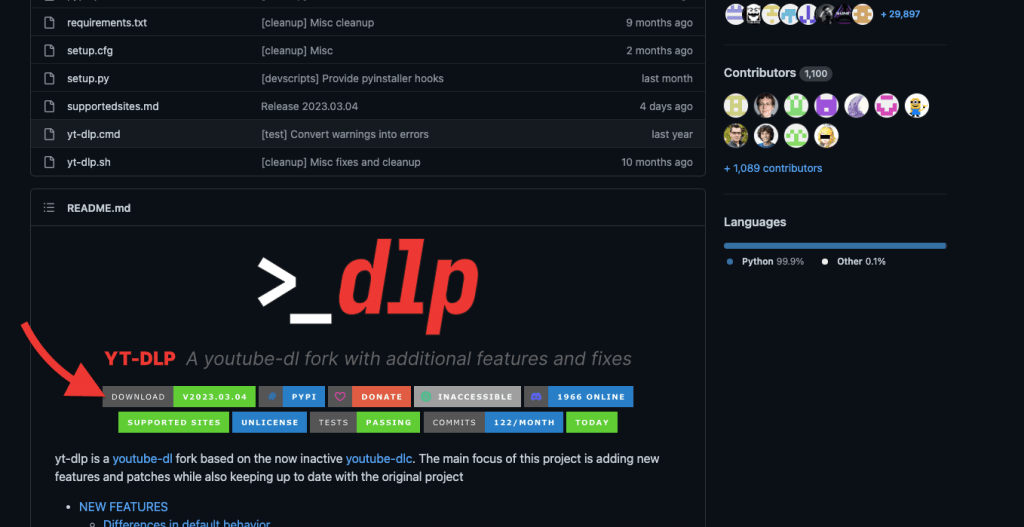
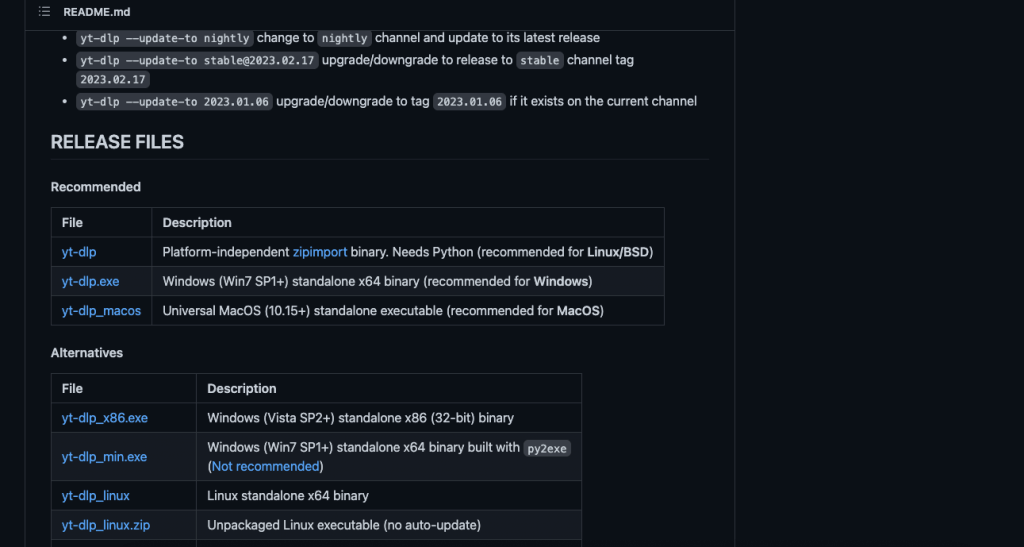
- On this installation page, scroll down and find the latest release files. Locate the executable files, yt-dlp (zip import binary recommended for Linux or BSD), yt-dlp.exe (for Windows), or yt-dlp_macOS (for Windows). If your OS does not support any of these release files, scroll down on this page ‘alternatives’ to find more options.
- Choose your platform or Operating system and download the appropriate release file.
a. Downloading and Installing yt-dlp on Windows.
- For illustration purposes, we will download and run yt-dlp.exe for a Windows 2022 Server.
- Once downloaded, verify the size, version, and company. Take a look at the screenshot below.
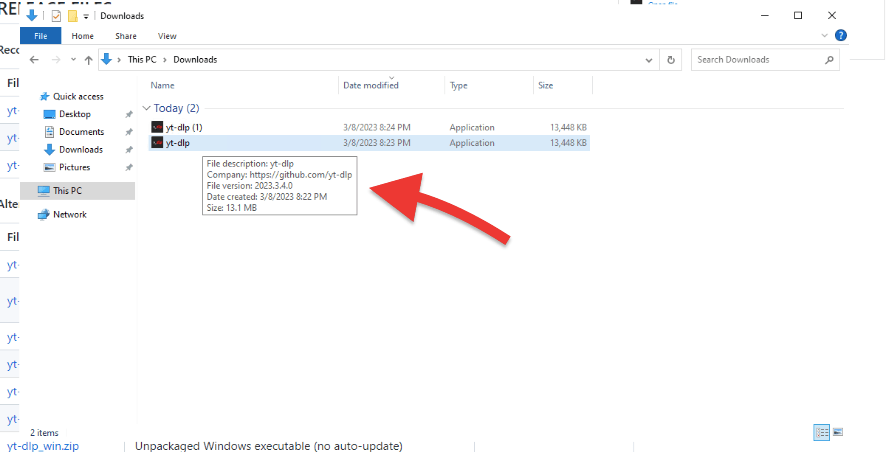
Note: The yt-dlp.exe file is not an installer; it’s the executable file for yt-dlp itself. In the context of Windows, an executable file (with an .exe extension) is a program that can run directly once it’s clicked or executed from the command line. For yt-dlp, you simply place the yt-dlp.exe file in a directory of your choice (for instance C:\ytdlp) and run it directly from there.
b. Downloading and Installing yt-dlp in Linux (Ubuntu).
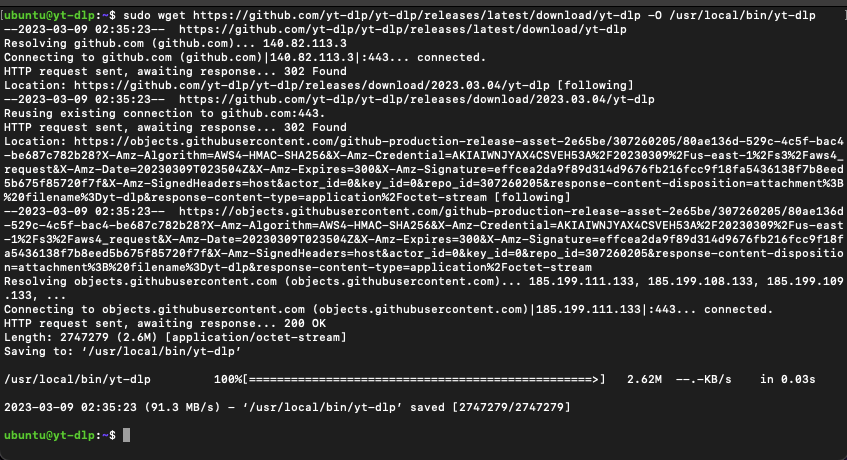
- For illustration purposes, we will download and install the latest release of yt-dlp in Ubuntu 22.04. Ensure your Ubuntu machine is up to date.
- The following command downloads the latest release of the yt-dlp program from GitHub and installs it in the /usr/local/bin directory with the filename yt-dlp.
|
1 |
$ sudo wget https://github.com/yt-dlp/yt-dlp/releases/latest/download/yt-dlp -O /usr/local/bin/yt-dlp |
- The following command sets the permissions of the yt-dlp file in the /usr/local/bin directory to allow all users (owner, group, and others) to read and execute the file.
|
1 |
$ sudo chmod a+rx /usr/local/bin/yt-dlp |
- This command is necessary to allow users to run the yt-dlp command from the command line.

c. How to Update yt-dlp to the Latest Version
Keeping yt-dlp updated ensures you have the latest features, bug fixes, and site support.
- Simple Update Command If you’re using the release binary, just run:
|
1 |
yt-dlp -U |
- If Installed via pip: Re-run the same install command:
|
1 |
python3 -m pip install -U yt-dlp |
- Switch to Nightly (Recommended for Latest Fixes): To upgrade from stable to the nightly release:
|
1 |
yt-dlp --update-to nightly |
- For pip users: python3 -m pip install -U –pre “yt-dlp[default]”
| 🔧 You can also use –update-to to switch to a different release channel (like master) or even a specific version tag. |
3. Installing Dependencies: FFmpeg and FFProbe
Before moving on with yt-dlp, it is highly recommended that you install FFmpeg and FFprobe. There are other ‘optional’ dependencies regarding the network, metadata, and miscellaneous, but FFmpeg and FFProbe are almost “mandatory”
- FFmpeg is a multimedia framework for handling video, audio, and other multimedia files. It is used by yt-dlp to perform various multimedia operations, including merging different formats of video or audio files. Without it, yt-dlp won’t be able to merge requested formats. For instance, you may download a 1080p video without audio.
- FFProbe is the command-line tool that comes with FFmpeg. FFProbe is used to analyze and extract information from multimedia files such as video and audio. Yt-dlp needs to use FFProbe to extract metadata from the multimedia files being downloaded. This metadata includes information such as the video or audio codec, the resolution, the duration, the bit rate, and other technical details about the multimedia file. Without FFprobe, yt-dlp would not be able to extract this metadata, and some of its features may not work correctly.
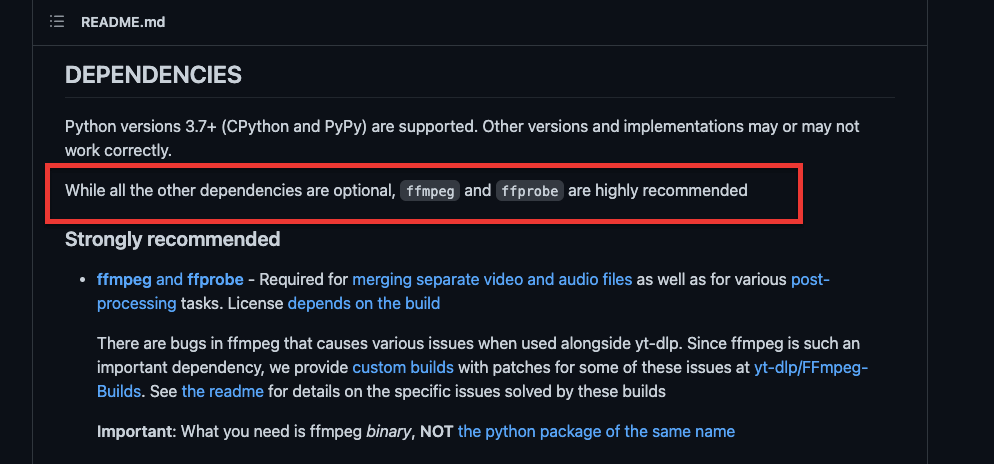
- Before installing FFmpeg and FFProbe, ensure that your machine is up to date.
a. Installing FFmpeg and FFprobe on Linux.
To install FFmpeg on a Linux machine (Ubuntu 22.04), use the following command:
|
1 |
$ sudo apt install ffmpeg |
- To check the installation and current version, use the following command:
|
1 |
$ ffmpeg -version |
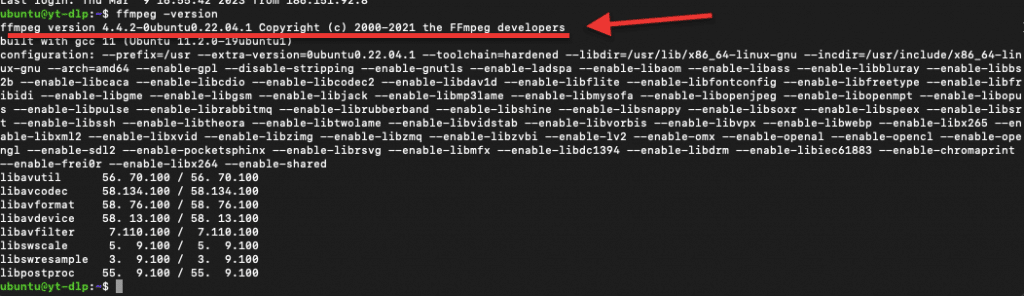
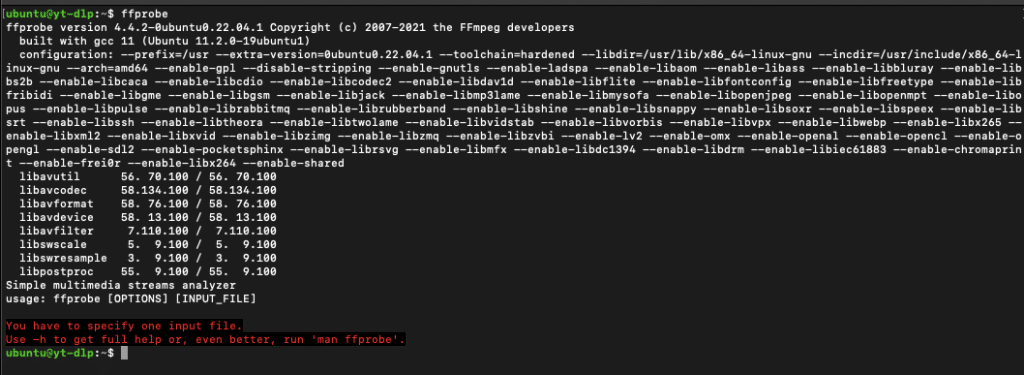
FFprobe installation? FFprobe comes when you install the FFmpeg package. There is no need to do additional installation for FFprobe. To test whether FFprobe is installed, issue the “ffprobe” command:
b. Installing FFmpeg and FFprobe on Windows
- Go to https://ffmpeg.org/ and download the package (.EXE file) for Windows. Release builds are usually more stable than Git Master build, which are released more often
- Choose your release, download the 7z or zip file and uncrompress it.
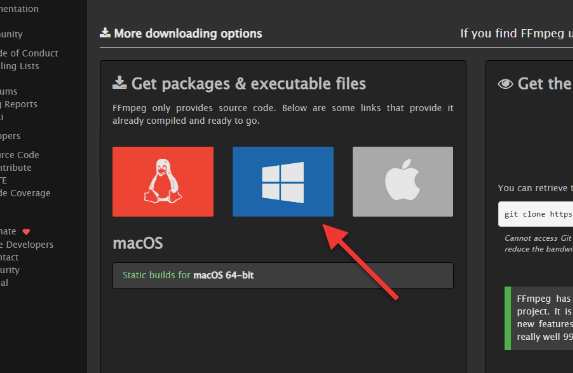
- Download the package and save it anywhere you want.
- We created a new folder called “PATH_Programs-ytdpl” where we will move and unzip the FFmpeg package.
- Under ffmpeg-(name of the file) > bin > you’ll see the three tools: ffmpeg, ffplay, and ffprobe. Move (unzip) the three applications to your new folder.
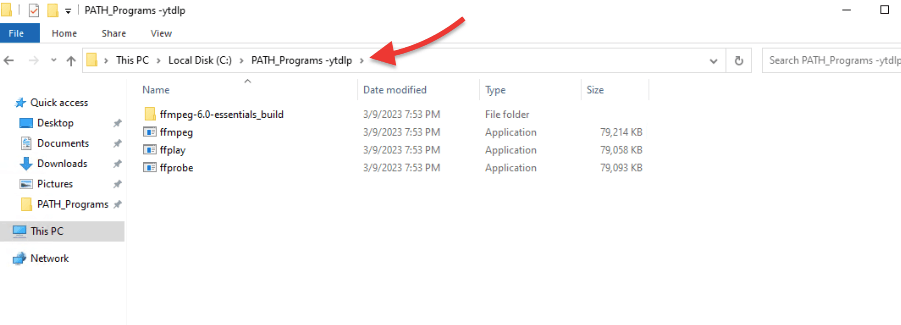
- Record the path (for example: C:\PATH_Programs -ytdlp) and head over to “Edit the system environment variables.” This Windows utility allows you to modify the environment variables that are used by the operating system and applications running on your computer. The PATH environment variable we will define next specifies a list of directories that the operating system should search when looking for executable files.
- To open this, go to the search bar on Windows and type “path”
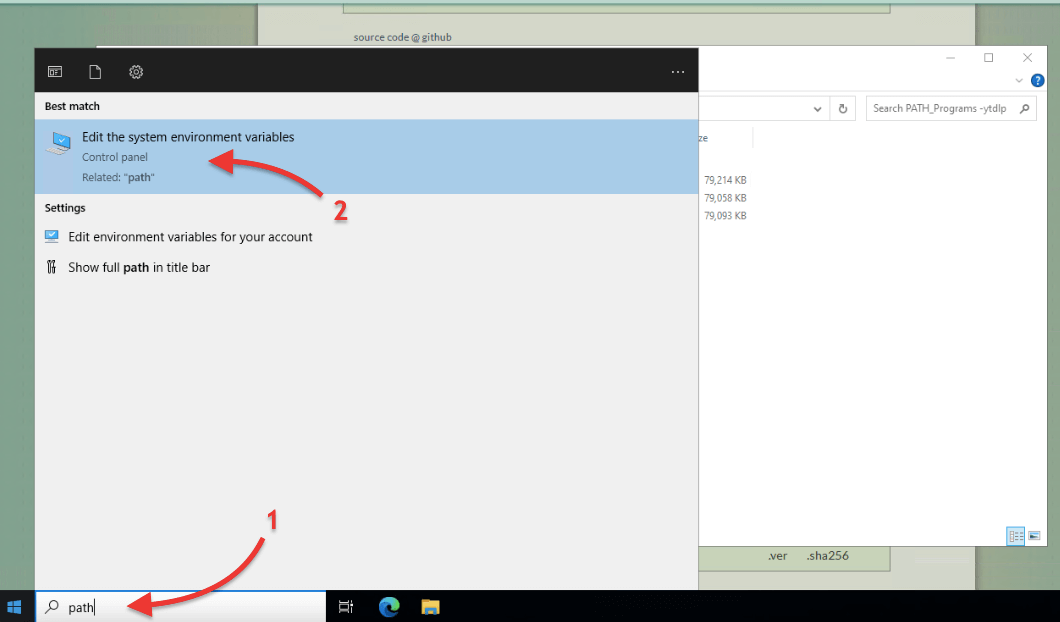
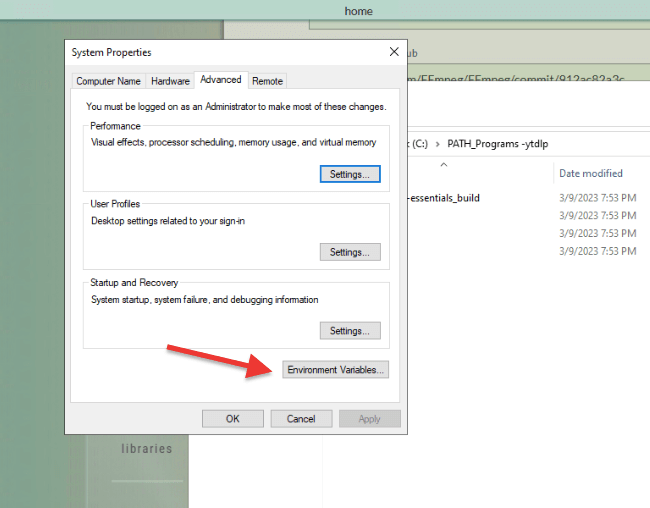
- In System Properties > Advanced, head over to “Environment Variables”
- In Environment Variables, under “User variables for Administrators” choose Path (1) > then click on “Edit”.
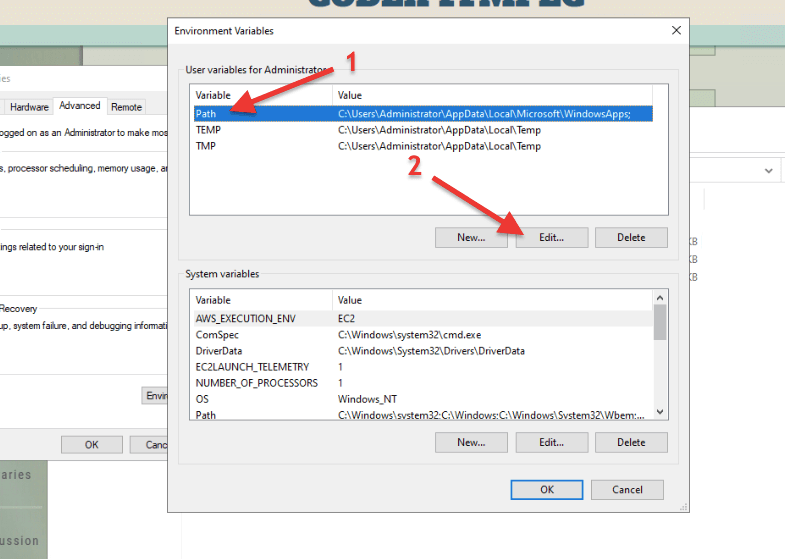
- The new “Edit Enviromnet variable” window will open. Click on New (1) > Enter the Path where FFmpeg is stored (2) > Click on Ok (3).
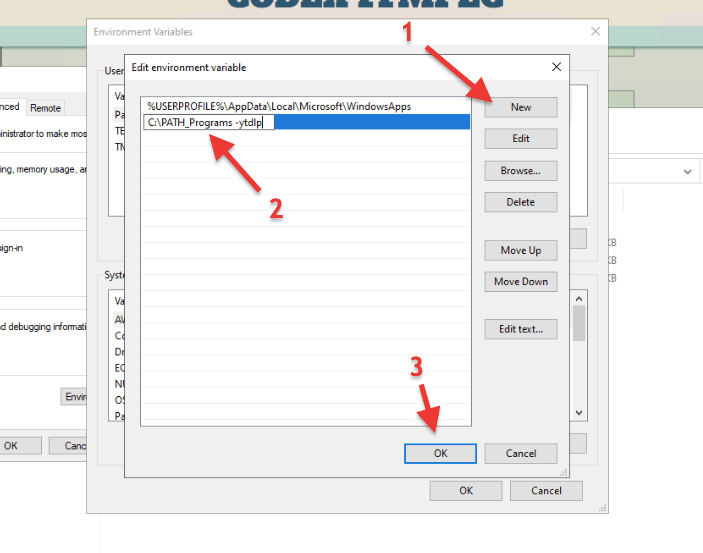
- Now, whenever you want to run FFmpeg from any folder or location, the computer will know where it is and allow you to use it.
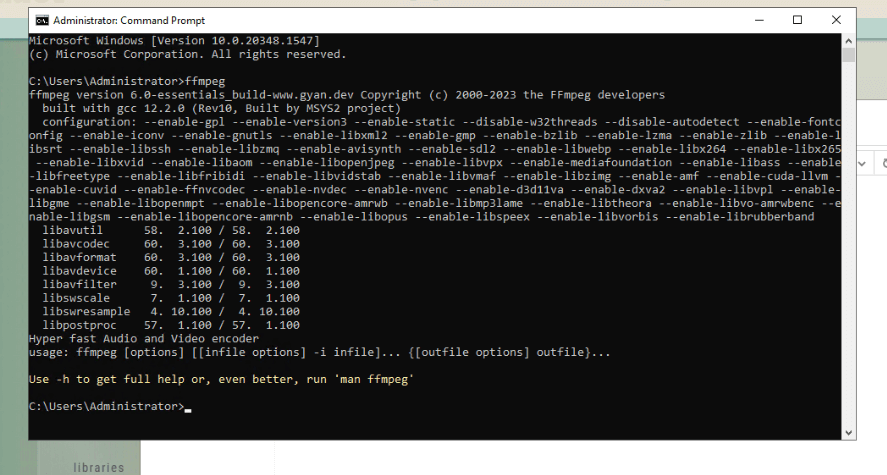
- Now, test the FFmpeg configuration from the Windows command prompt. Open the “cmd” and type ‘ffmpeg’. You should get an output such as the one below.
- FFprobe comes with the FFmpeg installation (as you might have noticed above). To test FFprove, do the same as ffmpeg. Simply go to the command prompt and type ‘ffprobe’.
Supercharge yt-dlp with a Seedbox 🚀
Tired of slow downloads, IP bans, or storage limits? With RapidSeedbox, you’ll unlock:
🔥 Blazing 10Gbps Speeds – Download entire playlists in seconds
🛡️ Complete Privacy – Keep your IP hidden & safe from throttling
📺 Stream Instantly – Use Plex or Jellyfin to watch your content anywhere
💾 Massive Storage – Keep your full media library without filling your drive
⏱️ 24/7 Automation – Schedule yt-dlp scripts to run while you sleep
4. How to use YT-DLP in Windows and Linux.
As you might already know, yt-dlp is a command-line tool, so to use it (in Windows or Linux), you will have to go through the command prompt or terminal. If you have already downloaded, and installed it along with its dependencies, go ahead and open your terminal.
Disclaimer: Downloading videos from YouTube using tools like yt-dlp may potentially infringe upon the terms of service, copyrights, and intellectual property rights of content creators. It is important to recognize and comply with the applicable laws and regulations regarding the downloading and distribution of copyrighted material in your jurisdiction. This note does not constitute legal advice and should not be relied upon as such.
a. How to use yt-dlp in Windows?
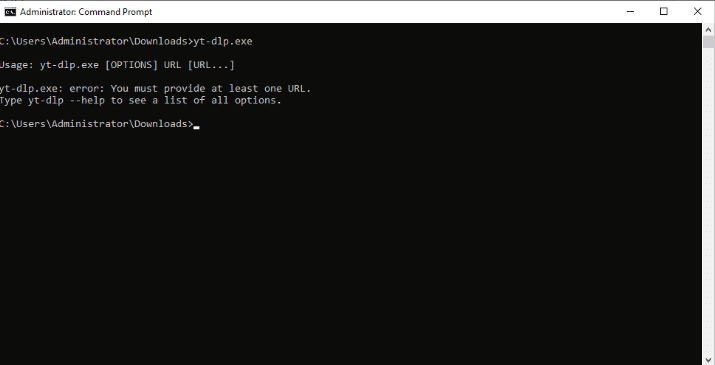
- Yt-dlp runs on the command line (it has no frontend GUI). When you run it from the cmd.exe for the first time (without any arguments), you will notice an error message (such as the following): “yt-dlp.exe: error: You must provide at least one URL”
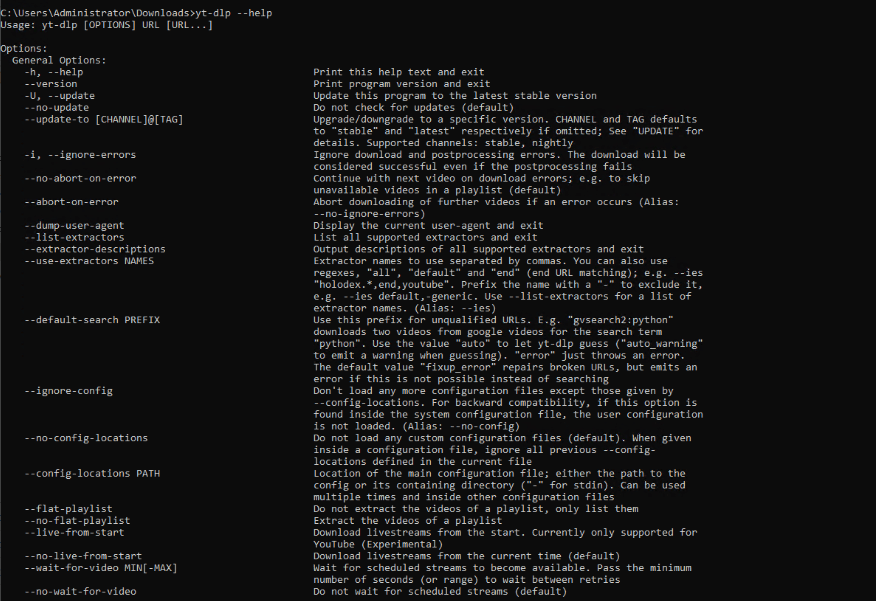
- Let’s go ahead and access the help menu. To see a list of all the options, use type the “yt-dlp –help” command. A menu such as the following will appear in your terminal (or command prompt):
- To use yt-dlp, ensure you are in the same location where yt-dlp.exe is, and use it with “yt-dlp (following the youtube URL), for instance:
|
1 |
yt-dlp https://www.youtube.com/watch?v=1PmJeP-TphM |
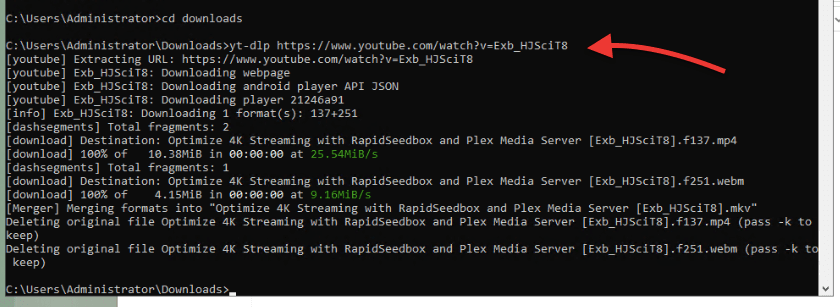
- Yt-dlp allows you to use arguments to empower you with more options when downloading your youtube videos.
- For example, you can tell yt-dlp exactly the format you want and how to download it. To do this, you might have to first find out what formats are available: Use the following command:
|
1 |
yt-dlp -F --list-formats https://www.youtube.com/watch?v=1PmJeP-TphM |
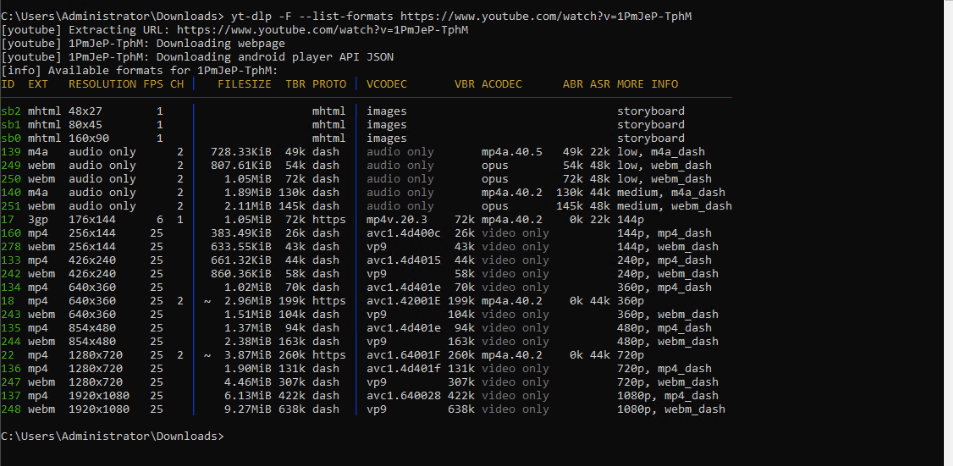
- Now, you might want to download a youtube video (i.e.https://www.youtube.com/watch?v=1PmJeP-TphM) with the format (-f) best quality video and best audio available (with specific format); to do this use the following command:
|
1 2 |
yt-dlp -f “bestvideo[ext=mp4]+bestaudio[ext=m4a]” https://www.youtube.com/watch?v=1PmJeP-TphM |
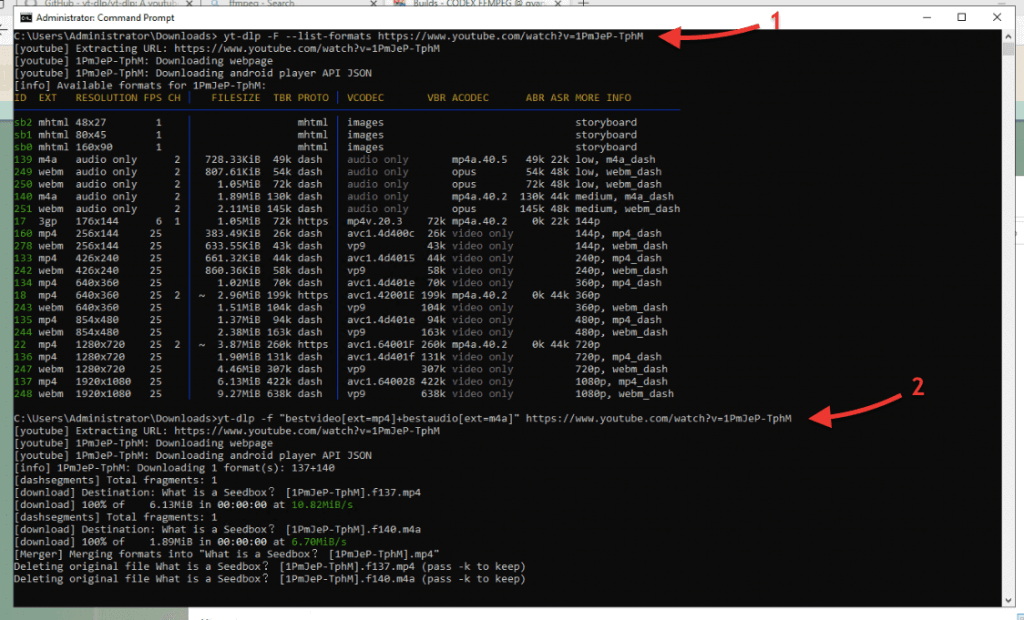
- To learn more about these arguments and how to use them properly, use the yt-dlp –help” command.
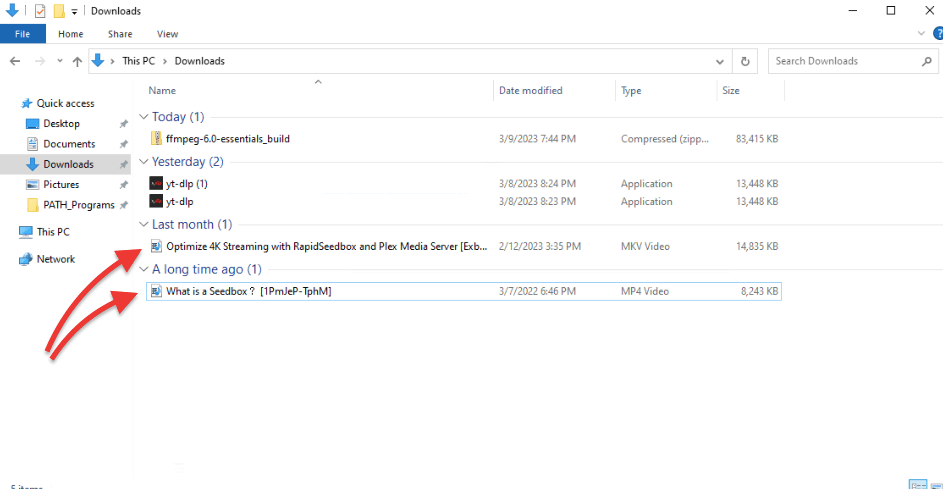
- And that’s it; we downloaded two youtube videos using yt-dlp.
b. yt-dlp commands for Linux
- Same as Windows, in Ubuntu Linux, if you type yt-dlp [without arguments] in the terminal console, you’ll get an error message.
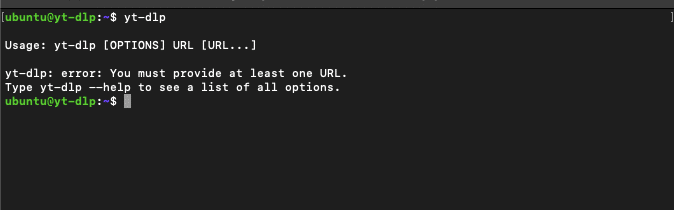
- If need to see the yt-dlp help menu, use the following command yt-dlp –help
- If you want to download a youtube video with the best quality video and best audio available, use the following command:
|
1 |
yt-dlp -f 'bv*+ba' https://www.youtube.com/watch?v=1PmJeP-TphM |
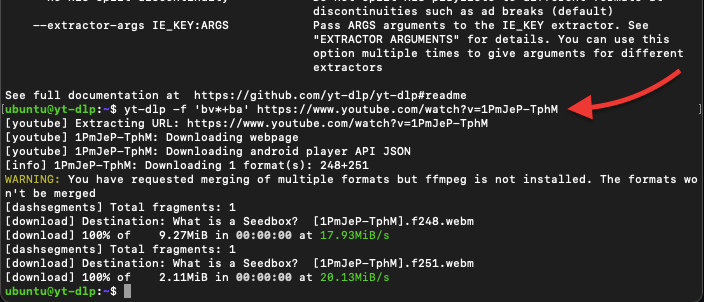
Note: If you see the following WARNING message: “You have requested merging of multiple formats (of video and audio), but FFmpeg is not installed. The formats won’t be merged.” it means that you have not yet installed FFmpeg… To learn how to install FFmpeg, go back to the section (installing FFmpeg).
- Now, what if you want to download a specific format for your youtube video? A useful Format command is the “-F –list-formats.” For example, we would like to list the available formats on the video >
|
1 |
yt-dlp -F --list-formats https://www.youtube.com/watch?v=1PmJeP-TphM |
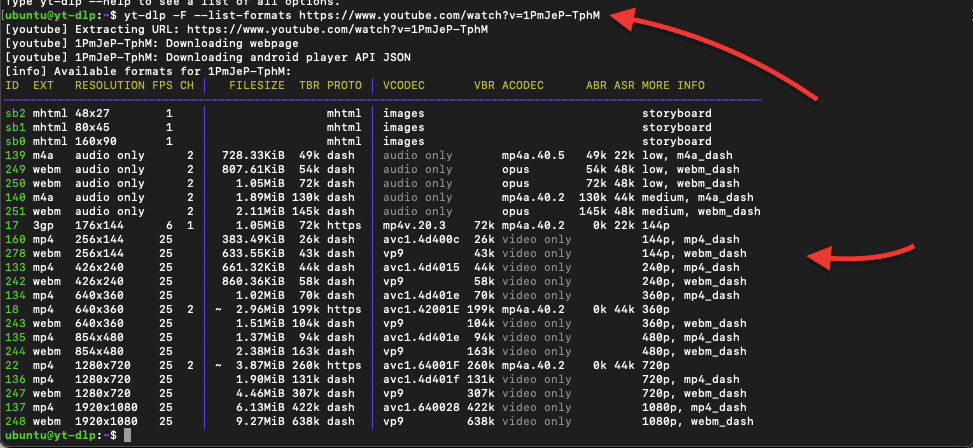
- For example, from the above output, you can see that this youtube video is available for download with video and audio at the resolutions 144p, 360p, and 720p. Now, let’s specify which format we want to download.
- We will use another video as an example. First (as shown before) see the available formats and then use the command “-f ‘bv*[height=…]+ba’” to specify the format. For instance,
|
1 |
yt-dlp -F --list-formats https://www.youtube.com/watch?v=9jw9W7kUBFk |
|
1 |
yt-dlp -f 'bv*[height=720]+ba' https://www.youtube.com/watch?v=9jw9W7kUBFk |
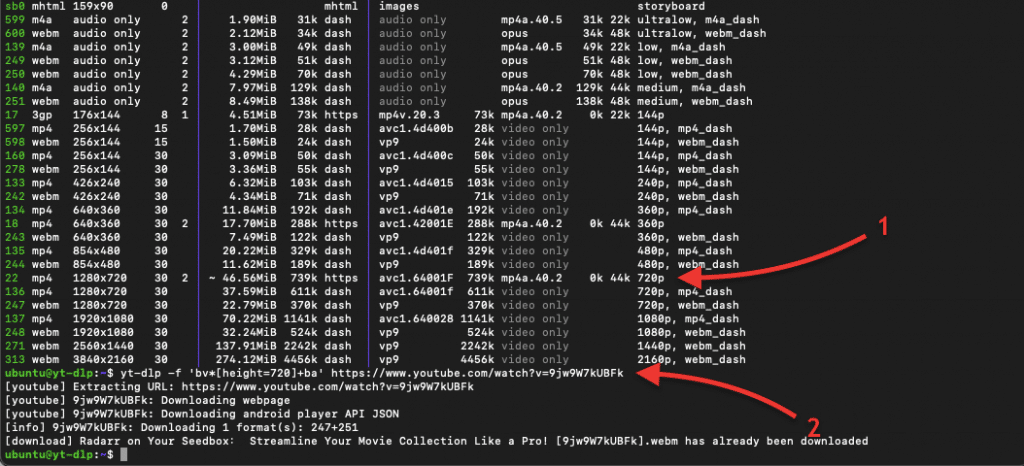
- Using the above set of commands will help you be more specific about which youtube video format you would want to download. Instead of downloading the highest (4K, for example), you can specify the audio and video format.
- In addition, you’ll notice that the FFmpeg WARNING message is not showing. This is because at this point, we already have installed FFmpeg correctly.
❓How to Download Subtitles with yt-dlp?
yt-dlp lets you download subtitles from supported sites like YouTube. The best part? You can even choose the subtitle language.
Example command:
|
1 |
yt-dlp --write-subs --sub-langs en https://www.youtube.com/watch?v=VIDEO_ID |
- –write-subs: downloads subtitles
- –sub-langs en: selects English (replace en with your preferred language code)
To embed subtitles into the video, add –embed-subs. For all available languages, use –sub-langs all.
5. Advanced uses for Plugin yt-dlp.
Below we will show you two more advanced uses for the yt-dlp plugin. We will show you these examples on Linux.
a. Configuring the yt-dlp.conf file.
The plugin yt-dlp also offers the option to establish a range of defaults that it will automatically implement, including a preferred video format such as mkv, mp4, webm, etc. To create a configuration file that yt-dlp can use, enter supported commands into the configuration file. The config file can be loaded from the system (/etc/yt-dlp.conf), user configuration, home configuration, portable or main configuration.
- Open (or create) the yt-dlp.conf from your terminal using the text editor:
|
1 |
sudo vim /etc/yt-dlp.conf |
- Or
|
1 |
sudo vi /etc/yt-dlp.conf |
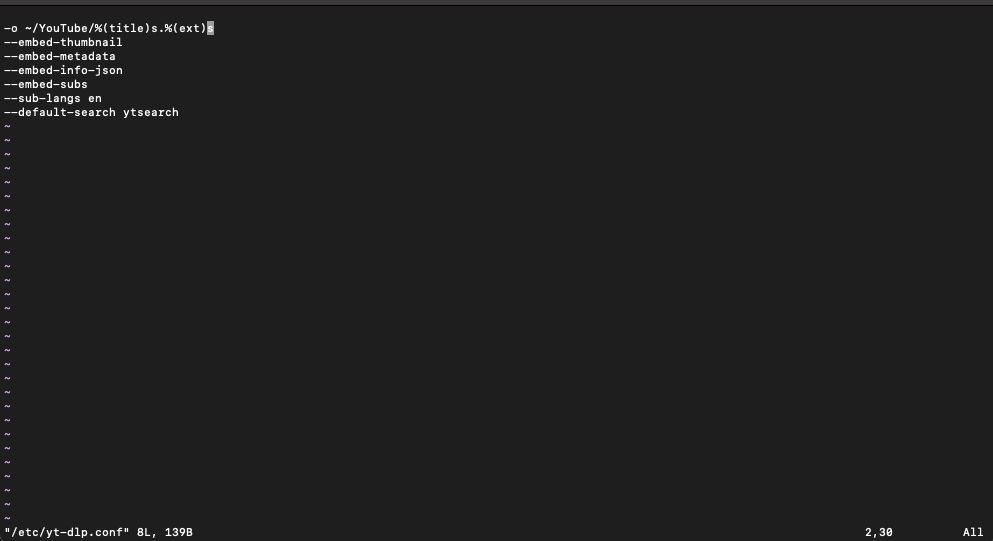
- The below configuration file is an example (but you can customize it to your own preferences). Using the below configuration, yt-dlp will automatically save all videos in a particular path (/Youtube) and renames them to the Title.extension. By default, yt-dlp saves youtube videos to its default path and gives the URL as the main title.
The configuration will also embed a thumbnail, metadata, and English subtitles.
- Now let’s try our brand new yt-dlp configuration:
|
1 |
yt-dlp https://www.youtube.com/watch?v=z8HY1aVzZDM |
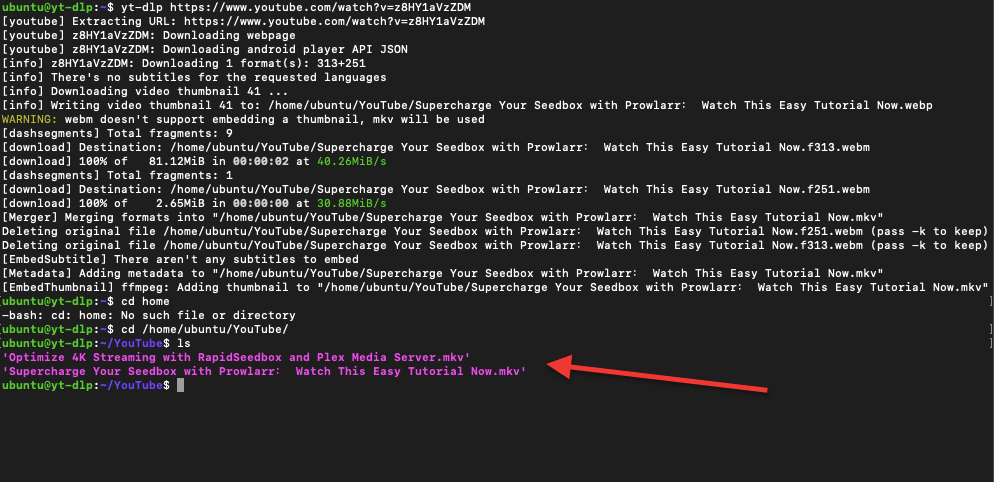
With this configuration file, you can automate your entire youtube download process. This saves you time, as you no longer have to enter configuration for each line of video download. The configuration file will use your personalized download format for the process.
Note (For Windows users): It is recommended to put this config file in “${APPDATA}/yt-dlp/config” and save it as .txt. The AppData folder is under “C:\Users\<user name>\AppData\” and is usually a hidden folder. Setting configuration lines in this config file is similar to what we did with Linux in this section.
Tired of Copy-Pasting Commands? 🤔 Get our free PDF: YT-DLP Cheat-Sheet – 50 Useful YT-DLP Commands.
b. Use Bashrc files.
Another way you can optimize your download process with yt-dlp is to use bashrc files. These files contain shell (command-line interface) settings for the Bash shell. The bashrc file is executed every time a new terminal session is opened, and it can be used to configure various settings and aliases for the shell. The bashrc file can be very useful for yt-dlp, because you can use it to set up aliases or shell functions that simplify the usage of yt-dlp. For example, you can create an alias that automatically downloads a video in your preferred format and quality by typing a single command in the terminal. This can save you time and make it easier to use yt-dlp regularly.
- To locate the .bashrc (in Ubuntu) go to home/ubunu > .bashrc
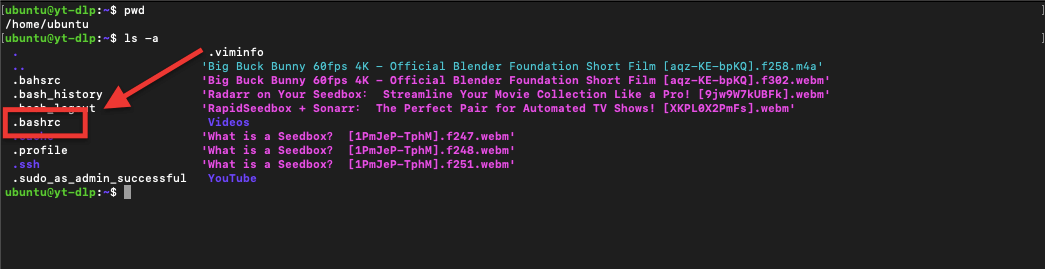
- Open the .bashrc with any of the following text editors.
|
1 |
sudo vi ~/.bashrc |
Or,
|
1 |
sudo nano ~/.bashrc |
- Enter the bashrc aliases for yt-dlp that you would like. For example:
|
1 2 3 4 |
# yt-dlp aliases alias ydl='yt-dlp' alias ydlmp4='yt-dlp -f "bestvideo[ext=mp4]+bestaudio[ext=m4a]/best[ext=mp4]/best"' alias ydlmkv='yt-dlp -f "bestvideo[ext=mkv]+bestaudio[ext=mka]/best[ext=mkv]/best"' |
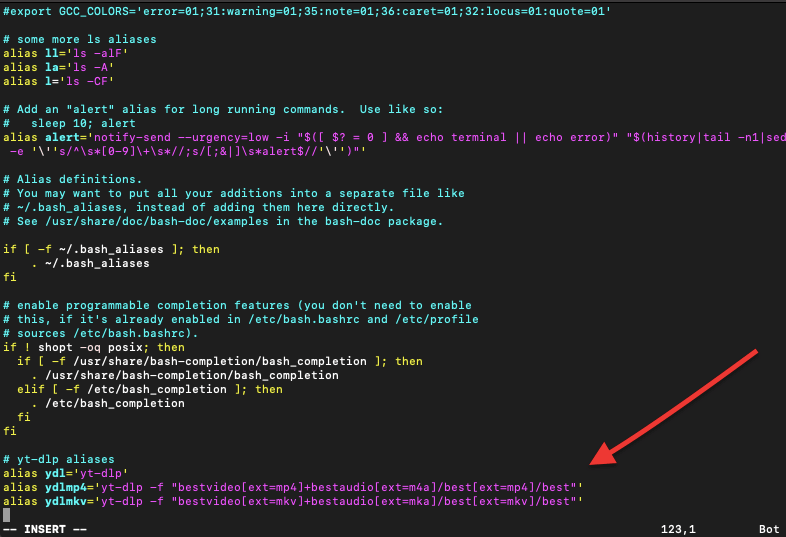
- To activate the aliases, either close and reopen the terminal window or run the following command:
|
1 |
$ source ~/.bashrc |
- Now, let’s test our alias. This should make our lives easier when downloading youtube videos with yt-dlp. Use an alias; for example, by entering “ydlmp4” you are saving yourself on writing long commands such as bestvideo[ext=mp4]+bestaudio[ext=m4a]/best[ext=mp4]/best
- There are many things happening now! As you can see from the below output… Our alias is working, the configuration is trying to embed thumbnails, subtitles, metadata, etc. Plus, the video is being saved in (and with) /Youtube/%(title)s.%(ext)s – where the title is the name of the video rather than the URL.
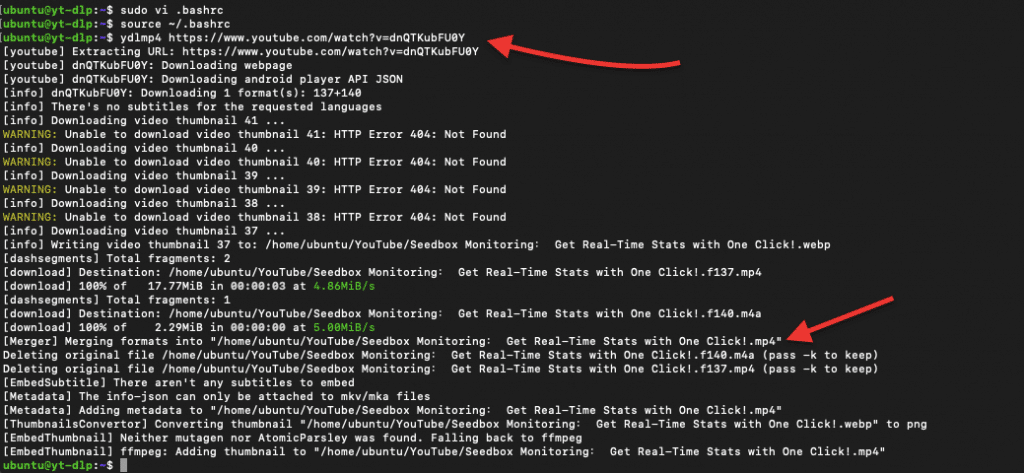
c. Manage and download large amounts of data with yt-dlp into a seedbox.
If you download and manage large amounts of data with yt-dlp, then a seedbox can be a fantastic solution. A seedbox is a remote VPS or dedicated server designed for anonymous download and upload of digital files, such as torrents, NZBs, videos, and music. Plus, since seedboxes are designed for downloading and uploading, they usually offer high speeds.
For instance, you can remotely connect to your seedbox and use its powerful resources to download videos with yt-dlp. Seedboxes also offer streaming platforms like Plex or Kodi and other wonderful ways to manage your media collection. Plus, if you decide later to change the format, compress, or encode, seedboxes also come with robust media converters like Handbrake. You can later download all your media content easily with FTP or Sync protocols.
This combination allows fast and efficient downloads and easy management of all your downloaded content.
6. yt-dlp: Pros and Cons
Although yt-dlp has many great features and characteristics that make it one of the best YouTube downloaders, it also has a few disadvantages that you should know about. Here are some pros and cons of using yt-dlp.
a. Pros:
- Free and open-source: yt-dlp is 100% free. It is also an open-source project maintained by a solid community of developers.
- Multi-platform support: yt-dlp is available for Windows, Linux, and macOS. This multi-platform support makes it accessible to a wide range of users.
- Variety of download options: Although yt-dlp is one of the best for what it does, “download youtube videos,” it also has additional options that are hard to see in other video downloaders. These download options include video format, subtitle selection, and thumbnail images.
- Automatic retries: yt-dlp has some fantastic automation capabilities. One of the best features is that it can automatically retry failed downloads, saving you time and effort.
- Support for more sites and extensions: yt-dlp supports more sites other than YouTube, including Vimeo and Youku. It also supports browser extensions like SponsorBlock, to allow you to skip sponsored segments in YouTube videos.
Cons:
- No GUI: One turndown for many people when using yt-dlp is the lack of GUI. yt-dlp is a command-line tool, which may not be ideal for users who prefer a graphical user interface.
- Configuration required: As you might have noticed from our step-by-step guide to configure and use yt-dlp, the tool requires some knowledge for its configuration. To use yt-dlp, you must learn the configuration lines to get the desired output format, audio quality, or other options.
- No official packages: yt-dlp does not have official packages for some platforms. If you have the skills and the patience to build it from a source or rely on third-party repositories, then having no official package may not disadvantage you.
- Legal concerns: Downloading YouTube videos is technically against their Terms of Service. So literally, the company could sue you. Still, many users decide to do so, and the company has shown no desire to penalize users for downloading their videos. However, it is still vital for you to be aware of the legal implications of downloading copyrighted material.
7. yt-dlp vs youtube-dl: Key Differences
While both tools serve the same core purpose—downloading media from platforms like YouTube—yt-dlp is a more modern, actively maintained fork of the older youtube-dl, with numerous enhancements.
Here’s a side-by-side comparison of their most important features:
| Feature | yt-dlp ✅ (Recommended) | youtube-dl ❌ (Outdated) |
|---|---|---|
| Development status | Actively maintained and updated | Mostly abandoned (last update: 2026) |
| Format selection | Advanced, codec & resolution prioritized | Basic, bitrate prioritized |
| SponsorBlock integration | ✅ Supports marking/removing segments | ❌ Not supported |
| Multi-threaded fragment downloads | ✅ Speeds up streaming downloads | ❌ Single-threaded only |
| Custom output paths & templates | ✅ Flexible with –paths, advanced templating | Limited |
| OAuth login & browser cookie extraction | ✅ Full support | Limited or manual setup |
| Split downloads by chapters | ✅ With –split-chapters | ❌ Not available |
| Download from .txt file (-a) | ✅ Supported | ✅ Supported |
| Live stream support | ✅ With –live-from-start | Partially broken or outdated |
| Rate limiting | ✅ With –rate-limit | ✅ Also supported |
| Default output filename template | %(title)s [%(id)s].%(ext)s | %(title)s-%(id)s.%(ext)s |
| Python version required | Python 3.9+ only | Python 2.6+ and 3.2+ |
| Self-updater | ✅ yt-dlp -U and –update-to | ❌ Manual update only |
| Plugin support | ✅ Load external extractors/postprocessors | ❌ Not available |
| GUI compatibility | Works with modern GUIs (e.g., yt-dlp-gui, Jely GUI) | Fewer options, mostly outdated |
| Estimated download size for manifests | ✅ (optional with compat flags) | ❌ Not available |
| Subtitle embedding and enhancements | ✅ Advanced handling with smart defaults | Basic subtitle support |
8. YT-DLP: FAQ.
A: yt-dlp offers additional features and options not available in youtube-dl. It also has an active development community that ensures that bugs are quickly fixed and new features are added. Check our previous section: Pros & Cons.
A: You can install yt-dlp on Linux, Windows, or macOS by downloading the binary executable file or by installing it via your operating system’s package manager. To learn how to install yt-dlp, go back to the “how to download and install yt-dlp” section
A: Yes, you can download videos in different formats using yt-dlp. You can specify the format using command-line options or editing the configuration file.
A: Some content on YouTube may be copyrighted, and downloading it without permission may be illegal. Downloading videos from YouTube is against YouTube ToS. But still, many people do so, and YouTube has decided to take no action.
A: Yes, yt-dlp lets you download entire playlists by specifying the playlist’s URL.
A: Yes, yt-dlp supports subtitles in various formats. You can embed subtitles in your downloads and specify the preferred subtitle language.
A: Yes, yt-dlp allows you to download audio-only files in various formats, such as MP3 and AAC.
A: Yes, yt-dlp is actively maintained by a team of professional developers who regularly release updates and bug fixes.
A: Yes! You can use a GUI to avoid the command line. These tools let you paste links, choose formats, and manage downloads easily:
– Jely yt-dlp GUI – Clean, modern interface.
– Oleksis yt-dlp GUI – Simple and functional.
– yt-dlp Web UI – Browser-based frontend.
A: Yes! yt-dlp runs on mobile. This is great for quick downloads directly from your phone or tablet. What’s supported? Android: Use Termux with: pkg install python ffmpeg && pip install -U yt-dlp – iOS: Use a-Shell or iSH, then: pip install -U yt-dlp
9. Final Words.
In conclusion, yt-dlp is a powerful and feature-rich video downloader. With its extensive list of options and support for various formats and video sites, it’s no wonder why yt-dlp is the leading YouTube downloader platform.
If you haven’t already, we encourage you to try yt-dlp. You’ll quickly see why yt-dlp is becoming the go-to choice for downloading videos.
We suggest contacting the yt-dlp project’s maintainer on GitHub if you encounter any issues or have suggestions for new features. But if you have any questions or suggestions about this yt-dlp guide, please let us know in the comments box below.
Supercharge yt-dlp with a Seedbox 🚀
Tired of slow downloads, IP bans, or storage limits? With RapidSeedbox, you’ll unlock:
🔥 Blazing 10Gbps Speeds – Download entire playlists in seconds
🛡️ Complete Privacy – Keep your IP hidden & safe from throttling
📺 Stream Instantly – Use Plex or Jellyfin to watch your content anywhere
💾 Massive Storage – Keep your full media library without filling your drive
⏱️ 24/7 Automation – Schedule yt-dlp scripts to run while you sleep
 English
  Français
  Español
  Tiếng Việt
  简体中文
简体中文  Русский
  Türkçe
  Bahasa Indonesia
  日本語
日本語  العربية
  Português
  Українська
Recommend using Aria2 with yt-dlp, speeds up downloads by A LOT!
would love to give that a try!
How do I implement Phython?
Hi Fyr,
First, you need to install it on your device. If you share more details, I may be able to help you further.
Hey there Fyr! 👋 If you’re asking how to implement Python to use yt-dlp, you’ll just need to install Python (if it’s not already installed), then run: pip install -U yt-dlp
After that, you can run commands like this: yt-dlp https://www.youtube.com/watch?v=VIDEO_ID
Let me know if you’re starting from scratch or need help setting it up on Windows, macOS, or Linux — happy to walk you through it!
Diego
Thank you for the article, very useful.
There is a small error…
“Open the .bashrc with any of the following text editors.
sudo vi ~/.bahsrc
Or,
sudo nano ~/.bahsrc”
It will create a separate file that is not .bashrc
Thanks for your observation, Maxime.
If you open the .bashrc file using the sudo vi ~/.bashrc or sudo nano ~/.bashrc command, it will open the existing .bashrc file located in your home directory with root user privileges, allowing you to make changes to the file.
But, if you accidentally save the file using a different name or in a different location, it will indeed create a new file.
@Maxime is pointing-out that you have a typo in your code examples. You need to edit the post to correct those examples.
Ooooh… I get you… that typo! I missed it! Thanks, JCH and Maxime!
bro do we need to learn coding to use it ???
Hi Mahesh, you don’t have to learn code to use YT-DLP, but because it’s a command-line application you must be familiar with the operators to get it working. These are additional commands added on the the end of the execution that provides YT-DLP with the instructions on what you want it to do.
The example code snippet for downloading the best audio & video has an error.
You have: ./yt-dlp -f “bestvideo[ext=mp4]+bestaudio[ext=m4a]”
The correct way is: ./yt-dlp -f “bestvideo[ext=mp4]+bestaudio[ext=m4a]”
Thanks… But what changes?
There is a space between -f and “best vid…” You missed the space.
How do I download a video at 720p?
136+140 for your resolution. mp4 720p
in my script
$yt –add-metadata \
–write-auto-subs \
-f “$res” \
-o ‘%(title)s.%(ext)s’ “$video_url”
Hey there James,
try the following:
yt-dlp –format ‘best[height=720]’ <video_url>
Hello, I am trying to download an (.mp4) audio file from MixCloud and am wondering how would you specify a “best audio” command for that?
Hi there Noah!
Have you tried the following?
yt-dlp –format bestaudio < MixCloud_audio_url >
Hi, I want to catch some video quality KPIs. Can I call and How can I get with yt-dlp?
Hi there Tan.. Yt-dlp focuses on video downloads… is the best for that… but still, you can also get detailed information about the available video formats, including resolution, bitrate, codec, and file size.
For example, if you run yt-dlp [video_url] in the command line, you would get a list of available formats along with their attributes (KPIs)..
Can you add a date stamp to the file name?
(a ten (10) character date stamp YYYYMMDDa_)
Example:
20230922a_
20230922a_Video_title-[b8azpQ6AK2p7].mp4
Using:
yt-dlp –version
2023.07.06
Kubuntu 22.04
Command:
yt-dlp –restrict-filenames –write-description –write-comments –write-thumbnail –write-link -P /home/x/Downloads/ https://www…./
Hey there Joseph,
You can add a date stamp to the file name in yt-dlp by using the -o option with a template that includes the date stamp in the format you are looking for (YYYYMMDDa). Here’s an example of your command with the -o option, (first check your yt-dlp version):
yt-dlp –version
yt-dlp –restrict-filenames -o “%(upload_date>%Y%m%d)a_%(title)s-%(id)s.%(ext)s” –write-description –write-comments –write-thumbnail –write-link -P /home/x/Downloads/ https://www…/
Please, if you manage, let us know your results.
Hello Diego,
1.
yt-dlp –version
2022.04.08
2.
sudo yt-dlp –update
Usage: yt-dlp [OPTIONS] URL [URL…]
yt-dlp: error: yt-dlp’s self-update mechanism is disabled on Debian.
Please update yt-dlp using apt(8).
See https://packages.debian.org/sid/yt-dlp for the latest packaged version.
3.
How to update yt-dlp?
from 2022.04.08
__to 2023.09.24-1
4.
Is above update problem a funciton of Operating System?
Kubuntu 22.04.3
or
yt-dlp
5.
ERROR: ‘upload_date>%%Y-%%m-%%d’
yt-dlp –restrict-filenames -o “%(upload_date>%Y-%m-%d)a_%(title)s-%(id)s.%(ext)s” –write-description –write-comments –write-thumbnail –write-link -P /home/x_/Downloads/ https://www…
Joseph, thanks for giving me more context. Try the following
It seems you need to update your yt-dlp instance: sudo apt update && sudo apt upgrade yt-dlp
The template for the date stamp, it should be %(upload_date)s. Try the following command:
yt-dlp –restrict-filenames -o “%(upload_date>s{YYYYMMDD})a_%(title)s-%(id)s.%(ext)s” –write-description –write-comments –write-thumbnail –write-link -P /home/x/Downloads/ https://www…/
I hope that helps!
Good day Diego,
Strange, the sudo … command did not update yt-dlp.
Details below:
yt-dlp –version
2022.04.08
sudo apt update && sudo apt upgrade yt-dlp
Hit:1 http://ca.archive.ubuntu.com/ubuntu jammy InRelease
Get:2 http://ca.archive.ubuntu.com/ubuntu jammy-updates InRelease [119 kB]
Get:3 http://security.ubuntu.com/ubuntu jammy-security InRelease [110 kB]
Hit:4 http://ca.archive.ubuntu.com/ubuntu jammy-backports InRelease
Get:5 http://ca.archive.ubuntu.com/ubuntu jammy-updates/main i386 Packages [503 kB]
Get:6 http://ca.archive.ubuntu.com/ubuntu jammy-updates/main amd64 Packages [1,058 kB]
Get:7 http://ca.archive.ubuntu.com/ubuntu jammy-updates/universe amd64 Packages [989 kB]
Get:8 http://ca.archive.ubuntu.com/ubuntu jammy-updates/universe i386 Packages [658 kB]
Fetched 3,437 kB in 1s (3,568 kB/s)
Reading package lists… Done
Building dependency tree… Done
Reading state information… Done
1 package can be upgraded. Run ‘apt list –upgradable’ to see it.
Reading package lists… Done
Building dependency tree… Done
Reading state information… Done
yt-dlp is already the newest version (2022.04.08-1).
Calculating upgrade… Done
Get more security updates through Ubuntu Pro with ‘esm-apps’ enabled:
vlc-plugin-qt libvlc5 vlc-data libvlccore9 vlc imagemagick vlc-bin vlc-l10n
libavdevice58 ffmpeg libopenexr25 libpostproc55 libmagickcore-6.q16-6-extra
vlc-plugin-samba libavcodec58 libmagickwand-6.q16-6 vlc-plugin-notify
libavutil56 imagemagick-6.q16 libswscale5 libeditorconfig0
libmagickcore-6.q16-6 vlc-plugin-access-extra vlc-plugin-skins2
vlc-plugin-video-splitter libswresample3 imagemagick-6-common
vlc-plugin-video-output libavformat58 libvlc-bin vlc-plugin-base
vlc-plugin-visualization libavfilter7
Learn more about Ubuntu Pro at https://ubuntu.com/pro
The following packages will be upgraded:
alsa-ucm-conf
1 upgraded, 0 newly installed, 0 to remove and 0 not upgraded.
Need to get 43.3 kB of archives.
After this operation, 25.6 kB of additional disk space will be used.
Do you want to continue? [Y/n]
Get:1 http://ca.archive.ubuntu.com/ubuntu jammy-updates/main amd64 alsa-ucm-conf all 1.2.6.3-1ubuntu1.8 [43.3 kB]
Fetched 43.3 kB in 0s (302 kB/s)
(Reading database … 228013 files and directories currently installed.)
Preparing to unpack …/alsa-ucm-conf_1.2.6.3-1ubuntu1.8_all.deb …
Unpacking alsa-ucm-conf (1.2.6.3-1ubuntu1.8) over (1.2.6.3-1ubuntu1.7) …
Setting up alsa-ucm-conf (1.2.6.3-1ubuntu1.8) …
yt-dlp –version
2022.04.08
restart computer
yt-dlp –version
2022.04.08
Stil old version of yt-dlp, No updating
from 2022.04.08
__to 2023.09.24-1
Question:
Would a BIOS setting effect the sudo command?
sudo apt update && sudo apt upgrade yt-dlp
To update:
sudo yt-dlp -U
Interesante articulo, di con el en busca de como podia hacer con yt-dlp para descargar un video desde una pagina web accediendo con su id. El video esta en un div de la pagina web. Se entiende la pregunta ?
Saludos.
Hola Norberto.
Me alegra que encuentres interesante nuestro articulo de YT-DLP.
No se si entiendo bien tu pregunta… Pero puedes acceder al video si tienes el id… intenta usar el siguiente commando:
yt-dlp [URL o ID_del_video]
Espero que te funcione.
Hi, nice article.
You could have included how the aspect ratio, and frame rate of video will be getting downloaded when you use this software. mp4and m4a examples are formats of video and audio. will the video downloaded will be as in the same frame rate and aspect ratio. plase tell
Hi there Jraju.
Thanks for feedback. We will surely include these informaiton on our coming update for this article.
Good day Diego,
yt-dlp –version
2023.10.13
Kubuntu 22.04
What is the yt-dlp command? The command to get:
20231131a_Title_of_Video-z2Ba75OrtIKN.mp4 but actual result is:
s_YYYYMMDD_Title_of_Video-z2Ba75OrtIKN.mp4
yt-dlp –restrict-filenames -o “%(upload_date>s{YYYYMMDD})a_%(title)s-%(id)s.%(ext)s” –write-description –write-comments –write-thumbnail –write-link -P /home/xx/Downloads/ https://www…
side note:
the web page converts
— = 2 dashes to 1 dash –
” = square quotes to curly quotes “ ”
end —
ERROR: unable to open for writing: [Errno 13] Permission denied:
🙁 We dont like errors! Jorge, what happend? …. give more context/details?
Hola, una pregunta, podria cambiar la ruta de descarga? los videos descargan directamente a esta ruta:
C:\Users\Mi Usuario
como puedo cambiar la ruta y darle otra ubicacion para los videos o la lista de videos descargados??
Hola Bryan,
Para cambiar la ruta de descarga en yt-dlp, debes especificar un nuevo directorio en el comando de descarga. Por ejemplo, si deseas descargar en la carpeta “D:\Mis Videos”, tu comando sería algo como yt-dlp -o “D:\Mis Videos\%(title)s.%(ext)s” [URL del video]. Esto indicará a yt-dlp que guarde los videos en la carpeta especificada. Es importante asegurarte de que la ruta exista y de tener los permisos necesarios para guardar archivos en ella.
Mucha suerte… espero que te sirva!
I only get an error when I try to test the Path of FFmpeg or FFProbe
“‘ffprobe’ is not recognized as an internal or external command,
operable program or batch file.”
I use path “C:\PATH_Programs -ytdpl” and CMD is set up for C:\Users\Me>
If I use cd and go to C:\PATH_Programs -ytdpl and test I get results like the screenshot when you did it.
Hi James…
So, if the system’s PATH environment variable does not include the directory where ffprobe and ffmpeg are located… try the following:
> Ensure ffmpeg.exe and ffprobe.exe are in C:\PATH_Programs -ytdpl.
> Update the PATH Environment Variable:
Open System Properties > Advanced > Environment Variables.
Under System variables, find and select Path, then click Edit.
Click New and add C:\PATH_Programs -ytdpl to the list.
Close and reopen CMD, then test by running ffmpeg -version and ffprobe -version from any directory.
Just make sure you’ve correctly spelled the path when adding it to the PATH variable and restart CMD to apply the changes.
I hope that helps!
Hi, I’ve done everything that you’ve said but, it stills says
“‘ffmpeg’ is not recognized as an internal or external command,
operable program or batch file.” or
“‘ffprobe’ is not recognized as an internal or external command,
operable program or batch file.”
Hi Ben, if this is the case we can try forcing yt-dlp to recognize the path using -ffmpeg-location.
yt-dlp -f bestvideo+bestaudio --merge-output-format mp4 --ffmpeg-location "C:\ffmpeg\bin" (Replace “C:\ffmpeg\bin” with the correct path to your FFmpeg installation.)
What are the terminal commands to
install latest version of yt-dlp?
Using:
Kubuntu 22.04.3
yt-dlp –version
2022.04.08
i understand 2022.04.08 is an old version of yt-dlp.
Joseph, we always recommend updating Yt-dlp to the latest version… but if you’re looking to specifically install the version 2022.04.08 of yt-dlp on Kubuntu 22.04.3, you’ll need to manually download that version from the yt-dlp GitHub repository’s release archives. >>> https://github.com/yt-dlp/yt-dlp/releases
Find the direct link to that specific release, by browsing thorugh that “Releases” section, and look for the 2022.04.08 version.
Once found, download the appropriate binary for Linux, and make it executable. You’ll need to manually install it, rather than automatically update it
To make it executable:
sudo chmod a+rx /usr/local/bin/yt-dlp
Then verify by running yt-dlp –version.
What is the yt-dlp command?
How to add a date stamp to the file name?
(a ten (10) character date stamp YYYYMMDDa_ )
Example:
20240126a_
20240126a_Video_title-[b8azpQ6AK2p7].mp4
Using:
yt-dlp –version
2023.12.30
Kubuntu 22.04
Command with no date stamp:
yt-dlp –restrict-filenames –write-link -P /home/xx/Downloads/ https://www…./
How to add a date stamp to the file name?
—
Hi there Joseph;
To add a date stamp to the filename in yt-dlp, you can try the output template option. Just, modify your command to include –output “%(upload_date)s_Video_title-[%(id)s].%(ext)s”, replacing %(upload_date)s with the appropriate date format.
In your particular case, it would be for a 10-character date stamp like YYYYMMDDa_, you’d likely need to use %(upload_date)s directly, and then manually adjust it to your specific needs, as yt-dlp might not support custom date formats directly.
I hope that helps!
Bonjour, j’essaie d’installer yt-dlp pour l’utiliser, sous Windows 11. J’ai bien suivi toutes les étapes mais dès que je rentre une commande avec “yt-dlp” j’ai ce message :
yt-dlp : Le terme «yt-dlp» n’est pas reconnu comme nom d’applet de commande, fonction, fichier de script ou programme exécutable. Vérifiez l’orthographe du nom, ou si un chemin d’accès existe, vérifiez que le chemin d’accès est correct et réessayez.
J’ai pourtant “exécuter en tant qu’administrateur” le fichier. J’arrive bien jusqu’à l’utilisation de FFmpeg, c’est vraiment à partir de l’étape 4. Comment utiliser YT-DLP sous Windows et Linux que ça coince. Je pense que j’ai loupé quelque chose mais j’ai repris toutes les étapes 3 fois… Est-ce que vous auriez une piste ?
Bonjour Amandine,
Il semble que le système ne reconnaisse pas “yt-dlp” comme une commande. Cela se produit généralement lorsque l’exécutable du programme n’est pas dans la variable d’environnement PATH de votre système. Pour résoudre cela, vous devez ajouter le répertoire contenant yt-dlp.exe à votre PATH. Voici un guide simplifié :
Localisez yt-dlp.exe sur votre ordinateur.
Copiez le chemin d’accès au dossier où se trouve yt-dlp.exe.
Recherchez “Variables d’environnement” dans les paramètres de Windows 11.
Modifiez la variable PATH pour inclure le chemin d’accès que vous avez copié.
Ouvrez une nouvelle invite de commande et essayez à nouveau la commande yt-dlp.
J’espère que cela vous aide !
À bientôt !
Thanks for info guys!
Can I download all files from urls, when they are in a .txt file.
(I have a txt file, – inside 20 urls from Youtube) in which format urls must be written? by ENTER< or by COMA?
Hi there Oleksly,
Please try the following:
“To download all files from a list of URLs in a .txt file using yt-dlp, the URLs should be written line by line, separated by an Enter (newline), not by a comma. You can use the command yt-dlp -a yourfile.txt to download from all the URLs listed in your text file (yourfile.txt).”
I hope that helps!
that’s very useful and it really works! appreciate about your reply !
Hi Diego, I want to deploy yt-dlp to azure as an endpoint of an api.
Everything is fine, but it seems youtube is blocking my azure VM. Do you know how to configure so I don’t get blocked by YouTube? Do I need a proxy?
Thanks a lot
Hi John; The block likely means that you’re somehow exceeding an unseen threshold. Try adjusting your request rate limit using –sleep-interval and –max-sleep-interval. A proxy might work if you use it to distribute your requests across a bunch of IP addresses. Hope this helps!
Hi Diego
I can’t download your example video:
yt-dlp -f ‘bv*+ba’ https://www.youtube.com/watch?v=1PmJeP-TphM
[youtube] Extracting URL: https://www.youtube.com/watch?v=1PmJeP-TphM
[youtube] 1PmJeP-TphM: Downloading webpage
[youtube] 1PmJeP-TphM: Downloading ios player API JSON
[youtube] 1PmJeP-TphM: Downloading android player API JSON
WARNING: [youtube] Skipping player responses from android clients (got player responses for video “aQvGIIdgFDM” instead of “1PmJeP-TphM”)
ERROR: [youtube] 1PmJeP-TphM: Private video. Sign in if you’ve been granted access to this video
I don’t know what the ios and Android lines are about as I’m using Linux but that ‘ERROR’ LINE is telling me I need to sign in so how do I add my YouTube details to the comand please?
Hi Mike, the error code is due to the video now being private. You can try with a different video instead; it should work fine. As for the warnings, that seem part of a yt-dlp bug that was addressed with a nightly build. Try updating yt-dlp with “–update-to nightly”. Hope this helps!
Hi, On Step 2, a, you say to double click on the .exe file in Windows to install. When I double click on it, it tells me that there is an error and that instead of double clicking on the .exe file, I need to call it from the command line.
Hi there.
Thanks for noting that… We had an error in this exact installation step. Sorry for confusing you.
Yes, you need to call it from the command line, not double-click as the article used to say.
We added the following note:
The yt-dlp.exe file is not an installer; it’s the executable file for yt-dlp itself. In the context of Windows, an executable file (with an .exe extension) is a program that can run directly once it’s clicked or executed from the command line. For yt-dlp, you simply place the yt-dlp.exe file in a directory of your choice (for instance C:\ytdlp) and run it directly from there.
Buenos días Diego,
Gracias por publicar estas instrucciones. Han sido de mucha utilidad. Sin embargo me encuentro que cuando ejecuto el siguiente comando del tutorial para hacerlo ejecutable en Ubuntu 20.04: $ sudo chmod a+rx /usr/local/bin/yt-dlp, me devuelve un mensaje de error “no existe el archivo o directorio”. Cuando accedo al directorio /usr/local/bin/ me encuentro allí un único archivo llamado yt-dl (sin la ‘p’ final) ¿Me estaría faltando un archivo? Te aclaro que he seguido los pasos del tutorial. Quedo a la espera de lo que puedas comentarme. Gracias de antemano. Un saludo
Hi Bruno, prueba esto:
1. Verifique si yt-dl es la herramienta correcta enumerando el contenido del directorio. Si es así, cámbiele el nombre a yt-dlp:
sudo mv /usr/local/bin/yt-dl /usr/local/bin/yt-dlp
2. Si cambiar el nombre no funciona, vuelve a descargar yt-dlp:
sudo wget -O /usr/local/bin/yt-dlp https://github.com/yt-dlp/yt-dlp/releases/latest/download/yt-dlp
3. Hazlo ejecutable:
sudo chmod a+rx /usr/local/bin/yt-dlp
4. Verifique la instalación:
yt-dlp –versión
Hola, en windows cuando ejecuto el comando -f y me salen las calidades: hls-398 mp4 512×288 25 │ ~521.66MiB 398k m3u8 │ avc1.4D4015 249k mp4a.40.2 125k /// hls-636 mp4 640×360 25 │ ~833.61MiB 636k m3u8 │ avc1.4D401E 474k mp4a.40.2 125k /// hls-1088 mp4 1024×576 25 │ ~ 1.39GiB 1088k m3u8 │ avc1.4D401F 901k mp4a.40.2 125k /// hls-1945 mp4 1280×720 25 │ ~ 2.49GiB 1945k m3u8 │ avc1.4D401F 1709k mp4a.40.2 125k
/// hls-3571 mp4 1280×720 25 │ ~ 4.57GiB 3571k m3u8 │ avc1.4D401F 3243k mp4a.40.2 125k
¿qué comando tengo que ejecutar para que se descargue la calidad deseada?
Gracias y enhorabuena por el trabajo
Olá Felipe, basta escolher um e utilizá-lo na linha de comando. Por exemplo:
yt-dlp -f hls-1945
Olá Diego,
Que belo passo-a-passo, obrigada!
Acho que fiz tudo certinho, mas vários erros são apresentados, será que vc me daria uma luz?
C:\ytdl>yt-dlp https://www.youtube.com/shorts/IfY5ISwPE1Y
[youtube] Extracting URL: https://www.youtube.com/shorts/IfY5ISwPE1Y
[youtube] IfY5ISwPE1Y: Downloading webpage
WARNING: [youtube] Unable to download webpage: [SSL: CERTIFICATE_VERIFY_FAILED] certificate verify failed: self signed certificate in certificate chain (_ssl.c:1131)
[youtube] IfY5ISwPE1Y: Downloading ios player API JSON
WARNING: [youtube] [SSL: CERTIFICATE_VERIFY_FAILED] certificate verify failed: self signed certificate in certificate chain (_ssl.c:1131). Retrying (1/3)…
[youtube] IfY5ISwPE1Y: Downloading ios player API JSON
WARNING: [youtube] [SSL: CERTIFICATE_VERIFY_FAILED] certificate verify failed: self signed certificate in certificate chain (_ssl.c:1131). Retrying (2/3)…
[youtube] IfY5ISwPE1Y: Downloading ios player API JSON
WARNING: [youtube] [SSL: CERTIFICATE_VERIFY_FAILED] certificate verify failed: self signed certificate in certificate chain (_ssl.c:1131). Retrying (3/3)…
[youtube] IfY5ISwPE1Y: Downloading ios player API JSON
WARNING: [youtube] Unable to download API page: [SSL: CERTIFICATE_VERIFY_FAILED] certificate verify failed: self signed certificate in certificate chain (_ssl.c:1131) (caused by CertificateVerifyError(‘[SSL: CERTIFICATE_VERIFY_FAILED] certificate verify failed: self signed certificate in certificate chain (_ssl.c:1131)’)); please report this issue on https://github.com/yt-dlp/yt-dlp/issues?q= , filling out the appropriate issue template. Confirm you are on the latest version using yt-dlp -U
[youtube] IfY5ISwPE1Y: Downloading iframe API JS
WARNING: [youtube] Unable to download webpage: [SSL: CERTIFICATE_VERIFY_FAILED] certificate verify failed: self signed certificate in certificate chain (_ssl.c:1131)
[youtube] IfY5ISwPE1Y: Downloading web player API JSON
WARNING: [youtube] [SSL: CERTIFICATE_VERIFY_FAILED] certificate verify failed: self signed certificate in certificate chain (_ssl.c:1131). Retrying (1/3)…
[youtube] IfY5ISwPE1Y: Downloading web player API JSON
WARNING: [youtube] [SSL: CERTIFICATE_VERIFY_FAILED] certificate verify failed: self signed certificate in certificate chain (_ssl.c:1131). Retrying (2/3)…
[youtube] IfY5ISwPE1Y: Downloading web player API JSON
WARNING: [youtube] [SSL: CERTIFICATE_VERIFY_FAILED] certificate verify failed: self signed certificate in certificate chain (_ssl.c:1131). Retrying (3/3)…
[youtube] IfY5ISwPE1Y: Downloading web player API JSON
WARNING: [youtube] Unable to download API page: [SSL: CERTIFICATE_VERIFY_FAILED] certificate verify failed: self signed certificate in certificate chain (_ssl.c:1131) (caused by CertificateVerifyError(‘[SSL: CERTIFICATE_VERIFY_FAILED] certificate verify failed: self signed certificate in certificate chain (_ssl.c:1131)’)); please report this issue on https://github.com/yt-dlp/yt-dlp/issues?q= , filling out the appropriate issue template. Confirm you are on the latest version using yt-dlp -U
ERROR: [youtube] IfY5ISwPE1Y: Failed to extract any player response; please report this issue on https://github.com/yt-dlp/yt-dlp/issues?q= , filling out the appropriate issue template. Confirm you are on the latest version using yt-dlp -U
Olá Betina,
Parece que você está executando o yt-dlp com as configurações de certificado padrão. Tente adicionar a opção “–no-check-certificate” ao seu comando. Certifique-se de que seu URL esteja entre aspas duplas ( ” )
Hello,
I’ve already find a solution for the question I submitted earlier.
Using the –no-check-certificates it worked perfectly.
Thank you!
Bethina
Hello, I have an error [youtube] Sign in to confirm you’re not a bot. This helps protect our community. Do you have a solution? For example used oauth2?
Hi Dev, oauth2 is a solution but it’s a bit more complex to implement. Have you tried updating your yt-dlp? If that doesn’t work, have a go with cookies first before trying oauth2. Install a browser extension like “Get cookies.txt” for Chrome or Firefox then export your cookies for YouTube. With that, you can use the –cookies option in yt-dlp.
What command line is needed to download “https://www.youtube.com/watch?v=rkaz2VsAzTE” as mp4 and 720p?
Hi James, you can try yt-dlp -f ‘bestvideo[height<=720]+bestaudio/best[height<=720]' -o '%(title)s.%(ext)s' https://www.youtube.com/watch?v=rkaz2VsAzTE
I received this error “The system cannot find the file specified.”
Hi James, try replacing the single quote with double quotes instead.
(yt-dlp -f bestvideo[height<=720]+bestaudio/best[height<=720] -o “%(title)s.%(ext)s” https://www.youtube.com/watch?v=rkaz2VsAzTE) —– when I added double quotes. I still receive an error of file not found.
I’m afraid this has gone a bit beyond my capabilities. I’ll check with Diego and see if he has a solution.
Hi there James… your command seems ok…. > yt-dlp -f “bestvideo[height<=720]+bestaudio/best[height<=720]" -o "%(title)s.%(ext)s" https://www.youtube.com/watch?v=rkaz2VsAzTE —-
But you can also try Automatic Format Selection: yt-dlp -f “bestvideo[height<=720]+bestaudio/best" -o "%(title)s.%(ext)s" https://www.youtube.com/watch?v=rkaz2VsAzTE I would suggest checking your dependencies... especially whether FFmpeg is properly installed (up to date?) -- you can also ensure yt-dlp has the correct permissions to write files and that FFmpeg is accessible in your system's PATH.... if yes, you can still try : "Combine video and audio without FFmpeg" >>
yt-dlp -f “bestvideo[height<=720]+bestaudio" --merge-output-format mp4 -o "%(title)s.%(ext)s" https://www.youtube.com/watch?v=rkaz2VsAzTE
Cheers,
I hope that helps
При скачивании с любого канала из вкладки shorts программа только прочматривает список и ничего не качает. Пример результата:
PS E:\Video\youtube-dl> ./yt-dlp -f ‘299+140/399+140/137+140/298+140/398+140/136+140/bestvideo[height
Тут всё не зависит ни от канала, ни от кук. просто не качает.
Hi Dmitry, Похоже, ваша команда указывает определенные форматы, которые могут быть недоступны для видео Shorts. Вы можете протестировать без указания форматов, чтобы увидеть, работает ли значение по умолчанию. (./yt-dlp https://www.youtube.com/shorts/).
Если это сработает, то проблема может быть связана с форматами, которые вы указываете. Вы можете проверить, какие форматы доступны, запустив: (./yt-dlp -F https://www.youtube.com/shorts/).
Поскольку короткие видеоролики отличаются от обычных видео, вы также можете попробовать более простую команду, чтобы проверить, правильно ли yt-dlp обрабатывает загрузку: (./yt-dlp https://www.youtube.com/shorts/)
Надеюсь, это поможет!
отдельно видео обозначенные как shorts качаются нормально. Но вот когда они качаются из “https://www.youtube.com/#имя_канала#/shorts”, то оно просто не качает. Выдаёт как и при закачке с основного писка видео список страничек, а потом говорит что скачано 0 видео
PS E:\Video\@AnimeJK-Pop> ./yt-dlp -f ‘299+140/399+140/137+140/298+140/398+140/136+140/bestvideo[height
Кажется, это становится все более распространенной проблемой в последнее время. Можете ли вы попробовать не использовать никаких других параметров и просто выполнить простую команду, чтобы проверить, работает ли она? Например, yt-dlp https://youtube.com/@{channel}/shorts
I’m no expert, but I spent an hour on the environment variable – checked it and checked it (Windows 11) – couldn’t get it to work. But thanks for the good article.
Bonjour, je suis sous W7, quand je veux tester ffmpeg ou ffprobe après avoir suivi l’installation du tutoriel, j’obtiens ceci :
C:\Users\Daniel>ffmpeg
‘ffmpeg’ n’est aps reconnu en tant que commande interne
ou externe, un programme exécutable ou un fichier de commandes.
C:\Users\Daniel>ffprobe
‘ffprobe’ n’est aps reconnu en tant que commande interne
ou externe, un programme exécutable ou un fichier de commandes.
Alors j’ai du faire une erreur mais je vois pas laquelle…
Quelqu’un peut m’aider SVP ?
Bonjour Daniel, cela semble être le même problème que celui rencontré par Ben. Vous pouvez essayer la même solution en forçant la reconnaissance du chemin ffmpeg :
yt-dlp -f bestvideo+bestaudio –merge-output-format mp4(Remplacez « C:\ffmpeg\bin » par le chemin correct vers votre installation FFmpeg.)
First off, let me just say that yt-dlp has been the best tool to use for downloading YouTube videos. I hope you guys never stop improving on it!
But now, someone threw a wrench in the works.
I tried downloading several different videos today from YouTube with yt-dlp – and I’m getting the same error:
yt-dlp -S res,ext:mp4:m4a –recode mp4 https://www.youtube.com/shorts/UQcypt8GB8A
[youtube] Extracting URL: https://www.youtube.com/shorts/UQcypt8GB8A
[youtube] UQcypt8GB8A: Downloading webpage
[youtube] UQcypt8GB8A: Downloading tv player API JSON
[youtube] UQcypt8GB8A: Downloading ios player API JSON
ERROR: [youtube] UQcypt8GB8A: Sign in to confirm you’re not a bot. Use –cookies-from-browser or –cookies for the authentication. See https://github.com/yt-dlp/yt-dlp/wiki/FAQ#how-do-i-pass-cookies-to-yt-dlp for how to manually pass cookies. Also see https://github.com/yt-dlp/yt-dlp/wiki/Extractors#exporting-youtube-cookies for tips on effectively exporting YouTube cookies
I found a YT video a user posted about a month ago that said “No more Youtube downloads – all platforms and browsers.”
https://www.youtube.com/watch?v=G4H0GrN2t5k
Here’s the description:
“141 views Dec 16, 2024
YouTube has stepped in and blocked all video download extensions on all browsers and operating systems.”
Will the “Sign in to confirm you’re not a bot” cookie trick work?
Hi Johnny. Just a note, but yt-dlp isn’t from us, we just wrote this article :p
Unfortunately, due to constant yt and yt-dlp changes, things often break (but are also fixed relatively quickly). The best I can recommend is to wait for the next yt-dlp update (or update now if you haven’t)
Johnny G. Did you find any solution to this, a way that each time the a cookies file will be created automatically on the headless server or anything like this
bonjour
Il semblerait que -a ‘liste.txt’ ne fonctionne plus.
J’ai essayé à peu près tout ce qui m’est venu à l’esprit rien de fonctionne. Je reçoit un “batch file ‘liste.txt’ could not be read”.
j’ai testé yt-dlp -a ‘liste.txt’, –batch-file ‘liste.txt’; -a ‘e:\Video\Yt-dlp\liste.txt’ et même -a “e:/Video/Yt-dlp/liste.txt’
rien n’y fait !
Le format a-t-il changé ?
Bonjour Bertrand, je ne peux que te recommander d’essayer de forcer un chemin absolu vers le fichier de liste (par exemple, yt-dlp -a “C:\Users\YourUsername\Videos\list.txt”) ou de mettre à jour yt-dlp.
Hi,
is there a way to check the format while executing, i.e. if format x doesn’t exist, use format y, and if that does not exist, use format z.
Example: yt-dlp –write-description –no-post-overwrite –rm-cache-dir –write-thumbnail –no-warnings –trim-filenames 200 -f mp4-360p-0 https://rumble.com/user/MY_CHANNEL 2>>log.txt
What I would like to do is, if mp4-360p-0 does not exist, use mp4-360p
Thanks!
Hi Toby, yes there is. In fact, you can specify multiple fallback formats. For example:
yt-dlp --write-description --no-post-overwrite --rm-cache-dir --write-thumbnail --no-warnings --trim-filenames 200 -f "mp4-360p-0/mp4-360p" https://rumble.com/user/MY_CHANNEL 2>>log.txt
The -f option supports fallback formats using /.
If mp4-360p-0 does not exist, yt-dlp will try mp4-360p.
If you need additional fallbacks, chain them like this:
yt-dlp -f "mp4-360p-0/mp4-360p/mp4-480p/mp4-720p"I get that his is 3 years old now but I tried this on my mac and when I use this command (copy & paste from here)
yt-dlp -f “bestvideo[ext=mp4]+bestaudio[ext=m4a]” https://www.youtube.com/watch?v=1PmJeP-TphM
and when I use it and replace the https with the url from the actual video I want I get the following error
Usage: yt-dlp [OPTIONS] URL [URL…]
yt-dlp: error: You must provide at least one URL.
Type yt-dlp –help to see a list of all options.
also tried this
yt-dlp -F –list-formats https://www.youtube.com/watch?v=9jw9W7kUBFk
yt-dlp -f ‘bv*[height=720]+ba’ https://www.youtube.com/watch?v=9jw9W7kUBFk
but I use the ID for the video I want instead of 91 (it’s still 720) but then it says the format is not available – then why did it list it in the -F –list…. command?
so now I have to download and get the mvk or webm (and sometimes weba) then combine them in VLC and convert to mp4 (vlc or handbrake) but be 100% better if I can just download the mp4 at best audio & video quality.
anyone see where this is going wrong?
Hi Gaz, couple of things you can try:
– check to see if you’re using straight quotes (” or ‘)
– Use yt-dlp’s merge-output-format option
yt-dlp -f "bv*[height=720]+ba" --merge-output-format mp4 https://www.youtube.com/watch?v=9jw9W7kUBFk– If yt-dlp can’t merge files, install FFmpeg, which handles the merging automatically:
YouTube often doesn’t provide MP4 for the best video quality; instead, it uses WebM or MKV for better compression. If you must have MP4, use:
yt-dlp -f "bestvideo[ext=mp4]+bestaudio[ext=m4a]" --merge-output-format mp4 https://www.youtube.com/watch?v=9jw9W7kUBFkTry this to see if you can combine everything in a working form:
yt-dlp -f "bv*[ext=mp4]+ba[ext=m4a]" --merge-output-format mp4 https://www.youtube.com/watch?v=1PmJeP-TphMHi,
I have a major concern regarding my IP address being blocked due to making multiple requests. I need to download around 400–500 videos per day. I’m open to implementing a delay of 3–5 seconds between each request and download.
Would this approach help prevent my IP from being blocked?
I would greatly appreciate any guidance or suggestions on this.
Thanks!
Hi Pavan,
Yes, implementing a delay between downloads can help reduce the risk of your IP address being blocked. However, downloading 400–500 videos per day is a high volume, and even with delays, there’s still a possibility of triggering YouTube’s automated defenses.
Hey! 👋 Great question — and yes, you’re on the right track. Adding a delay between requests can definitely help reduce the risk of getting your IP blocked.
You can do this easily with yt-dlp using the –sleep-interval and –max-sleep-interval options. For example: yt-dlp –sleep-interval 3 –max-sleep-interval 5 -a urls.txt
This will randomly sleep between 3 to 5 seconds between each download.
Also, if you’re downloading 400–500 videos daily, consider using a proxy or a seedbox to keep your home IP safe. Many users automate large-scale downloads this way while staying private and under the radar.
Let me know if you’d like help setting that up!
Cheers,
Diego
Bonjour,
je suis sous Ubuntu
Dès que je lance l’appli j’ai ce message dans le terminal :
“python app.py
2025-04-19 14:42:55,283 DEBUG (app:234) Changed format to best preset: {‘args’: [‘-f’, ‘bv*[ext=mp4]+ba[ext=m4a]/b[ext=mp4] / bv*+ba/b’], ‘path’: ”, ‘filename’: ‘%(title)s.%(ext)s’, ‘sponsorblock’: 0, ‘metadata’: False, ‘subtitles’: False, ‘thumbnail’: False}”
L’interface graphique apparaît bien mais quand je mets une URL comme celle-ci :
https://www.youtube.com/watch?v=9tpzIk5Polo
L’interface graphique me retourne un message d’erreur : Unable to downlaod because there are no links in the list
J’ai mis l’URL dans le champ LINK qui, dès le copier coller, me fait apparaître un croix, avant même que je demande le téléchargement.
A l’aide !
Bonjour, merci pour votre message ! L’erreur “Unable to download because there are no links in the list” indique que l’URL n’a pas été reconnue par l’application. Assurez-vous de coller une URL valide sans espace ou caractère caché (testez-la d’abord dans un éditeur de texte). Si une croix s’affiche dès le collage, cela signifie souvent que le format est rejeté par l’interface – essayez avec un autre lien YouTube pour vérifier. Aussi, vos paramètres de format contiennent des guillemets courbes (‘ ’) au lieu de guillemets droits (‘ ‘), ce qui peut poser problème : remplacez-les par ‘. Enfin, mettez à jour yt-dlp avec python3 -m pip install -U yt-dlp, puis testez la commande directement dans le terminal pour voir si le souci vient de l’interface.
yt-dlp problems:
1. drm protected videos:
WARNING: [youtube] EHevgEKGwhY: Some tv client https formats have been skipped as they are DRM protected.
2. when I tried to download playlist with subitles, no subtitles were downloaded:
yt-dlp –verbose –cookies-from-browser firefox –write-auto-sub –sub-lang “en.*” –no-check-certificates –no-part –yes-playlist “https://www.youtube.com/watch?blababla”
Hi Sasa,
1. Regarding the DRM issues – this is normal. YouTube protects certain streams with DRM that can’t be downloaded. yt-dlp will automatically use the best available non-DRM format instead.
2. Try changing –write-auto-sub to –write-subs in your command. Auto-subs and regular subtitles are handled differently. You can also add both flags if it doesn’t work.
Como cambiar los fbps de un archivo de solo audio
¡Hola! Si deseas cambiar la calidad (kbps) de un archivo de solo audio con yt-dlp, puedes usar el parámetro –audio-quality.
Por ejemplo:
yt-dlp -x –audio-format mp3 –audio-quality 128K
Esto descargará solo el audio y lo convertirá a MP3 con 128 kbps.
También asegúrate de tener ffmpeg instalado, ya que yt-dlp lo usa para convertir archivos de audio.
¡Espero que te sirva!
Quick question, under the environmental variables when I click on “edit” it only brings up a box to edit the existing path and does not have the option of adding a new one like the example shows. Is there something else I might be missing? I’m using an up to date windows 10 system.
Thank you!
Hi J,
On Windows 10, the Path variable isn’t created by you—it exists already. When you click Edit, it opens a window where you manage individual folder entries. To add your own path (e.g. the folder where yt-dlp.exe resides), follow these steps:
Open Edit the system environment variables from the Start menu.
Click Environment Variables…
Under your User variables (or System variables), select Path and click Edit.
In the popup, click New, then enter the folder path containing yt-dlp.exe—don’t include the .exe itself.
Click OK in all dialogs to save.
Close and reopen your Command Prompt or PowerShell, then test by typing yt-dlp—it should now run from any directory.
Let me know if it still doesn’t show up. I’ll be happy to help further.
Hey J!
On some Windows 10 setups the editor just shows one long line of paths instead of the list with “Add New.” No worries, just go to the end of that line, add a semicolon ;, then paste your new path (e.g. C:\PATH_Programs-ytdlp\ffmpeg\bin). Hit OK, and you’re good to go! Later on, you can try openning a new Command Prompt and try ffmpeg -version to make sure it worked. 👍
I hope that works!
Diego
Hello guys ,
I am facing issue downloading files using yt-dlp on my remove server machine it is givving me this error
ERROR: [youtube] h3uDCJ5mvgw: Sign in to confirm you’re not a bot. Use --cookies-from-browser or --cookies for the authentication. See https://github.com/yt-dlp/yt-dlp/wiki/FAQ#how-do-i-pass-cookies-to-yt-dlp for how to manually pass cookies. Also see https://github.com/yt-dlp/yt-dlp/wiki/Extractors#exporting-youtube-cookies for tips on effectively exporting YouTube cookies
i am not seeing any work aroud for this ,pleae help me with this is therer ay way except teh one with cookies implementation otther than that . like proxy or something.
Hey Aditya 👋 … this error is happening because YouTube now asks you to prove you’re a real logged-in user. A proxy alone might now help get past it. The site wants to see cookies from a real session… there is quick fix you can try: export your cookies from your browser and use them on the server:
yt-dlp –cookies-from-browser chrome –cookies cookies.txt
scp cookies.txt user@server:/home/user/
yt-dlp –cookies /home/user/cookies.txt “https://youtube.com/watch?v=VIDEO_ID”
Refresh the cookies whenever downloads stop working. That’s the most reliable way around the “sign in” wall.
Hope that helps Aditya!
Diego
Hola lo hago todo tal cual, incluyendo los comandos para loggearme pero obtengo este error:
[download] Unable to open file: [Errno 13] Permission denied: ‘ACF_LaGuitarraFlamencaDeYeraiCortes_FTR_1080p25_H264_20VO_VIMEO [1138536621].fhls-fastly_skyfire-5206.mp4.ytdl’. Retrying (1/3)…
[download] Unable to open file: [Errno 13] Permission denied: ‘ACF_LaGuitarraFlamencaDeYeraiCortes_FTR_1080p25_H264_20VO_VIMEO [1138536621].fhls-fastly_skyfire-5206.mp4.ytdl’. Retrying (2/3)…
[download] Unable to open file: [Errno 13] Permission denied: ‘ACF_LaGuitarraFlamencaDeYeraiCortes_FTR_1080p25_H264_20VO_VIMEO [1138536621].fhls-fastly_skyfire-5206.mp4.ytdl’. Retrying (3/3)…
ERROR: Unable to download video: [Errno 13] Permission denied: ‘ACF_LaGuitarraFlamencaDeYeraiCortes_FTR_1080p25_H264_20VO_VIMEO [1138536621].fhls-fastly_skyfire-5206.mp4.ytdl’
Hola Daniel,
Ese error normalmente significa que yt-dlp no tiene permiso para escribir el archivo en la carpeta donde estás descargando.
Prueba lo siguiente:
Cambia de carpeta antes de ejecutar el comando, por ejemplo:
cd ~/Downloads
O especifica un nombre de archivo manualmente:
yt-dlp -o “%(title)s.%(ext)s” URL
Si usas Windows, asegúrate de que la carpeta no está protegida o abre la terminal como Administrador.
Si el archivo ya existe y está bloqueado, bórralo o cambia el nombre:
yt-dlp -o “video.mp4” URL
Si quieres, muéstrame el comando exacto que usas y te digo la solución exacta.
Hi, can someone explain me what this eeror doe’s mean?
e:\Projects\JavaScript\ytdl_test>yt-dlp.exe https://www.youtube.com/shorts/mnMhCtXIJMM
[youtube] Extracting URL: https://www.youtube.com/shorts/mnMhCtXIJMM
[youtube] mnMhCtXIJMM: Downloading webpage
WARNING: [youtube] No supported JavaScript runtime could be found. Only deno is enabled by default; to use another runtime add –js-runtimes RUNTIME[:PATH] to your command/config. YouTube extraction without a JS runtime has been deprecated, and some formats may be missing. See https://github.com/yt-dlp/yt-dlp/wiki/EJS for details on installing one
[youtube] mnMhCtXIJMM: Downloading android sdkless player API JSON
[youtube] mnMhCtXIJMM: Downloading web safari player API JSON
WARNING: [youtube] mnMhCtXIJMM: Some web_safari client https formats have been skipped as they are missing a url. YouTube is forcing SABR streaming for this client. See https://github.com/yt-dlp/yt-dlp/issues/12482 for more details
[youtube] mnMhCtXIJMM: Downloading m3u8 information
WARNING: [youtube] mnMhCtXIJMM: Some web client https formats have been skipped as they are missing a url. YouTube is forcing SABR streaming for this client. See https://github.com/yt-dlp/yt-dlp/issues/12482 for more details
WARNING: ffmpeg not found. The downloaded format may not be the best available. Installing ffmpeg is strongly recommended: https://github.com/yt-dlp/yt-dlp#dependencies
[info] mnMhCtXIJMM: Downloading 1 format(s): 96
[hlsnative] Downloading m3u8 manifest
[hlsnative] Total fragments: 4
[download] Destination: #endall 昨年の今頃(?)は"BREAKIN’ IT FASTER"の制作真っ最中でございました🎸🎧楽しいレコーディングでございました!#rock #metal #レコーディング [mnMhCtXIJMM].mp4
[download] Got error: HTTP Error 403: Forbidden. Retrying fragment 1 (1/10)…
[download] Got error: HTTP Error 403: Forbidden. Retrying fragment 1 (2/10)…
[download] Got error: HTTP Error 403: Forbidden. Retrying fragment 1 (3/10)…
[download] Got error: HTTP Error 403: Forbidden. Retrying fragment 1 (4/10)…
[download] Got error: HTTP Error 403: Forbidden. Retrying fragment 1 (5/10)…
[download] Got error: HTTP Error 403: Forbidden. Retrying fragment 1 (6/10)…
[download] Got error: HTTP Error 403: Forbidden. Retrying fragment 1 (7/10)…
[download] Got error: HTTP Error 403: Forbidden. Retrying fragment 1 (8/10)…
[download] Got error: HTTP Error 403: Forbidden. Retrying fragment 1 (9/10)…
[download] Got error: HTTP Error 403: Forbidden. Retrying fragment 1 (10/10)…
[download] fragment not found; Skipping fragment 1 …
[download] Got error: HTTP Error 403: Forbidden. Retrying fragment 2 (1/10)…
[download] Got error: HTTP Error 403: Forbidden. Retrying fragment 2 (2/10)…
[download] Got error: HTTP Error 403: Forbidden. Retrying fragment 2 (3/10)…
[download] Got error: HTTP Error 403: Forbidden. Retrying fragment 2 (4/10)…
[download] Got error: HTTP Error 403: Forbidden. Retrying fragment 2 (5/10)…
[download] Got error: HTTP Error 403: Forbidden. Retrying fragment 2 (6/10)…
[download] Got error: HTTP Error 403: Forbidden. Retrying fragment 2 (7/10)…
[download] Got error: HTTP Error 403: Forbidden. Retrying fragment 2 (8/10)…
[download] Got error: HTTP Error 403: Forbidden. Retrying fragment 2 (9/10)…
[download] Got error: HTTP Error 403: Forbidden. Retrying fragment 2 (10/10)…
[download] fragment not found; Skipping fragment 2 …
[download] Got error: HTTP Error 403: Forbidden. Retrying fragment 3 (1/10)…
[download] Got error: HTTP Error 403: Forbidden. Retrying fragment 3 (2/10)…
[download] Got error: HTTP Error 403: Forbidden. Retrying fragment 3 (3/10)…
[download] Got error: HTTP Error 403: Forbidden. Retrying fragment 3 (4/10)…
[download] Got error: HTTP Error 403: Forbidden. Retrying fragment 3 (5/10)…
[download] Got error: HTTP Error 403: Forbidden. Retrying fragment 3 (6/10)…
[download] Got error: HTTP Error 403: Forbidden. Retrying fragment 3 (7/10)…
[download] Got error: HTTP Error 403: Forbidden. Retrying fragment 3 (8/10)…
[download] Got error: HTTP Error 403: Forbidden. Retrying fragment 3 (9/10)…
[download] Got error: HTTP Error 403: Forbidden. Retrying fragment 3 (10/10)…
[download] fragment not found; Skipping fragment 3 …
[download] Got error: HTTP Error 403: Forbidden. Retrying fragment 4 (1/10)…
[download] Got error: HTTP Error 403: Forbidden. Retrying fragment 4 (2/10)…
[download] Got error: HTTP Error 403: Forbidden. Retrying fragment 4 (3/10)…
[download] Got error: HTTP Error 403: Forbidden. Retrying fragment 4 (4/10)…
[download] Got error: HTTP Error 403: Forbidden. Retrying fragment 4 (5/10)…
[download] Got error: HTTP Error 403: Forbidden. Retrying fragment 4 (6/10)…
[download] Got error: HTTP Error 403: Forbidden. Retrying fragment 4 (7/10)…
[download] Got error: HTTP Error 403: Forbidden. Retrying fragment 4 (8/10)…
[download] Got error: HTTP Error 403: Forbidden. Retrying fragment 4 (9/10)…
[download] Got error: HTTP Error 403: Forbidden. Retrying fragment 4 (10/10)…
[download] fragment not found; Skipping fragment 4 …
ERROR: The downloaded file is empty
I managed to download few 2-3 videos before im started to get this error. Does it mean my IP is blocked by YT servers?
Hi BC,
Based on the warnings, try the following:
1. Update yt-dlp (and consider nightly, too):
yt-dlp -U
or yt-dlp –update-to nightly
2. Install + enable a JS runtime:
then run with –js-runtimes deno (or node).
Avoid the problematic web client/SABR path by forcing another client:
yt-dlp –extractor-args “youtube:player_client=android” “URL”
If the video works in your browser but still fails in yt-dlp, try passing cookies (this can help when YouTube starts treating CLI downloads as suspicious):
yt-dlp –cookies-from-browser chrome “URL” (or –cookies cookies.txt)
If you’re doing many downloads: add a small pacing:
–sleep-interval 2 –max-sleep-interval 5
Hope this helps!
im on windows an ive spent the last 3 hrs to download a video with audio but im always getting seperate files webm and mp4 i use vlc and i cant add the audio to the video
Hi baby,
It sounds like FFmpeg isn’t installed or yt-dlp can’t find it. Many sites (like YouTube) provide video and audio separately, and yt-dlp uses FFmpeg to merge them.
Download FFmpeg, extract it, put ffmpeg.exe in the same folder as yt-dlp.exe and try again 🙂