 By
By
When folks are looking for a better way to stream movies, shows, and media files without having to jump between messy apps, Kodi vs. Stremio is a common choice. They can both transform your device into a media hub, but they’re better suited for different setups.
If you’re already using a seedbox to download, store, and stream media remotely, the choice is even more important. Kodi gives you more control over remote files and personal libraries, while Stremio gives you a cleaner streaming-first experience with easier add-ons and device syncing.
Table of Contents
- What Is the Difference Between Kodi and Stremio?
- Kodi vs Stremio: Key Facts
- Kodi vs Stremio Comparison Table
- Is Kodi Better Than Stremio?
- Is Stremio Better Than Kodi?
- Kodi vs Stremio for Streaming
- Kodi vs Stremio for Local Media Libraries
- Kodi vs Stremio for Seedbox Streaming
- Kodi vs Stremio for Privacy
- Kodi vs Stremio for Add-ons
- Kodi vs Stremio for Beginners
- Kodi vs Stremio for Power Users
- How to Choose Between Kodi and Stremio
- How to Use Kodi With a Seedbox
- How to Set Up Stremio With a Seedbox
- Common Mistakes With Kodi and Stremio
- Kodi vs Stremio vs Plex vs Jellyfin
- Who Should Use Kodi?
- Who Should Use Stremio?
- Technical Difference: How Kodi and Stremio Actually Work
- Are Kodi and Stremio Legal?
- Best Setup Recommendation
- Frequently Asked Questions About Kodi vs Stremio
- Final Words
What Is the Difference Between Kodi and Stremio?
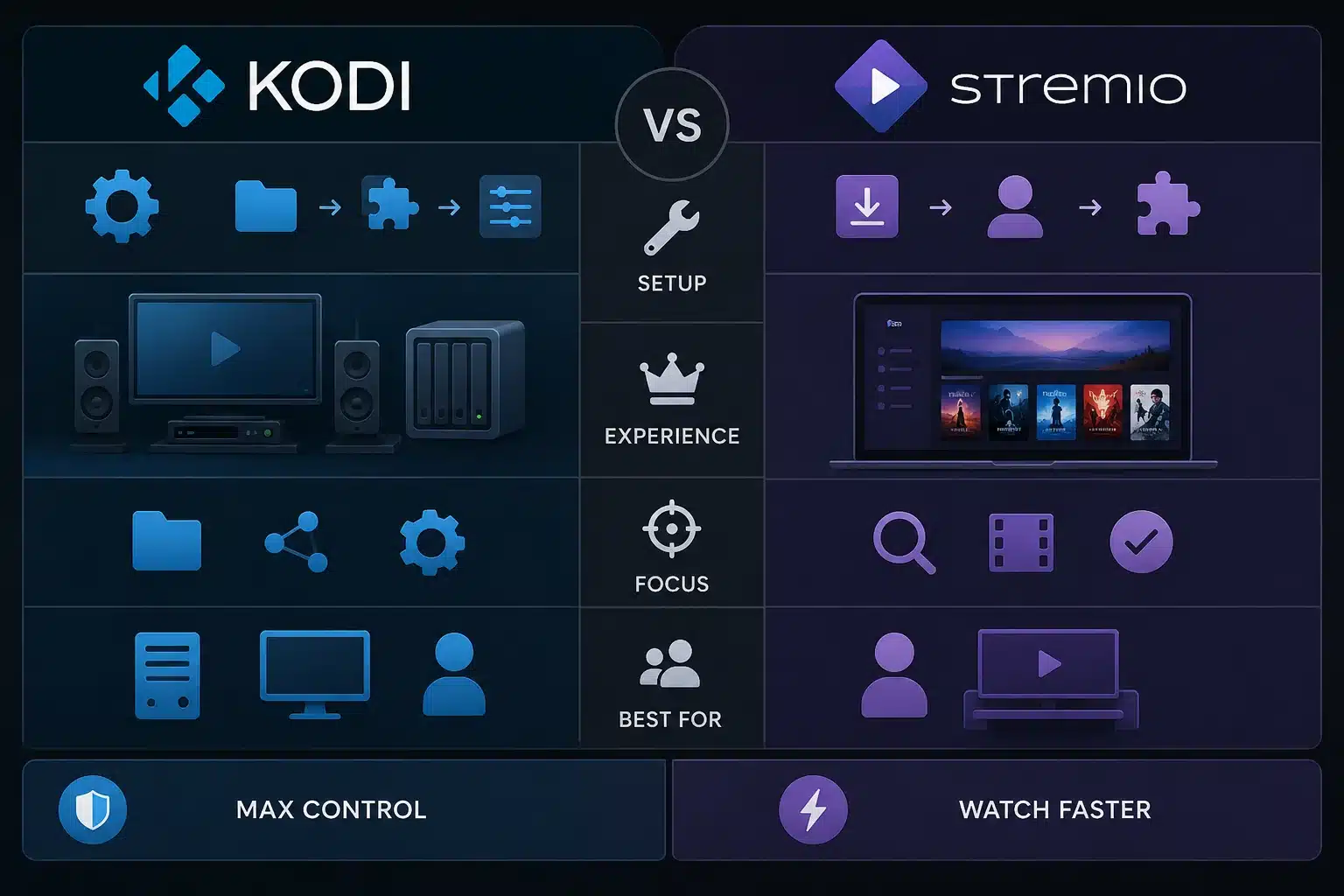
When it comes to Kodi vs. Stremio, it’s all about choosing between control and convenience. With Kodi, you can take more control over your local files, skins, add-ons, media sources, and advanced settings. Stremio makes streaming easier by providing a clean experience, along with add-ons, watch progress, and account-based syncing that’s simpler to manage.
Kodi is more like a customizable home theater system. You install Kodi, add your own media folders or network locations, set up add-ons, and build the experience around your setup. This makes Kodi great for people who have a big media library, a NAS, a seedbox, or a home theater PC.
Stremio is more like a modern streaming hub. You install the app, log in, add official or community add-ons, and browse content from different sources in one interface. This makes Stremio easier for beginners who want a faster setup with less manual configuration.
My quick take: if you want to have total control over your media setup, Kodi is the way to go. If you’re looking for a lightweight app that gets you watching faster, check out Stremio.
Kodi vs Stremio: Key Facts
- What Kodi is: A free, open-source media center for local files, network streams, add-ons, live TV, music, photos, and home theater setups.
- What Stremio is: A streaming-focused media app that organizes video content from different services and add-ons into one account-based interface.
- How Kodi works: Kodi plays media from local storage, network shares, SFTP/FTP sources, PVR tuners, and add-ons installed inside the app.
- How Stremio works: Stremio uses an add-on system to fetch catalogs, metadata, subtitles, and streams from different providers.
- Best for Kodi: Local media libraries, seedbox streaming, NAS playback, home theater PCs, advanced customization, and offline collections.
- Best for Stremio: Fast setup, simple streaming, cross-device syncing, lightweight use, and users who do not want to manage a full local library.
- Difficulty level: Kodi is intermediate. Stremio is beginner-friendly.
- Main alternatives: Plex, Jellyfin, Emby, VLC, Infuse, and media-server setups using a seedbox.
- Last updated: June 2026.
Kodi vs Stremio Comparison Table
| Feature | Kodi | Stremio |
|---|---|---|
| Main purpose | Full media center | Streaming hub |
| Best use case | Local media, NAS, seedbox, HTPC | Quick streaming and add-on browsing |
| Setup difficulty | Medium | Easy |
| Customization | Very high | Limited |
| Local file playback | Excellent | Basic compared to Kodi |
| Add-on system | Large, flexible, more manual | Simple, account-based, easier |
| Cross-device sync | Needs extra setup/add-ons | Built around account syncing |
| Smart TV experience | Strong on Android TV, Fire TV, boxes | Strong on Android TV, Samsung TV, LG TV, web |
| Privacy control | Strong if paired with a seedbox/VPN | Depends heavily on add-ons and stream sources |
| Best for beginners | Good, but a bit too technical | Better |
| Best for power users | Better | Good, but less flexible |
| Seedbox use | Excellent via SFTP/FTP/WebDAV-style workflows | Useful with the right setup and add-ons |
Choose Kodi when you want full control over your media files, remote storage, skins, playback settings, subtitles, add-ons, and home theater layout.
Choose Stremio when you want a simpler streaming app where add-ons and watch history are easier to manage across devices.
Is Kodi Better Than Stremio?
Kodi’s got some cool features that make it stand out from other streaming services. For example, it’s great for organizing your media libraries, and you can customize it to your heart’s content. Plus, its seedbox-based playback feature is pretty awesome. If you already download, organize, and store your own media files, Kodi gives you more control over how those files are displayed and played.
Kodi can connect to local folders, network storage, and remote servers. That makes it especially useful when your media is stored on a seedbox instead of your home computer. For example, you can keep your downloads on a remote server, connect Kodi to that server, and stream without filling your laptop or TV box with large files.
Kodi isn’t always the easiest option. The first setup can feel a bit messy because you might need to configure repositories, add sources, organize folders, choose metadata settings, and adjust playback behavior. Once it’s set up right, though, Kodi feels more like a personal media command center than a basic streaming app.
If you’re looking for a way to create the most flexible media center around your own library, I’d recommend Kodi.
Is Stremio Better Than Kodi?
Stremio is better than Kodi because it’s quick to set up, has clean streaming, and is convenient on all your devices. If you want to install one app, add a few add-ons, and start watching with less configuration, Stremio is usually the easier choice.
Stremio’s biggest advantage is its account-based system. Your add-ons and watch history will follow you across devices, which feels natural if you switch between a laptop, Android TV, phone, or browser. Kodi can do some of this, but usually you’ll need extra services, plugins, shared databases, or manual work.
Stremio also has a cleaner default interface. You won’t have to spend a lot of time choosing skins, setting up media libraries, or creating a complex file structure. That simplicity makes Stremio a better fit for casual users who want streaming more than library management.
If you’re looking for the fastest way to organize your streams in one simple app, I’d say Stremio is your best bet.
Kodi vs Stremio for Streaming
Stremio is usually easier for streaming, while Kodi is more flexible for controlled streaming setups. Stremio is built around add-ons that provide catalogs, metadata, subtitles, and streams. Kodi can also stream through add-ons, but Kodi needs more manual setup.
For casual streaming, Stremio feels smoother. You install Stremio, sign in, add the add-ons you need, and browse content in a layout you’re familiar with. This is great if you’re looking for a lightweight app and aren’t too concerned about building a big local library.
Kodi gets stronger when you want to control the whole pipeline. For example, you can use Kodi with a seedbox, SFTP access, private media folders, custom subtitles, local metadata, external players, or specialized playback settings. If you care about stability, privacy, file control, and long-term library organization, that’s important to consider.
The bottom line: Stremio is better for quick streaming. Kodi is better for streaming from your own sources.
Kodi vs Stremio for Local Media Libraries
Kodi is much better than Stremio for local media libraries. Kodi was built to organize and play your own movies, TV shows, music, photos, and network media sources. Stremio can handle some local playback, but local library management is not its main strength.
Kodi lets you scan folders, scrape metadata, organize TV seasons, manage artwork, adjust subtitles, configure audio output, and build a full living-room interface. If you have hundreds of files stored on a PC, NAS, external drive, or seedbox, Kodi gives you the tools to make that library feel polished.
Stremio is better when the media source is add-on-driven. It does not give you the same level of control over folder structure, library artwork, local metadata, or advanced playback customization. That is not a weakness if you only want streaming, but it is a limitation if you care about owning and managing your media.
For local files, Kodi wins clearly.
Kodi vs Stremio for Seedbox Streaming
Kodi is usually the better choice for direct seedbox streaming, while Stremio can work well when your workflow is add-on-based. A seedbox stores and downloads files on a remote server, so your home device doesn’t have to handle the torrenting workload directly.
Kodi pairs well with a seedbox because it can access remote directories and stream files from the server. Usually, your seedbox downloads the media, stores it remotely, and Kodi plays the file through a secure remote connection. This is a solid setup if you want privacy, speed, and control without having to move every file to your home device.
Stremio can also be used in seedbox-related workflows, especially if you prefer add-ons and lightweight playback. But Stremio isn’t as straightforward as Kodi when it comes to browsing a remote folder structure and playing files from a seedbox library.
Kodi vs Stremio for Privacy
Kodi gives you more privacy control, but if you want to keep things simple and legal, Stremio is easier to use safely. Kodi and Stremio don’t automatically make streaming private. Your privacy is tied to your add-ons, sources, network setup, and whether you use a seedbox or VPN.
Kodi can be very private when you use it with your own files, a seedbox, or trusted network sources. In that setup, Kodi is just the player. The sensitive part of the workflow happens on the remote server, not on your home connection. That’s one reason seedboxes are popular with people who care about keeping downloads away from their home IP address.
Stremio privacy depends a lot on which add-ons you install. Official add-ons and legit sources are simple. Community add-ons need more caution because they can connect to different external services and sources.
The safe rule is to use legal content sources, stay away from random add-ons you don’t understand, and use a seedbox or VPN when your network privacy matters.
Kodi vs Stremio for Add-ons
Kodi has a larger and more customizable add-on ecosystem, while Stremio has a simpler add-on experience. Kodi add-ons can do lots of things to improve your media experience, like extending playback, managing metadata and subtitles, providing weather info, changing skins, and even live TV.
Kodi’s add-on system is pretty powerful because it can change almost every part of the app. That’s exactly why Kodi can feel a bit tricky. You’ll need to understand repositories, ZIP installs, dependencies, add-on settings, and compatibility between versions.
On the other hand, Stremio’s add-on system is a breeze. You can usually install add-ons through the Stremio interface or an add-on page, and once they’re installed, they’ll be available across your Stremio account. This makes Stremio less intimidating for beginners.
The trade-off is control. Kodi gives you more depth. Stremio makes things easier.
Kodi vs Stremio for Beginners
Stremio is a good choice for beginners because it’s got a faster setup and a simpler interface. It’s a breeze for new users to get the hang of Stremio in no time. Just install the app, sign in, add some add-ons, search for content, and press play.
Kodi has a steeper learning curve. You need to understand media sources, libraries, scrapers, file naming, repositories, add-ons, and playback settings. It’s not impossible, but it adds some friction if you’re just looking for a simple streaming app.
Even so, Kodi is still easy enough for beginners to use if you follow a focused setup. For example, Kodi becomes a lot easier when you use it for one clear purpose: streaming files from your seedbox, playing a local movie folder, or running a living-room media center.
If you’re just starting out, I’d suggest Stremio for convenience. If you’re set on building a personal media library, Kodi is a great place to start.
Kodi vs Stremio for Power Users
Kodi is better for power users because it gives deeper control over playback, sources, skins, metadata, and remote storage. If you enjoy tuning your setup, Kodi gives you more room to build exactly what you want.
Power users can connect Kodi to a seedbox, NAS, SMB share, NFS share, local database, subtitle service, external player, PVR backend, and custom skin. Kodi can be turned into a full home theater interface with remote controls, artwork, collections, watched states, and advanced audio/video settings.
Stremio is still useful for power users, but in a different way. It is better as a lightweight streaming layer, not as a full media management system. You use Stremio when you want speed and convenience, not when you want to architect every part of the setup.
For advanced media setups, Kodi is the stronger tool.
How to Choose Between Kodi and Stremio
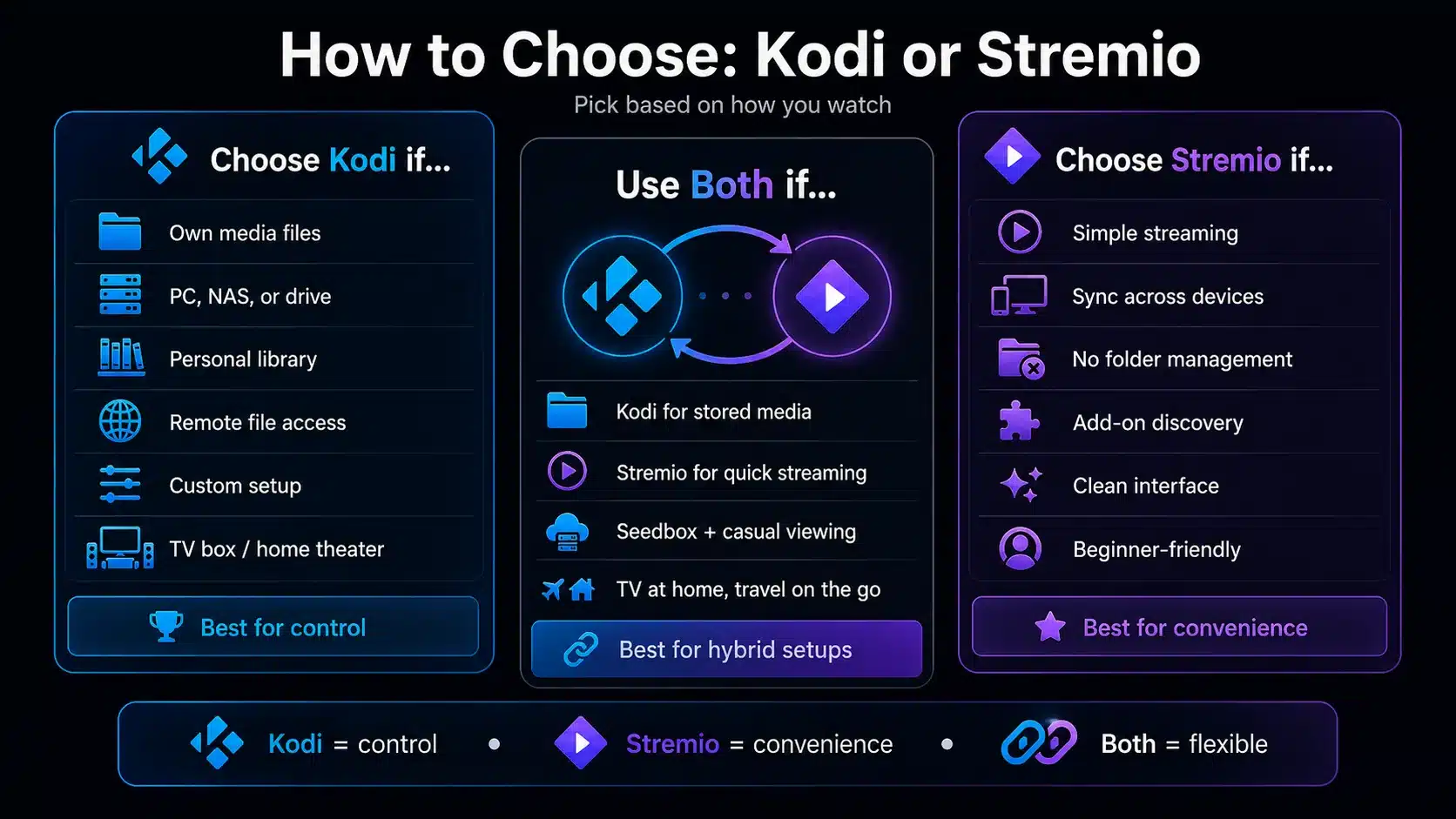
Choose between Kodi and Stremio by deciding whether you care more about media control or streaming convenience. The right app depends less on which one is “better” and more on how you actually watch content.
Choose Kodi if you:
- Store movies or shows on a PC, NAS, or an external drive
- Want to organize a personal media library
- Need remote file access through your own server
- Like skins, customization, and advanced settings
- Want a living-room media center for a TV box or home theater PC
- Prefer controlling your own files instead of relying only on add-ons
Choose Stremio if you:
- Want a simple streaming app
- Prefer account sync across devices
- Do not want to manage folders and metadata manually
- Use add-ons as your main content discovery method
- Want a cleaner default interface
- Need something easier for non-technical users
Use both if you:
- Want Stremio for quick streaming and Kodi for your stored media
- Use a seedbox for downloads and a separate app for casual viewing
- Like testing different media workflows
- Want Kodi for your main TV setup and Stremio for travel or lightweight devices
There is no rule that says you must pick only one. I often see the cleanest setups use Kodi for owned/managed media and Stremio for fast browsing.
Want a smoother media experience beyond Kodi and Stremio?
Whether you use Kodi for deep customization or Stremio for quick streaming discovery, a high-speed seedbox gives you a powerful remote server for downloading, storing, and managing media files without relying on your home connection. Build a faster, cleaner, always-online media workflow and access your content more easily across devices.
How to Use Kodi With a Seedbox
Using Kodi with a seedbox lets you stream remote media files without downloading everything to your home device. The seedbox stores the files, and Kodi is the media player that accesses them.
Add Your Seedbox as a Media Source
Open up Kodi and head to the Videos section. Add a new network location using the access method that your seedbox provides. SFTP is usually the better choice because it encrypts the connection between your device and the remote server.
Use your seedbox hostname, username, password, and media directory. Once Kodi connects successfully, you should see your remote folders inside the Kodi interface.
Choose the Right Media Folder
Pick the folder where your completed downloads are stored. This could be a general downloads folder or a folder just for media like movies and shows. Keeping your folder structure tidy is important because Kodi can access metadata more accurately when your files are organized.
For movies, use folders like Movie Title (Year). For TV shows, use folders like Show Name/Season 01/Show Name - S01E01.mkv.
Set the Content Type
Just let Kodi know if the folder has movies, TV shows, or a mix of both. Kodi uses this setting to get posters, episode info, plots, and other metadata. If you pick the wrong content type, your library can end up looking messy.
At this point, Kodi really starts to feel like a legit media hub instead of just a simple file browser.
Test Playback Before Scanning Everything
Play one file before scanning your whole library. This helps you confirm that the connection, speed, subtitles, and audio output are all working right. If you’re having playback issues, make sure you’re checking your seedbox connection, file bitrate, device Wi-Fi, and remote protocol.
Here’s a pro tip: if you’re using a seedbox mostly for streaming, avoid huge files on weak Wi-Fi. A 4K file with a high bitrate can still buffer if your home device or network can’t keep up.
How to Set Up Stremio With a Seedbox
Stremio can also be used with a seedbox, but it works differently from Kodi. Kodi is better for direct remote folder playback, while Stremio is usually better when your seedbox supports a streaming workflow, media server integration, or compatible add-on setup.
With Stremio, the seedbox isn’t just a simple file folder you browse manually. Instead, the seedbox can be the remote download and storage layer, and Stremio can be the app you use to discover, organize, and play content. The exact setup depends on what your seedbox provider supports.
Install Stremio on Your Main Device
First, install Stremio on whatever device you want to watch content on, like your desktop, Android TV, phone, tablet, or smart TV. Sign in to your Stremio account so your add-ons, watch history, and library can sync across devices.
This is one of the main ways Stremio beats Kodi. You don’t have to set up the same thing on every device if your Stremio account and add-ons are synced.
Check What Your Seedbox Supports
Before you connect Stremio to a seedbox workflow, check which apps and protocols your seedbox provider supports. Some seedboxes are all about SFTP or FTP file access, while others might support Plex, Jellyfin, WebDAV, HTTPS file access, or other streaming-friendly tools.
This is important because Stremio isn’t really designed to be a remote file browser. If your seedbox only gives you raw FTP/SFTP access, Kodi might be a better option. If your seedbox supports streaming tools or compatible add-on workflows, Stremio can become a cleaner viewing interface.
Use Stremio Add-ons Carefully
Stremio relies a lot on add-ons for catalogs, metadata, subtitles, and playback sources. Just install the add-ons you know and trust.
A seedbox can improve your workflow by keeping downloads and storage separate from your home device, but whether or not Stremio is safe and reliable depends on the sources and add-ons you use. Don’t install random add-ons just because they’re on a list.
Test Playback Across Devices
Once your seedbox workflow is connected, test playback on your main viewing device. Make sure the video quality, subtitles, buffering, and watch progress syncing are all working properly.
If playback is unstable, it might not be an issue with Stremio itself. It can come from the add-on, the source, the seedbox location, your home connection, or the device you’re using for playback.
Best use case: Stremio is the way to go if you’re after a simple streaming interface and your seedbox setup supports a compatible streaming or add-on-based workflow.
Common Mistakes With Kodi and Stremio
Installing Too Many Add-ons
If you install too many add-ons, both Kodi and Stremio will be harder to troubleshoot. Every add-on brings its own potential for errors, slowdowns, duplicate results, or broken links.
With Kodi, too many add-ons can make the interface messy and cause dependency problems. Stremio can get a bit messy with too many add-ons, making it harder to trust the search results. Start small, test it out, and only add more when you need a specific feature.
Using Untrusted Sources
One of the biggest risks in media center setups is untrusted add-ons. Kodi and Stremio are legit apps, but third-party add-ons can connect to sources you don’t control.
It’s safer to use official repositories, trusted community projects, and legal sources. If you don’t know what an add-on does, don’t install it on your main device.
Ignoring File Organization in Kodi
Kodi works best when your media files are named and organized correctly. If you’ve got bad file names, you might end up with the wrong posters, missing seasons, duplicate entries, or broken metadata.
If you use a seedbox with Kodi, keep your completed media in clean folders. Don’t leave everything in one big downloads directory. A little structure goes a long way and saves you from a lot of headaches down the road.
Expecting Stremio to Replace a Full Media Server
Stremio isn’t a complete replacement for Plex, Jellyfin, or a heavily customized Kodi setup. Stremio is great for lightweight streaming, but it’s not really designed to manage a big collection of your own media with the same level of detail.
If you’re trying to build your own Netflix-style library using files you’ve got control over, Kodi, Plex, or Jellyfin are usually a better choice.
Kodi vs Stremio vs Plex vs Jellyfin
Stremio and Kodi are media apps, while Plex and Jellyfin are more complete media-server systems. This distinction is important because people often compare them as if they all solve the same problem.
| App | Best For | Main Weakness |
|---|---|---|
| Kodi | Local playback, customization, seedbox file access | More manual setup |
| Stremio | Simple streaming and add-ons | Less control over local libraries |
| Plex | Polished personal media server | Some features require Plex Pass |
| Jellyfin | Open-source self-hosted media server | More technical setup than Plex |
| VLC | Simple file playback | Not a full media center |
If you need customizable media center, go with Kodi. Stremio is basically a streaming aggregator. Plex and Jellyfin are better when you want a server-client model where a central server organizes your library and streams it to multiple devices.
Who Should Use Kodi?
For Seedbox Users
Kodi is a great option for seedbox users who want direct access to remote media files. You can keep files on your seedbox, connect Kodi to the remote directory, and stream without having to move large files to your home device.
This setup is great if your home internet is slow, you don’t have much local storage, or you want to keep torrent activity away from your home connection.
For Home Theater Users
Kodi is perfect for anyone looking to set up a home theater system with a TV-first interface. Kodi’s layout is designed for remote control navigation, large screens, and couch viewing.
If you’re using an Android TV box, Fire TV device, mini PC, or Raspberry Pi-style setup, Kodi can turn that device into your very own media center.
For Local Library Collectors
Kodi is great for people who have their own media files. If you’re into artwork, collections, subtitles, audio settings, and folder structure, Kodi’s got you covered.
When a Kodi library is well-organized, it feels personal, fast, and independent from changes on streaming platforms.
Who Should Use Stremio?
For Casual Streamers
Stremio is a better fit for casual streamers who want a clean app without much setup. You don’t have to mess around with configuring local media folders or building a complex library.
Just install Stremio, add the right add-ons, and you’re all set. That’s the main appeal.
For Multi-Device Users
Stremio is great for people who switch between devices a lot. Stremio uses an account-based model, so it’s easy to keep your setup consistent across a laptop, phone, TV, and browser.
Kodi can sync across devices, but it usually takes more work.
For Beginners
Stremio is a great place for beginners who are overwhelmed by media server terms. The interface is more familiar, the setup is shorter, and the add-on flow is simpler.
If you’re new to all this, Stremio is a good place to start.
Technical Difference: How Kodi and Stremio Actually Work
Kodi is a local media center application, while Stremio is an add-on-driven streaming platform. That technical difference explains most of the user experience differences.
Kodi is what makes your device’s media center work. It handles your media sources, interface, metadata, playback, skins, and add-ons locally. When Kodi connects to a seedbox or NAS, it treats that remote location as a file or media source. Your device can still play the file, but the storage location is different.
Stremio separates more of the content discovery experience into add-ons and account-based syncing. Add-ons offer catalogs, streams, subtitles, and metadata. The app then presents those results in a cleaner interface. Stremio is easier to use, but it gives you less direct control over the full media pipeline.
In simple terms: Kodi is a toolbox. Stremio is a streamlined app.
Are Kodi and Stremio Legal?
Kodi and Stremio are legal media apps, but the content you access through add-ons can create legal problems. The apps themselves aren’t the problem. The issue is whether your sources have the rights to distribute the content you stream or download.
Use Kodi with your own media, official add-ons, public-domain content, legal IPTV services, or files you have the right to access. When you can, use Stremio with official add-ons and legit services.
This is important because a lot of people blame the app when the real risk comes from unofficial add-ons or illegal sources. A media player is just a tool. Your sources are the ones who can tell you whether your setup is safe, private, and legal.
I always suggest thinking about the app and the content source separately. Kodi and Stremio aren’t the same as the third-party add-ons people install inside them.
Best Setup Recommendation
For most users, the best setup is Stremio for quick streaming and Kodi for controlled media playback. You don’t have to force one app to do everything.
If you’re new, start with Stremio. It’s easier to understand, easier to sync, and faster to test. Once you know what you need, add Kodi for better local playback, seedbox access, or a proper home theater setup.
I’d say use Stremio when you want convenience, Kodi when you need more control, and a seedbox for privacy, speed, and remote storage.
Frequently Asked Questions About Kodi vs Stremio
Is Kodi better than Stremio?
If you’re into local media playback, seedbox access, skins, advanced settings, and full control over your media library, Kodi is better than Stremio. If you’re looking for a streaming app that’s simpler to set up and syncs across devices more easily, Stremio is a good choice.
Is Stremio easier to use than Kodi?
Yes, most beginners find Stremio easier to use than Kodi. Stremio has a cleaner setup, account-based syncing, and simpler add-on management. Kodi is more powerful, but it takes more time to configure correctly.
Can I use Kodi and Stremio together?
Absolutely, you can use Kodi and Stremio together. A lot of users use Kodi for local or seedbox media playback and Stremio for quick streaming. This hybrid setup works well because each app handles a different part of the media experience.
Which is better for a seedbox, Kodi or Stremio?
Kodi is usually better for direct seedbox streaming because it can access remote folders and play files from your server. Stremio can still work with some seedbox setups, but Kodi gives you more direct control over remote media files.
Are Kodi and Stremio legal?
Kodi and Stremio are legal apps. The legal risk depends on the add-ons and sources you use. Official add-ons, personal media, public-domain content, and licensed services are safer. If you’re sharing copyrighted content without permission, you might run into some legal issues.
Which app is better for Fire TV or Android TV?
Kodi and Stremio both work well on Android TV-style devices. If you’re into custom home theater interfaces, Kodi is the way to go. If you’re looking for a simple streaming app with fewer settings to manage, Stremio is a better option.
Final Words
When it comes to Kodi vs. Stremio, it’s not really about which app is better. It’s all about choosing between having control or convenience. Kodi’s a great media center, especially with a seedbox or local library. Stremio gives you a faster streaming workflow, especially if you want something simple across devices.
If I were setting this up from scratch, I’d start with Stremio for quick testing and Kodi for anything serious involving remote storage, personal media, or a seedbox. If privacy, speed, and remote access are a priority, I’d suggest using a seedbox as the main setup instead of relying solely on your home connection.
Using Kodi or Stremio to organize your media library?
A RapidSeedbox seedbox helps you keep your downloads fast, your media files organized, and your home bandwidth free for streaming. Pair it with Kodi or Stremio to create a cleaner media setup where your content is handled on a powerful remote server and ready when you are.
0Comments