 By
By
Struggling to manage endless downloads efficiently? JDownloader2 is your all-in-one solution for faster and smarter file management. This guide shows you how to master JDownloader’s most powerful tools: from multi-connection downloads and link grabbing to VPN and proxy integration (for seamless automation and speed). Learn how to boost performance and keep every download organized with ease.
Disclaimer: This material has been developed strictly for informational purposes. It does not constitute endorsement of any activities (including illegal activities), products or services. You are solely responsible for complying with the applicable laws, including intellectual property laws, when using our services or relying on any information herein. We do not accept any liability for damage arising from the use of our services or information contained herein in any manner whatsoever, except where explicitly required by law.
Table of Contents.
- What is JDownloader?
- JDownloader Features.
- How to Download and Install JDownloader?
- How to Use JDownloader?
- JDownloader Tips and Tricks.
- FAQ: JDownloader
- Final Words.
1. What is JDownloader?
JDownloader is a free, open-source download manager developed and maintained by AppWork GmbH. It provides a centralized way to manage all your downloads across multiple platforms, including Windows, Linux, macOS, NAS (Synology), and embedded devices.
Written in Java, it requires Java 8+ to run and features a modular, flexible architecture supported by a vast plugin ecosystem—covering thousands of hosters, decryptors, and automation tools.
Unlike modern alternatives such as Free Download Manager, Internet Download Manager, or Xtreme Download Manager, JDownloader remains completely open-source, ad-free at its core, and actively maintained with frequent plugin and stability updates from its developer team.
Is JDownloader safe?
JDownloader is ad-supported but not adware — ads appear only within the interface and never as intrusive pop-ups. The software is considered safe when downloaded from its official website, as builds provided there are verified and free from malware. While some antivirus programs may flag custom or unofficial builds with false positives, official AppWork GmbH releases are clean and regularly maintained. Always download from trusted sources and decline any third-party offers during installation to ensure a secure experience.
Software updates (January 2026).
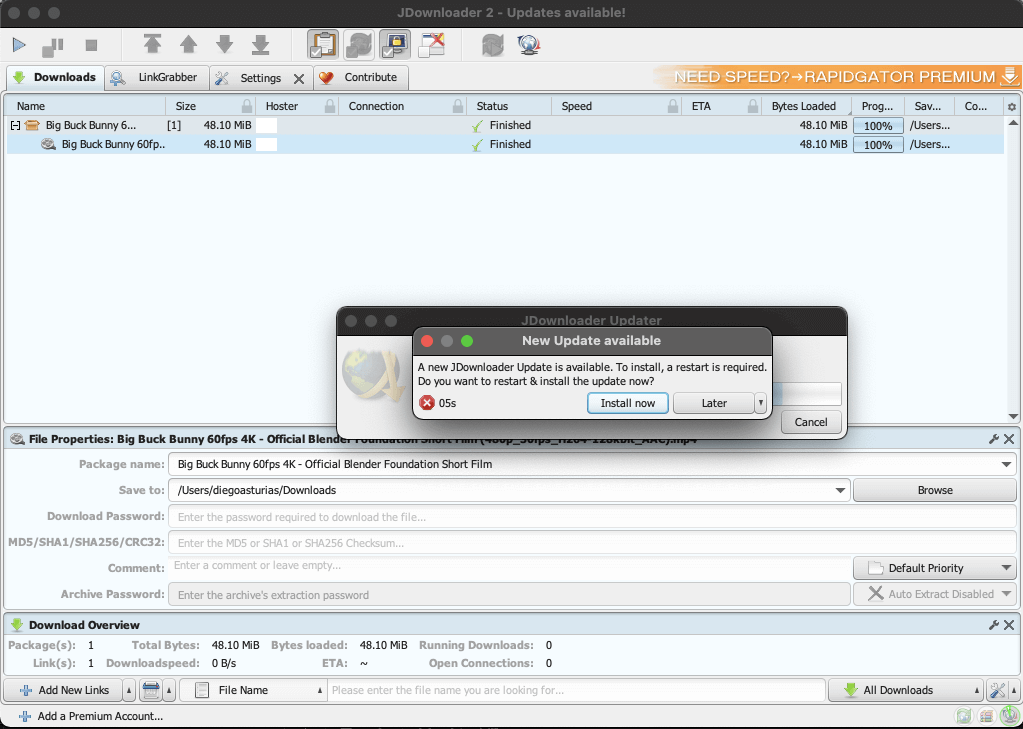
JDownloader 1 was almost a de-facto standard for multimedia downloads and management from the Internet. The software is a true classic. But now JDownloader 2 (beta for a while) is out there with a stable release (since May 2016).
But as of 2026, JDownloader 2 looks and feels much the same as before, with no major interface changes. However, today it’s more reliable under the hood—plugin updates are more frequent, the update system is smoother, and support for niche hosters has improved. So, if you download from many different sites, keeping JDownloader updated is crucial to avoid broken plugins. And for those using custom setups like scripts, NAS, Seedboxes, or Docker, the newer versions offer greater flexibility and stability in deployment.
2. JDownloader Features.
JDownloader 2 has several tools and features that can help you get the most out of the program. The coolest features are the pause/resume, link grabber, download challenge solutions, and integration with VPNs.
| Feature | What it Does | Pro Tip |
|---|---|---|
| Pause/Resume | Full control over downloads. | Use hotkeys for bulk actions. |
| Multi-Connection | Boosts speed with multiple threads. | Keep chunks at 3–5 for balance. |
| Link Grabber | Auto-detects download links. | Add the browser addon for speed. |
| VPN & Proxy | Works with proxies and VPNs. | Integration is seamless. |
| Auto Extract | Unpacks ZIP/RAR automatically. | Add password lists for archives. |
| CAPTCHA Solver | Uses 9kw.eu, AntiCaptcha, CaptchaBrotherhood. | Enable APIs in plugin settings. |
| Scheduler & Scripts | Automates downloads and shutdowns. | Great for overnight jobs. |
| CLI / Headless Mode | Runs without a GUI for servers or NAS. | Control remotely via my.jdownloader.org. |
Full Feature Breakdown
Here is a description of the best-known features:
a. Pause, Resume & Queue Control:
Manage downloads individually or in bulk. Prioritize tasks, limit simultaneous downloads, or pause/resume all with a click or keyboard shortcut.
b. Multi-Connection Downloads:
Split large files into multiple chunks to maximize bandwidth. Ideal for users with high-speed connections or premium hoster accounts.
c. Smart Link Grabber:
Automatically detects and organizes download links copied to your clipboard. Integrates smoothly with Chrome, Firefox, and Edge via the myJDownloader browser addon.
d. VPN & Proxy Integration:
Connect JDownloader to one or multiple IPv4/IPv6 proxies—or even rotating proxy lists—and VPNs to bypass host limits, reduce wait times, and stay anonymous. Learn more about VPN vs proxies.
c. Automatic Archive Extraction:
Auto-extracts ZIP, RAR, and 7z archives (including multi-part ones). You can also set it to delete compressed files after unpacking and manage password lists.
d. Automatic CAPTCHA Solving:
Built-in OCR plus integration with major solvers like 9kw.eu, AntiCaptcha, and CaptchaBrotherhood, so you can skip manual verification steps on hosters.
e. Scheduler & Event Scripter Plugin:
Automate your workflow: schedule downloads, trigger extraction, or shut down your system after completion. Perfect for nightly tasks or seedbox automation.
f. Command-Line & Headless Mode:
Run JDownloader without a GUI—great for servers, NAS, and seedboxes. Control everything remotely via my.jdownloader.org or CLI commands. Learn more about headless browsers.
g. Container Decryption (RSDF, CCF, DLC):
Import encrypted download containers and let JDownloader decrypt and queue them automatically.
h. Speed Limiting & Bandwidth Management:
Set custom download caps to prevent JDownloader from hogging your bandwidth while streaming or working online.
3. How to Download and Install JDownloader.
Keep in mind that JDownloader is written in Java, so before installing it in any Operating System, you’ll need to have Java 8 or OpenJDK 11+ updated and running.
a. Downloading.
- Visit the JDownloader official website and download the latest software version for your operating system.
- Updates can be done directly from the program once installed. JDownloader 2 is available and should always be downloaded from the official site >> jDownloader.org.
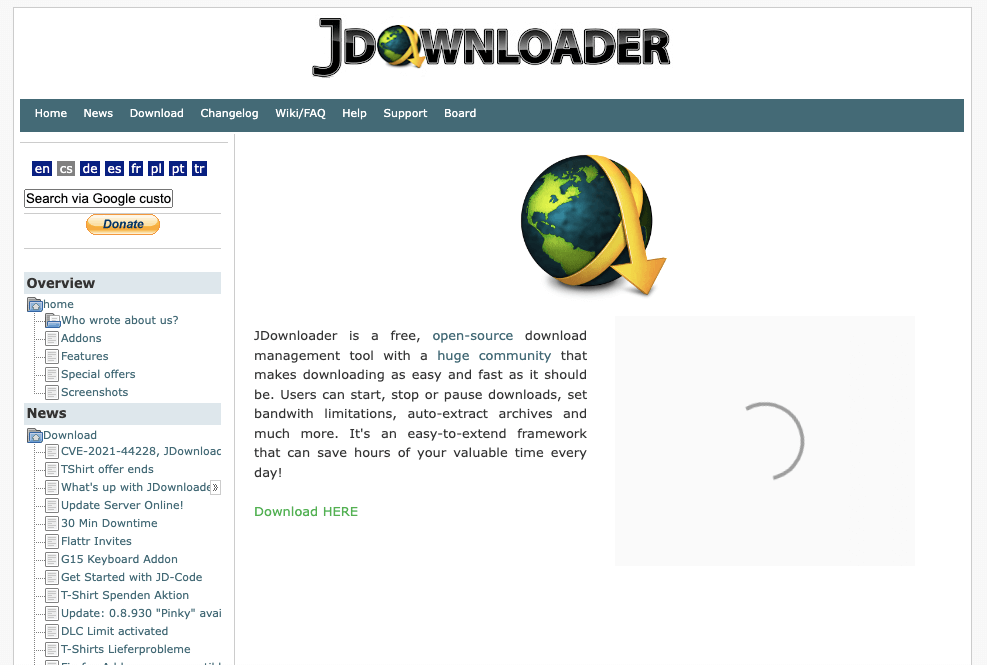
- JDownloader is 100% free adware. Their software is free but makes some money from user interface advertising. They show a small unobtrusive advertising banner on top of the interface.
- Note: If you paid for JDownloader, it is likely a scam, and you might have downloaded the software from a non-official site. Again, JDwonloader is 100% free.
- JDownloader uses Mega.nz to host and download its software. The download link will redirect you to the Mega.nz site.
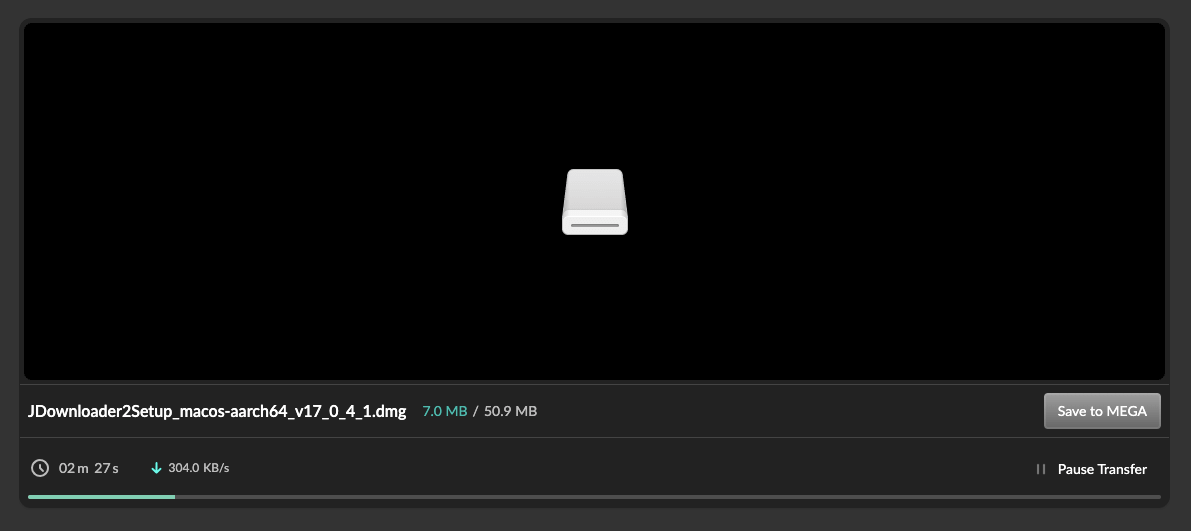
- Although the software is free, we encourage its power users to give this wonderful project a donation. You can donate once you download and install the software easily.
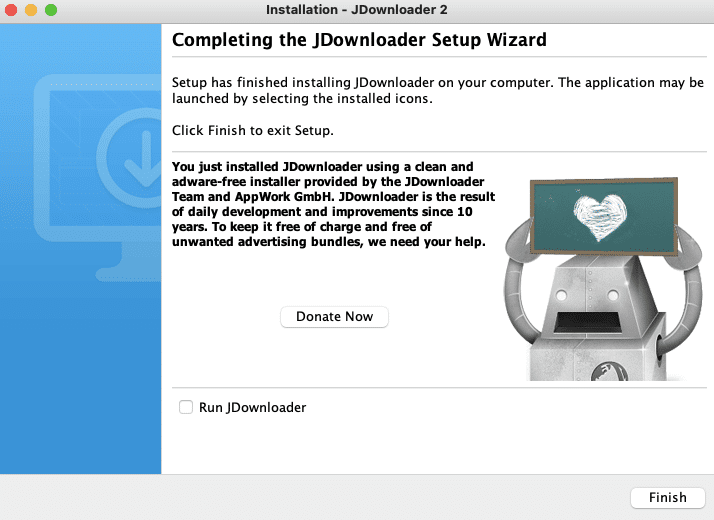
b. Installing JDownloader on Windows, Linux, macOS, or Docker.
- On Windows. You’ll need Java 8 (or a more modern version) running on your 32 or 64-bit Windows machine to install JDownloader on Windows. Download the rar file, extract the contents of the compressed setup package, and install it using the setup wizard.
- On Linux. To install JDownloader on Linux, you must ensure that you have Java installed on your system.
- Download the installer from the official site. Navigate to the folder where the installer was saved and execute the installer with the command: “sudo sh JD*.sh” or use the following command:
|
1 |
sudo sh JDownloader2Setup.sh |
- If you install it on a Linux distribution that does not come with JRE (Java Runtime Environment) pre-installed, you can use the Shell Script “JDownloader2Setup_unix_nojre.sh” to install it.
- On macOS. Download the macOS build for your processor (Intel or Apple Silicon).
After installation, go to System Preferences → Privacy & Security and allow JDownloader to run (macOS may block unsigned builds by default). - Docker (Advanced Users)
- Use the official container from Jlesage’s Docker Hub page or similar community images for NAS/seedbox deployments. Example:
|
1 |
docker run -d -p 5800:5800 -v /downloads:/config jlesage/jdownloader-2 |
c. Verify Your Download
Always confirm authenticity by checking the official checksum page before installation to ensure your file hasn’t been tampered with.
4. How to Use JDownloader?
Once the software is installed, you’ll be ready to use it to manage your downloads. In this section, you will learn how to use JDownloader 2 for its basic functionality.
| 3-step Quick Start 1. Copy your download link → JDownloader auto-detects it. 2. Check LinkGrabber tab → select resolution or file package. 3. Start download → monitor progress in the Dashboard. |
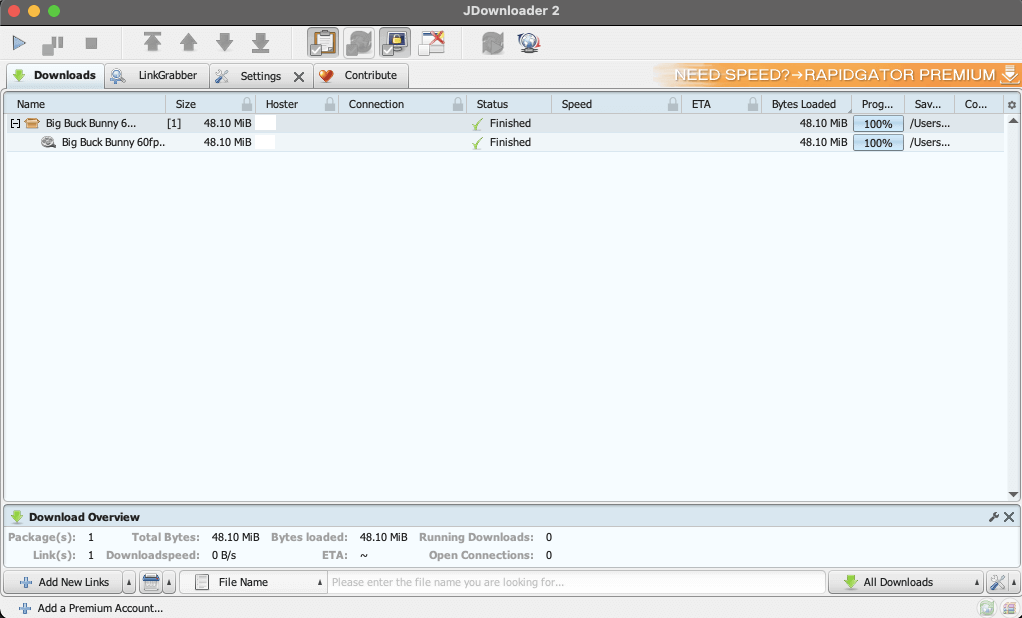
- The Graphical User Interface looks as follows:
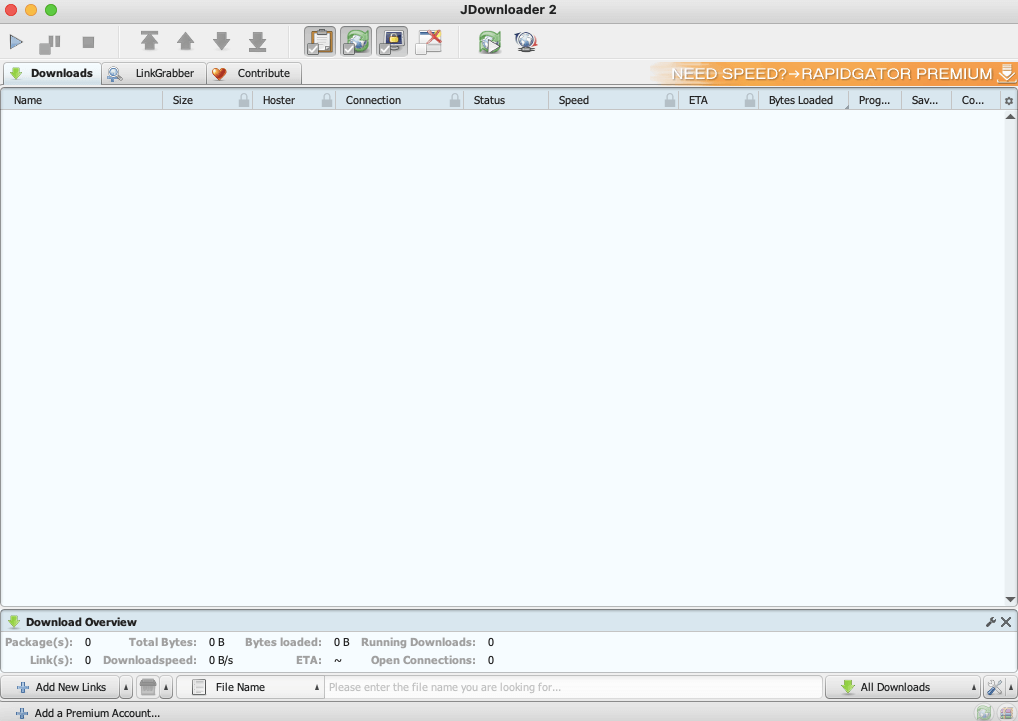
- To start using JDownloader, find any file or archive you want to download from the Internet. Ensure you have the copyright of any file you download over the Internet. Or at least ensure that you have the rights or permission to download it.
- Right-click on the file or directory you want to download > and choose “Copy link location” or “Copy link address”.
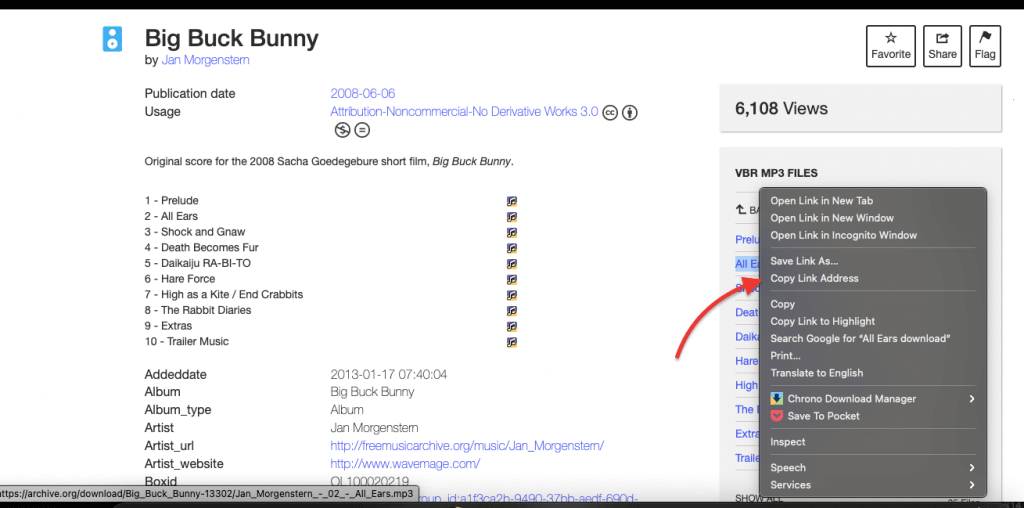
- In many cases, JDownloader will detect the download link from the clipboard and add it automatically to the “LinkGrabber” field.
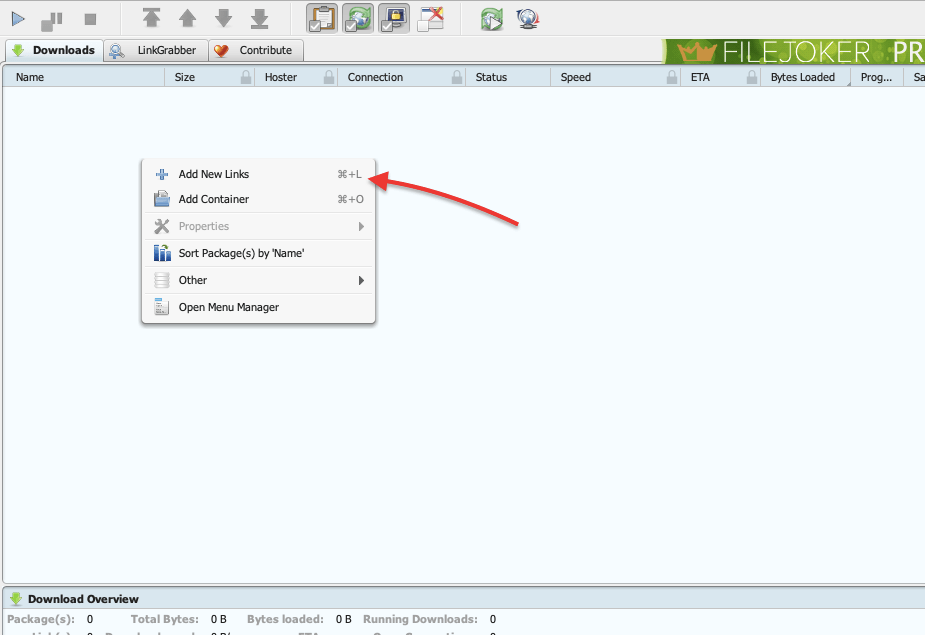
- You can also go to File > “Analyse Text with Links” and paste the link in the empty field. Or you can also right-click on the “Downloads” field and choose “+ Add New Links.
Using the LinkGrabber
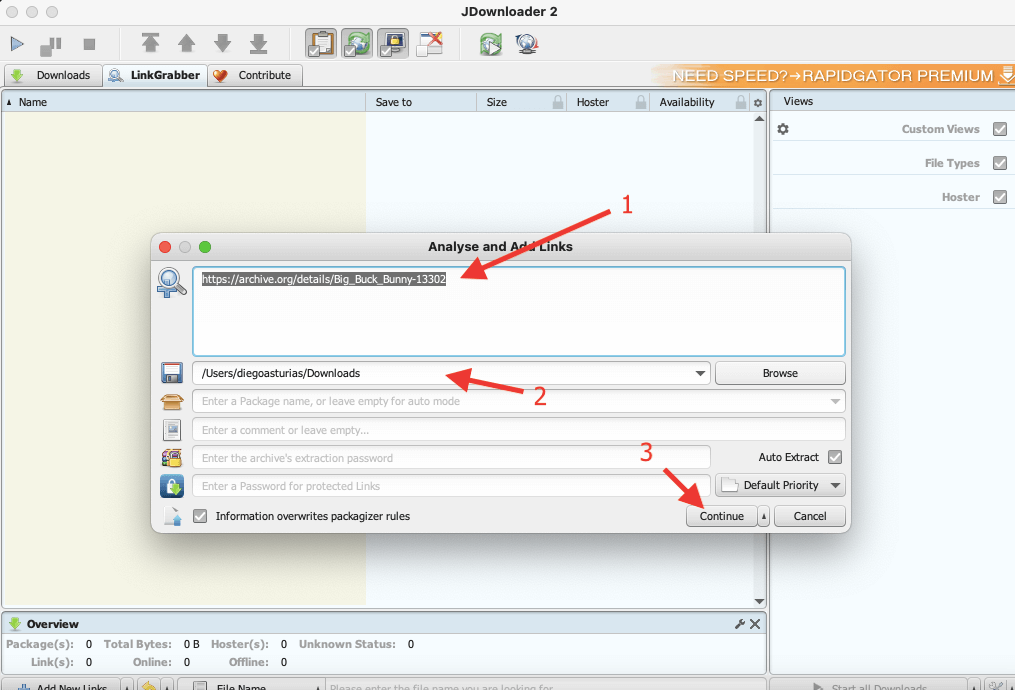
JDownloader can help you parse text or websites for links. To do this, enter the link, URL, website, or text, choose a destination folder, and click “Start Analyse.” All downloadable files will be listed in the “LinkGrabber view”.
- (1) In the “Analyse and Add Links,” add the direct download link or the entire URL.
- (2), You may also change the download destination folder, create a package name based on the filenames, enter comments, enter the archive’s extraction password, enable “auto-extract,” and enter the password for the protected link.
- (3) Click on Continue.
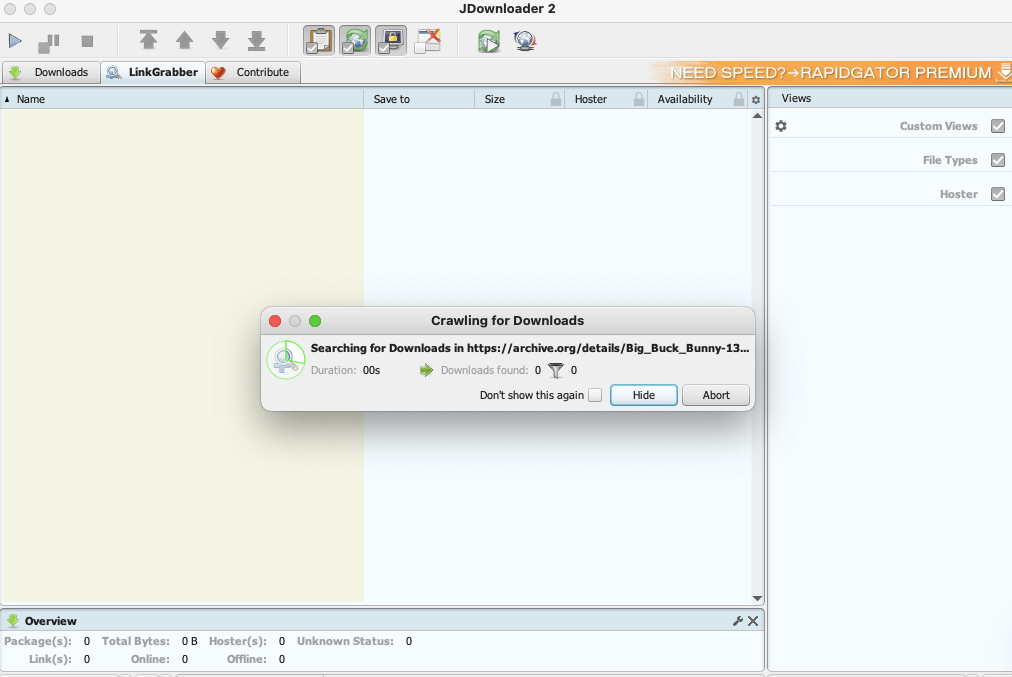
- Let the fun begin! JDownloader will begin crawling for downloads. It will search for the downloadables in the URL you provided.
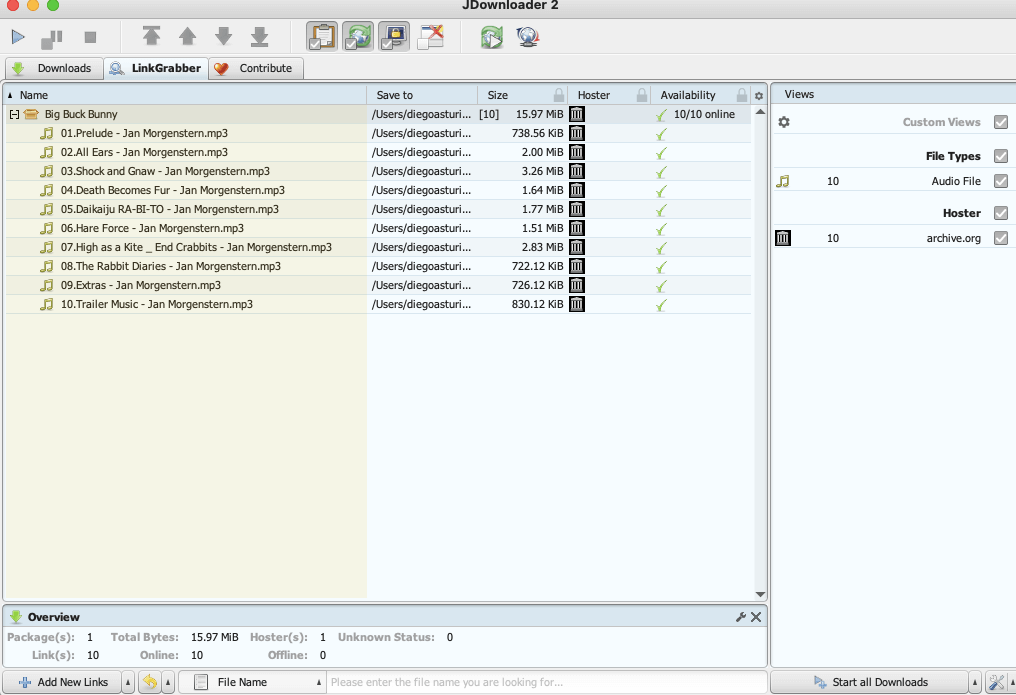
- It will analyze the contents of the page or file you provided and make all the downloadable files or archives available through the JDownloader’s “Link Grabber.”
Downloading the files.
- To download those files, right-click on your “LinkGrabber window”… and choose whether to “Add to Download list” or “Add all to Download list,” or you can also set properties to each or all downloads.
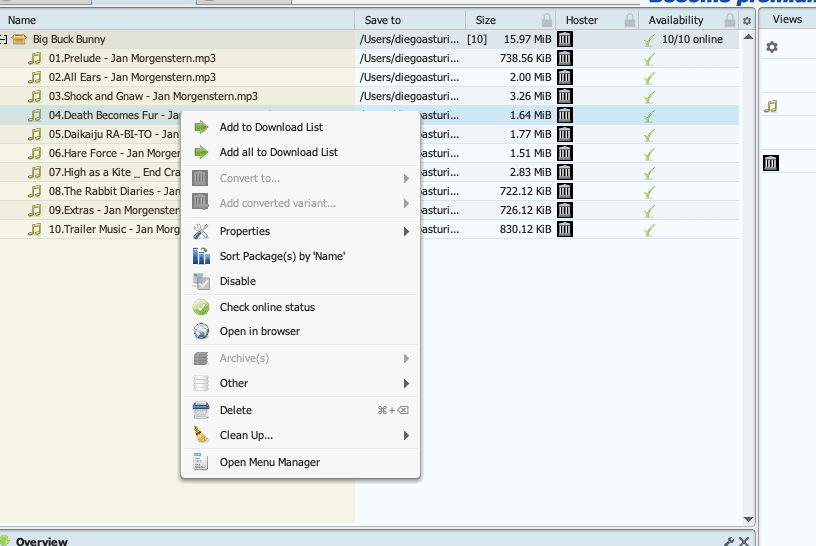
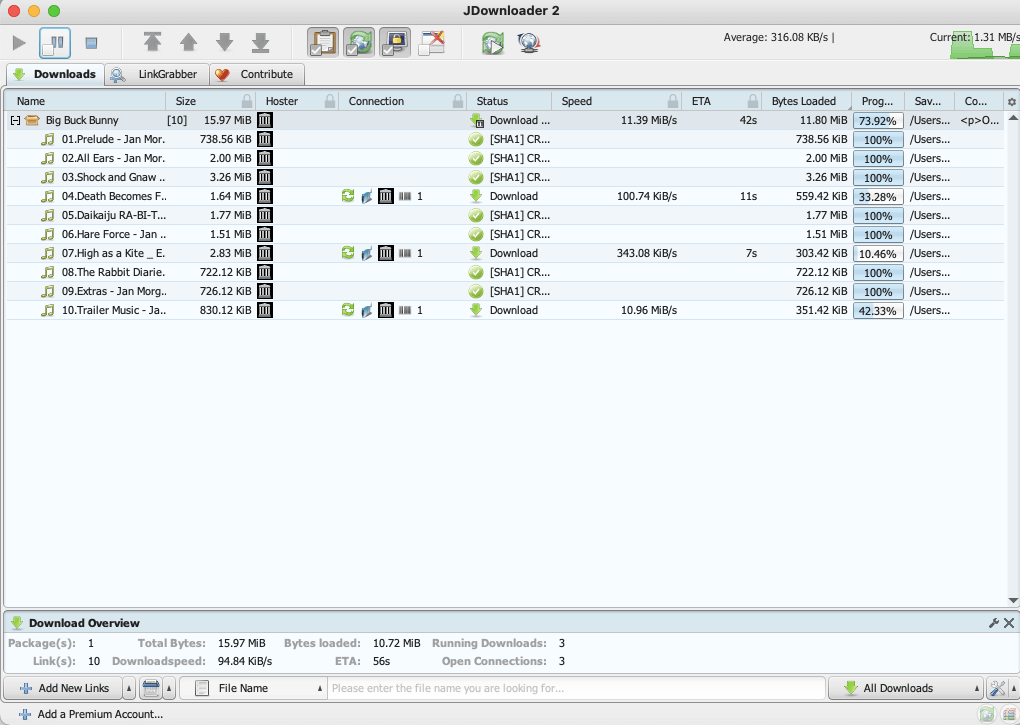
- A quick way to download all files in the JDownloader LinkGrabber window is to click the “Start Downloads” button. Your downloads will start. Here you can Pause, Resume, or Stop your downloads.
- If you have several files you want to download, paste the links into JDownloader, and the program will queue them up and download them all simultaneously.
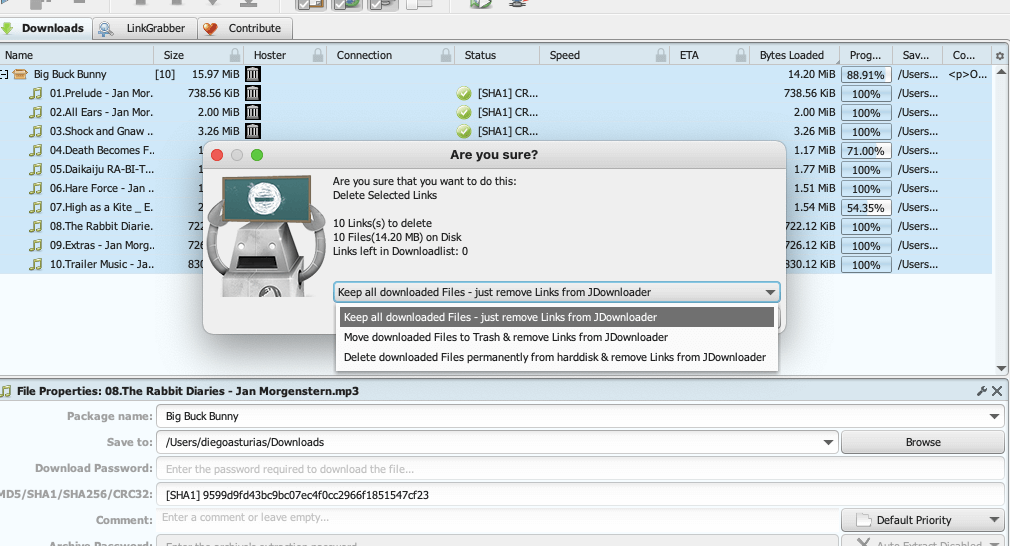
- In addition, if you want to remove JDdownload selected links, downloaded files, or both, Right-click on the download > “Delete” and choose your option >
- Keep all downloaded files – remove the links.
- Move downloaded files to trash and remove links.
- Delete downloaded files permanently from the hard disk and remove links.
Optimize JDownloader2 Like a Pro 🎯
Learn how advanced users pair it with high-speed seedboxes for uninterrupted performance.
→ Learn Seedboxes5. JDownloader Tips and Tricks.
In this section, you will learn a few JDownloader tips and tricks:
- A. How to find all downloadables from online video sites.
- B. Manage and automate downloads from torrent sites.
- C. Configure a proxy server to avoid waiting times and download faster.
- D. How to extract compressed files automatically?
- E. How to make JDownloader 2 download faster?
A. How to find all downloadables from online video sites with JDownloader.
Note: Downloading videos from Youtube (without permission) is against the Youtube terms of service. It is considered a violation and can result in account termination or even legal action. Keep in mind that downloading copyrighted content is not legal.
Use the following method only if the video you are about to download is in the public domain and if it is licensed under the Creative Commons License. Also, if the video is for personal or educational use and depending on the country you live you may download the video.
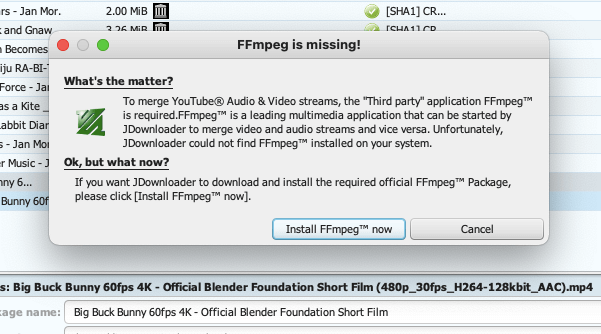
- JDownloader can integrate with FFmpeg to download entire unencrypted video streams. With this ability, the software can crawl sites and download videos from sites like Youtube.
- You can download the FFmpeg package right from the JDownloader platform.
- Copy the URL where your video is being hosted or played.
- Go to JDownloader > LinkGrabber. The software will detect all downloadables and make them available for you. Additionally, for sites like Youtube, you can select the appropriate resolution, container, format, etc.
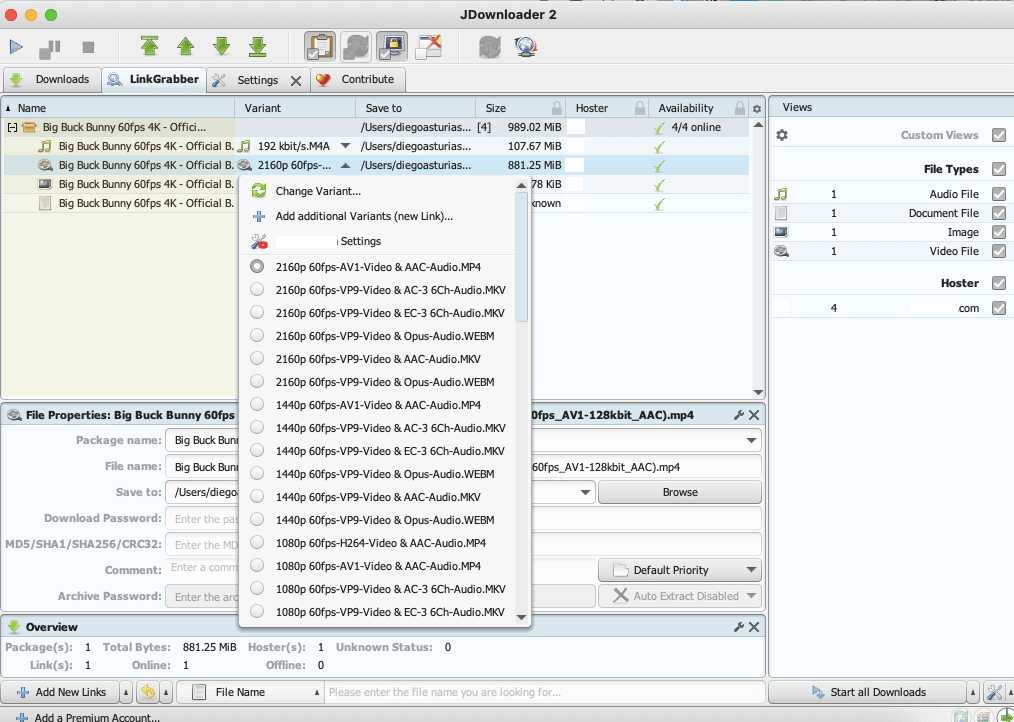
- Click on “Start download”.
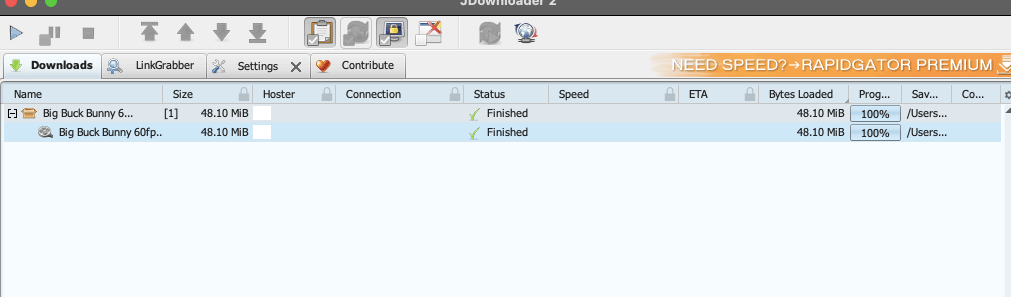
- Once finished, you can watch the video from your computer.
B. Manage and automate downloads from torrent sites.
As mentioned previously, JDownloader is not a torrent downloader. It will not download the contents of a torrent file BUT will download .torrent files like no other download manager. In fact, JDownloader can be used with a seedbox to manage and automate your downloads from torrent sites.
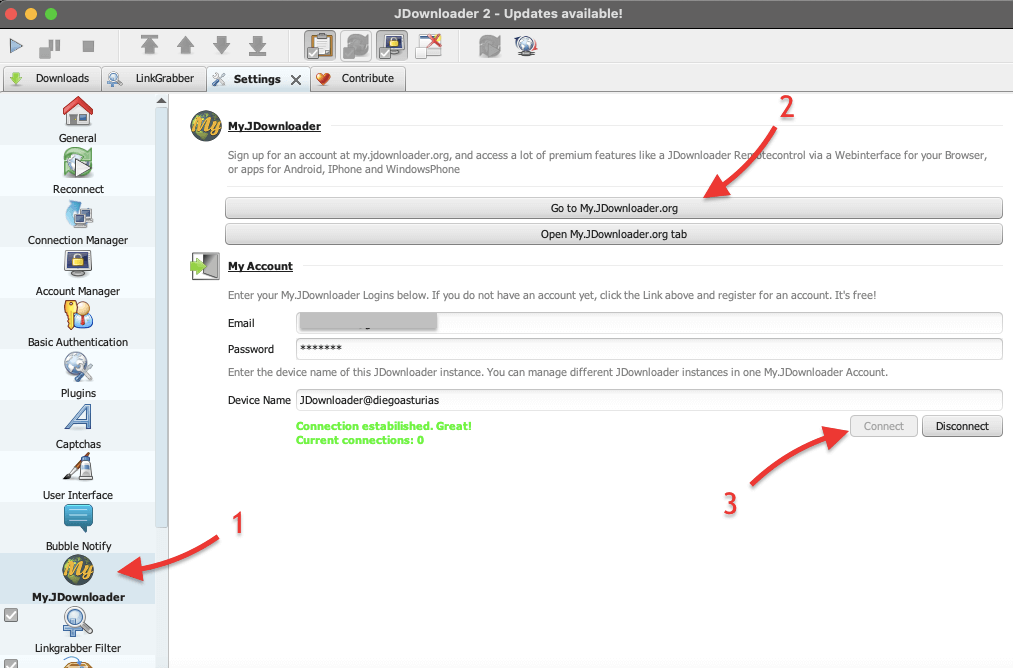
- Install the myJDownloader browser addon or app on your browser. On your PC, go to (1) Settings > MyJDownloader. (2) Register and log in to your myJDownloader account. (3) Enter your credentials and click on “Connect.”
- Note: Device Name will change from JDownloader installation to installation.
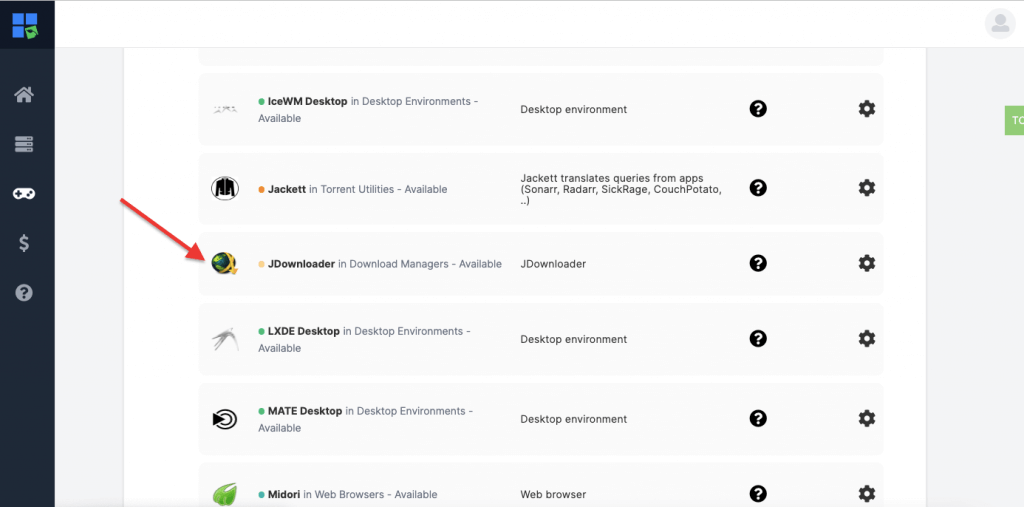
- Connect to your seedbox, and configure JDownloader; Rapidseedbox’s boxes come with JDownloader as a preinstalled app. So you only need to click once to install it.
- On JDownloader on your Seedbox, do the same > Go to Settings > MyJDownloader and log in to your myJDownloader account. Enter your credentials and click on “Connect.” Your Device Name on this installation should be different.
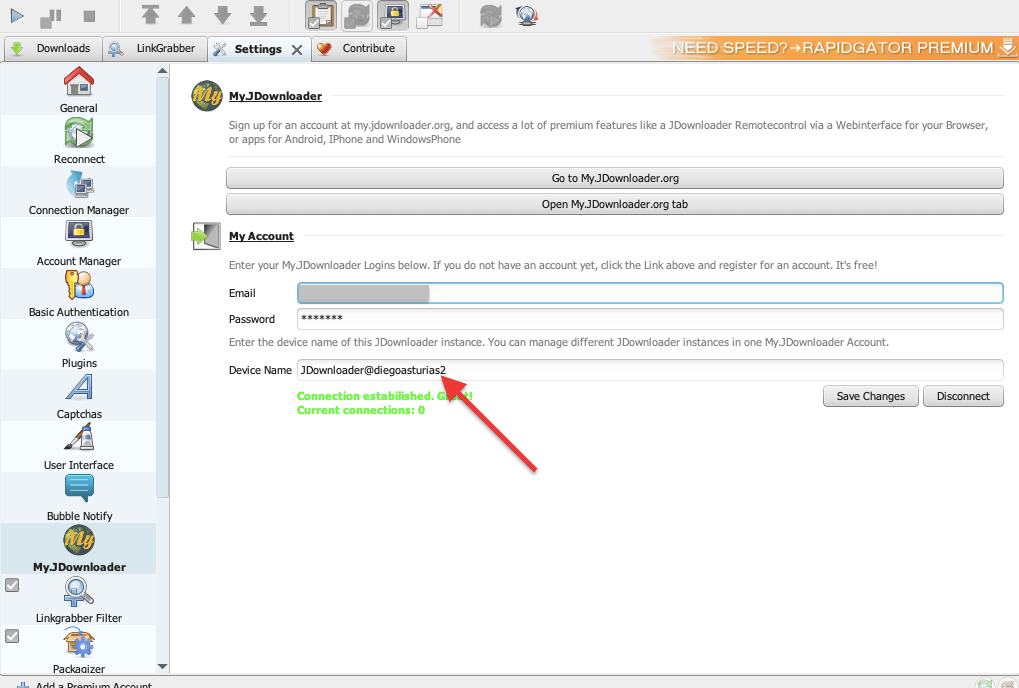
- From the myDownloader on your computer, you can start sending download links to your JDownloader on your seedbox. With a premium account from myJDownloader, you can access premium features like the JDownloader Remotecontrol from your browser or mobile phone.
- From the JDownloader of your seedbox, you can do many things, such as schedule your downloads, automate the extraction of files, use a VPN to keep your downloads anonymous, and create custom download rules.
- If you want to check all your connected JDownloader devices, you can go to the myJDownloader online dashboard (https://my.jdownloader.org/index.html#dashboard).
| ⚠️ Note: JDownloader does not support direct peer-to-peer (P2P) downloads. This means that you cannot download content through torrent files directly with JDownloader. However, you can still use it to download torrent files (.torrent) and add them to the software. In this case, JDownloader will only download the .torrent file itself and not the actual content behind the torrent file. Alternatively, you can use your seedbox service, such as Rapidseedbox, to download your torrent files. |
C. Configure a proxy server to avoid waiting times and download faster.
Although JDownloader comes with a “reconnection function” to bypass the download limitation forced by IP address, it will not always be effective. To best solution to avoid the “wait time” imposed by most file hosting sites is to configure one or several proxies to be used in connections limited by IP.
- To configure a proxy or proxies on JDownloader, you’ll need to go to the Settings tab (1) and click on Connection Manager (2) in the left column.
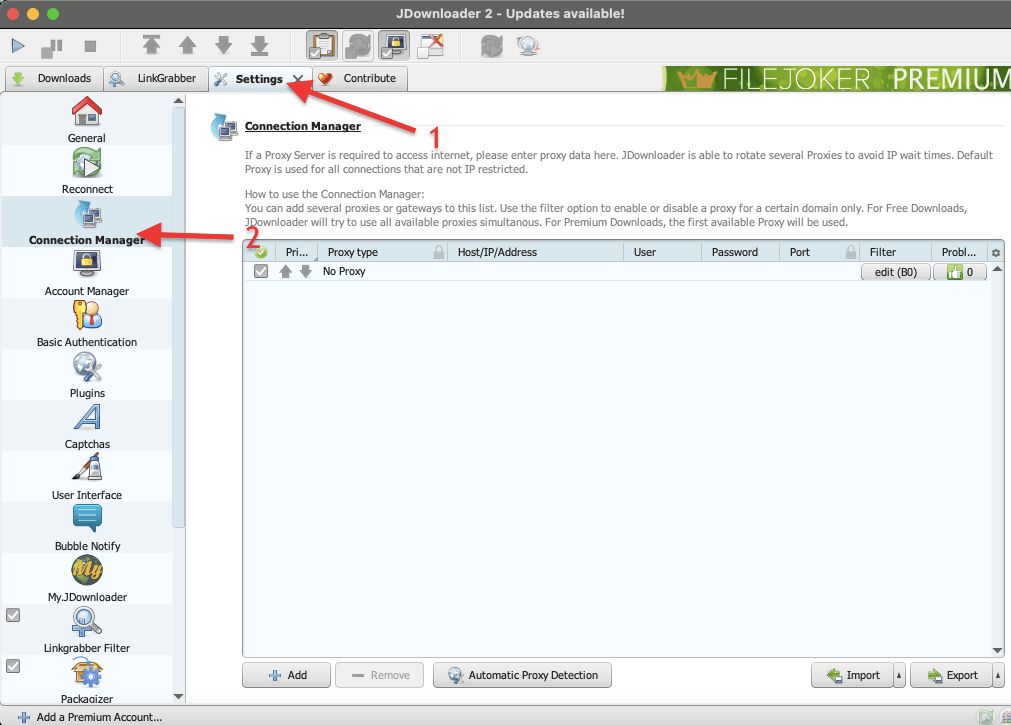
- Here you can automatically detect a proxy you already have configured on your computer or manually add one to the list. You can also use the “Import” to bring a list of proxies to JDownloader.
- To add a new proxy, you’ll need to add the following information, types of proxy (which include HTTP, HTTPS, SOCKS4, SOCKS5, Direct or Auto proxy.pac), the Host/IP address and port, and credentials, including username and password.
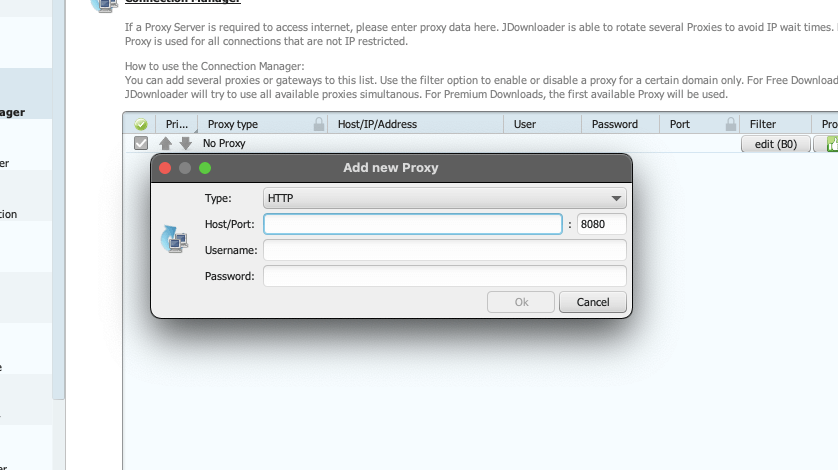
- When downloading, the software will use all available proxies simultaneously.
D. How to configure JDownloader to automatically extract compressed files?
By default, JDownloader is set up to automatically extract all commonly compressed file types, including zip, rar, and 7zip. The software saves these extracted files in a folder created for each download. But still, you can also manually configure the extraction settings based on your preferences.
To check your auto-extraction configuration, follow these steps:
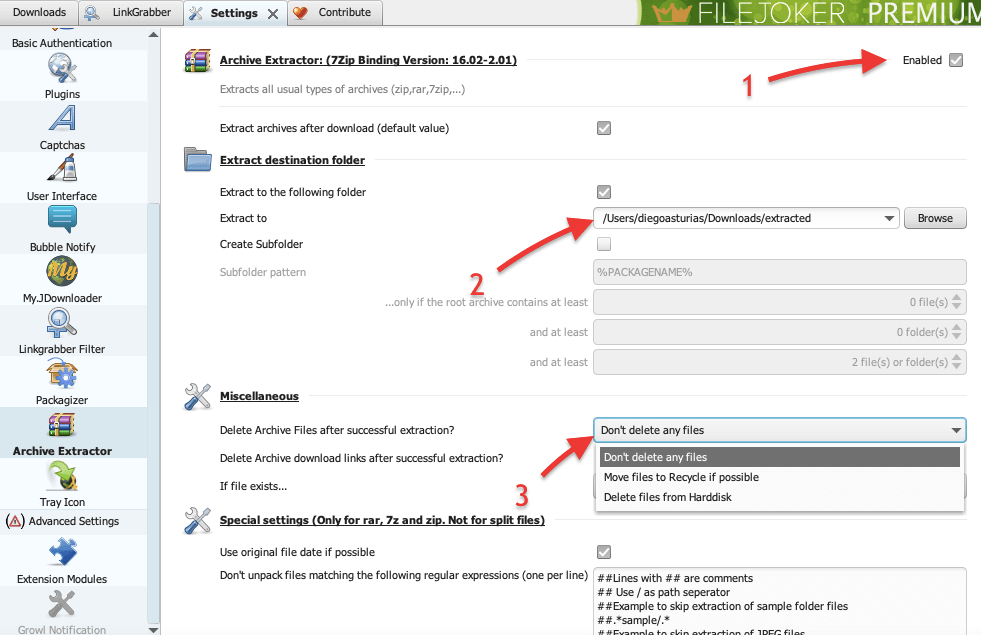
- Open JDownloader and go to the (1) “Settings” tab. Click on the (2) “Archive Extractor” section in the left column.
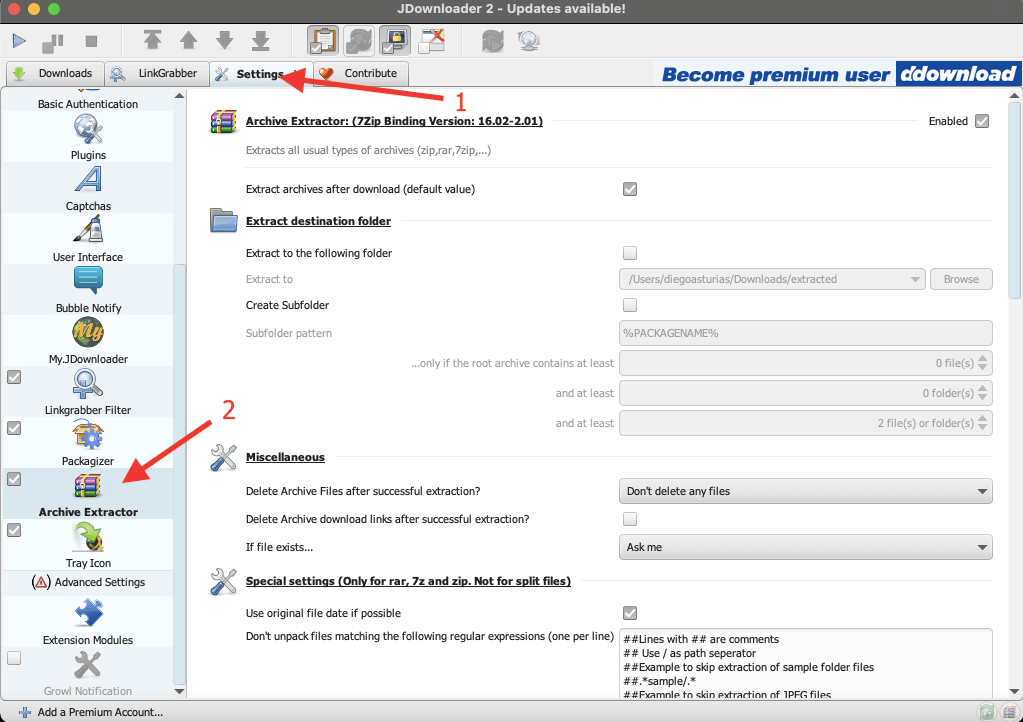
- Check the box next to “Archive Extractor” (1) to enable automatic extraction of compressed files, including zip, rar, 7ip, and more.
- Choose the folder where you want the extracted files to be saved (2). You can use the default setting or choose a custom folder.
- Choose whether you want JDownloader to delete the compressed files (3) once they have been extracted.
- If the compressed files are password-protected, enter the password in the “Password” field.
- Click on “Save” to apply the changes.
- Once you configure JDownloader to extract compressed files automatically, it will do so for all downloads that contain compressed files without any additional input from you. This can save you time and effort, especially if you frequently download compressed files.
E. How to make JDownloader 2 download faster?
First and foremost, do not blame JDownloader for your slow downloads. There are generally many factors outside JDownlader, including incorrect settings, poor Internet connection, and limitations imposed by third parties (ISP, government, or download host). For example, video streaming sites impose strong limitations— which is a common symptom of slow downloads. It is also always a good practice to compare speeds with a web browser and also to ensure that no VPN, proxy, or firewall is hurting your download speeds.
JDownloader already downloads faster than most web browsers. First, it uses mult-threaded downloads (downloading multiple parts of a file at once), which helps speed up downloads. In addition, it also doesn’t throttle download speeds, as most web browsers do.
But still, it is always good to check the settings and help increase the download speed in JDownloader 2.
Optimizing JDownloader 2 for speed:
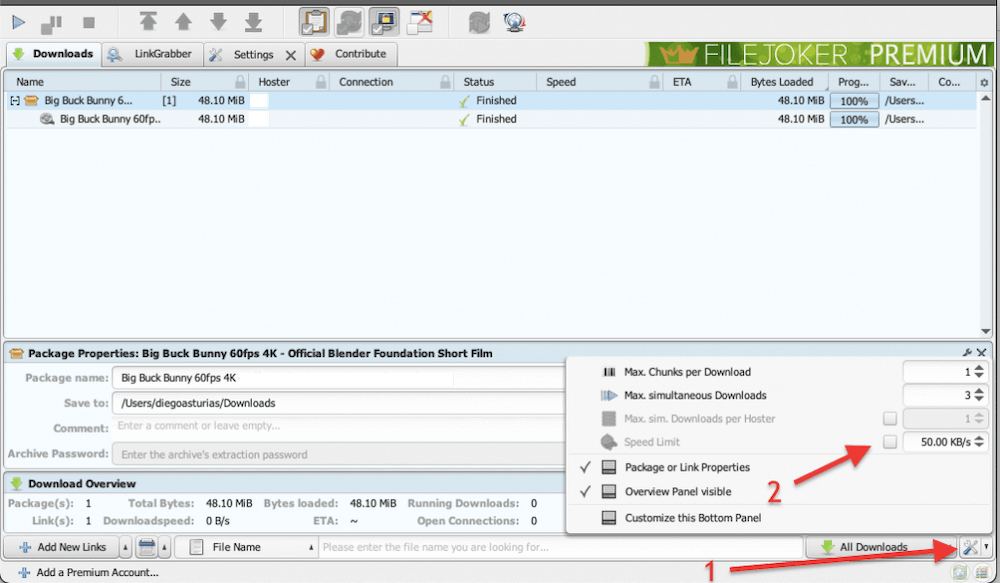
- Adjust the maximum number of connections and remove any speed limits. Click on the “tools” icon on the interface’s bottom right.
- In general, increasing the number of chunks can improve download speeds, as it allows JDownloader to download multiple parts of the file simultaneously, which can reduce the overall download time. However, setting the number of chunks too high can also cause issues, such as server overload, which can actually slow down the download.
- JDownloader defaults to 3 downloads and 1 chunk. But it recommends setting this to 5 downloads with 3 chunks (connections) each— which should be enough for most users.
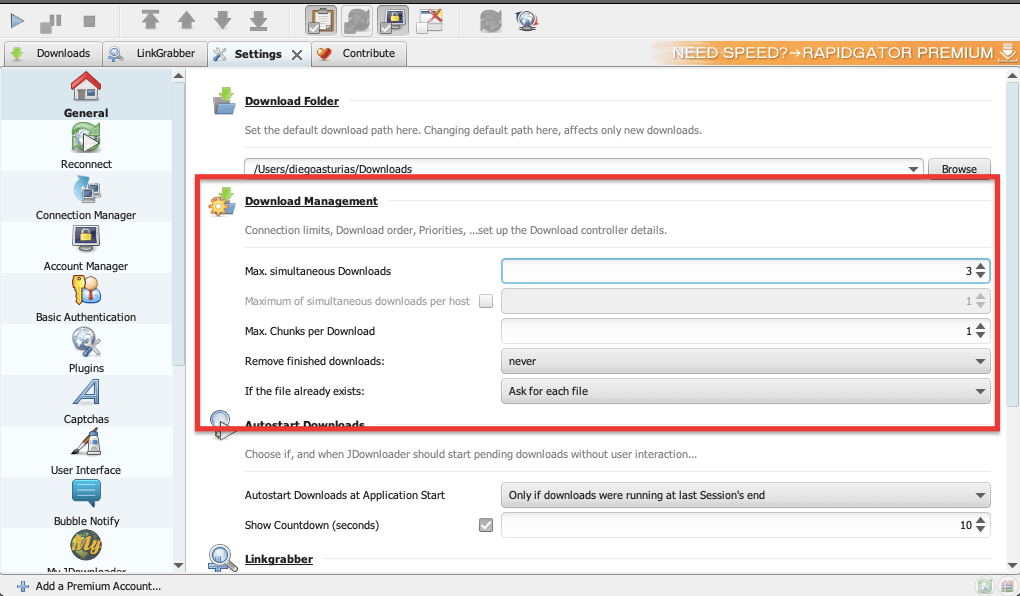
- You can also Adjust the maximum number of connections from the “Settings” tab and click “General.” Under “Download Management,” change the maximum chunks per download.
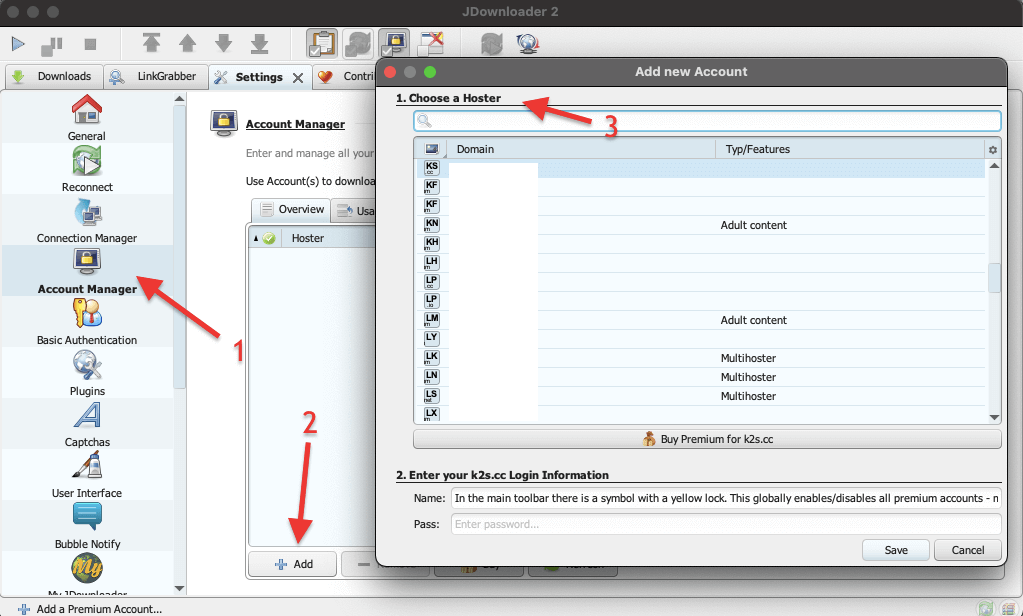
- Another thing you can try to do to improve JDownloader download speeds is to add your Premium account to your specific service (host site). To do this, go to Settings > (1) Account Manager > (2) Add > (3) Choose your Hoster. And click on “Save.”
F. Integrating JDownloader2 with RapidSeedbox Seedboxes
RapidSeedbox makes it effortless to run JDownloader2 directly inside your seedbox using its built-in One-Click Installers (OCI).
The OCI feature is available on Premium plans such as Furious, Stream, Rapid, and Fast, allowing you to deploy JDownloader2 in seconds—no manual setup or terminal commands required.
(Note: OCI installations are not supported on Lean plans.)
Once installed, you can log in to your myJDownloader dashboard from any browser or mobile device to remotely manage your download queues, pause or resume tasks, and auto-extract files right from the cloud.
Why use JDownloader2 on a seedbox?
- Faster, uninterrupted downloads – Your seedbox’s high-speed datacenter connection ensures that files download at maximum possible bandwidth, even while your home connection is offline.
- Complete privacy and automation – Running JDownloader2 in a remote environment hides your IP address, keeps transfers private, and enables 24/7 automation for long download sessions.
JDownloader2: Frequently Asked Questions
JDownloader2 runs on Java, which provides the environment needed for its automation features and plugin system. You can use Java 8 or OpenJDK 11+ to ensure compatibility. If you’re using a newer macOS or Linux system, make sure Java is installed and properly linked before launching the app.
On macOS, you can install JDownloader2 via the DMG installer or through the Homebrew package manager. After installation, grant permission under System Preferences → Privacy & Security if macOS blocks unsigned apps. For automation, you can also run it inside a lightweight container or with a Helm chart for multi-system setups.
Yes. The community maintains Docker images on GitHub and Docker Hub under the official jdownloader2 org. Running it in a container makes it easier to manage downloads remotely and update automatically. Just remember to mount your config and downloads folders as volumes to keep data persistent.
Always download from trusted sources such as the official website or the project’s GitHub repository. Check the SHA256 checksum or GPG signature provided by the maintainers to ensure file integrity. Avoid third-party mirrors without verification.
Definitely. JDownloader2 includes a built-in event-scripting manager and supports REST API integration for advanced automation. You can use it with tools like Helm or your own Python/Node.js scripts to schedule downloads, trigger container restarts, or handle completed archives automatically.
Final Words.
JDownloader is an excellent download manager with an outstanding range of features designed to enhance your downloading experience. From simple downloading to advanced automation, link grabbing, and customization, JDownloader has it all!
We hope this guide has helped show you how to get the most out of JDownloader. Remember always to download JDownloader from the official website to ensure its safety and to keep it updated for the best performance.
If you have any additional tips or tricks for using JDownloader, please share them with us in the comments section below.
JDownloader2 + Seedboxes = Simplicity
Get smoother downloads, safer connections, and faster transfers — no extra effort required.
→ Learn More
0Comments