 By
By
To get files off your seedbox, you can use FTP/SFTP clients like FileZilla or WinSCP to securely transfer files to your computer. Alternatively, web-based interfaces or syncing tools like Resilio Sync make the process straightforward and efficient.
When I was a baby seedboxer I used to have trouble getting files off my seedbox, but after some research, I found a few simple ways to transfer files without any issues. If you’re wondering how to get your files from your seedbox, you’ve come to the right place. In this guide, I’ll show you a few different ways to transfer files from your seedbox to your local device.
Table of Contents
- What Do Seedboxes Do?
- Why Transfer Files from a Seedbox?
- How to Get Files Off Your Seedbox
- Streaming Media Directly from Your Seedbox
- How to Troubleshoot Common Issues
- Tips for Faster Transfers
- Best Practices for Managing Seedbox Storage
- How to Secure Your File Transfers
- Final Words
1. What Do Seedboxes Do?
If you’re new to seedboxes, they’re remote servers designed for downloading and uploading digital files at high speeds. I started using a seedbox to handle large file transfers without bogging down my home internet connection.
2. Why Transfer Files from a Seedbox?
Once you’ve downloaded files from your seedbox, you might want to move them to your computer so you can access them easily or use them offline. Transferring files from your seedbox lets you enjoy your content whenever you want, without relying on remote access.
3. How to Get Files Off Your Seedbox
There are a few ways to transfer files from your new seedbox to your computer. I’ll go over some of the most effective methods I’ve tried.

a. Using FTP/SFTP Clients
One common method is using an FTP (File Transfer Protocol) or SFTP (Secure File Transfer Protocol) client. These tools let you connect to your seedbox and transfer files securely.
How to Transfer Files with FileZilla
FileZilla is a free, user-friendly FTP client. Here’s how you can use it:
- Download and install FileZilla: Visit FileZilla’s official site and download the client suitable for your operating system.
- Open FileZilla
- You’ll need your seedbox’s hostname, username, password, and port number. You can usually find these in your Seedbox account dashboard.
- Set up a new connection:
- Click on File > Site Manager.
- Click New Site and give it a name.
- In the Host field, enter your seedbox’s hostname.
- Set Protocol to SFTP – SSH File Transfer Protocol.
- Enter your Username and Password.
- Set Port to the port number provided (usually 22 for SFTP)

- Connect to your seedbox: Click Connect. If prompted, accept any security certificates.
- Navigate to your files: On the right pane (remote site), browse to the directory containing your files.
- Choose a local destination: On the left pane (local site), select the folder on your computer where you want to save the files.
- Transfer files: Drag and drop files from the right pane to the left pane to start the download.
- You can see the progress at the bottom of the window.
Tip: Use SFTP instead of FTP to keep your transfers secure.
Using WinSCP for File Transfers
WinSCP is another great option, especially for Windows users. Here’s how to use it:
- Download WinSCP: Get it from WinSCP’s official site.
- Install and open WinSCP.
- Enter your seedbox details:
- File protocol: Select SFTP.
- Hostname: Your seedbox’s hostname.
- Port number: Typically 22.
- Username and Password: Enter your credentials.
- Save the session: Optionally, save the session for easy access next time.
- Connect: Click Login.
- Transfer files:
- The interface shows your local files on the left and remote files on the right.
- Navigate to the desired directories.
- Drag and drop files to initiate the transfer.
b. Web-Based File Managers
Some seedbox providers offer web-based interfaces like File Manager or FileRun, which allow you to download files directly through your web browser.
- Access the web interface: Log in to your seedbox account via your web browser.
- Go to your files.
- Download files: Click on the files or folders you want to download. Some interfaces let you download entire folders as ZIP archives.
Advantages:
- No additional software is needed.
- User-friendly, especially if you aren’t comfortable with FTP clients.
c. Using Resilio Sync for Seamless Transfers
Resilio Sync is a tool that syncs files between devices.
- Install Resilio Sync: Download it from Resilio’s website.
- Set up Resilio on your seedbox:
- Some seedbox providers have Resilio Sync pre-installed or available via apps.
- Create a sync folder on your seedbox.
- Set up Resilio on your computer:
- Add the sync key from your seedbox.
- Sync files: The files will automatically sync to your local folder.
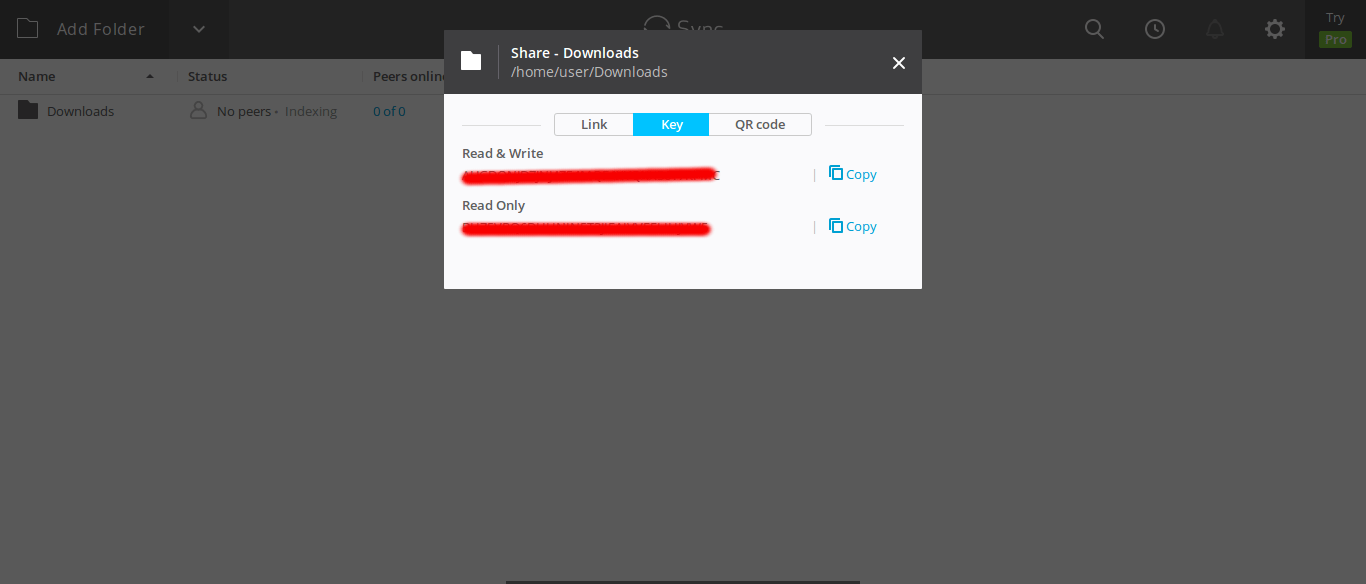
Note: This method is great for continuous syncing and managing large amounts of data.
d. Downloading via HTTP/HTTPS
You can download files directly through HTTP/HTTPS links.
- Get the download link: In your seedbox interface, generate a direct download link for the file.
- Download the File: Paste the link into your browser or a download manager to start the download.
Tip: Using a download manager can improve speed and reliability.
e. Using rclone (for Advanced Users)
rclone is a command-line tool for syncing files.
- Install rclone: Follow the instructions on rclone’s website.
- Configure rclone:
- Run
rclone config. - Set up a new remote with your seedbox details.
- Run
- Transfer files:
- Use commands like
rclone copy remote:/path /local/pathto download files.
- Use commands like
Note: This method requires familiarity with command-line interfaces, and I don’t recommend it for novice users.
Need a reliable way to securely access your Seedbox files anytime, anywhere?
RapidSeedbox provides fast, secure, and easy file transfers directly from your Seedbox to your device. Manage your files effortlessly and enjoy complete control over your data. Try it today for the best Seedbox experience!
4. Streaming Media Directly from Your Seedbox
If you’re dealing with media files, streaming directly from your seedbox can save time. Here’s how you can do it with Plex.
- Install Plex on your seedbox:
- Many seedbox providers offer Plex as an app.
- Install and configure it through your seedbox dashboard.
- Set up Plex on your device:
- Download the Plex app on your computer, smart TV, or mobile device.
- Sign in with the same account linked to your seedbox.
- Stream your media:
- Access your media library and stream content without downloading.

Note: Streaming requires a stable internet connection for optimal performance.
5. How to Troubleshoot Common Issues
Sometimes, you might face issues during file transfers. Here’s how to address them:
a. Connection Timeouts
- Check if your internet connection is stable.
- Your firewall may be blocking the connection. Adjust the settings if necessary.
b. Authentication Errors
- Double-check your username and password.
- If you’ve forgotten your password, reset it via your seedbox provider.
c. Slow Transfer Speeds
- Try to transfer during off-peak hours. Internet speeds can vary based on the time of day.
- Use a wired connection. Ethernet connections are typically faster than Wi-Fi.
d. Can’t Connect to Seedbox via FTP/SFTP
- Check your credentials. Ensure your username and password are correct.
- Double-check the server address and port number.
- Your local firewall might be blocking the connection. If that’s the case, adjust its settings.
e. Files Not Appearing in Local Directory After Transfer
- Sometimes the local folder needs to be refreshed.
- Look for errors that might have occurred during the transfer. You can find them in the transfer logs.
- Check if your local device has enough storage space.
6. Tips for Faster Transfers
- Use Ethernet instead of Wi-Fi. Wired connections are generally faster and more stable.
- Consider using tools like Free Download Manager that can accelerate HTTP downloads.
- When possible, split large files into smaller chunks to manage transfers better.
7. Best Practices for Managing Seedbox Storage
Efficient management of your seedbox space ensures that you always have room for new files.

- Transfer files regularly. Don’t let files accumulate, transfer them to your local device or cloud storage.
- Delete unnecessary files: Remove files you no longer need to free up space.
- Monitor storage usage: To avoid hitting capacity limits, keep an eye on your seedbox storage statistics.
8. How to Secure Your File Transfers
Always try to make your transfers secure.
- Use SFTP instead of FTP: SFTP encrypts data as it travels, keeping your information secure.
- Update your software: To patch security vulnerabilities, keep your FTP clients up to date.
- Use strong passwords for your Seedbox account to prevent unauthorized access.
9. Final Words
Getting files off your seedbox is easier than you might think. With options like FTP/SFTP clients, web-based interfaces, sync tools, and direct downloads, you can choose what works best for you. Personally, I’ve found FTP clients like FileZilla to be secure and easy to use for large transfers.
Always prioritize security by using encrypted methods like SFTP and keeping your software up to date. Don’t overlook mobile and cloud options-they make file management even more convenient.
Struggling to get files off your Seedbox quickly and securely?
With RapidSeedbox, transferring files from your Seedbox to your devices is effortless and lightning-fast. Gain full control of your downloads and experience unmatched ease and security. Start managing your files like a pro today!
 English
  Français
  Español
  Tiếng Việt
  简体中文
简体中文  Русский
  Türkçe
  Bahasa Indonesia
  日本語
日本語  العربية
  Português
  Українська
0Comments