 By
By
Choppy 4K streams? Fan noise like a jet engine?
You’re not alone—Jellyfin shines until 4K HDR enters the talk… and then everything slows down.
Here’s what’s happening: Modern 4K content requires serious processing power to transcode on the fly. The normal consumer-grade CPUs alone often won’t be able to handle it, especially with multiple users streaming simultaneously.
In this guide, you’ll learn how to optimize Jellyfin transcoding with Intel Quick Sync, NVIDIA NVENC, AMD AMF, and more—so you can stream 4K smoothly on Docker, NAS, Windows, or even a seedbox, without the noise or slowdowns.

Let’s turn that struggling ‘low-power’ media server into a transcoding powerhouse…
Let’s dive in.
Table of Contents
- Why Transcoding Matters in Jellyfin
- Hardware Requirements & Acceleration Options
- Step-by-Step Setup: Enabling Hardware Transcoding in Jellyfin
- Optimizing 4K HDR Streaming in Jellyfin
- Making Jellyfin Stream Remotely
- Benchmarks & Real-World Comparisons
- Frequently Asked Questions (FAQ)
- Final Words
Disclaimer: This guide is for educational purposes only. While we’ve done our best to provide accurate, up-to-date info on Jellyfin transcoding and related tools, results may vary depending on your setup, hardware, and software versions. Mentions of third-party platforms (e.g., Docker, Intel QSV, NVIDIA NVENC) are illustrative and subject to change. Always consult official documentation before making system changes. Performance examples are estimates—not guarantees. Use at your own risk. For a pre-configured Jellyfin experience, consider RapidSeedbox.
1. Why Is Jellyfin Transcoding Important?
Transcoding is what happens when your media server takes a video or audio file and reshapes it on-the-fly so it can play smoothly on your device. In Jellyfin, transcoding kicks in when your movie or music isn’t natively supported by whatever screen or speaker you’re using, or if your internet connection can’t handle the original quality.
Let’s say your TV doesn’t support a video’s codec, or the bitrate is too high for your phone to stream cleanly. Jellyfin jumps in with its transcoding capabilities. It converts it in real time and makes it work.
Pretty handy, right? But there is a catch: this process can be brutal on your CPU (loud fans and extra heat 🙁 ) —especially with big, high-resolution files.
But here’s the good news: Jellyfin supports both software and hardware transcoding.
Software vs Hardware Transcoding: So, What’s the Difference?
Transcoding converts media into a format your device can play without buffering. Refer to the picture below.

- Software transcoding leans on your CPU and, while flexible and capable of great quality with encoders like x264/x265, it quickly slows down, especially with 4K or HDR content or when handling multiple streams. It’s also power-hungry and puts serious strain on your system.
- Hardware transcoding, on the other hand, is where the magic happens: it offloads the heavy lifting to your GPU using tools like QSV, NVENC, or VA-API. The result? Faster, more efficient conversions, less CPU stress, and a cooler, quieter server.
| ⚡Why Hardware Wins: In short, software gives you control, but hardware gives you speed. For most setups, GPU-accelerated transcoding is the better choice. |
Jellyfin Transcoding & Remote Streaming—How does it work?
Here is a quick breakdown of how and why Jellyfin transcodes (Refer to the diagram below)
- 4K videos live on a NAS are served by Jellyfin (although these could be stored elsewhere).
- The server transcodes only if the client can’t handle the original.
- Remote clients stream over the internet, often needing a lower format.
- Local clients usually play 4K without conversion. This is known as Direct Play.

2. Hardware Requirements & Acceleration Options
To get smooth, efficient transcoding in Jellyfin, your server needs more than just a decent CPU. It needs a GPU (or at least integrated graphics) with video encoding and decoding powers.
Jellyfin supports hardware acceleration across various GPUs: Intel, AMD, NVIDIA, Apple Silicon, Rockchip, and V4L2. But keep in mind: you need the right drivers and setup.

Before diving into config steps, let’s walk through what some of the most popular platform supported by Jellyfin offers and what to watch out for.
1. Intel Quick Sync (QSV)
Many Intel CPUs with integrated graphics (like i3, i5, or i7) support Quick Sync Video. It handles common codecs such as H.264, HEVC, VP9, and AV1 on newer models. If you want the best results (and have more money to spend), we recommend a 7th-gen chip or newer for full 10-bit HEVC support.
- Windows: Works with standard Intel drivers
- Linux: Uses VA-API; make sure /dev/dri is accessible
Real Use Case Example: A chip like the i3-10100 with UHD 630 graphics can handle six 4K HDR transcodes at once. For even better performance and AV1 encoding, Intel’s Arc GPUs are a great upgrade.
2. NVIDIA NVENC/NVDEC
NVIDIA cards come with video-specific hardware (NVENC/NVDEC) that takes the load off your CPU. Support starts with GTX 600 (Kepler) and newer.
- Requires: Proprietary driver on Windows or Linux
- Docker users: Add –runtime=nvidia and –gpus all
Real Use Case Example: Consumer GPUs like the GTX 1650 are capped at two concurrent transcodes unless patched. Still, NVENC on Turing or newer cards delivers solid quality—close to x264 “fast” or “medium”—ideal for real-time 4K streaming.
3. AMD AMF / VA-API
AMD supports hardware transcoding with no session limits. This is a strong choice to consider.
- Windows: Uses AMF
- Linux: Uses VA-API (via Mesa drivers)
Real Use Case Example: The RX 6600 XT (AMD processor) can transcode multiple 4K HDR streams easily. However, watch for distros like Fedora that may disable codec support by default.
4. Apple Silicon (VideoToolbox)
Apple’s M1 and M2 chips include efficient media engines that Jellyfin fully supports. macOS 2017+ is recommended for full HDR capability.
Tone-mapping options include:
- VideoToolbox Native – efficient
- Metal – better quality, supports Dolby Vision
Real Use Case Example: An M1 Mac Mini can transcode up to three 4K HDR streams at once with low CPU load. Be sure to use Jellyfin 10.9+ and FFmpeg 6.0+. Note: AV1 encoding is not yet supported on macOS.
5. Rockchip (RK3588 via RKMPP)
Running Jellyfin on a board like the Orange Pi 5 can be challenging, but it is possible. The Rockchip RK3588 is an ideal choice for ARM users.
- OS: Linux only
- Supports: H.264, HEVC, tone mapping, and subtitle burn-in via RGA
Note: RKMPP has no session limits, so multiple transcodes are possible if the hardware can keep up. The setup requires Jellyfin 10.9+ and Rockchip media libraries. Since Raspberry Pi no longer supports hardware transcoding, Rockchip is now the preferred option for ARM-based servers.
In conclusion…
| Platform | Best For | OS Support | Limits | Key Benefit |
| 🔵 Intel QSV | Most PCs with Intel CPUs | Windows, Linux | No | Great for 4K HDR and AV1 (Arc GPUs) |
| 🟢 NVIDIA | High-speed 4K transcoding | Windows, Linux | 2 streams* | Solid quality; easy Docker setup |
| 🔴 AMD | No stream limits, good value | Windows, Linux | No | Handles multiple 4K streams easily |
| 🍎 Apple M1/M2 | Mac users | macOS only | No | 3× 4K HDR with low CPU usage |
| 🟡 Rockchip | ARM boards (e.g., Orange Pi 5) | Linux only | No | Best ARM option for 4K transcoding |
You’ve got hardware transcoding power at your fingertips… if your Jellyfin server has any of the following:
- A recent Intel CPU with Quick Sync
- An NVIDIA or AMD GPU
- An M1/M2 Mac Mini
- A Rockchip-powered SBC
The key is setting it up right. Make sure your drivers are current and that your Jellyfin user has access to the video device. And don’t forget to check your admin settings, and ensure you have the right boxes checked, like tone mapping and codec options (more on this in the next sections). Once it’s dialed in, your server will run cooler and way more efficiently, especially when handling Jellyfin 4K HDR streams.
Here’s the shortcut.
If you don’t want to configure everything manually, you can try a Seedbox. A streaming-ready seedbox, like RapidSeedbox, offers a seamless Jellyfin streaming solution with One-Click Installers (OCI). So, you don’t need to deal with advanced setups (hardware or software). Everything is tailor-made for the best Jellyfin streaming experience.
Within minutes, you can stream your movies and shows directly from your seedbox to your PC, smartphone, or Smart TV without needing to transfer files. Jellyfin on RapidSeedbox uses top-of-the-line CPUs for transcoding.
Others Are Streaming 4K Seamlessly—Are You?
Join the users who fixed stuttering in minutes.
Learn and Catch UpReady to set things up? Let’s get into the how-to in the next section.
3. Setting Up Hardware Transcoding in Jellyfin
So, you’ve confirmed your server has a compatible GPU. Nice. Now comes the part where Jellyfin actually uses it.
There are two key steps:
- Making sure Jellyfin can access your GPU.
- Turning on the right settings in the admin dashboard.
Setup will vary depending on your environment—Docker, bare-metal Linux, Synology NAS, Windows, or something more custom.
Let’s break it down.
Docker & Linux Servers
Running Jellyfin in Docker (Linux)
The official Jellyfin Docker image supports all major acceleration methods (VA-API, NVENC, QSV), but you have to pass in your GPU devices and make sure the container has permission to use them.
For Intel or AMD GPUs, here’s what you’d do in docker-compose.yml:
|
1 2 3 4 5 6 7 8 9 10 11 12 13 14 15 16 |
services: jellyfin: image: jellyfin/jellyfin:latest user: "1000:1000" # Replace with your user’s UID:GID group_add: - "122" # GID of 'render' group on your system devices: - /dev/dri/renderD128:/dev/dri/renderD128 volumes: - /path/to/config:/config - /path/to/cache:/cache - /path/to/media:/media network_mode: "host" restart: unless-stopped |
🔍 Run ‘getent group render’ to find the correct GID.
Once the container is running, head into Dashboard > Playback > Transcoding in Jellyfin.

Next, pick the matching hardware option, like VA-API or Intel Quick Sync.

How Jellyfin Uses Your GPU in Docker (refer to the image below)
GPU passthrough in Docker containers can be tricky, but here’s the simple version: Your host system exposes the GPU (like /dev/dri or /dev/nvidia*). Docker passes this to the Jellyfin container using flags like –gpus all or group_add: render. Once connected, Jellyfin uses the GPU to handle transcoding, keeping streams smooth and CPU usage low. This setup lets your server deliver fast, efficient playback—even inside a container.

For NVIDIA GPUs in Docker
Make sure the NVIDIA driver is installed on the host, and then add the NVIDIA Container Toolkit. Your ‘docker run’ command might look like:
|
1 |
docker run -d --runtime=nvidia --gpus all jellyfin/jellyfin:latest |
Or in Docker Compose:
|
1 2 3 4 5 6 7 8 9 |
runtime: nvidia deploy: resources: reservations: devices: - driver: nvidia count: 1 capabilities: [gpu] |
Once running, Jellyfin should detect your NVIDIA card. In the dashboard, pick Nvidia NVENC and enable the codec options you want (H.264, HEVC, etc.).
🛠 If Jellyfin says “None” under hardware devices, make sure your container sees /dev/nvidia*. You might need to map them manually.
Linux Bare-Metal (No Docker)
Just install Jellyfin as a service and make sure the jellyfin user is in the right groups:
|
1 |
sudo usermod -aG render jellyfin |
Then open the dashboard (as shown in the previous picture) and enable VA-API, QSV, or NVENC depending on your GPU.
💡 On Intel systems, you may also need to install ‘intel-media-driver’ or ‘vainfo’ to verify everything’s working.
Synology NAS
Running Jellyfin on a Synology NAS? Many of them use Intel CPUs with Quick Sync built-in. So this setup might be easier. Just follow these steps:
You can install Jellyfin via:
- Docker (recommended)
- Synology Package Center (community packages may lack full hardware support)
Using Docker on Synology
Make sure your NAS model supports hardware transcoding. Then, when setting up the container:
- In the Docker GUI, add these device mappings:
|
1 2 |
/dev/dri/renderD128 /dev/dri/card0 |
- (Optional) Run in privileged mode if permissions fail.
- In the Jellyfin dashboard, go to Playback > Transcoding and choose Quick Sync.

🛠 If you’re having issues, try checking if your NAS loaded the right kernel module (like i915). Also, make sure DSM is up to date.
Installed via Synology Package Center?
This method might not use Jellyfin’s custom FFmpeg build and could lack full GPU access. If you run into trouble, switching to Docker is often easier.
Windows
Setting this up on Windows is pretty simple.
- Install the latest GPU driver from Intel, NVIDIA, or AMD.
- Launch Jellyfin and head to Dashboard > Transcoding.
- Pick the right hardware option:
- Intel QuickSync (QSV)
- Nvidia NVENC
- AMD AMF
- and more…

You don’t need to map devices manually—Windows handles it via DirectX and Media Foundation.
⚠️ If you have multiple GPUs (like Intel + NVIDIA), make sure the one you want is active. On headless systems, we recommend enabling the iGPU in BIOS.
And if you see weird tone-mapping issues (like green video), try updating your Intel drivers—some older ones had bugs with HDR.
Skip the Manual Setup
Yes—you can skip the hassle. With Jellyfin’s One-Click Installer (OCI), Jellyfin comes pre-configured with hardware acceleration (if your VPS or seedbox supports it).
- Just pick Jellyfin under Streaming in your OCI dashboard.
- It sets up everything—GPU support, custom folders, remote access—in minutes, no tech skills needed.
Setting up Hardware Transcoding for Jellyfin on Other Environments
Unraid
- Use Docker as described earlier.
- Add –device=/dev/dri for Intel/AMD.
- Use the NVIDIA plugin if needed.
- Then enable the GPU inside Jellyfin.
Proxmox / VMs
- Use GPU passthrough for best performance.
- Once passed through, install the GPU drivers in the VM and treat it like a normal Linux or Windows install.
Kubernetes / TrueNAS SCALE
- Mount /dev/dri for Intel/AMD.
- Use nvidia.com/gpu plugin for NVIDIA.
- You may need to run Jellyfin containers as privileged.
macOS
- Just enable VideoToolbox in Jellyfin settings.
- Works out of the box on macOS Monterey or newer.
Final Tips for Smooth Harwarde Transcoding 🧪
Once you’ve set things up, test it out: play a video and check Jellyfin’s Dashboard > Activity. If it says “Transcoding (HW) – H264 > H264,” you’re good. You can also look at Jellyfin’s logs—look for hardware tags like QSV, NVENC, or VA-API. If it’s stuck on software, it’s likely a driver, permission, or GPU visibility issue.
Try different files: 1080p H.264, 4K HEVC, and 4K HDR. For HDR, make sure tone mapping is doing its job. Weird colors or stutters? Update your GPU drivers or tweak Jellyfin’s codec settings.
And final tips… always remember to keep Jellyfin and FFmpeg up to date—new versions fix bugs and improve support. If you’re sharing your server, avoid heavy stuff like burned-in subs or 4K streams on weak connections. Pre-encode 1080p versions with Handbrake to save stress.
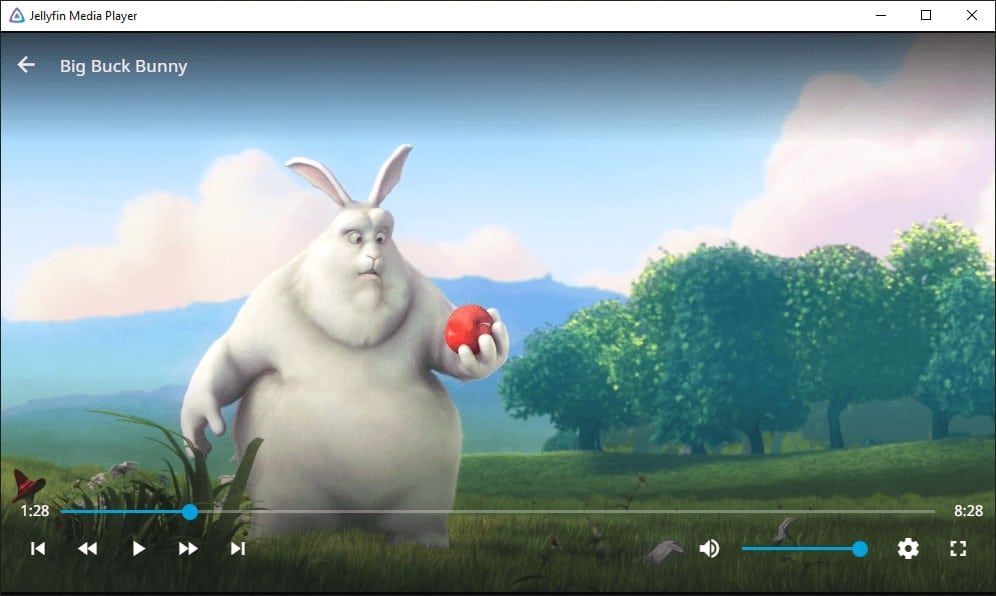
Once it’s dialed in, hardware transcoding should just work, and Big Buck Bunny will play like a dream🐰
4. Rules for Optimizing 4K HDR Streaming in Jellyfin
If your library includes high-bitrate 4K HDR movies, you’re in “stress test” territory for your media server. Without the right setup, trying to transcode these files will almost certainly lead to buffering or color issues.
Let’s walk you through 6 rules on how you can make 4K streaming smoother, even when tone-mapping HDR content to SDR.
a. Rule #1: Always Use Hardware for 4K HDR
Here’s the deal: no consumer CPU can reliably transcode 4K HDR to SDR in real time. The HDR > SDR tone-mapping alone is brutal on processors. So if you’re working with 4K HDR files, always make sure to use a GPU that supports 10-bit HEVC and has hardware tone-mapping.
On Jellyfin:
- Go to Dashboard > Playback > Transcoding and turn on “Enable Tone Mapping”.
- Jellyfin supports GPU-based tone mapping for HDR10 and HLG across Intel, NVIDIA, AMD, Apple Silicon, and Rockchip.

| ⚠️ Heads-Up: Even a basic Intel UHD iGPU can handle tone-mapping better than a powerful CPU. If your HDR videos look dull, double-check your tone-mapping setting—it’s likely off. |
b. Rule #2: Don’t Transcode What You Can Direct Play
Tone-mapping Dolby Vision (Profile 5/8) is possible in Jellyfin 10.8+ with jellyfin-ffmpeg 5.0.1-5 or newer, but direct play is always the better option if the device supports HDR. Transcoding reduces visual quality and uses more resources, so serve pre-encoded 1080p SDR files to clients that can’t handle HDR or 4K.
💡 Smart Tips:
- Use Jellyfin’s “Playback Reporting” plugin to track when and why transcoding happens—this helps fine-tune device settings for more direct plays.
- Create custom device profiles to enforce direct play rules and avoid accidental transcodes—especially useful for TVs and streaming sticks with limited codec support.
c. Rule #3: Tweak Bitrate & Buffering for Remote Users
Go to Jellyfin’s Dashboard > Playback > Streaming, set a max bitrate for internet streaming—something like 8-10 Mbps, which works for most connections.
With this setting, Jellyfin will automatically downscale or transcode high-bitrate videos based on this limit. Be careful not to set it too low (like 2–3 Mbps), or everything will transcode unnecessarily.

Also worth noting: Jellyfin uses a Transcoding Buffer to avoid hammering your GPU nonstop. The default usually works fine, but if you’re seeing high latency, try shortening the buffer window in settings.
| 🎯 Alternatively, if your home upload speed is limited or you don’t want to stress your GPU, you can always host Jellyfin on a seedbox with higher bandwidth. Many seedboxes include 1 Gbps+ upload connections and are located in data centers, This option is perfect for serving high-bitrate 4K streams to remote devices with minimal buffering. |
d. Rule #4: Subtitles Can Kill Performance
Here’s a surprise bottleneck that almost everyone misses: image-based subtitles like PGS (from Blu-rays) will kill Jellyfin transcoding performance.
What happens is that Jellyfin would often burn these subs into the video stream when transcoding. That forces a full video transcode, even if the rest of the file could direct play. And of course, burning subtitles at 4K is GPU-heavy.
To avoid this:
- Use external SRT files (text-based); Make sure they don’t require burning. Or convert PGS to SRT ahead of time. In some Jellyfin clients, you’ll need to disable “Always Burn Subtitles” to avoid forced transcoding.
- The following image shows “Allow subtitle extraction on the fly”. This option directly impacts whether or not transcoding is triggered during playback when a video contains embedded subtitles.
- Enable it to reduce transcoding and improve performance, unless you have clients that can’t render subtitles natively.

| 🖥️ TL;DR: Stick with SRT subtitles for 4K content. They’re light and don’t trigger full transcodes. |
e. Rule #5: Monitor Logs to Catch Problems
If 4K playback is choppy or CPU usage spikes, you’ll need to dive into the logs:
- Check ffmpeg-transcode-*.txt in Jellyfin’s log folder.
- Look for things like:
- -hwaccel vaapi
- h264_qsv
- nvenc_h264
- Also, if you see ‘tonemap_opencl’, that’s likely CPU tone-mapping—check your GPU setup. -vf tonemap_opencl → software tone-mapping (bad sign if you expected GPU)
- Also check for “Codec fallbacks” → software decode/encode being used
- The location of the ffmpeg-transcode file will vary from platform to platform. The image below shows where you can find it in Windows.

f. Rule #6: Know Your Hardware Limits
Not all GPUs handle transcoding the same way. Some can decode high-resolution formats like 4K HEVC with no trouble, but fail when it’s time to encode. This encoding forces Jellyfin to fall back on the CPU, which leads to unnecessary load and slower performance.
To avoid that, it’s best to disable any hardware options your GPU doesn’t fully support in the Jellyfin settings. Ideally, you want the entire pipeline—both decoding and encoding—to run on the GPU. That’s where hardware transcoding really shines.
| 🛠️ Did you know? You can offload encoding to another system using tools like rffmpeg. Just know—it’s powerful, but not plug-and-play. Advanced users know this setup, but it is probably too complex for home server needs. |
g. Summary: Your 4K HDR Checklist
- ✅ Use the right up-to-date GPU: Must support 10-bit HEVC + tone-mapping
- ✅ Hardware Acceleration: Enable hardware tone-mapping in Jellyfin settings
- ✅ Prefer Direct Play for HDR-capable devices. Avoid unnecessary transcoding
- ✅ Keep a 1080p SDR copy for slower or remote devices
- ✅ Use the Right Subtitles: Avoid PGS or image-based subs. Always use SRT to prevent full transcodes
- ✅ Have problems? Open ffmpeg-transcode-*.txt to confirm the GPU is used. Watch for signs of a fallback to software
- ✅ Stay Updated: Keep Jellyfin and ffmpeg up to date for the best support. Also, update drivers on your GPU.
With the right hardware and a little tuning, you can absolutely stream 4K HDR content—even to multiple users.
Now that’s efficient transcoding.
5. Making Jellyfin Stream Remotely
Streaming Jellyfin outside your home adds an extra layer of complexity. You’re now balancing:
- Bandwidth
- Device limitations
- Transcoding performance
- File compatibility
📶 Stop guessing your bandwidth requirements.
Use the Free Seedbox Bandwidth CalculatorHere’s how to keep it all in check:
a. Set Remote Bitrate Limits
We mentioned this in the previous section, but you need to keep in mind if you want the best Jellyfin transcoding for remote scenarios.
- Go to Admin Dashboard > Playback > Streaming, and set the Internet streaming bitrate limit to around 10–18 Mbps (if your upload speed is 20 Mbps).
- This option helps Jellyfin manage remote users more efficiently and downscale high-bitrate content when needed. Most importantly, it avoids bandwidth hogging.
Most Jellyfin clients default to “Auto” (which means no limit), so a server-side cap helps keep things under control.
b. Optimize Your Library for Remote Access
If you plan to share your server with friends or family remotely, consider pre-encoding lower-bitrate versions of 4K files (like 1080p H.264 at 8 Mbps). It takes work, but you can always introduce automation to help you convert files.
We recommend using a tool like Handbrake. And yes, Jellyfin can auto-select the smaller version if it’s in the same folder or named with version info. Tools like Tdarr can also help automate this.
This strategy will ultimately help avoid the on-the-fly 4K transcodes, which are heavy even with a GPU.
c. Test Your Own Remote Stream
Before sharing your server, test it like a user would. This gives you a real-world idea of what your users will experience:
- Turn off Wi-Fi and test on a different network.
- Open Jellyfin on your phone (best if using mobile data LTE)
- Play a 4K video.
- Go back to Jellyfin and watch the dashboard: Is it transcoding? At what resolution and bitrate?
d. Set Per-User Limits
Everybody’s got the friend who streams everything in full bitrate all day? And yes, you can cap them.
To do this, go to their User Settings in Jellyfin and set a max bitrate—say 4 Mbps. That way, they’ll still enjoy streaming, but won’t crush your bandwidth.

e. Use HTTPS (Seriously)
Set up Jellyfin behind a reverse proxy like Nginx or Caddy to enable HTTPS. It doesn’t affect transcoding but keeps your server and users safe.
Your CPU should be able to handle encryption, but monitor performance if you’re serving lots of users. Don’t know how to set up and use Nginx? We recommend this guide: NGINX Proxy Manager
f. Pro Tip: Use a Seedbox
If streaming big media files is starting to become a real headache, or you’re not too keen on opening up your home server to the internet, a seedbox might be the fix you need.
A Seedbox is like your own private streaming hub. It’s a remote server (on the cloud) built for torrenting and managing media. These days, many seedboxes come ready to roll with apps like Jellyfin or Plex Media Server already installed. Learn how to stream 4K in Plex.
You can stream directly from your seedbox, skipping the usual headaches: slow upload speeds, sketchy security setups, and home network limits.
6. Benchmarks & Real-World Comparisons
Now, let’s put the theory into practice. This section compares software vs hardware transcoding in Jellyfin, breaks down what each type of GPU can handle, and shares real-world benchmarks (gathered from the community).
If you’re still wondering “how much can my server really do?”—this is your cheat sheet.
Software vs Hardware Transcoding:
On Jellyfin? Here’s the big picture:
| Feature | Software (CPU) | Hardware (GPU/iGPU) |
| Performance | Slow. Heavy CPU usage, especially for 4K HDR | Fast. Offloads to GPU, frees CPU |
| Concurrent Streams | Limited (1–2 4K streams max on most CPUs) | Many. Depends on GPU—some handle 6–10+ at once |
| Quality | Excellent (can use slow presets like x264 medium) | Very good. Recent GPUs match or approach CPU quality |
| Power Usage | High. Can draw 50–150W or more under load | Low. GPUs use 5–20W per stream via the video engine |
| Flexibility | Supports all formats and filters | Limited to the GPU’s codec support and filter set |
🧾 Bottom line: Use hardware whenever you can. It’s faster, quieter, cooler, and more scalable. Software is only ideal for edge cases or top-tier CPUs.
Hardware Support: What Works with What?
Here’s a quick reference for Jellyfin hardware acceleration support:
| Platform | Acceleration API | OS Support | Notes |
| Intel iGPU | QSV (Windows), VA-API / OneVPL (Linux) | Windows, Linux, Docker | Full support on most Intel CPUs. For AV1 encoding, use Arc GPUs. |
| NVIDIA | NVENC / NVDEC via CUDA | Windows, Linux, Docker | Requires proprietary drivers. Consumer cards limited to 2 sessions unless patched. |
| AMD | AMF (Windows), VA-API (Linux) | Windows, Linux | No session limits. Make sure Mesa has codec support. AV1 encode = RDNA3+. |
| Apple Silicon | VideoToolbox | macOS (Monterey+) | M1+ chips = excellent performance. Use Metal for tone-mapping. |
| Rockchip RK3588 | RKMPP + RGA | Linux only | ARM boards only. No session limits. Fast and efficient. |
| Others | VA-API / DXVA2 | Linux, Windows | Covers fringe GPUs or experimental builds (e.g. Pi, older iGPUs). |
Most users fall into the Intel, NVIDIA, or AMD rows. Apple Silicon is ideal for compact, low-noise setups. Rockchip is solid for low-power ARM boards.
Real-World Performance Examples
Here’s what actual users have achieved across a variety of setups:
- Intel i3-10100 (Quick Sync): The Intel i3-10100, paired with its UHD 630 integrated graphics, proves that even entry-level hardware can punch above its weight. In testing, it handled up to six simultaneous 4K HDR to 1080p transcodes using Quick Sync. More importantly, CPU usage remained low throughout, showing how effective Intel’s GPU-based encoding really is. This setup highlights how a budget-friendly chip, when configured properly, can easily manage heavy streaming loads without breaking a sweat.
- Intel Arc A380: The Intel Arc A380 has quickly become a standout choice for budget Jellyfin builds. Early reports suggest it can handle over ten 4K HDR transcodes at once, thanks to its dual hardware encoders and full AV1 support. The Arc also delivers impressive quality, on par with x264’s medium preset, making it ideal for users who want both speed and clarity. As a result, it’s gaining popularity among self-hosters looking for an affordable but powerful GPU.
- Apple M1 Mac Mini: The base M1 Mac Mini is a surprisingly strong performer for Jellyfin. It can transcode up to three 4K HDR streams to 1080p SDR at the same time without flinching. The M1’s dedicated media engine does the heavy lifting, leaving the CPU mostly untouched. For users who need more power, the M1 Pro, Max, and Ultra chips offer even more encoding muscle. With its silent operation and efficient design, the Mac Mini is a fantastic option for a quiet, low-maintenance home server.
Tone-Mapping Benchmarks
Tone-mapping is one of the most demanding parts of 4K HDR to SDR transcoding for any Jellyfin server. On older Intel GPUs like the UHD 630, turning tone-mapping on can drop performance from two or three streams down to just one. This happens because older chips use general-purpose processing for tone-mapping, which adds strain. In contrast, newer GPUs include dedicated support and handle tone-mapping much better.
If you’re using older hardware, consider limiting HDR transcodes or converting HDR content to SDR ahead of time. This keeps performance stable and reduces the risk of buffering during peak usage.
Tone-Mapping Performance Snapshot
Here’s how different GPUs perform when tone-mapping is turned on. These values can help you plan your setup wisely.
| GPU Model | Max Concurrent Streams | Avg.. CPU Load | Notes |
| Intel Arc A380 | 7 | 34% | Smooth 10-bit HEVC → SDR tone-mapping. Ideal for AV1. |
| NVIDIA RTX 3060 | 10 | 25% | Handles heavy HDR workflows with ease. |
| AMD RX 6600 XT | 6 | 39% | Stable across multiple 4K HDR transcodes. |
| Rockchip RK3588 | 2 | 41% | Impressive performance for an ARM-based SBC. |
7. Frequently Asked Questions (FAQ)
Transcoding in Jellyfin occurs when a video file’s format, resolution, or bitrate isn’t compatible with the playback device. For example, if a client can’t decode HEVC or the bitrate is too high for your network, Jellyfin will convert the video on-the-fly using FFmpeg.
Go to Admin Dashboard > Playback > Transcoding and enable hardware acceleration. You’ll of course, need a compatible GPU (Intel Quick Sync, NVIDIA NVENC, or AMD VA-API) and the appropriate drivers or container permissions (e.g., /dev/dri for Linux or –gpus all in Docker).
For 4K HDR transcoding, we recommend Intel Quick Sync (7th-gen or newer), NVIDIA Turing+ cards (like GTX 1660 or RTX 30xx), and AMD RDNA2/3 GPUs. These three perform well. In addition, Intel Arc offers AV1 encoding support and great efficiency at a decent price.
Yes. Jellyfin can be run in a Docker container with GPU passthrough. To make this work, you’ll need to map the correct devices (/dev/dri, /dev/nvidia*) and set environment variables like –runtime=nvidia or group_add: render. This allows full use of your hardware acceleration stack.
Absolutely. On supported Synology NAS models with Intel chips, you can enable Quick Sync using Docker + VA-API. You’ll also need to ensure your container is granted access to /dev/dri. And you will need to install the necessary packages like intel-media-driver or enable them through the Synology UI.
Buffering often happens due to network bandwidth limits. Other reasons could be unsupported codecs or disabled hardware acceleration. To lower the chances of buffering, set a bitrate cap under Playback > Streaming and convert videos to more compatible formats like 1080p H.264. Of course, if you have the budget, we would always recommend upgrading your server’s CPU/GPU.
Tone-mapping is a process that converts HDR content into SDR for devices that don’t support high dynamic range. Jellyfin supports GPU-based tone-mapping with NVIDIA, Intel, Apple Silicon, and a few more. Tone mapping is useful for remote or mobile playback.
Infuse skips Jellyfin’s transcoding, so it streams the full file as-is. Forget about compression here. That’s fine on fast networks, but large 4K files over slow Wi-Fi or LTE would often fail. To fix it, make smaller versions of those files with version tags. Infuse users can pick the best one manually.
Some quirks force it. Apple TV may transcode audio like DTS-HD or TrueHD. Dolby Vision (Profile 7) might fall back to HDR10. Fire TV devices, especially older ones, may struggle with HEVC, AV1, or image-based subs like PGS. To avoid this, use H.264 or HEVC with AC3 audio and SRT subtitles.
Set a bitrate limit in Admin > Playback > Streaming (just under your home upload speed). Test playback over LTE to check real-world performance. Use formats like H.264 or HEVC for video, AAC or AC3 for audio. For heavy files like 4K HDR, pre-encode 1080p copies to keep things smooth.
8. Final Words.
Transcoding is what keeps Jellyfin running smoothly on any device. Set it up right, and you’ll avoid buffering, keep quality high, and lighten the load on your server.
A few key tips before we go…
- Turn on hardware acceleration (Quick Sync, NVENC, or VA-API).
- Set smart defaults—tone-mapping on, remote bitrates reasonable, skip burning in subs unless needed.
- Check logs and use the dashboard—they reveal what’s really happening.
Also, stay updated! And don’t be afraid to dig into the docs, forums, or Reddit if things get weird.
Jellyfin’s evolving fast. Better AV1 support and adaptive streaming are on the way. Set it up once, stream happily ever after.
You’ve tuned your Jellyfin setup
But there’s still a smarter, quieter way to stream Jellyfin—without constant CPU spikes or config stress.
Try RapidSeedbox →
0Comments