 By
By
I’m sure most of us have tried to learn how to block a website at some point in life. There could be many reasons, but what’s more impressive is the number of ways this can be accomplished. You should also remember that unblocking a website can be as simple as blocking one.
This guide covers multiple ways to block websites across various devices and platforms, including built-in tools on popular browsers, third-party extensions, and network-wide solutions like proxy servers.

Table of Contents
- How to Block Websites Using a Proxy Server
- How to Block Websites on Chrome
- How to Block Websites on Safari
- How to Block Websites on iPhone (and iPad)
- How to Block Websites Using a Router
- Final Thoughts
1. How to Block Websites Using a Proxy Server
For those with access to a proxy server, an access control list (ACL) is one of the most powerful ways to manage access. These are collections of rules that govern how the proxy server routes, reroutes or blocks traffic.
Most proxy servers can handle this with iptables. However, Squid is a more user-friendly alternative since it accepts website addresses for blocking. Here’s how it works:
Install Squid and open the configuration file (usually at /etc/squid/squid.conf) to define the ACLs that you want:
For a specific IP range:
|
1 |
acl localnet src 192.168.1.0/24 |
For specific websites:
|
1 2 |
acl blocked_sites dstdomain www.example.com http_access deny blocked_sites |
Once done, you can restart Squid so the changes take effect. Using a proxy server to block websites is a popular way of access control for businesses that must filter websites and content daily. It’s fast, easy to implement, and cost-effective.
Want to eliminate online distractions?
Boost productivity and increase security in your company using RapidSeedbox proxy. Our powerful proxy servers are customizable and easy to set up and come with expert support teams to lend you a hand anytime.
2. How to Block Websites on Chrome
Chrome is one of the most popular web browsers, and surprisingly, it doesn’t include a default way to block websites. However, two ways exist to approach this issue: partially, via some built-in controls, or entirely, with a third-party extension.
a. Using Chrome’s Site Settings
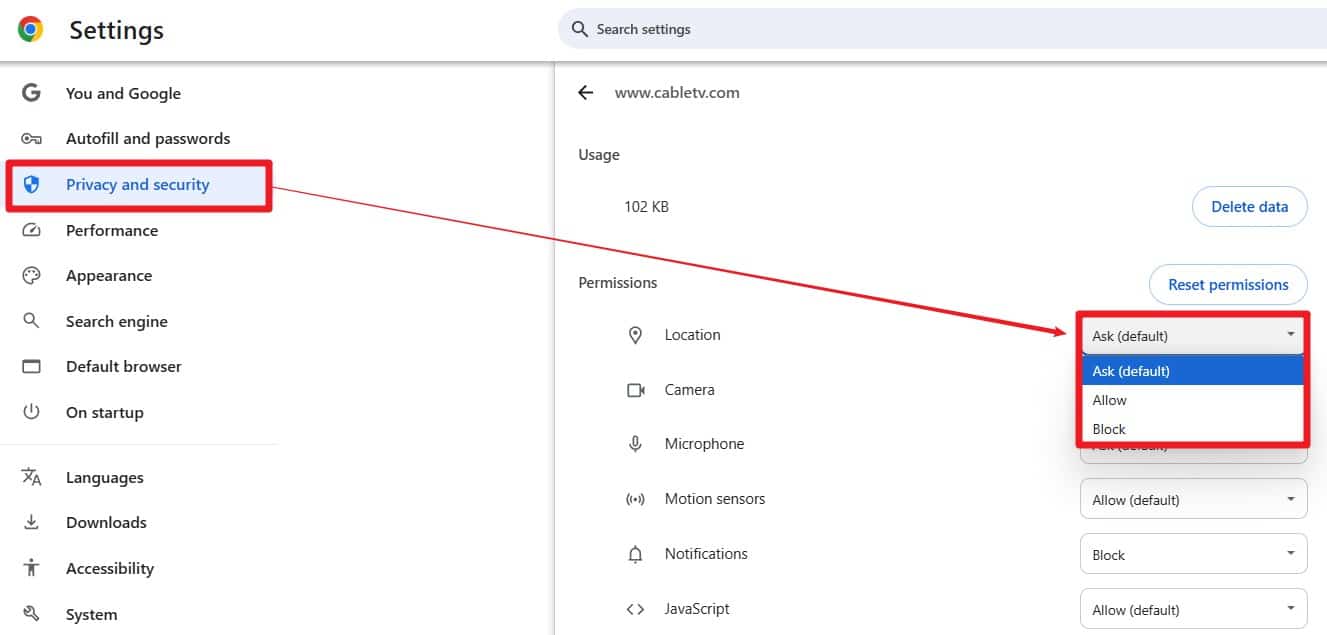
Chrome’s Site Settings allow you to manage permissions for specific websites. While this method doesn’t completely block sites, you can restrict their functionality.
- Click on the three vertical dots in the top-right corner and select Settings.
- Under the Privacy and Security section, select Site Settings.
- You’ll see an arrow next to each website address. Click that, and you will open a list of the site’s permissions. These options allow you to control the site’s behavior.
b. Using Chrome Extensions
Chrome extensions offer a more straightforward, more customizable approach to unblocking websites. They often allow you to block or control websites with just a few clicks.
- Go to the Chrome Web Store and search for “Block Website.”
- Find an extension you like and click Add to Chrome.
- Once the extension is added, you can set it up. This usually involves providing the extension with a list of website addresses you wish to block.
Some popular website blocking extensions for Chrome include BlockSite, StayFocusd, and FocusGuard.
3. How to Block Websites on Safari
Safari offers built-in settings for blocking sites, and additional third-party solutions are available for more advanced control. Here’s how to use both approaches:
a. Using Screen Time
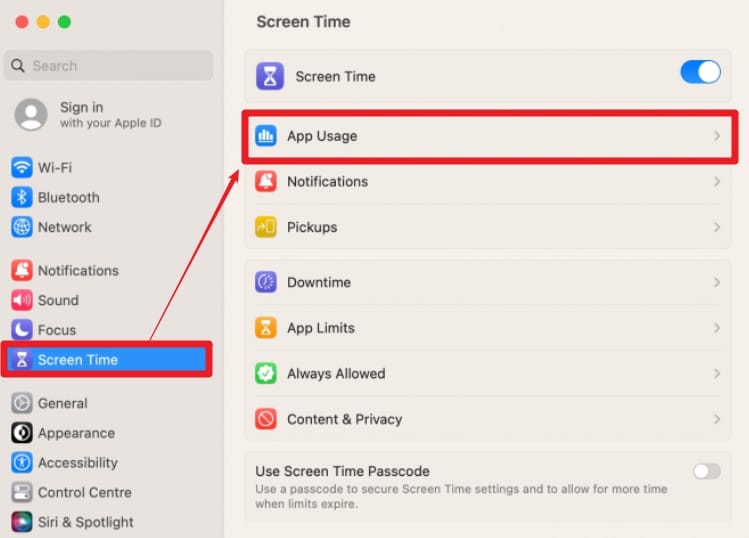
Screen Time is a feature on macOS and iOS that provides easy-to-use parental controls and content restrictions that work directly in Safari.
- Click the Apple Menu in the top-left corner of your Mac, go to System Preferences, and select Screen Time.
- If Screen Time is not enabled, you must turn it on by following the on-screen prompts.
- In the Screen Time menu, select Content & Privacy. Enable it by toggling the switch to On.
- In the Content & Privacy menu, click on Content > Web Content. You’ll see three options: Unrestricted Access, Limit Adult Websites, and Allowed Websites Only.
Note: If you choose Limit Adult Websites, click Customize to add specific websites you want to block. Enter the URL for each site you wish to restrict, then click Done.
b. Blocking via Third-Party Extensions on Safari

For more customizable blocking options, there are third-party extensions that integrate with Safari and provide advanced blocking features. Here, we’ll show an example using 1Blocker, which allows you to block specific websites, ads, trackers, and other content.
- Download 1Blocker from the App Store.
- Go to Safari > Preferences > Extensions and enable 1Blocker
- Open the 1Blocker app to customize blocking rules. You can add URLs to block specific sites, set schedules for active blocking, and restrict content types.
- After configuring the block lists, enable the rules in Safari by selecting 1Blocker as your active content blocker.
4. How to Block Websites on iPhone (and iPad)
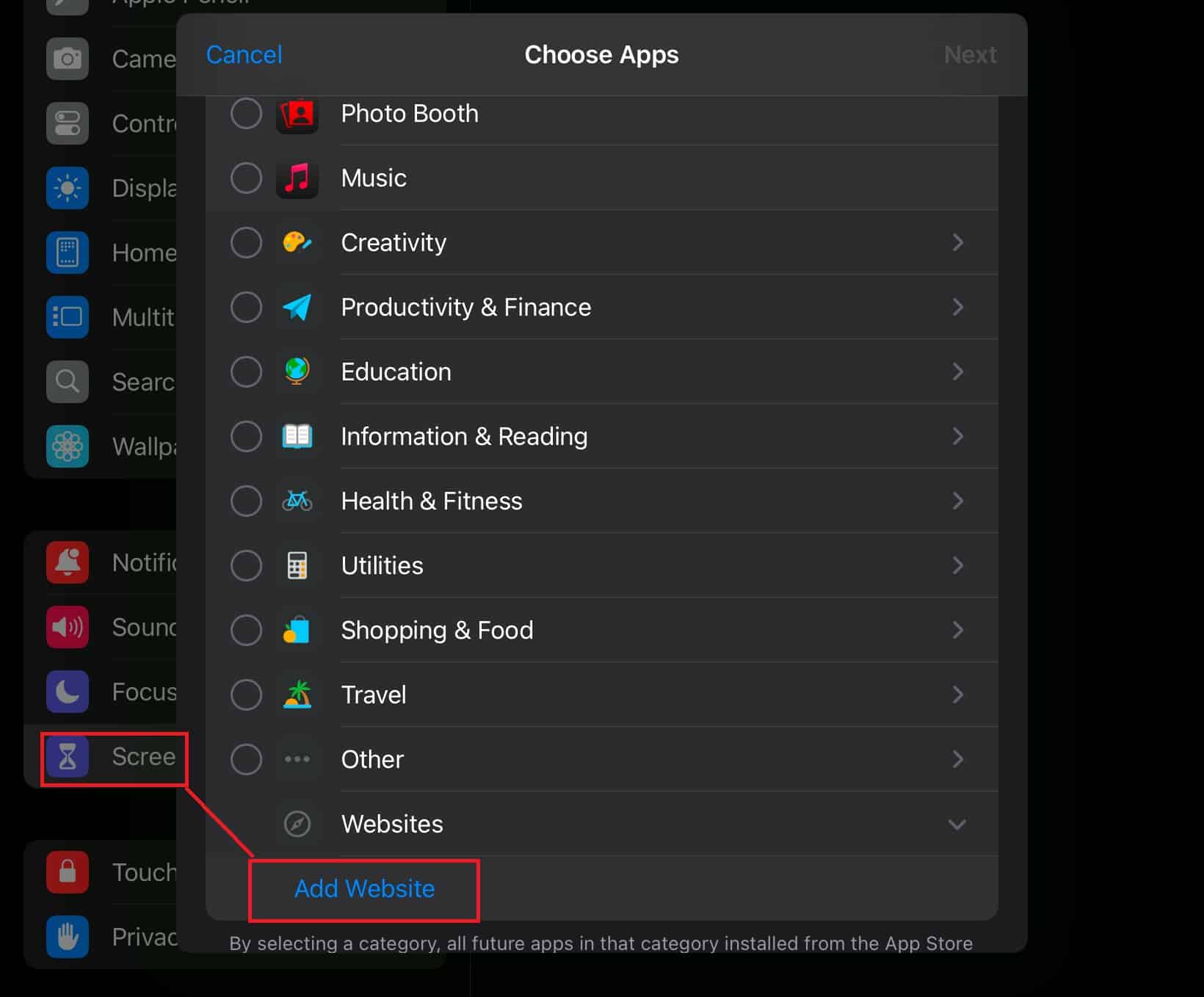
Blocking websites on an iPhone or iPad is as straightforward as blocking them on a MacOS device. That means you can choose between using Screen Time or a third-party app designed for mobile.
a. Using ScreenTime on iPhone & iPad
Screen Time works on iPhones and iPads the same way on macOS, and the process is almost identical. Don’t you love the seamless Apple experience?
- Go to Settings > Screen Time on your iPhone or iPad.
- Enable Content & Privacy Restrictions and tap Content Restrictions.
- Under Web Content, select Limit Adult Websites or Allowed Websites Only, and add any specific sites you want to block or allow.
Note: Screen Time restrictions are ideal for parental controls since they require a passcode to modify settings.
b. Using Third-Party Apps
Mobile apps from the App Store have some advantages other than website blocking. Many include scheduling, monitoring, or customized content filters. Here’s an example using Qustodio. The app provides blocking, screen time monitoring, usage tracking, and more.
- Download Qustodio from the App Store and set up an account.
- In the app’s dashboard, go to Rules > Web Filtering to configure blocking settings. You can block specific websites or restrict certain types of content.
- With Qustodio’s premium version, you can set time limits, track web activity, and block sites across various browsers and apps.
Other Third-Party App options include:
- Net Nanny: A parental control app that offers web filtering, monitoring social media, and blocking specific sites and apps.
- Freedom: This app temporarily blocks distracting websites and apps, making it suitable for productivity rather than parental control.
5. How to Block Websites on Android
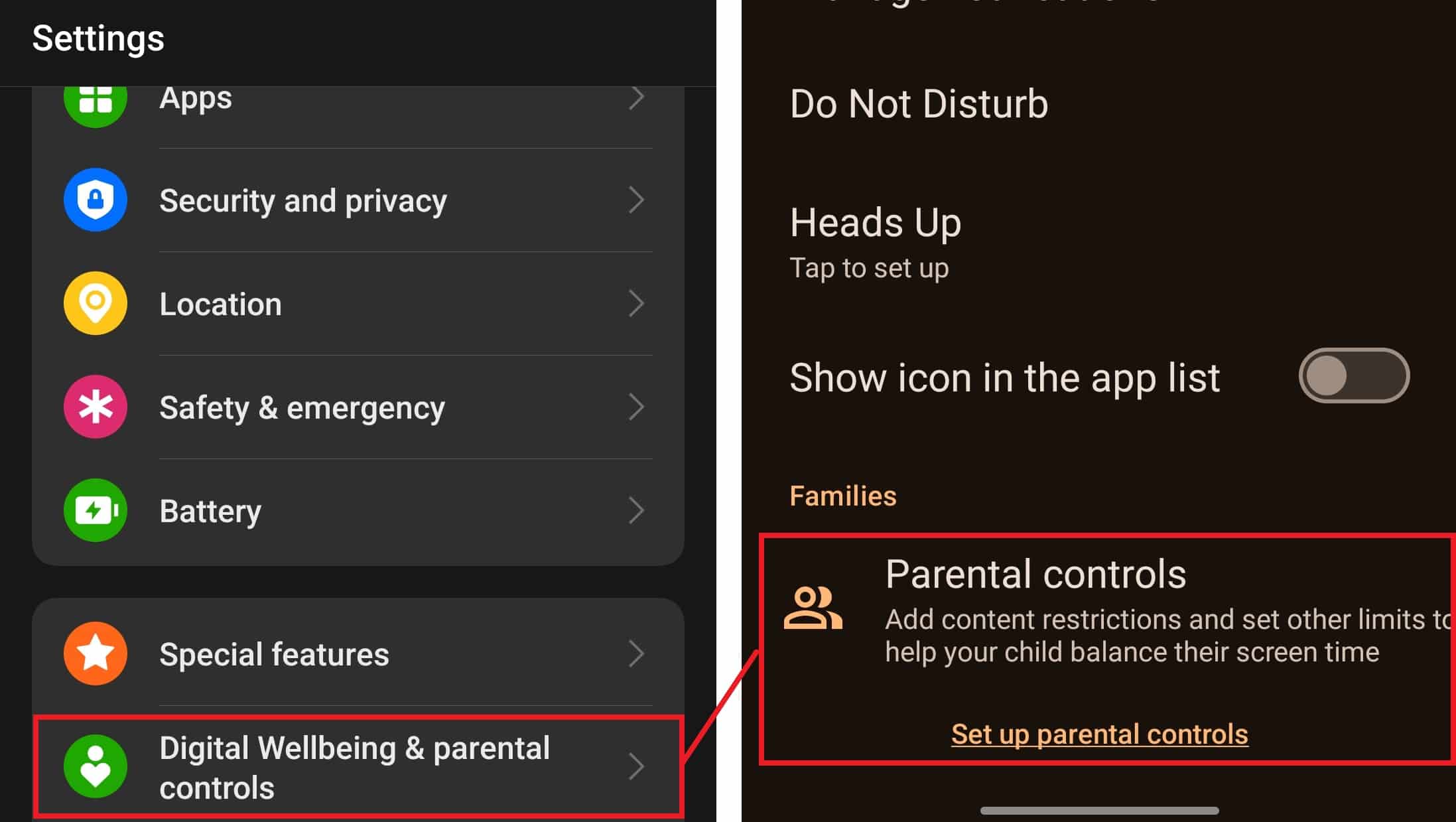
Unlike some other platforms, Android does not have a native website-blocking feature. However, it did introduce a feature called Digital Wellbeing a few years back. This allows you to manage app usage and can be a website blocker.
Of course, you can also use a third-party app, offering far better features and customizability.
a. Blocking an App With Digital Wellbeing
- Go to Settings > Digital Wellbeing & Parental Controls.
- In Digital Wellbeing, find your web browser (such as Chrome) and set a daily timer. This timer will restrict access to the browser after you’ve used up the allotted time, effectively limiting access to distracting websites.
b. Third-party Website Blocker Apps for Android
If you want to block websites on Android more flexibly, third-party apps provide more advanced options, including blocking specific sites across multiple browsers. Here are some popular choices:
- BlockSite: This app lets you block websites and apps and set up blocking schedules.
- Stay Focused: A productivity app that allows you to block websites and apps and set time limits on usage. It’s ideal for managing distractions.
- AppBlock: You can temporarily block specific websites, apps, and notifications, which is helpful for focused work sessions.
6. How to Block Websites Using a Router

Blocking access to specific websites at the router level is a great way to handle things if you want blanket coverage throughout your home. However, make sure you don’t allow anyone else to manage your router settings, as they can easily undo your blocks.
To do this, you’ll have to log into the router admin dashboard and find the website blocking section for your router. This varies by brand. For example:
- Netgear Routers: Go to Advanced > Security > Block Sites.
- D-Link Routers: Navigate to Features > Website Filter.
- ASUS Routers: Access Firewall > URL Filter.
Once you’re in there, enable the URL filter and add as many website addresses as you want.
7. Final Thoughts
Blocking websites is an effective way to stay focused, improve online safety, and create healthy internet habits. Many options fit your needs regardless of the reason (or the device type you’re working on).
This guide covered various ways to block websites, from simple browser extensions and device settings to more advanced network solutions. Each method has strengths, so you can pick the best one for you and your setup.
Secure Your Browsing Experience
Protect your network from harmful sites and distractions with RapidSeedbox Proxy. Our advanced proxy settings let you easily block websites across all devices, creating a safer browsing environment.
0Comments