 By
By
You open qBittorrent, add a torrent with 500 seeders, and… nothing. The status says “Stalled” and the download bar doesn’t move. It’s one of the most frustrating things in torrenting, especially when everything looks fine on paper. We’ll also share how a seedbox can be beneficial.
qBittorrent is a free, open-source BitTorrent client developed by the qBittorrent project and maintained since 2006. It uses the BitTorrent peer-to-peer (P2P) protocol to download files by pulling small pieces simultaneously from multiple users (seeders and peers) across the internet.

Table of Contents
- What Does “qBittorrent Not Downloading” Actually Mean?
- qBittorrent Not Downloading: Key Facts
- Why Is qBittorrent Not Downloading? (The 7 Real Causes)
- How to Fix qBittorrent Not Downloading: 10 Step-by-Step Solutions
- qBittorrent Not Downloading vs. Slow Downloading
- Who Experiences qBittorrent Not Downloading Most Often?
- Common Mistakes That Keep qBittorrent Stuck
- TL;DR: qBittorrent Not Downloading – Quick Reference
- Related Topics
- Frequently Asked Questions About qBittorrent Not Downloading
- Getting Your Downloads Moving Again
What Does “qBittorrent Not Downloading” Actually Mean?
qBittorrent not downloading is a state where the client shows a torrent as active, or stalled, but no data is being transferred. The download speed sits at 0 B/s despite the torrent appearing in the queue.
This happens because qBittorrent relies on establishing connections with seeders (users who have the complete file) and peers (users downloading the same file). When those connections fail, due to network issues, firewall blocks, tracker failures, or ISP throttling, the transfer stops entirely.
qBittorrent Not Downloading: Key Facts
- What it is: A failed or stalled download state in the qBittorrent BitTorrent client where data transfer drops to 0 B/s
- How it works: qBittorrent needs active connections to seeders via trackers or DHT/PEX – when these fail, downloads halt
- Main causes: Dead trackers, ISP throttling, firewall blocks, port forwarding issues, low seeder count
- Difficulty to fix: Beginner–Intermediate (most fixes take under 5 minutes)
- Best for: Any qBittorrent user on Windows, macOS, or Linux experiencing stalled or stuck downloads
- Related issues: Slow torrent speeds, “Connecting to peers” loop, tracker errors
- Last updated: February 2026
Why Is qBittorrent Not Downloading? (The 7 Real Causes)
Most qBittorrent download failures trace back to one of seven root causes. Knowing which one applies to you cuts troubleshooting time in half.
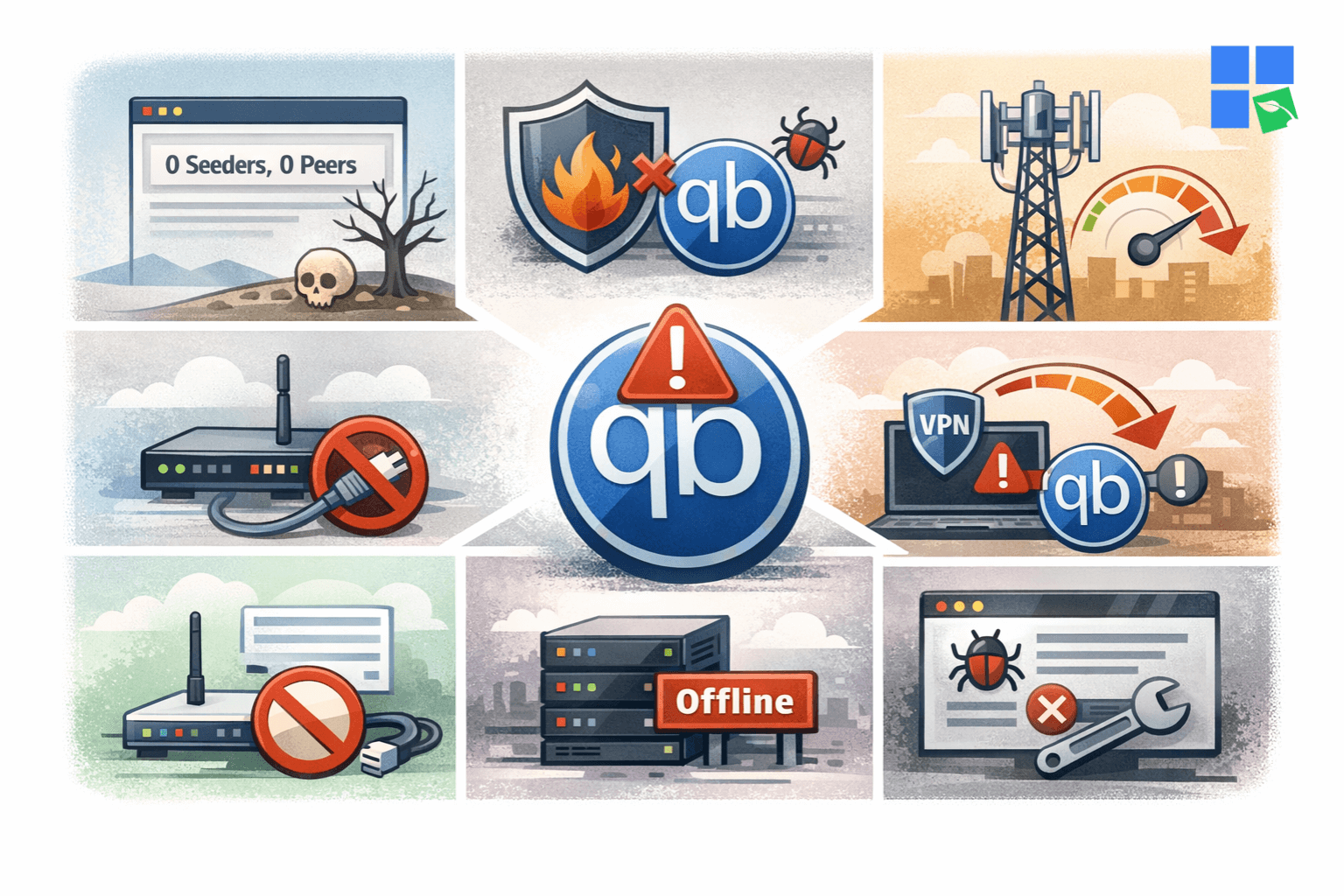
1. No active seeders or peers.
The torrent’s health is the first thing to check. If the swarm has zero seeders, qBittorrent literally has nobody to download from. This is common with older, niche, or poorly-seeded torrents. Check the Trackers tab – if it shows “0(0)” next to Seeds, that’s your answer.
2. Firewall or antivirus blocking qBittorrent.
Windows Firewall, Windows Defender, and third-party antivirus software like Malwarebytes or Bitdefender can silently block qBittorrent’s incoming connections. The client looks like it’s working, but all inbound traffic is being dropped.
3. ISP throttling P2P traffic.
Many ISPs, especially in Europe, the US, and Australia, actively throttle or block BitTorrent traffic. They detect the P2P protocol pattern and reduce your bandwidth to near-zero for those connections specifically. Your browser still works fine, which makes this one tricky to diagnose without testing.
4. Port forwarding not configured.
qBittorrent needs an open listening port to accept incoming connections from other peers. Without port forwarding through your router, you’re operating in “passive mode”. You can only connect to peers who are already open, cutting your available pool dramatically.
5. Dead or unresponsive trackers.
Trackers are the servers that help qBittorrent find other users sharing the same torrent. If the tracker is down or returns errors, qBittorrent can’t build a peer list. The Trackers tab will show status messages like “Connection refused” or “Not working.”
6. Misconfigured VPN or proxy.
If you’re routing qBittorrent through a VPN or SOCKS5 proxy, misconfigured settings can kill all torrent traffic entirely. Many VPNs don’t support port forwarding, which forces qBittorrent into passive mode.
7. qBittorrent version bug or corrupted settings.
Older qBittorrent versions contain known bugs that cause stalling behavior. Corrupted settings files (especially after crashes or updates) can also produce persistent download failures unrelated to network conditions.
How to Fix qBittorrent Not Downloading: 10 Step-by-Step Solutions
Work through these fixes in order. The first five solve 90% of cases.
Fix 1: Restart qBittorrent completely.
This is the fastest fix, and it’s surprisingly effective. A full restart clears stale connections, memory leaks, and connection buildup that accumulate during long sessions.
Don’t just pause and resume the torrent. Close qBittorrent entirely via File > Exit (not just the X button, which minimizes to the system tray on most systems). Then open Task Manager (Ctrl + Shift + Esc), find the qBittorrent process, and click End Task to ensure it’s fully terminated. Relaunch and check your downloads.
Fix 2: Check Your Internet Connection
Before changing any qBittorrent settings, confirm your connection is actually working. Open a browser and run a speed test at Speedtest.net or fast.com. If web browsing is normal but torrent speeds are stuck at zero, skip to Fix 5 (ISP throttling). If your internet itself is down or unstable, restart your router first.
To restart your router: power it off, wait 60 seconds, then turn it back on. Wait 2 minutes for full reconnection before testing qBittorrent again.
Fix 3: Force a Tracker Announce
Dead or unresponsive trackers are one of the most common causes of stalled downloads. Forcing qBittorrent to re-announce tells the client to immediately reconnect with all tracker servers and rebuild its peer list.
- Right-click the stalled torrent in qBittorrent
- Select Force Re-Announce (or “Update Trackers” in some versions)
- Click the Trackers tab at the bottom of the screen
- Look at the status column – you’re looking for “Working” in green
If all trackers show errors like “Connection refused” or “Not working,” the torrent source may be dead. Try finding the same content from a different torrent index with better tracker support. You can also manually add public trackers from sites like trackerslist.to to improve peer discovery.
Fix 4: Allow qBittorrent Through Your Firewall
Windows Firewall blocks incoming connections for new or updated applications by default. If qBittorrent was recently installed, updated, or had its .exe path change, it may have lost firewall permission.
- Open Windows Security (search for it in the Start menu)
- Go to Firewall & network protection
- Click Allow an app through firewall
- Scroll down to find qBittorrent – check both Private and Public boxes
- If qBittorrent isn’t listed, click Change settings, then Allow another app, and browse to
C:\Program Files\qBittorrent\qbittorrent.exe
In case, you’re running third-party antivirus (Malwarebytes, ESET, Kaspersky, etc.), temporarily disable the firewall component and test. If downloads resume immediately, you need to add qBittorrent to that software’s exception list.
Fix 5: Change qBittorrent’s Listening Port
Your ISP may be blocking the specific port qBittorrent uses for incoming connections – a common form of P2P throttling. Changing the port forces a new connection path that the ISP may not be filtering.
- Go to Tools > Options > Connection in qBittorrent
- Under “Listening Port,” change the port number to something in the range 49152–65535 (e.g., 50123)
- Uncheck “Use random port every time qBittorrent starts” if it’s enabled – a stable port is easier to forward
- Check the box for “Use UPnP / NAT-PMP port forwarding from my router”
- Click Apply and restart qBittorrent
Pro Tip: Ports below 1024 are reserved for system services. Ports in the 6881-6999 range are historically associated with BitTorrent and are the first ones ISPs block. Always use the 49152-65535 range.
Fix 6: Enable DHT, PEX, and Local Peer Discovery
DHT (Distributed Hash Table), PEX (Peer Exchange), and Local Peer Discovery are three peer-finding methods that work independently of trackers. If your trackers are all dead, these protocols can still locate peers, but only if they’re enabled.
- Go to Tools > Options > BitTorrent
- Enable all three checkboxes:
- Enable DHT (decentralized network) to find more peers
- Enable Peer Exchange (PeX) to find more peers
- Enable Local Peer Discovery to find more peers on the local network
- Click Apply
DHT is especially important for public torrents. Without it, qBittorrent is entirely dependent on tracker servers – and when those fail, you get zero peers.
Fix 7: Adjust Global Connection Limits
qBittorrent has configurable limits on the maximum number of connections. If these are set too low (or too high, paradoxically), download performance degrades.
- Go to Tools > Options > Connection
- Set these values:
- Global maximum number of connections: 200
- Maximum number of connections per torrent: 100
- Global maximum number of upload slots: 20
- Go to Tools > Options > Speed
- Make sure the upload rate isn’t set to a very low number – this limits your appeal as a peer and reduces incoming connections
If upload is capped at 1–5 KB/s, many peers won’t connect to you at all since you’re not contributing to the swarm.
Fix 8: Use a VPN with Port Forwarding
If your ISP is throttling BitTorrent traffic, a VPN is the most reliable fix. A VPN encrypts all qBittorrent traffic, making it unrecognizable to ISP throttling systems. The key is finding a VPN that supports port forwarding. Without it, you’ll still operate in passive mode and see limited peers.
VPN services known to support port forwarding for torrenting include Mullvad, ProtonVPN, and Private Internet Access (PIA). Standard consumer VPNs like NordVPN and ExpressVPN do not support port forwarding on most servers.
After connecting to the VPN, update qBittorrent’s listening port (Tools > Options > Connection) to match the forwarded port your VPN assigns.
Alternatively, a seedbox from RapidSeedbox bypasses ISP throttling entirely since downloads happen on remote servers in high-bandwidth data centers – not on your home connection.
Still fighting with qBittorrent download errors and slow speeds?
Skip the endless troubleshooting and let a RapidSeedbox handle your torrents for you. With ultra-fast 10Gbps servers, 24/7 uptime, and remote torrent management, your downloads complete faster and without ISP interference. Simply add your torrent to the seedbox, let it download at full speed, and securely transfer the finished files to your device anytime.
Fix 9: Check Disk Space and Download Path
qBittorrent silently pauses downloads when the destination drive runs out of space – or when it can’t write to the specified path due to permissions issues.
- Check available disk space on your download drive in File Explorer
- In qBittorrent, right-click the stalled torrent and check Properties – confirm the save path exists and is accessible
- If you’re downloading to an external drive or network location, ensure it’s connected and mounted
- Try changing the save path to a local directory (e.g.,
C:\Downloads) and force-resume the torrent
Permissions errors are common on Windows when running qBittorrent without administrator rights and trying to write to protected folders.
Fix 10: Update qBittorrent or Reset Settings
Older qBittorrent versions contain bugs that cause persistent stalling. If you’re running version 4.3.x or earlier, a known bug caused stalling on certain network configurations that was fixed in later releases.
- Check your version at Help > About qBittorrent
- Download the latest version from qbittorrent.org (currently 5.0.x as of early 2025)
- Before installing: go to Tools > Options and note your current settings, especially your port number and bandwidth limits
- Install the new version and reconfigure settings after installation
If updating doesn’t help, try resetting qBittorrent’s configuration entirely. Close qBittorrent, navigate to %AppData%\qBittorrent (on Windows), rename the folder to qBittorrent_backup, and relaunch. This forces a fresh default configuration that resolves corrupted-settings issues.
qBittorrent Not Downloading vs. Slow Downloading
These two problems look similar but have different causes and fixes.
| Issue | Symptom | Most Common Cause | Best Fix |
|---|---|---|---|
| Not downloading (0 B/s) | Stuck at “Stalled” | Dead trackers, firewall block, no seeders | Fixes 3, 4, 6 |
| Downloading but very slow | 1–50 KB/s despite fast internet | ISP throttling, poor seeder ratio | Fixes 5, 8 |
| Starts then stops | Intermittent downloads | Connection instability, VPN issues | Fixes 1, 2, 8 |
| Queued but won’t start | Status shows “Queued” | Too many active downloads, queue limits | Tools > Options > Queuing |
| Error on torrent | Red X status | Tracker URL invalid, torrent corrupted | Fix 3, re-add torrent |
Choose the “not downloading” troubleshooting path when: the speed is exactly 0 B/s, and the status is “Stalled,” “Checking,” or shows a tracker error.
Choose the “slow speed” troubleshooting path when: there’s some data transfer happening, but it’s far below your expected speeds.
Who Experiences qBittorrent Not Downloading Most Often?
Home Users Behind a Router
Profile: Typical residential internet users downloading over Wi-Fi or wired connections through a consumer router.
Why this happens: Consumer routers often block unsolicited incoming connections by default (NAT firewall). Without UPnP or manual port forwarding, qBittorrent can only make outgoing connections — dramatically reducing the number of peers it can reach.
Fix: Enable UPnP in qBittorrent (Tools > Options > Connection) and ensure UPnP is also enabled in your router’s settings. Most modern routers support it under Advanced > NAT/Firewall settings.
Users on ISP-Throttled Connections
Profile: Users in countries with active ISP-level P2P throttling (UK, Australia, US, Germany are common).
Why this happens: ISPs detect BitTorrent protocol signatures and reduce bandwidth allocated to those connections – often to 10–20% of normal speeds or zero. The throttling is invisible in your router dashboard.
Fix: A VPN with port forwarding encrypts traffic so the ISP can’t identify it as BitTorrent. A remote seedbox moves downloads off your connection entirely.
Users Running Security Software
Profile: Users with Windows Defender, third-party antivirus, or endpoint security suites installed.
Why this happens: Modern antivirus programs monitor outbound and inbound connections. BitTorrent’s peer-to-peer behavior (making hundreds of connections to unknown IPs) triggers heuristic detection and blocks those connections.
Fix: Add qBittorrent explicitly to the exception list in your security software. Don’t disable the antivirus entirely. Adding a specific exception is safer and enough to resolve the conflict.
Common Mistakes That Keep qBittorrent Stuck
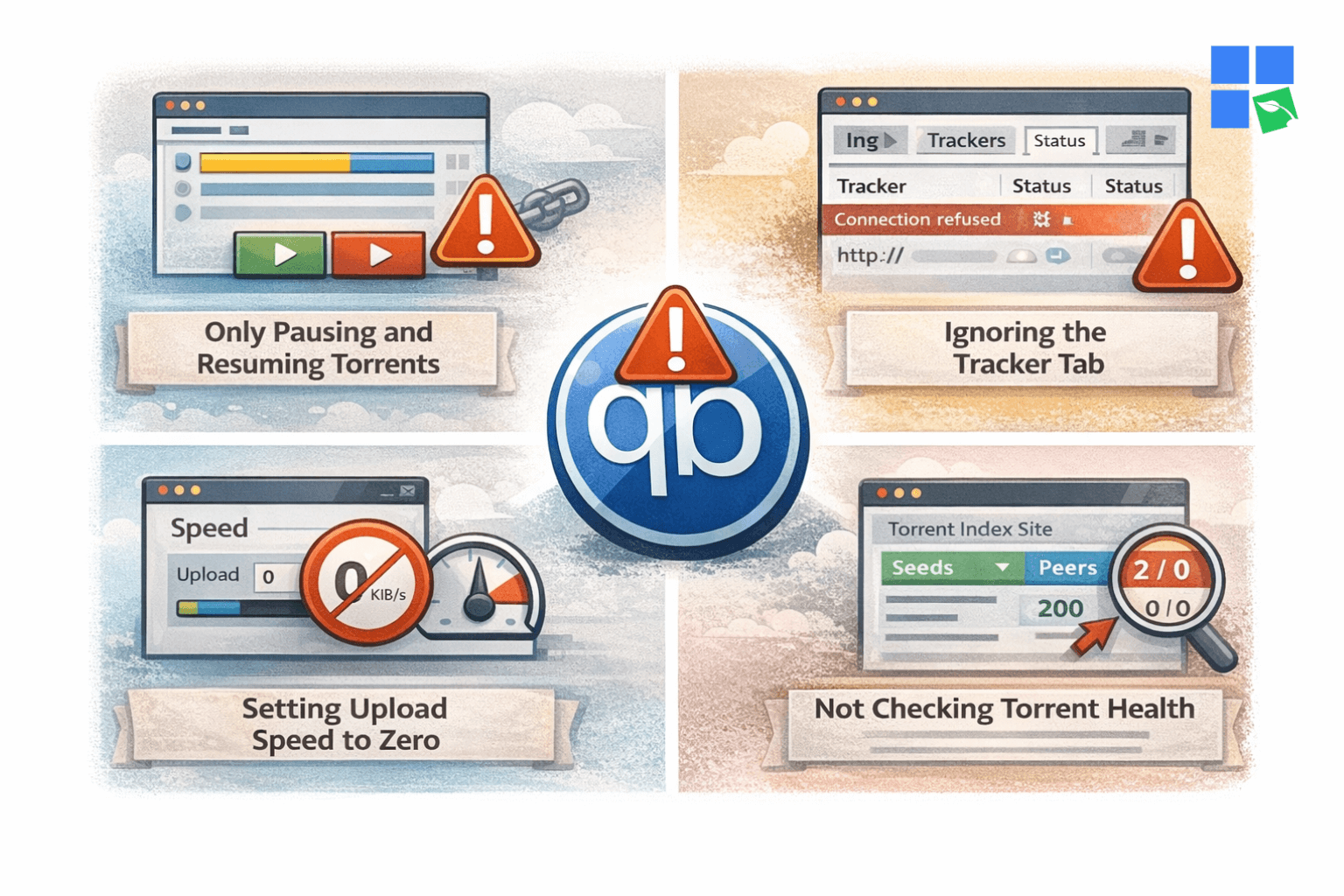
Mistake 1: Only Pausing and Resuming Torrents
Why it happens: It seems logical – pause it, resume it, maybe it kicks back in. But pause/resume doesn’t reset the underlying connections or re-announce to trackers. The client just picks up from where it left off, including all the stale connections causing the problem.
How to avoid it: Use Force Re-Announce (right-click > Force Re-Announce) or restart qBittorrent completely. These actually reset peer connections.
Mistake 2: Ignoring the Tracker Tab
Why it happens: Most users focus on the download speed bar and ignore the detailed information qBittorrent provides.
How to avoid it: Always check the Trackers tab when a download stalls. The status column tells you exactly whether trackers are working, what error they’re returning, and how many peers each tracker is reporting. This information narrows troubleshooting from “everything” to “trackers specifically.”
Mistake 3: Setting Upload Speed to Zero
Why it happens: Users want to save bandwidth and set the upload rate limit to 0 KB/s, thinking it means “no limit.” In qBittorrent, 0 means unlimited, but some users set it to 1 KB/s instead – effectively making them useless to other peers.
Impact: BitTorrent is reciprocal. If you’re not uploading, peers deprioritize your download requests. Low upload limits directly hurt your download speeds.
How to avoid it: Set upload to at least 10–20 KB/s per active torrent, or leave it at the default. Go to Tools > Options > Speed to check your current settings.
Mistake 4: Not Checking Torrent Health Before Downloading
Why it happens: Users add a torrent without checking its seeder/peer ratio first.
How to avoid it: Before adding any torrent, look at the seed-to-peer ratio on the torrent index site. A torrent with 500 seeds and 50 peers is healthy. For example, a torrent with 2 seeds and 300 peers is going to be very slow. Naturally, a torrent with 0 seeds is effectively dead.
TL;DR: qBittorrent Not Downloading – Quick Reference
What it is: A state where qBittorrent shows a torrent as active but transfers zero data (0 B/s), usually with a “Stalled” status.
How it works (the problem): qBittorrent needs active connections to seeders via trackers or DHT. When these connections fail (due to firewall rules, ISP throttling, dead trackers, or no seeders), downloads stop entirely.
Top 3 fastest fixes:
- Force Re-Announce (right-click torrent > Force Re-Announce)
- Allow qBittorrent through Windows Firewall
- Change the listening port to 49152–65535 range
ISP throttling? Use a VPN with port forwarding support (Mullvad, PIA, ProtonVPN) or a seedbox for guaranteed, unrestricted speeds.
Still stuck after all fixes? The torrent itself is likely dead or has no active seeders — no amount of configuration fixes a torrent with zero peers.
Alternatives: If qBittorrent problems persist, Deluge, Transmission, and rTorrent are solid open-source alternatives with similar feature sets.
Best for: Home users, privacy-conscious downloaders, and power users managing large torrent queues.
Related Topics
Understanding qBittorrent’s download issues connects to several related concepts worth exploring:
- Torrents Not Downloading – If the issue isn’t qBittorrent-specific and affects all your torrent clients, the problem is likely at the network or ISP level.
- Best Seedboxes for Torrenting – Remote server-based torrenting that eliminates ISP throttling and local firewall issues entirely.
- What is a Seedbox? – An explanation of how seedboxes work and why they solve most persistent qBittorrent download problems at the root.
Frequently Asked Questions About qBittorrent Not Downloading
qBittorrent may not download despite available seeders if your firewall is blocking incoming connections, your listening port is closed, or your ISP is throttling P2P traffic. The client can see seeders via the tracker but can’t establish actual data connections to them. Fix your port forwarding and firewall settings first.
“Stalled” in qBittorrent means the client has no active data transfer happening. The torrent is queued and connected to trackers but receiving 0 B/s. It typically indicates connection issues with peers, dead trackers, firewall blocks, or a torrent with too few seeders to maintain transfer.
A VPN can fix qBittorrent download issues caused by ISP throttling by encrypting BitTorrent traffic so your ISP can’t detect and throttle it. However, standard VPNs may make things worse by blocking incoming connections. You need a VPN that supports port forwarding, like Mullvad or Private Internet Access, for best results.
If qBittorrent shows peers in the Peers tab but downloads at 0 B/s, the problem is usually port configuration. You’re connecting to peers but they can’t send data back to you. Enable port forwarding on your router for qBittorrent’s listening port (found at Tools > Options > Connection).
Open the Trackers tab for the stalled torrent. If all trackers show 0 seeds and 0 peers, or status errors like “Connection refused,” the torrent is likely dead. Check the swarm data against the original torrent index listing. If the site itself shows 0 seeders, the content is no longer being shared.
Getting Your Downloads Moving Again
I’ve spent years working with torrent setups across different network environments, and qBittorrent not downloading almost always boils down to one of three things: a firewall issue, a port issue, or an ISP throttling problem. The ten fixes above cover every variation I’ve seen.
Start with the quick wins, Force Re-Announce and a full restart, before touching network settings. Most stalls resolve within five minutes.
If you’re regularly fighting your ISP over download speeds, the cleanest long-term solution is a seedbox from RapidSeedbox. Downloads happen on a remote server at data center speeds, with no ISP interference, and you pull the completed files at full speed whenever you want.
Disclaimer: This article is for informational purposes only. Always torrent responsibly and respect applicable copyright laws and digital rights in your jurisdiction.
Tired of qBittorrent not downloading or stuck at 0%?
Instead of troubleshooting ports, firewall rules, and ISP throttling, move your torrents to a high-speed RapidSeedbox server. Download files at blazing-fast datacenter speeds, stay online 24/7, and keep your real IP completely hidden. Then stream or transfer your completed torrents securely to your device—no slowdowns, no interruptions, no restrictions.
0Comments