 By
By
Proxy Helper is a lightweight/open-source Chrome extension that lets you run browser-level proxies without touching system settings. It supports HTTP/HTTPS/SOCKS4/5, PAC scripts, proxy IPs Proxy IPs, bypass lists, and (HTTP/HTTPS) authentication. In 2024–2025, after SwitchyOmega’s discontinuation and the rise of forks and competitors (e.g., FoxyProxy), many people started looking for fast setups, working PAC/bypass recipes, clear SOCKS5 auth limitations, and security/privacy guardrails.
This guide delivers a step-by-step setup to Proxy Helper. It also touches on a few advanced PAC recipes, troubleshooting, security + privacy best practices, and a clear comparison vs FoxyProxy and SwitchyOmega forks.
TL;DR / Table of Contents
- What Is Proxy Helper? Who It’s For & Why It Matters: A lightweight Chrome extension that controls browser-level proxy routing without changing system settings.
- Core Features (At a Glance): Supports HTTP, HTTPS, and SOCKS proxies, PAC scripts, sync, and open-source transparency for full control.
- Quick Start: Get Proxy Helper Running in 5 Minutes: Install, configure, verify, and test your connection in minutes—no admin rights or system changes needed.
- Smart Bypass Lists That Actually Speed Things Up: Bypass rules cut latency and prevent internal or CDN traffic from slowing down through proxy routing.
- PAC Scripts Made Easy (Copy-Paste Library): PAC files automate routing logic, letting Chrome decide dynamically which proxy or direct path to use.
- Authentication That Works (and What Doesn’t): HTTP/HTTPS authentication works smoothly, but SOCKS5 credentials don’t—use IP whitelisting or tunnels instead.
- Troubleshooting Matrix (12 Most Common Issues → Fixes): Most problems come from small setup errors—protocol mismatches, typos, or VPN overlaps.
- Which Should You Use? Proxy Helper vs FoxyProxy vs SwitchyOmega: Each tool balances speed, automation, and transparency differently—your workflow decides the winner.
- Security, Privacy & Performance: Staying Safe and Fast: Proxies can leak data if misused; secure ones protect identity and optimize browsing when configured properly.
- FAQ: Proxy Helper: Short, practical answers to niche issues like IPv6 support, PAC debugging, and DNS behavior.
Disclaimer: This guide is for educational purposes and legitimate use only. Always respect Terms of Service, robots.txt, rate limits, and local laws. Security advice reduces—not eliminates—risk. Vet providers, keep Chrome/extensions updated, and test for leaks before relying on proxies for sensitive tasks.
1) What Is Proxy Helper? Who It’s For & Why It Matters
Proxy Helper is a Chrome extension that routes only your browser traffic through a proxy (masking your IP and location). It doesn’t alter system-wide network settings. That means surgical control: Chrome can use a proxy while other apps keep the direct connection.
So, why does Proxy Helper matter? The proxy-extension space shifted in 2024 when SwitchyOmega went dark in the Web Store. Forks emerged and FoxyProxy gained some share. For now, Proxy Helper sits in the middle: it provides open-source transparency, multi-protocol support, PAC strength, and a light footprint (~240KB).

Who it’s for
- Developers / QA: region testing or rule-based routing via PAC.
- Marketers / Researchers: geo-previewing SERPs/content.
- Privacy-minded users: IP masking for casual privacy (with caveats below).
- Ops / Data teams: controlled and repeatable proxy policies in the browser.
| 💡 Interesting fact: Extension ID: mnloefcpaepkpmhaoipjkpikbnkmbnic; open-source licensing provides rare auditability for a proxy tool. Pro tip: verify authenticity by checking this exact ID in chrome://extensions and cross-matching the Web Store listing with the GitHub repo to avoid spoofed lookalikes. |
2. Core Features (At a Glance):
Before diving into configuration, it’s worth understanding what makes Proxy Helper such a versatile browser-level proxy manager. Each of the capabilities shown below enhances control, performance, security, or privacy in distinct ways, from automation to transparency.
a. Multiple protocols: HTTP, HTTPS, SOCKS4, SOCKS5.
Proxy Helper supports the common proxy protocols you’ll need for browser testing and geo-routing. An important caveat to consider is that SOCKS5 username/password authentication isn’t supported by Chrome’s API. So, SOCKS5 is best used with IP whitelisting or an SSH tunnel for secure authenticated access. Learn more about SOCKS5.
b. PAC script support: automate per-URL/domain rules; add failover chains.
PAC scripts let you route specific domains or URL patterns through different proxies automatically (great for dev QA and geo-testing). And Proxy Helper’s PAC handling includes failover chains so Chrome will try the next proxy if the primary one fails. This is ideal for scraping and reliability-focused workflows. Need help generating PAC files? Check this PAC file generator.
c. Bypass lists: skip proxies for local/CDN/corporate domains; reduce latency.
Use semicolon-separated wildcard entries (e.g., localhost;*.internal;*.cloudfront.net) to keep internal or CDN traffic direct; this reduces latency and saves bandwidth. It can also help prevent breakage for dev servers and intranet resources.
d. HTTP/HTTPS authentication: handles 407 challenge flows automatically.
Proxy Helper injects Proxy-Authorization headers for HTTP/HTTPS proxies so credentialed flows work smoothly; always prefer HTTPS for Basic auth to avoid exposing credentials in transit.
e. Chrome Sync: propagate settings across signed-in devices
Syncing keeps your proxy profiles, PAC URLs, and bypass lists consistent across machines tied to the same Chrome account. This is handy for distributed teams and personal workflows where you want reproducible browser proxy behavior.
f. Lightweight: ~240KB—minimal overhead, fast UI.
The small footprint means faster installs. It also means lower memory impact and a responsive popup UI; useful when you need quick proxy switching without a bulky manager extension slowing the browser.
g. Lightweight: ~240KB—minimal overhead, fast UI.
With the code on GitHub under a permissive license, security-minded users can audit the extension, check commits/issues, and verify that the extension’s permissions and behavior match the published source. This is a quite important plus when routing sensitive browsing traffic through third parties.
3. Quick Start: Get Proxy Helper Running in 5 Minutes (Install, Configure and Test)
If you’re new to proxy management, this section is your fast lane. We’ll go through the installation, setup, and verification so you can start routing traffic through your proxy within minutes.
Pro tip: keep this tab open while you configure—most errors come from skipped verifications or mismatched proxy types.
Install
- Open Chrome Web Store → search “Proxy Helper” or click here to the official link → Add to Chrome.
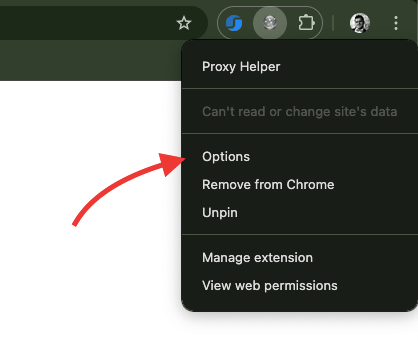
- Optional: Pin the icon (puzzle icon → pin).

- Options window should automatically open, if now, just right-click the icon → Options.
Configure
Within Options, go to “General”. There you’ll see different proxy server types including, HTTP proxy, HTTPS proxy, and SOCKS proxy (SOCKS5 proxy is the most popular).
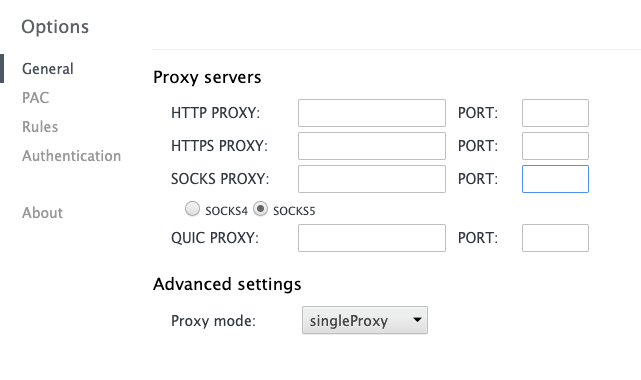
- Start with HTTP/HTTPS (simplest).
- Enter host and port (e.g., 8080/8443).
- If needed, open Authentication and add credentials (HTTP/HTTPS only; not SOCKS5).
- Activate from the extension popup and select your proxy type. Icon should indicate active status.
Verify (don’t skip)
- Check IP: whatismyip.com (should reflect the proxy location).
- Check DNS leaks: dnsleaktest.com.
- Check WebRTC leaks: browserleaks.com/webrtc.
Test
Option 1: Use Tor (SOCKS5, local) – Safest free method to test.
- Install Tor Browser. Although you installed Proxy Helper on Chrome, you will only need Tor Browser for the service (SOCKS5)
- Once running, Tor exposes a SOCKS proxy locally (Make sure you are connected to the Tor network):
- Host: 127.0.0.1
- Port: 9150 (sometimes 9050)
- In Proxy Helper:
- Select SOCKS5
- Enter 127.0.0.1 and port 9150
| ✅ 127.0.0.1:9150 – SOCKS proxy port ✅ 127.0.0.1:9151 – Tor control port — not for browsing |
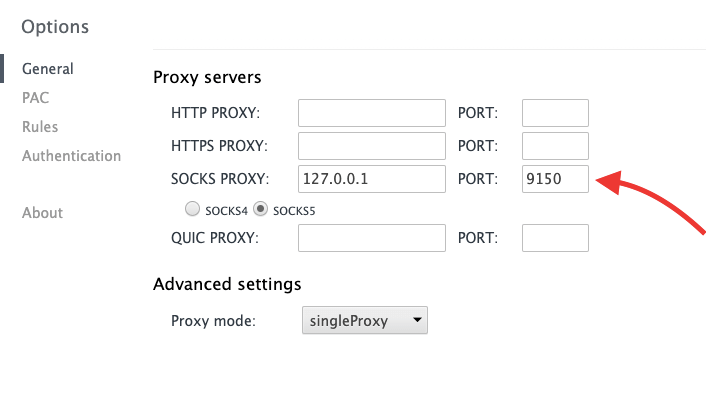
- Ensure, ‘SOCKS5 Proxy’ option is marked/enabled in the Proxy Helper Extension settings.
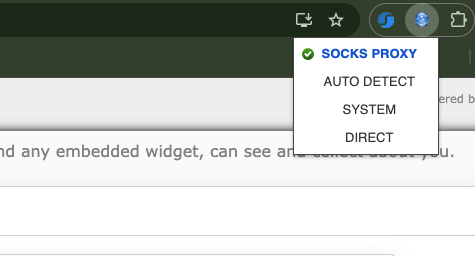
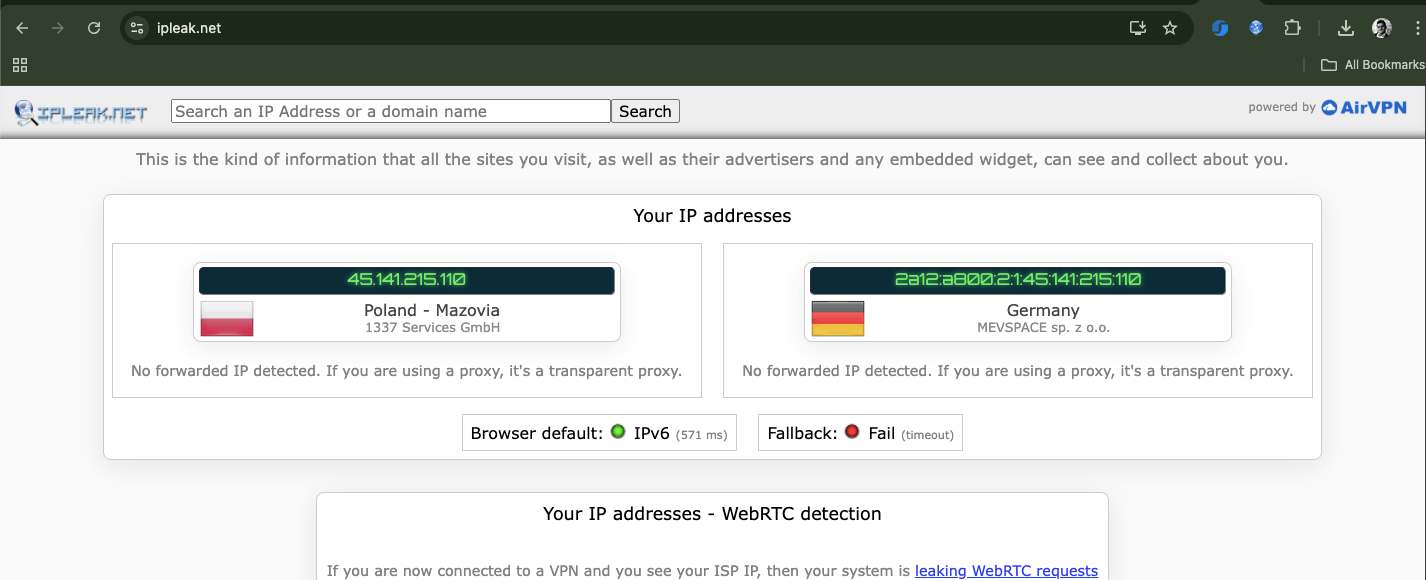
- Test by visiting: https://ifconfig.me or https://ipleak.net. You should see a different IP each time.
Option 2: Use Free Public Proxy (for quick experimentation)
Fast but risky. Only use for harmless browsing tests.
- Visit sites like:
- https://free-proxy-list.net
- https://www.proxynova.com
- Copy any HTTP or SOCKS5 proxy and its port (e.g., 191.102.91.210:8080).
- In Proxy Helper: Paste the IP and port under the corresponding type.
- Test with https://ipinfo.io to confirm it’s active.
⚠️ Avoid logging into accounts or handling sensitive data while using public/free proxies—they often log traffic. For more information, read why paid proxies are usually worth it (performance, reliability, privacy):
Common pitfalls
While configuring, or testing your new Proxy Helper configuration, you might face the following pitfalls, keep them in mind.
- Protocol mismatch (HTTP vs HTTPS vs SOCKS).
- Conflicts with VPN or another proxy extension.
- Typos in host/port; wrong auth on SOCKS5 (not supported).
- System proxy still enabled—set OS to No Proxy/Auto-detect when using the extension.
| 🚀 Power users: enable Developer Mode at chrome://extensions, then hit Load unpacked from the GitHub repo for bleeding-edge builds. |
4. Smart Bypass Lists That Actually Speed Things Up
Most people don’t realize how much a well-tuned bypass list can speed up browsing. Every proxy request adds latency, and sometimes unnecessary encrypted handshakes. So, excluding domains that don’t need proxying cuts DNS overhead, keeps dev tools snappy. Plus, it also avoids annoying auth loops on corporate or hybrid networks.
Think of the bypass list as your proxy’s efficiency filter. It tells Chrome when not to use a proxy, so local apps, test environments, and CDN assets connect directly. It also ranks high in search trends like bypass list chrome and exclude domains from proxy—because performance matters just as much as privacy.
Must-have entries (semicolon-separated):
|
1 |
localhost;127.0.0.1;[::1];<local>;192.168.*;10.*;172.16.*;172.17.*;172.18.*;172.19.*;172.20.*;172.21.*;172.22.*;172.23.*;172.24.*;172.25.*;172.26.*;172.27.*;172.28.*;172.29.*;172.30.*;172.31.* |
Helpful patterns
- Corporate: *.mycompany.com;*.internal;intranet
- Dev/test: *.local;*.dev;*.test
- CDN: *.cloudflare.com;*.cloudfront.net;*.akamai.net
Gotchas
- Works only when a proxy is active—Direct mode ignores bypass rules.
- Wildcards matter: use *.example.com, not *example.com.
- Keep lists short and relevant; extremely long patterns can slow Chrome’s parsing engine and cause intermittent rule failures.
| 💡 Pro tip: After editing your list, test latency on a frequently visited site with and without the proxy. You’ll often see a 10–30% faster load time for bypassed assets—proof that efficiency sometimes means knowing when not to proxy. |
Proxy Helper + Residential 🧭
Pair Proxy Helper with rotating residential IPs for natural traffic patterns and fewer blocks during SERP or market research sessions.
See options5. PAC Scripts Made Easy (Copy-Paste Library)
PAC scripts run a JavaScript function FindProxyForURL(url, host) to decide DIRECT vs PROXY/SOCKS—per request.
Proxy Helper functions to know:
- shExpMatch(str, pattern) → wildcard match.
- isPlainHostName(host) → no dots.
- isInNet(host, pattern, mask) → subnet matching.
- myIpAddress() → client IP.
Starter PAC (direct for local, proxy for the rest)
|
1 2 3 4 5 6 |
function FindProxyForURL(url, host) { if (isPlainHostName(host)) return "DIRECT"; if (shExpMatch(host, "*.local")) return "DIRECT"; if (isInNet(host, "192.168.0.0", "255.255.0.0")) return "DIRECT"; return "PROXY proxy.example.com:8080; DIRECT"; } |
Geo routing (office subnets → different proxies)
|
1 2 3 4 5 6 7 |
function FindProxyForURL(url, host) { var ip = myIpAddress(); if (isPlainHostName(host) || isInNet(host, "10.0.0.0", "255.0.0.0")) return "DIRECT"; if (isInNet(ip, "10.10.1.0", "255.255.255.0")) return "PROXY proxy-east.corp:8080"; if (isInNet(ip, "10.10.2.0", "255.255.255.0")) return "PROXY proxy-west.corp:8080"; return "PROXY proxy-main.corp:8080; DIRECT"; } |
Load balancing (by TLD)
|
1 2 3 4 5 6 |
function FindProxyForURL(url, host) { if (isPlainHostName(host)) return "DIRECT"; if (shExpMatch(host, "*.com")) return "PROXY proxy1.example.com:8080; PROXY proxy4.example.com:8080"; if (shExpMatch(host, "*.edu")) return "PROXY proxy2.example.com:8080; PROXY proxy4.example.com:8080"; return "PROXY proxy3.example.com:8080; PROXY proxy4.example.com:8080"; } |
Time-based rules (business hours vs off-hours)
|
1 2 3 4 5 6 7 |
function FindProxyForURL(url, host) { // 8:00–18:00 Mon–Fri use corp proxy; otherwise go direct if (weekdayRange("MON", "FRI") && timeRange(8, 0, 18, 0)) { return "PROXY corp.proxy.example:8080; DIRECT"; } return "DIRECT"; } |
Implementation tips
- In Proxy Helper → Options → PAC, upload a local .pac or point to a remote HTTPS URL (more reliable across restarts). Need a hand, generating PAC files? Check this PAC file generator.
- Debug at chrome://net-internals/#proxy and Events tab (filter “PAC”).
- Performance tip: avoid heavy DNS lookups in PAC; test patterns first, then subnet checks.
6. Authentication That Works (and What Doesn’t)
When your proxies need a login, knowing what Chrome actually supports can save you hours of frustration. Proxy Helper sticks to Chrome’s native proxy API, so HTTP(S) auth works fine, but SOCKS5 and enterprise protocols (like NTLM/Kerberos) often don’t.
If your proxy login keeps failing, (it’s probably not your credentials) it’s Chrome’s sandboxed design. Below, you’ll find which auth methods work, which don’t, and the best workarounds.
a. HTTP/HTTPS authentication
- Supported. The extension handles 407 responses, resending with Proxy-Authorization.
- Basic and Digest are common; prefer HTTPS to protect credentials.
b. SOCKS5 authentication
- Not supported by Chrome’s proxy API (not a Proxy Helper bug).
- Workarounds:
- IP allowlisting in your provider dashboard.
- SSH tunnel: ssh -D 1080 user@proxy-host → set SOCKS5 to localhost:1080.
- Switch to HTTP/HTTPS if your use case allows.
c. SOCKS4
- No real auth; legacy only. Avoid anything sensitive.
d. Enterprise auth (NTLM/Kerberos)
- Handle at the network/gateway level; browsers/extensions can’t manage multi-step handshakes reliably.
7. Troubleshooting Matrix (12 Most Common Issues → Fixes
Below is a diagnostic quick table for the 12 most common Proxy Helper problems. Each entry includes the symptom, root cause, and precise fix distilled from real user issues. It also include the infamous patterns like ERR_PROXY_CONNECTION_FAILED, PAC not working, and DNS leak Chrome proxy.
| 🧩 Symptom | ⚙️ Likely Cause | 🩺 Exact Fix |
| ERR_PROXY_CONNECTION_FAILED | Wrong host, port, or protocol type | Double-check your provider’s details. Test manually: curl -x http://host:port http://example.com. |
| ERR_SOCKS_CONNECTION_FAILED | Attempting SOCKS5 with username/password | Use IP allowlisting or SSH tunnel (ssh -D 1080 user@proxy-host). If possible, switch to HTTP/HTTPS. |
| Repeated auth prompts | Incorrect credentials or SOCKS5 auth attempt | Re-enter creds; confirm no spaces. Don’t use SOCKS5 credentials—Chrome doesn’t support them. |
| IP didn’t change | Proxy inactive or VPN/system proxy conflict | Toggle Proxy Helper off/on; disable other VPN/proxy tools; set OS proxy to No Proxy or Auto. |
| Stops working after Chrome update | Extension version lag or API change | Check Web Store for updates (latest: v2.0.0). If unavailable, reinstall clean. |
| PAC lost after restart | Local PAC file not persistent | Host PAC file remotely (HTTPS URL) and reload it in Proxy Helper. |
| Bypass list ignored | In Direct mode or syntax error | Ensure a proxy mode is active; use semicolons and wildcards correctly (*.example.com). |
| Pages load very slowly | Distant proxy or overloaded/free server | Switch to geographically close datacenter proxies or paid residential plans. |
| WebRTC leak | Browser bypassing proxy for STUN requests | Install WebRTC Network Limiter or enable uBlock Origin → Prevent WebRTC leaks. |
| DNS leak | DNS queries not routed via proxy | Use proxy/DNS combo with DoH/DoT; retest at dnsleaktest.com. |
| Sites block you | Datacenter IP flagged as automated | Switch to residential/mobile IPs; rotate sessions. |
| Only some domains fail | PAC or bypass logic flaw | Inspect via chrome://net-internals/#proxy; simplify or correct rules. |
🧠 Quick Diagnostic Tips
Test connectivity directly:
|
1 2 |
curl -x http://host:port http://example.com curl -x http://host:port https://example.com -I |
- Compare speed: Open Chrome DevTools → Network tab → compare load times direct vs proxied.
- Reset conflicts: Disable VPN extensions, clear Chrome cache, and reapply proxy configuration.
- Reproduce issue in Incognito: Confirms whether another extension (like ad-blockers) interferes with Proxy Helper.
- Retest after edits: Any change to PAC or bypass lists requires reloading the extension (chrome://extensions).
| 💡 Pro tip: 80% of user issues stem from small misconfigurations—wrong ports, outdated extensions, or VPN overlap. Fix those first before assuming the proxy itself is down. |
8. Which Should You Use? Proxy Helper vs FoxyProxy vs SwitchyOmega (Forks)
Since SwitchyOmega’s removal from the Chrome Web Store, users now weigh three main contenders: Proxy Helper (light, open-source), FoxyProxy (polished, multi-browser), and SwitchyOmega forks (powerful but fragmented).
💡 Tip: All of these rely on Chrome’s same proxy API limits, but differ in automation depth and cross-browser reach. They are also different in terms of update stability.
At-a-glance
| Feature | Proxy Helper | FoxyProxy | SwitchyOmega Forks |
| Active Maintenance | Yes (2026) | Yes (2026) | Fork-dependent |
| User Base | ~100k | 500k+ | 90k–600k (split) |
| Rating (approx.) | 3.7/5 | 3.8/5 | 3.4–4.8/5 |
| File Size | ~240KB | ~223KB | ~1.1–1.6MB |
| PAC Support | Advanced | Good | Superior |
| Tab-Specific Proxies | No | Yes (up to 4) | No |
| WebRTC Protection | Limited | Built-in | Limited |
| Learning Curve | Moderate | Easy | Steep |
| Open Source | Yes | No | Yes |
| Multi-Browser | Chrome/Edge | Chrome/Firefox/Edge/Opera | Chrome/Edge |
| Price | Free | Free | Free |
Recommendations
- Beginners / general → FoxyProxy (polish, built-in protections, multi-browser).
- Developers / tinkerers → Proxy Helper (open-source, solid PAC, light).
- Power users (complex rules) → SwitchyOmega forks (accept maintenance risk).
- Multi-account managers → FoxyProxy (tab-specific proxies).
- Enterprise → FoxyProxy (maturity, docs); Proxy Helper for code transparency.
- Privacy-focused → Proxy Helper (auditable) or FoxyProxy (WebRTC controls).
- Scraping/automation → Proxy Helper or SwitchyOmega (PAC automation).
Interesting fact: SwitchyOmega’s Web Store removal (Manifest V3 gap) spawned divergent forks with uneven quality. Always check maintenance recency before adopting.
9. Security, Privacy & Performance: Staying Safe and Fast
A proxy can protect your identity—or completely expose it—depending on how it’s set up. Chrome extensions like Proxy Helper and FoxyProxy have full access to browsing data, which means a compromised or malicious update could intercept credentials or inject code without you knowing.
Similarly, free proxies often come with hidden trade-offs. They may log activity, inject ads, or act as honeypots to collect sensitive data. And even with HTTPS in place, proxies can still see traffic volume and patterns—enough to profile you through metadata alone.
In real-world use, several weak spots can quietly undermine your privacy. First, browser extensions with full data access pose a major risk. One bad update, and your entire browsing history could be stolen. Next, free proxies often log your traffic, alter pages, or resell your data. Then there are DNS and WebRTC leaks that can reveal your real IP—even when you’re behind a proxy. And finally, metadata exposure: HTTPS hides content, but not timing or the sites you visit.
Here is what you can do to stay safe, private, and fast!
Leak & Speed Testing
- IP check: whatismyip.com
- DNS leak: dnsleaktest.com
- WebRTC leak: browserleaks.com/webrtc → use uBlock Origin’s WebRTC limiter.
- Speed check: Chrome DevTools → Network tab or curl -w “%{time_total}”.
Safe & Fast Checklist
- Use paid, reputable providers with transparent privacy policies and audit records.
- Prefer HTTPS proxies for authentication (Basic or Digest).
- Keep extensions updated; uninstall unused ones.
- Never reuse passwords; rely on a password manager.
- Select proxies close to your target region to minimize latency.
- Use bypass lists for local/CDN traffic to reduce load time.
- Avoid free proxies or single overloaded endpoints.
- Clear cookies/storage between personas to reduce fingerprinting risk.
- Combine tools (Tor + hardened browser) for high-stakes anonymity.
Latency Guide (Rule of Thumb)
| Distance | Typical Latency | Usability |
| Local / same country | +20–50 ms | Invisible |
| Same continent | +100–200 ms | Noticeable but fine |
| Intercontinental | +300–500+ ms | Slower; expect lag |
Proxy Type Trade-Offs
| Type | Strengths | Weaknesses |
| Datacenter (DC) | Fastest, reliable, and cost-efficient | Easily detected |
| Residential | Real IPs, great for scraping | Inconsistent speeds |
| Mobile | High authenticity | Highest latency |
💡 Pro tip: After setup, run all three leak tests and a latency check. A secure, geo-near, HTTPS-based proxy setup can maintain under 150 ms latency with zero leaks—balancing privacy and performance
10. FAQ: Proxy Helper
Yes, but only for Chrome sessions running with a visible UI. Headless environments ignore Chrome extensions by default. To automate browser-level proxies, pass the –load-extension flag with Proxy Helper’s path or use a command-line proxy argument instead.
Yes, Chrome’s proxy API supports both. If your provider offers IPv6 endpoints, enter them in standard [IPv6]:port format. For mixed setups, ensure your PAC script explicitly differentiates IPv6 domains to prevent fallback to IPv4.
Chrome resolves DNS locally by default, meaning DNS leaks can occur unless your proxy provider supports DNS-over-HTTPS or DNS-over-proxy. Use a PAC script that routes all hostnames through a secure proxy to enforce remote resolution.
“Direct” mode tells Chrome to skip all proxies while keeping your configurations intact. Disabling or removing the extension erases active proxy control, reverting Chrome to system-level proxy rules—useful when switching between managed and unmanaged networks.
Not natively. Proxy Helper handles one proxy configuration at a time. However, you can simulate chaining via PAC scripts with sequential PROXY host:port; PROXY backup:port; DIRECT, or by routing traffic through a local proxy client that manages the chain.
Not fully. Even with WebRTC-limiting extensions, certain peer-to-peer APIs may still reveal local IPs. The safest approach is to disable WebRTC in chrome://flags or use a hardened browser like Firefox with WebRTC fully off.
Paid proxies usually have dedicated bandwidth, authenticated access, and stable DNS routing, which reduce packet loss and latency. Free proxies throttle connections and rotate unstable IPs, often causing ERR_CONNECTION_RESET errors in Chrome.
Open chrome://net-internals/#proxy, load your PAC script, and test URLs directly from the interface. Each request will show which proxy Chrome selected, helping you debug complex conditions or confirm automatic failover chains.
Proxy Helper on Mobile IPs 📱
Route Proxy Helper through mobile networks to mirror real handheld traffic for app/web parity checks.
See options
0Comments