 By
By
Switching between different proxy settings can be a cumbersome task, especially if you’re doing it multiple times a day. That is where knowing how to use Proxy SwitchyOmega is handy. Managing proxy settings to increase our privacy shouldn’t be a chore. If you’re tired of the constant hassle of manual proxy management, you need this hands-on guide to handling proxies with Proxy SwitchyOmega.
2026 Update: Since browser updates like Manifest V3 are rolling out, some users rely on forks or alternatives of SwitchyOmega to stay compatible.

Table of Contents
- What is Proxy SwitchyOmega?
- How to Install Proxy SwitchyOmega
- Basic Proxy SwitchyOmega Configuration
- How to Optimize Your Proxy Settings
- Troubleshooting Common Issues
- Tips and Tricks for Using SwitchyOmega Effectively
- How Proxy SwitchOmega Enhances Privacy and Security
- Final Thoughts
Disclaimer: This material has been developed strictly for informational purposes. It does not constitute endorsement of any activities (including illegal activities), products or services. You are solely responsible for complying with the applicable laws, including intellectual property laws, when using our services or relying on any information herein. We do not accept any liability for damage arising from the use of our services or information contained herein in any manner whatsoever, except where explicitly required by law.
1. What is Proxy SwitchyOmega?
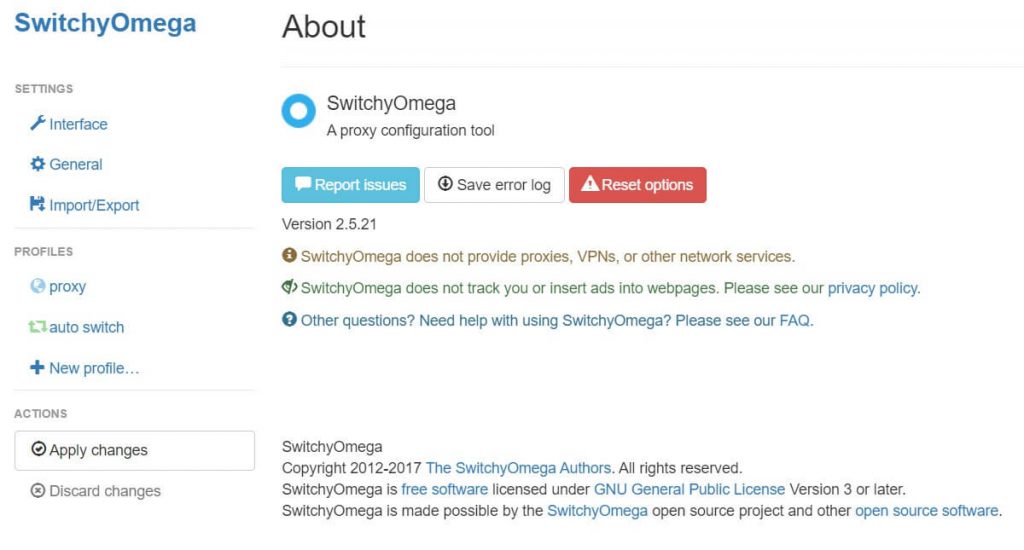
Proxy SwitchyOmega is a browser extension that lets you easily manage your proxy settings. It allows you to create multiple proxy profiles, each with unique rules and configurations.
For example, you can define one profile for your work VPN, another for bypassing geo-restrictions, and another for secure browsing. The extension integrates seamlessly with your Chrome or Firefox browser, making it easy to switch between these profiles with just a few clicks. This extension is free, and you can add it as an extension via your browser plugin or extension store. You can also get more information about it via the SwitchyOmega GitHub repository.
| User Reviews and Ratings: SwitchyOmega has received mixed user reviews (Bewertungen / Rezensionen) across browser extension stores. On Chrome and Firefox, it typically holds between 3–4 stars, with many praising its flexibility and ease of managing multiple proxies quickly, while others point out occasional bugs or slower updates. On GitHub, discussions in the issues section highlight both its reliability for everyday use and the need for forks to keep pace with new browser requirements. |
Key Features
Proxy SwitchyOmega is incredibly versatile, making it suitable for many users. Whether you’re a digital security professional, a web developer testing sites from different locations, or a regular Joe who wants to bypass geo-restrictions, this extension has something to offer.
Auto-Switch Mode: This feature allows the extension to switch between proxy profiles based on pre-set rules automatically. For example, you can set it to use a specific proxy for a particular website.
PAC Script Support: For those who require more advanced configurations, this extension supports Proxy Auto-Configuration (PAC) scripts, allowing for a highly customizable experience.
Backup and Restore: Are you worried about losing your carefully configured profiles? SwitchyOmega has a backup and restore feature to put your mind at ease.
2. How to Install Proxy SwitchyOmega
The first step toward a more streamlined proxy management experience is installing this browser proxy switcher. Thankfully, the process is quick and straightforward, requiring only a few clicks. Here’s how to get started.
Step 1: Navigate to the Web Store
Open your preferred browser—either Chrome or Firefox—and head to the extension marketplace. Once there, use the search bar to type in “SwitchyOmega” and hit enter.
You can access the respective store pages here;
Step 2: Install the Extension
You’ll see SwitchyOmega listed among the search results. Click on it to go to the extension’s dedicated page. Here, you’ll find an Add to (Browser) button, depending on your browser.
Click this button, and a pop-up window will appear, asking permission to access specific data or features. Don’t worry; this is standard procedure for most extensions. Click Add Extension to finalize the installation.
Step 3: Confirm Installation
After a brief moment, the installation will be complete, and you’ll see a notification confirming the same. You’ll also notice the SwitchyOmega icon appear next to your browser’s address bar. This icon is your gateway to efficient proxy management, so it’s a good idea to get familiar with it.
3. Basic Proxy SwitchyOmega Configuration
Now that you’ve successfully installed the extension, it’s time to configure it to your specific needs. The extension offers a user-friendly interface that makes setting up your proxy profiles a breeze. Let’s walk through the basic steps to get you up and running.
Accessing the Dashboard
To begin, click the SwitchyOmega icon next to your browser’s address bar. This will open a dropdown menu. From here, select the ‘Options’ button to access the dashboard.
This is where all the magic happens; it’s your control center for creating and managing proxy profiles.
Creating a New Profile
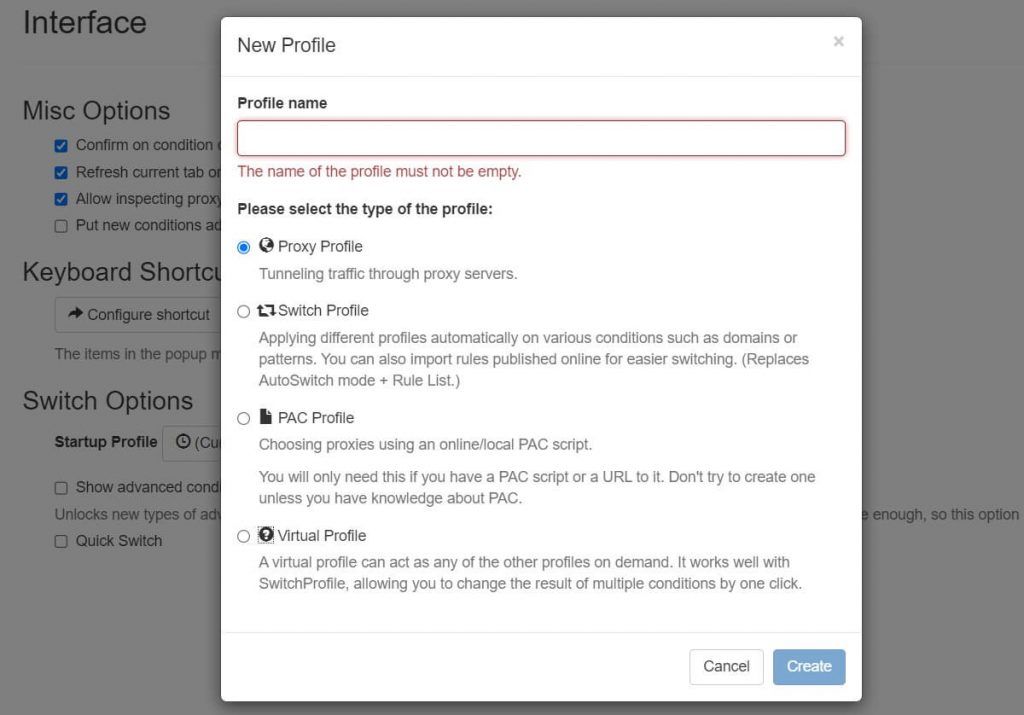
Once you’re in the dashboard, you’ll see an option to create a new profile. Click on it, and you’ll be prompted to choose the type of profile you want to make.
For basic configurations, the ‘Proxy Profile’ option is usually sufficient. Name your new profile something descriptive, like “Work VPN” or “Streaming Service,” to quickly identify it later.
Adding Your Proxy Details
SwitchyOmega allows you to configure different proxy types including HTTP, HTTPS, and SOCKS5. After creating a new profile, you must input the proxy server details. You’ll see fields for the server address, port, and proxy type (HTTP, HTTPS, SOCKS5, etc.). Fill in these details as per your proxy provider’s instructions. Remember to save your settings.
Testing the Profile
Before you start using your new profile, it’s a good idea to test it out. Switch to the profile you just created by selecting it from the SwitchyOmega icon dropdown in your browser. Then, try accessing a website to see if the proxy works as expected.
Proxy Quick Switching
One of the best features of this proxy management tool is the ability to switch between profiles quickly. Once you’ve set up multiple profiles, you can easily toggle between them by clicking the SwitchyOmega icon and selecting the profile you want to use.
🧐 What if you tried this?
Proxy switchyomega works even better with rotating residential IPs.
Try it here4. How to Optimize Your Proxy Settings
Once you’ve got the hang of the basic functionalities of SwitchyOmega, you might be wondering how to take your proxy management to the next level. Optimization ensures you get the most out of this powerful tool.
Here’s how to fine-tune your settings for optimal performance and convenience.
Set Proxy SwitchyOmega to Auto-Switch Mode
Fine-tune your proxy profiles and options in the settings menu. With this feature, switching between multiple profiles can be made seamless.
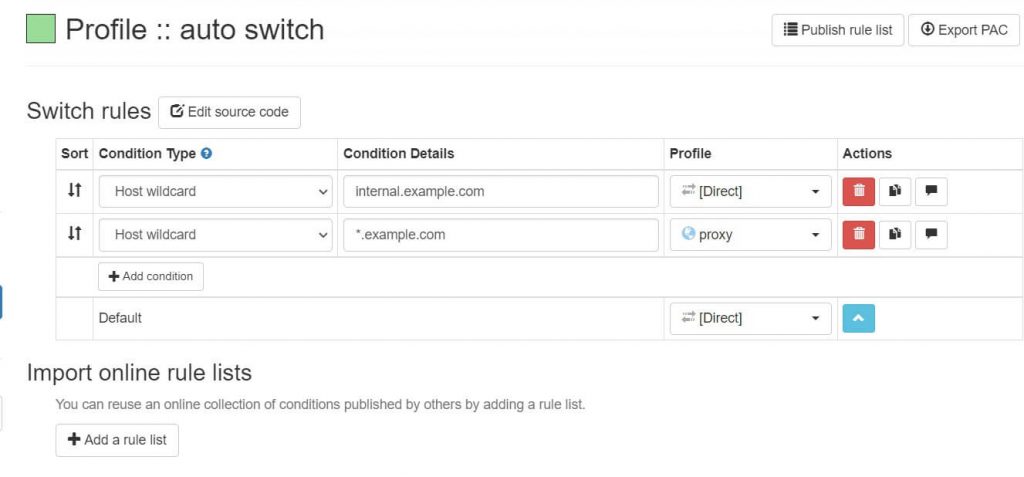
SwitchyOmega’s Auto-Switch Mode is a game-changer. It allows the extension to automatically switch between proxy profiles based on pre-set conditions or rules. This eliminates the need to manually change profiles, making your browsing experience more seamless.
- Open the dashboard by clicking on the extension icon and selecting Options.
- Choose Auto Switch from the left sidebar.
- Add conditions or rules that specify which proxy profile to use for particular websites or IP ranges.
- Save your settings.
Implement PAC Scripts for Customization
For those who need a more tailored proxy setup, SwitchyOmega supports Proxy Auto-Configuration (PAC) scripts.
These scripts allow you to define complex rules for when and how to use different proxies. It’s a bit more advanced, but it offers a level of customization that simple profiles can’t match.
- In the SwitchyOmega dashboard, create a new profile and select PAC Profile.
- Input your PAC script in the provided field.
- Save the profile.
Prioritize Your Profiles
If you have multiple profiles, it’s a good idea to prioritize them based on how frequently you use them. SwitchyOmega allows you to rearrange the order of your profiles so that your most-used ones appear at the top of the list. This minor tweak can save you time in the long run.
- Go to the dashboard.
- You’ll see a list of your profiles on the left sidebar. Drag and drop them to rearrange.
- The profiles will now appear in your chosen order when you click the SwitchyOmega icon in your browser.
Datacenter vs Residential Proxies in SwitchyOmega
Datacenter proxies are the sprinters. They’re cheap, fast, and perfect when you need bulk browsing or quick speed tests. The only catch? They don’t come from internet providers but from data centers, so some sites spot them more easily.
When you’re inside SwitchyOmega:
- Set up a Datacenter profile (HTTP/HTTPS/SOCKS5)
- Drop in your server and port
- Then use Auto-Switch rules to send your speed tests or casual browsing through that profile.
Residential proxies, on the other hand, look like real users. These IPs come from actual ISPs, which makes them harder to flag. They’re slower and cost a bit more, but you’ll run into fewer captchas and bans. Think shopping sites, social media accounts, ad checks, or region-specific research.
In SwitchyOmega:
- Create a Residential profile with authentication.
- For more control, add a PAC profile to direct certain sites through it
- Keep a short Bypass List for trusted sites you want to load normally.
5. Troubleshooting Common Issues
Even the most reliable tools can encounter issues, and SwitchyOmega is no exception. However, most problems you face are easily solvable with some troubleshooting. Here’s a guide to resolving some of the most common issues users encounter.
Proxy Not Switching
Symptoms: You’ve selected a different proxy profile, but your browser still uses the old settings.
- Double-check that you’ve saved the new profile settings in the SwitchyOmega dashboard.
- Try refreshing the webpage you’re on.
- If the issue persists, restart your browser and try again.
Slow Connection Speed
Symptoms: Websites are loading slowly or timing out.
- Test your proxy server’s speed to ensure it’s not the source of the problem.
- Check your profile settings to ensure you’re using the correct server and port.
- If the issue remains, consider switching to a different proxy server.
Extension Not Loading
Symptoms: The SwitchyOmega icon is grayed out, or the dashboard won’t open.
- Try disabling and re-enabling the extension from your browser’s extension settings.
- If that doesn’t work, uninstall and reinstall the extension.
Auto-Switch Not Working
Symptoms: The Auto-Switch feature does not switch profiles based on your pre-set conditions.
- Review your Auto-Switch settings in the SwitchyOmega dashboard.
- Test the conditions by visiting the websites you’ve set rules for.
- If it’s still not working, try restarting your browser.
PAC Script Errors
Symptoms: You’re experiencing issues or errors when using a PAC profile.
- Double-check the PAC script for any syntax errors or incorrect configurations.
- Test the script using a different proxy to rule out server-related issues.
SwitchyOmega Not Working at All
- If SwitchyOmega isn’t working, double-check that your proxy server, port, and authentication details are correct.
- Open the extension Options menu to verify that everything matches your proxy provider’s instructions.
- If your provider uses username/password authentication, enter it in the format
username:password@proxyserver:portin the SwitchyOmega profile settings.
- If your provider uses username/password authentication, enter it in the format
- Keep in mind that residential providers require username/password or IP authentication.
6. Tips and Tricks for Using SwitchyOmega Effectively
This proxy management tool is really powerful. But its full potential is unlocked when you know how to use it effectively. Here are some advanced tips and tricks to elevate your experience.
Use Keyboard Shortcuts
Keyboard shortcuts offer a seamless way to switch between profiles without breaking your workflow. This is especially beneficial for those who multitask across various web services that require different proxy settings.
- Go to the SwitchyOmega options page.
- Navigate to the General tab.
- Here, you’ll find options to set keyboard shortcuts for quick profile switching.
Set Up Temporary Profiles
Temporary profiles are perfect for tasks that require unique proxy settings for a short period. For example, if you’re testing a website from multiple geographical locations, a temporary profile allows you to do this without cluttering your list of saved profiles.
- Click on the SwitchyOmega icon in your browser.
- Select Temporary Profile from the dropdown.
- Configure the settings for temporary use and apply.
Use the Bypass List
The Bypass List is a valuable feature for those who frequently access a mix of local and international websites. By adding trusted or local sites to the list, you can directly connect to them without the latency that sometimes comes with using a proxy.
- In your chosen profile, find the Bypass List section.
- Add the URLs or IP addresses you want to bypass the proxy.
Sync Profiles Across Devices
Syncing profiles across devices ensures a consistent and efficient browsing experience, whether switching from a desktop to a laptop or a mobile device.
This is particularly useful for professionals who must maintain the same proxy configurations across multiple workstations.
- Go to the SwitchyOmega options page.
- Navigate to the Import/Export tab.
- Use the Export feature to save your settings, then Import them on another device.
Use Condition Types in Auto-Switch
Utilizing different condition types in Auto-Switch allows for more granular control over your proxy settings. For instance, you could set up rules that only trigger under particular conditions, such as accessing a specific type of content or during certain times of the day.
- In the Auto-Switch settings, you’ll see an option for Condition Type.
- You can choose from various conditions like Host Wildcard, URL Regex, etc.
Leverage Proxy Rotation
Sometimes you don’t want to stick with one IP. If you’re scraping data or dodging heavy content blocks, switching IPs often is the way to go. SwitchyOmega doesn’t rotate proxies on its own, but you can team it up with a proxy provider or a PAC file that does the job for you.
With this setup, you get fresh browsing sessions without the headache of swapping profiles manually. It works well with both datacenter and residential proxies, as long as your provider supports rotation.
Here’s the quick setup:
- Create a new SwitchyOmega profile using your provider’s rotation endpoint.
- Use Auto-Switch or a PAC rule to send certain sites through that rotating proxy.
- Run a quick test to make sure your IP actually changes.
SwitchyOmega handles the profiles, your provider handles the rotation. Clean, simple, and way less clicking around.
7. How Proxy SwitchOmega Enhances Privacy and Security
SwitchyOmega is often celebrated for its convenience and user-friendly interface, but it’s also a powerful tool for enhancing your online privacy and security. After all, a proxy server is valuable, and ProxyOmega helps put them on steroids.
By effectively managing your proxy settings, this extension provides several layers of protection beyond mere convenience.
Encrypted Connections
Encrypting your connection makes it difficult for third parties, such as hackers or government agencies, to intercept and view your data. This is particularly crucial when using public Wi-Fi networks, which are often less secure and more susceptible to attacks.
When you use a proxy or VPN service that offers encrypted connections, SwitchyOmega ensures that your web traffic is routed through these secure channels.
IP Address Masking
Hiding your IP address enhances your online anonymity, making it harder for websites and online services to track your browsing habits and personal information. This is especially useful for journalists, activists, or anyone concerned about online privacy.
SwitchyOmega lets you easily switch between proxy servers, effectively masking your IP address.
Geo-Spoofing
Geo-spoofing not only allows you to access content that may be restricted in your actual location but also adds an extra layer of privacy by making your online activities less traceable.
By using proxy servers located in different countries, you can make it appear as though you’re browsing from a different location.
FAQ: Proxy Management
Yes. Proxy SwitchyOmega is an open-source extension (you can review its code on GitHub), which makes it transparent and community-audited. However, updates for the original project have slowed, so newer forks and Manifest V3-compatible versions are now available.
This tool works with Google Chrome, Mozilla Firefox, and Microsoft Edge. You can install it directly from each browser’s extension marketplace.
Not directly. This extension doesn’t break restrictions on its own, but it lets you plug in proxies that can. Set up residential or rotating proxies inside SwitchyOmega, and you’ll have a much easier time getting around geo-blocks or site bans.
The smart move is to create a few profiles instead of relying on just one. For example, you might use a residential proxy when you need to look like a real user and avoid bans, and switch to a datacenter proxy when speed matters more for quick browsing or bulk tasks. From there, Auto-Switch or a PAC script can automatically choose the right profile based on the site you’re visiting, so you don’t have to keep flipping settings by hand.
Yes. This extension is available as an extension for Microsoft Edge through the Edge Add-ons Store. The installation steps are nearly identical to Chrome, and once installed, you can manage your proxy profiles in the same way.
Absolutely. This proxy management tool can be added as a Firefox extension (Erweiterung) from the Mozilla Add-ons marketplace. Firefox users benefit from the same features, including Auto-Switch, PAC scripts, and multiple proxy profiles.
8. Final Thoughts
SwitchyOmega is more than just a proxy management tool; it’s a comprehensive solution for enhancing your online experience. From its user-friendly interface to its robust security features, this add-on offers a level of customization and control that is unparalleled.
By mastering its various features and applying the tips, tricks, and troubleshooting solutions outlined in this guide, you’re not just using SwitchyOmega—you’re optimizing it for a safer, more efficient, and more private browsing experience.
 English
  Français
  Español
  Tiếng Việt
  简体中文
简体中文  Русский
  Türkçe
  Bahasa Indonesia
  日本語
日本語  العربية
  Português
  Українська
0Comments