 By
By
If you want to automate NZBGeek downloads, you’ll need to connect your NZBGeek RSS feed or API key to a Usenet download client like SABnzbd or NZBGet. Ideally, you’d use an always-on seedbox so your home PC doesn’t have to handle the queue all day. This guide shows you how to automate downloading of files from NZBGeek using three practical setups – RSS automation, Sonarr/Radarr automation, and Prowlarr-based indexer management.
Before we start: only automate downloads you have the legal right to access. NZBGeek, Usenet clients, and seedboxes are tools, and you are responsible for how you use them.
Table of Contents:
- How NZBGeek Automation Works
- Option 1: Automate NZBGeek with SABnzbd RSS Feeds
- Option 2: Automate NZBGeek with NZBGet RSS Feeds
- Option 3: Automate NZBGeek with Sonarr and Radarr
- Option 4: Use Prowlarr to Manage NZBGeek Across Apps
- Should You Use a Seedbox with NZBGeek?
- RSS vs Sonarr/Radarr vs Prowlarr: Which Setup Should You Use?
- Common NZBGeek Automation Mistakes
- Troubleshooting: NZBGeek Automation Not Working
- A Clean NZBGeek Automation Setup Example
- Best Practices for Reliable NZBGeek Automation
- The Practical Way to Start
- FAQ
Quick Answer: What Do You Need to Automate NZBGeek Downloads?
To automate NZBGeek downloads, you need four things:
| Component | What it does |
|---|---|
| NZBGeek | Finds NZB files through search, RSS, or API access |
| Usenet provider | Provides access to Usenet servers where files are retrieved from |
| Download client | SABnzbd or NZBGet processes NZB files and downloads the content |
| Automation layer | RSS filters, Sonarr, Radarr, Readarr, Lidarr, Prowlarr, or NZBHydra2 |
The simplest setup is:
- Create or copy an NZBGeek RSS feed.
- Add that RSS feed to SABnzbd or NZBGet.
- Create filters so only matching releases are grabbed.
- Set categories, folders, and post-processing rules.
- Let the client check the feed automatically.
The more flexible setup is:
- Add NZBGeek as a Newznab indexer in Sonarr, Radarr, or Prowlarr.
- Add SABnzbd or NZBGet as the download client.
- Define quality profiles, categories, and root folders.
- Let the automation app search NZBGeek and send NZBs to your downloader.
How NZBGeek Automation Works
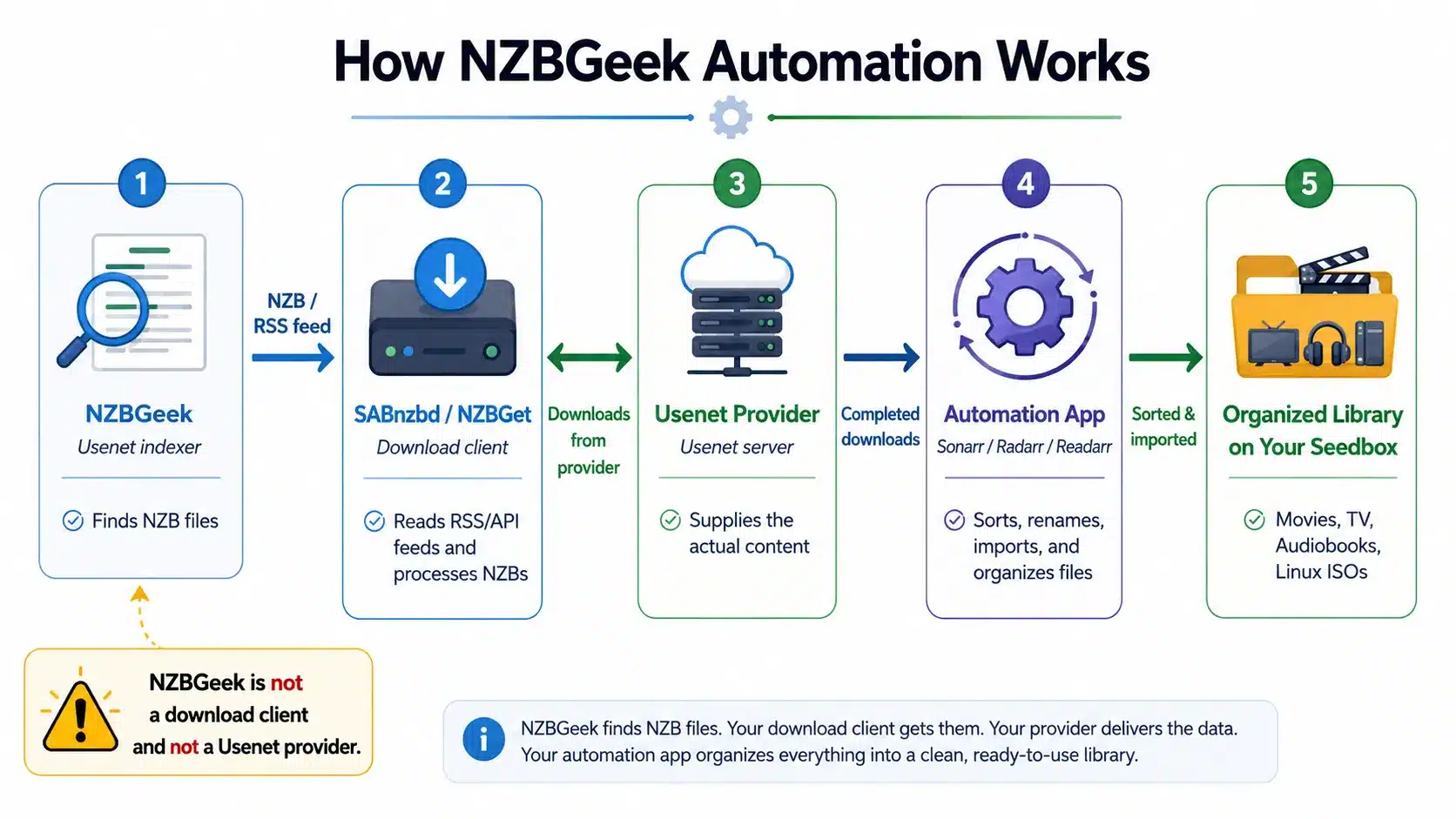
NZBGeek is a Usenet indexer. It helps you find NZB files, but it’s not the actual Usenet provider and it doesn’t replace a Usenet server.
Think of the workflow like this:
NZBGeek finds the NZB → SABnzbd or NZBGet downloads from your Usenet provider → your automation app sorts and organizes the files.
That distinction is important because a lot of setup problems happen when users treat NZBGeek like a download client or Usenet provider. It’s not one of those things. It’s the search/indexing layer.
If you are new to this ecosystem, start with our Usenet setup guide before wiring everything together.
Option 1: Automate NZBGeek with SABnzbd RSS Feeds
RSS is the simplest way to automate downloads from NZBGeek. It’s great for keeping an eye on a particular category, search term, or custom NZBGeek feed.
1. Create or Copy Your NZBGeek RSS Feed
Log in to NZBGeek and look for RSS, API, or custom feed options in your account area. The exact labels may change, but the goal is simple: you need a feed URL that includes your NZBGeek authentication token or API key.
A good RSS feed should be specific. Steer clear of broad feeds that take in too much. For example, use a category-specific or search-specific feed instead of a sitewide feed.
Better RSS feed examples:
- one content category;
- a specific recurring title;
- a feed with quality terms included;
- unwanted terms excluded where NZBGeek supports it.
Poor RSS feed examples:
- a broad “latest uploads” feed;
- no filters;
- a feed that matches multiple unrelated titles;
- one that causes duplicates every time it refreshes.
2. Add the RSS Feed to SABnzbd
Open SABnzbd and go to the RSS section.
In SABnzbd:
- Open the RSS page.
- Add a new RSS feed.
- Paste your NZBGeek RSS feed URL.
- Give the feed a clear name, such as
NZBGeek - Linux ISOsorNZBGeek - Audiobooks. - Save the feed.
- Check whether SABnzbd can read items from the feed.
Once SABnzbd can see the feed items, you can add filters. SABnzbd RSS filters look for patterns in item titles and can accept or reject items based on those matches.
3. Add Accept and Reject Filters
Filters help to keep your RSS automation in check and make sure things don’t get too messy.
A simple accept filter might include:
|
1 |
ubuntu 24.04 |
A broader wildcard-style filter might include:
|
1 |
ubuntu* |
A reject filter might block terms you never want:
|
1 2 3 4 |
cam telesync sample password |
Just use the accept filters for what you want. Use reject filters for what you know you don’t want. If your filter is too broad, your client might end up downloading duplicates, low-quality releases or irrelevant files.
4. Set Categories and Folders
Categories keep your completed downloads organized. For example:
| Category | Folder |
software | /downloads/software |
ebooks | /downloads/ebooks |
video | /downloads/video |
audio | /downloads/audio |
This is really important if you’re planning on connecting SABnzbd to Sonarr, Radarr, Readarr, or another automation tool later on. Apps need to know which downloads belong to them, and categories help with that.
5. Test with One Narrow Feed First
Don’t try to automate ten feeds on day one. Try using one narrow feed and see what happens after a few refresh cycles.
Check the following:
- Did SABnzbd read the feed?
- Did the filter match only the correct items?
- Did the download go to the correct category?
- Did post-processing work?
- Did the completed file land in the expected folder?
- Were duplicates avoided?
Once one feed works as intended, add more.
Option 2: Automate NZBGeek with NZBGet RSS Feeds
NZBGet is another strong option for Usenet automation. It’s lightweight, fast, and works well on servers, NAS devices, seedboxes, and lower-resource systems.
1. Add the NZBGeek RSS Feed
In NZBGet:
- Open the NZBGet web interface.
- Go to RSS feed settings.
- Add a new feed.
- Paste your NZBGeek RSS feed URL.
- Name it clearly.
- Enable the feed.
- Set a reasonable refresh interval.
Avoid aggressive refresh intervals. Checking too often can waste API/RSS requests and even hit the limits on the indexer side.
2. Configure NZBGet Filters
NZBGet filters decide which feed items get added to the queue.
A basic filter can match words in the title:
|
1 |
debian iso |
A wildcard filter can match variations:
|
1 |
debian* |
If the filter’s empty, NZBGet might treat every RSS item as a match, depending on your settings. That’s not usually the goal.
3. Use Duplicate Checks
One of the best things about using a real automation client instead of manually downloading NZBs is how good it is at handling duplicates. NZBGet can use duplicate checks to avoid grabbing the same item again and again.
This matters when:
- the same release appears in multiple feeds;
- a release is reposted;
- your feed contains multiple versions;
- your client restarts and rechecks old feed items.
That said, first set the duplicate behaviour, before you fully rely on it.
4. Use Categories for Post-Processing
Just like SABnzbd, NZBGet can sort your files into categories. You can use them to sort out different types of downloads and make post-processing easier.
For example:
|
1 2 3 4 5 6 7 8 |
Category: books Destination: /downloads/books Category: software Destination: /downloads/software Category: media Destination: /downloads/media |
If you later connect NZBGet to Sonarr or Radarr, make sure you match the category names carefully. A category mismatch is the most common reason why downloads don’t import correctly.
Option 3: Automate NZBGeek with Sonarr and Radarr
RSS automation is great for simple workflows. But if you want a more controlled setup, try NZBGeek with Sonarr or Radarr.
Sonarr monitors series. Radarr keeps an eye on movies. They can both search Usenet indexers, apply quality profiles, send NZBs to a download client, and import completed downloads.
1. Add NZBGeek as a Newznab Indexer
In Sonarr or Radarr:
- Go to Settings.
- Open Indexers.
- Click the plus button.
- Choose Newznab or an NZBGeek preset if available.
- Add the NZBGeek API URL.
- Paste your NZBGeek API key.
- Select the right categories.
- Test the connection.
- Save.
Newznab is the most common API format used by many Usenet indexers. If NZBGeek isn’t listed as a preset, you’ll probably want to create a custom Newznab entry.
2. Add SABnzbd or NZBGet as the Download Client
The indexer finds releases. The download client will download them.
In Sonarr or Radarr:
- Go to Settings.
- Open Download Clients.
- Click the plus button.
- Choose SABnzbd or NZBGet.
- Add the host, port, username, password, and API key.
- Set the correct category.
- Test the connection.
- Save.
Try using different categories for different apps. For example:
| App | Download client category |
| Sonarr | tv |
| Radarr | movies |
| Readarr | books |
| Lidarr | music |
This keeps imports clean and stops one app from trying to process another app’s downloads.
3. Set Quality Profiles
Quality profiles stop automation from grabbing anything that matches the title. They decide what’s OK and what isn’t.
It depends on your use case, but a quality profile can control stuff like:
- resolution;
- file size limits;
- language;
- preferred terms;
- unwanted terms;
- upgrade rules;
- cutoff quality.
This is the difference between “download the first match” and “download the right match.”
4. Add Root Folders
Root folders tell Sonarr or Radarr where the final organised files should be saved.
For example:
|
1 2 3 |
/mnt/media/tv /mnt/media/movies /mnt/media/books |
Just make sure your download client and automation app can both access the relevant paths. If they run in Docker, on a NAS, or on a seedbox, path mapping becomes really important.
5. Test Manual Search Before Full Automation
Before switching on full monitoring, run a manual search.
Check the following:
- Does NZBGeek return results?
- Do the categories match?
- Does the selected release get sent to SABnzbd or NZBGet?
- Does the download start?
- Does the completed file import?
- Does the final file land in the right folder?
A manual search is the quickest way to find bad API keys, category mismatches, path problems and download client connection errors.
Option 4: Use Prowlarr to Manage NZBGeek Across Apps
Prowlar is really handy when you’ve got more than one automation app. Instead of adding NZBGeek separately to Sonarr, Radarr, Readarr, and Lidarr, you just add it once in Prowlarr and sync it to the apps that need it.
When Prowlarr Makes Sense
Use Prowlarr if you want:
- to use more than one Arr app;
- one place to manage NZBGeek and other indexers;
- cleaner indexer testing;
- indexer stats;
- easier category syncing;
- to avoid repeating API setup across apps.
Skip Prowlarr if you:
- use only SABnzbd RSS feeds;
- run one automation app;
- prefer the simplest possible setup;
- do not want another service to maintain.
Basic Prowlarr Flow
The setup usually looks like this:
- Install Prowlarr.
- Add NZBGeek as a Newznab indexer.
- Test the NZBGeek connection.
- Add Sonarr, Radarr, or other apps under Prowlarr’s app settings.
- Choose sync settings.
- Sync NZBGeek to the apps.
- Add SABnzbd or NZBGet as the download client in each app.
If syncing doesn’t work, take a look at the tags and categories. Prowlar doesn’t just sync every indexer to every app. It’s important to think about category compatibility.
Want to keep your NZBGeek downloads running automatically without tying up your home connection?
Pair NZBGeek with a RapidSeedbox and automate your downloads with reliable remote storage, fast transfer speeds, and always-on access for tools like SABnzbd, Sonarr, and Radarr. It is a simple way to keep your Usenet workflow smooth, private, and available whenever new files are ready.
Should You Use a Seedbox with NZBGeek?
A seedbox is not required for NZBGeek automation, but it makes the setup much better.
If your PC or NAS is always on, has enough storage, stable networking, and you’re comfortable exposing or managing local services, a local setup can work perfectly. But if your automation stack depends on uptime, remote access, and consistent bandwidth, a seedbox will be a better home for SABnzbd, NZBGet, Prowlarr, Sonarr, and Radarr.
The practical benefits are:
| Benefit | Why it matters |
| Always-on automation | Your feeds and monitored items keep running even when your home PC is off |
| Remote access | You can manage downloads through web apps from anywhere |
| Better bandwidth handling | Downloads do not consume your local connection in the same way |
| Cleaner app stack | SABnzbd, NZBGet, Prowlarr, Sonarr, and Radarr can run together on one remote server |
| Easier media workflows | Completed files can be organized and served from the same environment |
| Less local maintenance | Fewer problems caused by sleep mode, router resets, or local firewall changes |
The only problem is that you still need a Usenet provider and an indexer account. A seedbox won’t just replace NZBGeek or your Usenet access. It just gives your automation tools a better place to run.
If you are comparing setups, we have a useful breakdown of seedbox vs Usenet, and a separate guide to choosing a seedbox for Usenet.
RSS vs Sonarr/Radarr vs Prowlarr: Which Setup Should You Use?
| Setup | Best for | Main advantage | Main drawback |
| NZBGeek RSS + SABnzbd | Simple recurring downloads | Fast to set up | Less control over upgrades and imports |
| NZBGeek RSS + NZBGet | Lightweight server automation | Efficient and flexible | Filters need careful tuning |
| NZBGeek + Sonarr | Series automation | Monitors, upgrades, and organizes | More setup work |
| NZBGeek + Radarr | Movie automation | Quality profiles and library management | Requires good folder/path setup |
| NZBGeek + Prowlarr | Multi-app automation | Centralized indexer management | Adds another service |
If you’re just starting out, I’d suggest taking a look at SABnzbd or NZBGet RSS automation. Once you understand how feeds, categories and completed folders behave, you can move on to Sonarr/Radarr or Prowlarr.
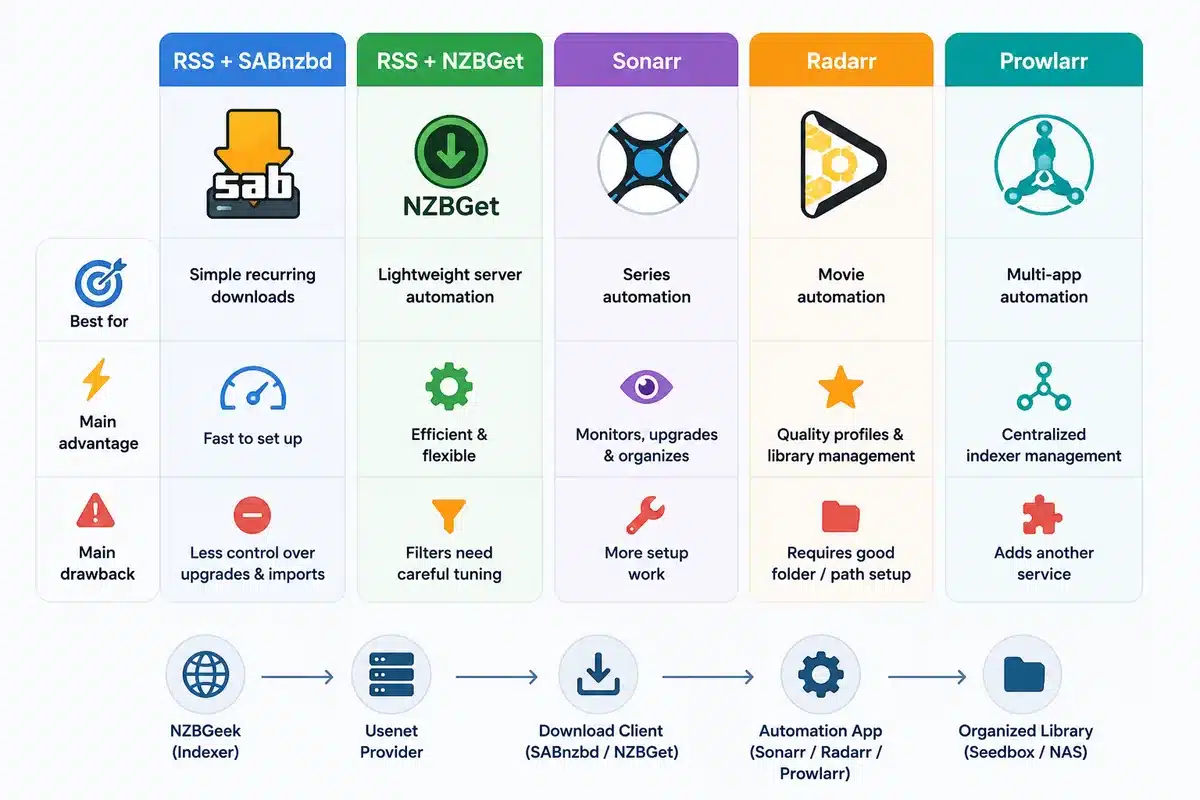
If you’re looking for a bigger setup, start with Prowlarr earlier. It’s easier to manage one NZBGeek connection in one place than to troubleshoot separate indexer settings in every app.
Common NZBGeek Automation Mistakes
1. Using NZBGeek as If It Were a Usenet Provider
NZBGeek helps you find NZB files. Your Usenet provider gives you server access. Your download client will get the files. If SABnzbd or NZBGet don’t have a working Usenet server set up, NZBGeek automation won’t download anything.
2. Using the Wrong API Key
Some apps need the indexer API key. Others ask for the download client API key.
Do not mix these up:
| Key | Where it belongs |
| NZBGeek API key | Indexer settings in Sonarr, Radarr, Prowlarr, NZBHydra2, or RSS feed URL |
| SABnzbd API key | Download client settings in Sonarr, Radarr, or other apps |
| NZBGet username/password | NZBGet connection settings |
| Prowlarr API key | App sync settings when connecting Prowlarr to Sonarr/Radarr |
If the connection test fails, just re-copy the key instead of manually typing it.
3. Making RSS Filters Too Broad
A broad RSS filter can grab unrelated files, duplicates, or versions you don’t want.
Bad filter:
|
1 |
ubuntu |
Better filter:
|
1 |
ubuntu 24.04 iso |
You can also combine specific feed settings in NZBGeek with accept and reject filters in the client.
4. Ignoring Categories
Don’t just think of categories only as labels. They’re in charge of where downloads go and how other apps handle them.
If Sonarr sends a download with category TV, but SABnzbd stores it under a different category or folder, Sonarr might not be able to import it. Make sure your category names are consistent across your stack.
5. Running Automation on a Sleeping PC
Automation needs to be kept in good working order. If your PC sleeps, reboots, disconnects from Wi-Fi, or changes local IP addresses, RSS checks and app searches might not work properly.
That’s why a seedbox, NAS, or dedicated server is often a better option than a regular desktop machine.
6. Skipping the Test Button
Most of these apps have a Test button for a reason. Use it after every important connection:
- NZBGeek in Sonarr/Radarr;
- SABnzbd in Sonarr/Radarr;
- NZBGet in Sonarr/Radarr;
- NZBGeek in Prowlarr;
- Prowlarr app sync;
- RSS feed reads.
If you test each connection separately, troubleshooting becomes a lot easier.
Troubleshooting: NZBGeek Automation Not Working
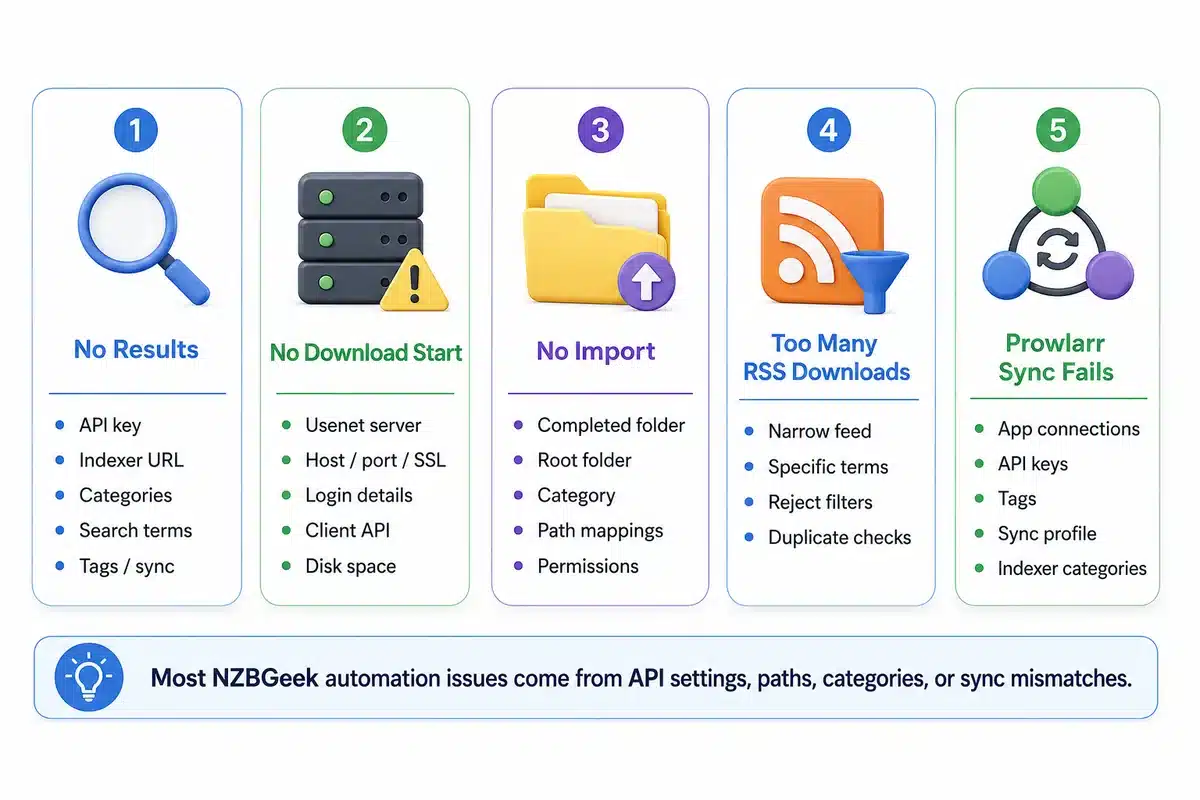
NZBGeek Returns No Results
Check:
- your API key;
- indexer URL;
- categories;
- account status;
- search terms;
- quality profile;
- app tags;
- Prowlarr sync categories.
If you can do a manual search on NZBGeek but not in Sonarr or Radarr, then the problem’s probably with the app’s settings, category mapping, or API access.
SABnzbd or NZBGet Does Not Start the Download
Check:
- Usenet server settings;
- server host and port;
- SSL setting;
- username and password from your Usenet provider;
- download client API key or credentials;
- disk space;
- queue pause status;
- category folder permissions.
The indexer can work perfectly fine while the download client still fails because the Usenet server is misconfigured.
Downloads Finished but Don’t Import
This is usually a path or category issue.
Check:
- completed download folder;
- Sonarr/Radarr root folder;
- category name;
- Docker path mappings;
- file permissions;
- whether the download is still unpacking, verifying, or repairing.
If you use a seedbox, make sure the automation app and download client see the same file paths or have the right remote path mappings.
RSS Feed Downloads Too Much
Tighten your filters.
Try:
- adding more specific terms;
- using category-specific NZBGeek feeds;
- adding reject filters;
- enabling duplicate checks;
- increasing feed specificity rather than relying only on client-side filters.
Prowlarr Does Not Sync NZBGeek to Sonarr or Radarr
Check:
- app connection settings;
- Prowlarr API key;
- Sonarr/Radarr API key;
- tags;
- sync profile;
- categories supported by the indexer;
- whether the app test succeeds.
If Prowlarr can test NZBGeek but Sonarr can’t see it, then the problem is probably with the sync configuration rather than NZBGeek itself.
A Clean NZBGeek Automation Setup Example
Here is a simple setup that works well for many users:
| Layer | Tool |
| Indexer | NZBGeek |
| Indexer manager | Prowlarr |
| Download client | SABnzbd |
| TV automation | Sonarr |
| Movie automation | Radarr |
| Server environment | Seedbox or NAS |
| File access | SFTP, web file manager, Plex, Jellyfin, or local sync |
The workflow:
- NZBGeek is added to Prowlarr.
- Prowlarr syncs NZBGeek to Sonarr and Radarr.
- Sonarr and Radarr monitor wanted items.
- When a match appears, they send the NZB to SABnzbd.
- SABnzbd downloads from your Usenet provider.
- Sonarr or Radarr imports and organizes the completed file.
- You access the finished files from your server, media app, or file transfer tool.
That setup is more work than a basic RSS feed, but it’s much easier to maintain once you’ve got multiple apps and libraries.
Best Practices for Reliable NZBGeek Automation
Use this checklist before you rely on the setup:
- Use a strong NZBGeek password and keep your API key private.
- Do not share RSS URLs because they may contain account tokens.
- Start with one indexer and one download client.
- Use clear categories from the beginning.
- Keep RSS filters narrow.
- Use reject filters for unwanted terms.
- Avoid very frequent RSS refresh intervals.
- Test manual search before full automation.
- Check completed folder permissions.
- Keep enough free disk space for unpacking and repair.
- Run your automation stack on an always-on machine, NAS, or seedbox.
- Review your download history regularly to catch bad filters early.
The Practical Way to Start
If you’re only after basic automation, you can use NZBGeek RSS with SABnzbd or NZBGet. It’s straightforward, quick, and works well for narrow feeds.
If you want library management, NZBGeek with Sonarr or Radarr is the way to go.
For several automation apps, add Prowlarr and manage NZBGeek from one place.
If you don’t want your home PC to stay on all day, run the stack on a seedbox. It’s not essential, but it gives your NZBGeek automation a stable, remote environment with better uptime, cleaner access, and fewer local networking problems.
FAQ
Can NZBGeek automatically download files by itself?
No. NZBGeek is an indexer, not a download client. To automate downloads, just connect NZBGeek to SABnzbd, NZBGet, Sonarr, Radarr, Prowlarr, or another compatible tool.
Do I need SABnzbd or NZBGet for NZBGeek automation?
Yes, you’ll need a Usenet download client, like SABnzbd or NZBGet. NZBGeek helps you find NZB files, but it’s the download client that processes those NZBs and retrieves the files from your Usenet provider.
Is RSS enough to automate NZBGeek downloads?
RSS is enough for simple automation, especially if you use narrow feeds and careful filters. If you need more advanced monitoring, quality profiles, upgrades and imports, then use Sonarr, Radarr or another Arr app.
Should I use Prowlarr with NZBGeek?
Use Prowlarr if you manage several indexers or multiple apps like Sonarr, Radarr, Readarr, and Lidarr. If you only use one app or one RSS feed, Prowlarr may be unnecessary.
Can I use NZBGeek on a seedbox?
Yes, as long as your seedbox can support Usenet apps like SABnzbd, NZBGet, Prowlarr, Sonarr, or Radarr. You’ll still need your own NZBGeek account and Usenet provider.
Why are my NZBGeek downloads not importing into Sonarr or Radarr?
The most common causes are category mismatches, wrong completed download paths, Docker path mapping issues, file permissions, or downloads that are still unpacking or repairing.
Is automating NZBGeek legal?
The tools themselves are legal, but what you download matters. Just make sure you’re only downloading files you’re allowed to access, and stick to the laws where you are.
Ready to make your NZBGeek automation faster, smoother, and always available?
Run your NZBGeek download setup on RapidSeedbox and give tools like SABnzbd, Sonarr, and Radarr a powerful remote environment built for automated downloading. Enjoy high-speed transfers, 24/7 availability, and convenient remote access without slowing down your local device or home network.
0Comments