 By
By
A seedbox pyLoad setup lets you send direct-download links to a remote server instead of leaving your home computer running for hours. pyLoad is a lightweight, open-source download manager that runs continuously on a seedbox and can be controlled through a browser.
It is especially useful for HTTP and HTTPS links, one-click file hosts, cloud-storage links, encrypted link containers, premium host accounts, and downloads that need automatic retries.
Table of Contents
- What Is a Seedbox pyLoad Setup?
- Seedbox pyLoad: Key Facts
- What Does pyLoad Do on a Seedbox?
- Why Run pyLoad on a Seedbox?
- How to Install pyLoad on a Seedbox
- How to Configure pyLoad on a Seedbox
- How to Add Your First Download
- How to Transfer Completed pyLoad Files
- pyLoad vs JDownloader vs aria2 on a Seedbox
- Who Should Use pyLoad on a Seedbox?
- How pyLoad Works Behind the Web Interface
- Common Seedbox pyLoad Problems
- How to Secure pyLoad on a Seedbox
- TL;DR: Seedbox pyLoad Summary
- Frequently Asked Questions About Seedbox pyLoad
- Start Using pyLoad on Your Seedbox
What Is a Seedbox pyLoad Setup?
A seedbox pyLoad setup combines an always-on remote server with the pyLoad download manager. You just paste links into the web interface, and the seedbox downloads the files to its remote storage. Then you can manage, extract, stream, synchronise, or transfer those files without using your home connection.
Unlike a desktop download manager, pyLoad will keep going even when your computer is turned off. The seedbox handles the connection to the file host, stores completed files, and lets you control the queue remotely from a phone, tablet, or browser.
If you want to know more about the application itself, including how the plugins work and the supported platforms, have a look at our complete pyLoad guide.
Seedbox pyLoad: Key Facts
- What it is: A lightweight web-based download manager running on a remote seedbox.
- How it works: pyLoad receives download links, processes them through hoster or decrypter plugins, and saves the resulting files to seedbox storage.
- Main components: Seedbox server, pyLoad-ng application, web interface, download queue, hoster plugins, and storage directory.
- Key benefits: Remote access, continuous operation, automated retries, premium host support, low resource usage, and centralized storage.
- Difficulty level: Beginner with a one-click installer; intermediate with Docker or SSH.
- Best for: Direct downloads, one-click file hosts, multi-part archives, cloud links, and unattended download queues.
- Alternatives: JDownloader 2 and aria2.
- Last updated: June 22, 2026.
What Does pyLoad Do on a Seedbox?
pyLoad basically turns a seedbox into a remotely controlled direct-download server. Instead of downloading a large file to your computer, you just give its URL to pyLoad and let the seedbox get it from the source.
A normal workflow looks like this:
- You copy a supported download link.
- You open pyLoad in your browser.
- You add the link as a package.
- pyLoad checks the source through the relevant plugin.
- The seedbox downloads the file.
- pyLoad optionally verifies or extracts the completed download.
- You access the file through SFTP, a file manager, synchronization software, or a media application.
A seedbox performs the download remotely, so the transfer between the file host and the seedbox does not consume your home internet bandwidth. Your local connection is used only when you later transfer or stream the completed file.
pyLoad is best for managing direct downloads. If you’re downloading torrents, it’s best to use a dedicated client such as qBittorrent, Deluge, Transmission or rTorrent. These apps give you better peer management, seeding controls, tracker support, and torrent-specific automation.
Why Run pyLoad on a Seedbox?
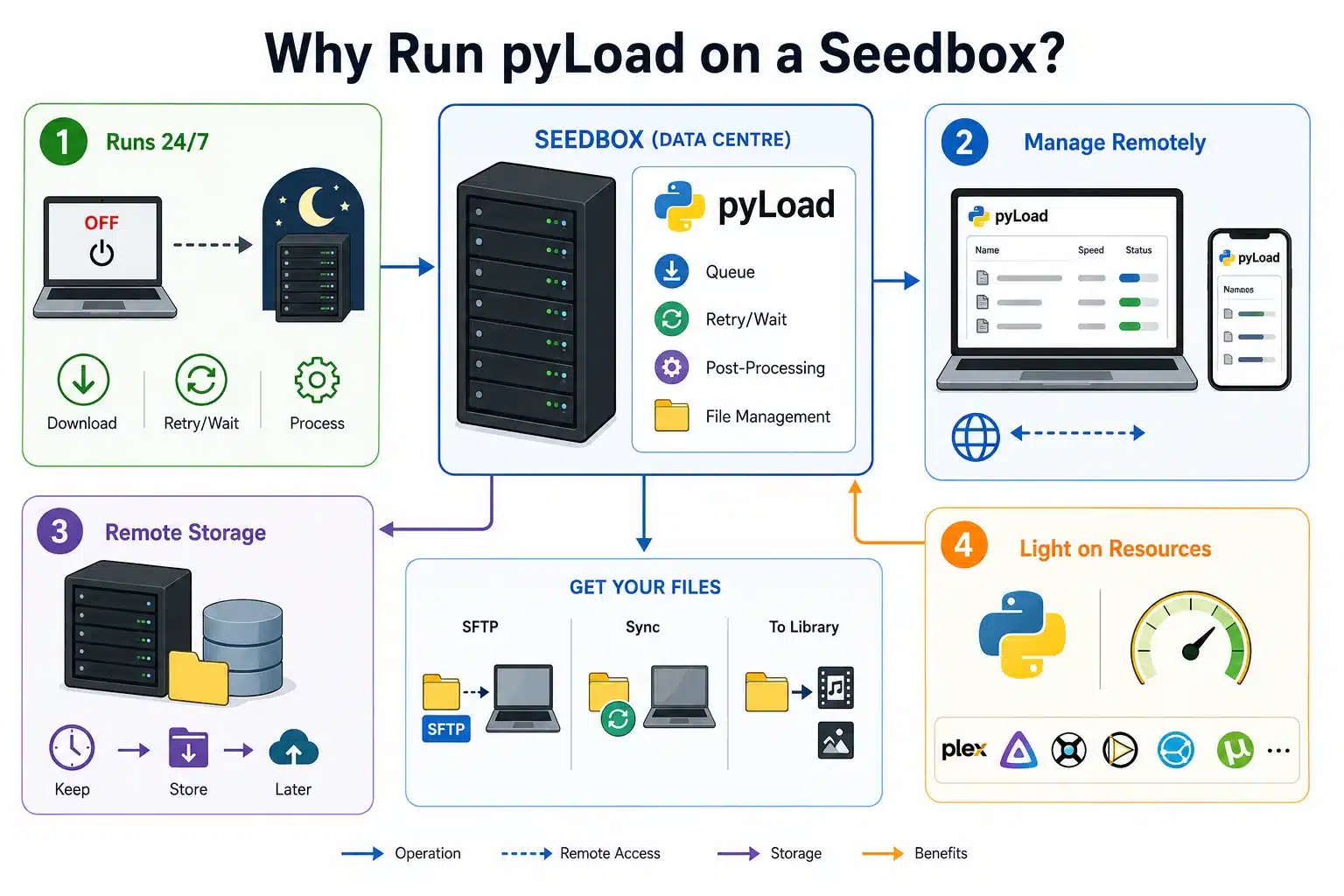
If you run pyLoad on a seedbox, you’ll get continuous uptime for the download manager, remote storage, and a fast data-centre connection.
Downloads Continue When Your Computer Is Off
The seedbox operates independently from your laptop or desktop. Once a link is in the queue, pyLoad can carry on downloading, retrying, waiting for any delays set by the host, and processing the file without keeping the device online.
This is great for big archives, slow free-host downloads, multi-part packages, or queues added before you hit the hay.
You Can Manage Downloads Remotely
pyLoad provides a browser-based interface for adding links, monitoring speed, pausing packages, checking logs, and managing completed downloads.
You can open the interface from another computer or mobile browser as long as the seedbox provider exposes the application through a secure URL, reverse proxy, VPN, or permitted port.
The Seedbox Handles Temporary Storage
Completed files remain on the server until you are ready to use them. You can later download files from the seedbox through SFTP, synchronize them with another device, or move them into a media library.
This separates the remote download stage from the local transfer stage. You don’t have to do both at the same time.
pyLoad Uses Few Server Resources
pyLoad is written in Python and designed for headless servers, NAS systems, routers and other devices that are always on. It usually uses fewer resources than a full desktop environment running a Java-based download manager.
That makes it a great choice if your seedbox is also running apps like Plex, Jellyfin, Sonarr, Radarr, Syncthing, or a torrent client.
How to Install pyLoad on a Seedbox
The best way to install it depends on your seedbox provider and subscription. Some providers include pyLoad in their application catalog. Others require Docker, SSH access, or a custom software request.
Check the Seedbox Application Catalog
Start by checking whether pyLoad is offered as an installed or optional application.
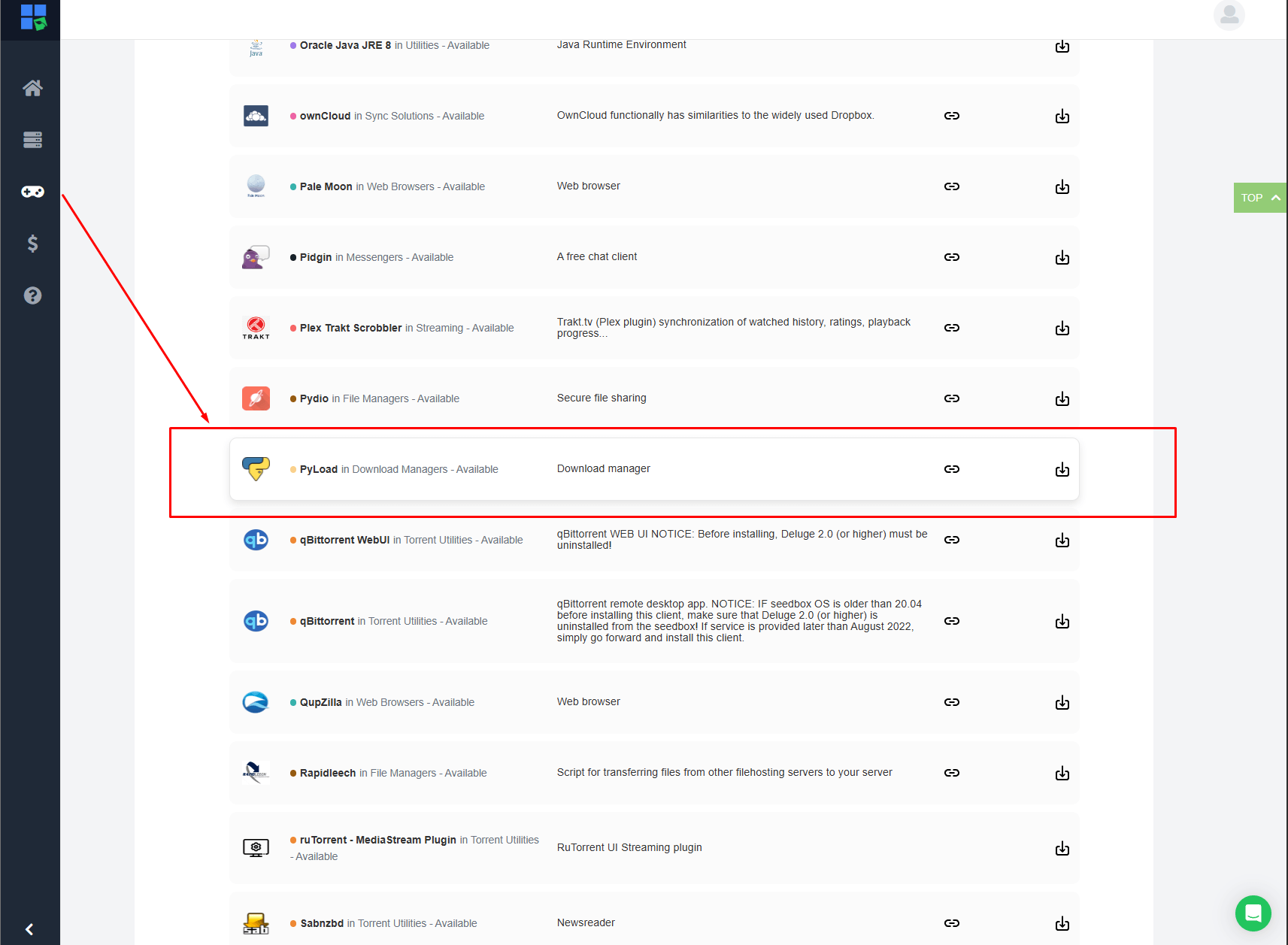
On a RapidSeedbox seedbox:
- Log in to the Client Area.
- Open One-click apps from the menu.
- Select the All tab.
- Click Refresh to synchronize the available application list.
- Look for pyLoad or pyLoad-ng.
- Click the installation wheel beside it.
- Wait for the installation process to finish.
- Open Installed Apps.
- Click the key icon to view the application URL and login credentials.
The exact application catalog can vary by plan and can change over time. You can find out more in our One-Click Installer guide.
Install pyLoad-ng With Docker
pyLoad is currently distributed as pyLoad-ng and needs a modern Python environment. Docker stops you having to deal with managing dependencies manually and keeps pyLoad separate from the rest of the seedbox.
LinuxServer’s got a current multi-architecture pyLoad-ng container for x86-64 and ARM64 servers.
Create the necessary directories:
|
1 2 |
mkdir -p "$HOME/apps/pyload/config" mkdir -p "$HOME/downloads" |
Create a compose.yml file:
|
1 2 3 4 5 6 7 8 9 10 11 12 13 14 15 16 17 18 19 20 21 22 23 24 25 26 27 28 |
services: pyload-ng: image: lscr.io/linuxserver/pyload-ng:latest container_name: pyload-ng environment: # Replace these values with the output of: # id -u # id -g - PUID=1000 - PGID=1000 - TZ=Etc/UTC volumes: # Stores pyLoad settings and user data. - /home/youruser/apps/pyload/config:/config # Stores completed downloads on the seedbox. - /home/youruser/downloads:/downloads ports: # pyLoad web interface. - 8000:8000 # Optional Click'N'Load integration. - 9666:9666 restart: unless-stopped |
Replace /home/youruser/ with your actual home directory. You can confirm it by running:
|
1 |
echo "$HOME" |
Find your user and group IDs with:
|
1 2 |
id -u id -g |
Start the container:
|
1 |
docker compose up -d |
Confirm that it is running:
|
1 |
docker compose ps |
Check its logs if the container does not start:
|
1 |
docker compose logs --tail=100 pyload-ng |
The web interface normally opens on:
|
1 |
http://YOUR-SEEDBOX-IP:8000 |
The LinuxServer container initially uses:
|
1 2 |
Username: pyload Password: pyload |
Change the default password right away. Just make sure you don’t leave the application publicly accessible with the default credentials.
The official LinuxServer pyLoad-ng documentation contains the current image name, ports, volume paths, and supported architectures.
Install pyLoad-ng in a Python Virtual Environment
Just use this method when Docker’s not available but your account lets you use custom Python applications.
Create a virtual environment:
|
1 |
python3 -m venv "$HOME/apps/pyload-venv" |
Activate it:
|
1 |
source "$HOME/apps/pyload-venv/bin/activate" |
Upgrade pip:
|
1 |
python -m pip install --upgrade pip |
Install the current pyLoad-ng package:
|
1 |
pip install --pre "pyload-ng[all]" |
Test the installation:
|
1 |
pyload --dry-run |
Start pyLoad in daemon mode:
|
1 |
pyload --daemon |
The project we’re currently working on is for Python 3.9 or a later version. Try not to use old tutorials that tell you to install Python 2, run pyLoadCore.py or use dependency lists that are no longer being used. Just to let you know, those instructions refer to the legacy pyLoad branch.
The latest command syntax and runtime requirements are maintained in the official pyLoad GitHub repository.
How to Configure pyLoad on a Seedbox
You’ll need to tweak a few settings on the working installation before you start adding large queues.
Change the Default Account Credentials
Open the user management section in pyLoad and replace the default password with a long, unique one.
The pyLoad web interface lets you control downloads, view file names, modify settings, and manage accounts. Anyone who gains access to your computer may be able to see or change your download queue.
Don’t re-use your seedbox, email, or file-hoster passwords.
Set the Correct Download Folder
For the above Docker setup, the right internal download directory is:
|
1 |
/downloads |
This path points to the seedbox directory that’s been mounted through the Docker volume:
|
1 |
/home/youruser/downloads |
Just a heads-up: when you’re working with pyLoad, make sure you’re entering the host path inside the container, otherwise, you’ll end up in a bit of a pickle. Containers see their mounted paths, not every directory from the host operating system.
Just set a minimum free-space limit so that pyLoad stops accepting new downloads before the seedbox storage becomes completely full.
Start With a Small Number of Parallel Downloads
Having more parallel downloads doesn’t automatically mean you’ll get higher speeds. File hosts often put limits on connections, or require a wait time before you can use the service again. They might also restrict you to one account.
Get going with two or three downloads at the same time. Just remember to check the value first:
- CPU usage
- Disk activity
- Available storage
- File-hoster restrictions
- Premium account limits
- Extraction workload
If you’ve got too many archive extractions going on at the same time, it can affect other applications on the same server.
Configure Premium Hoster Accounts
pyLoad can authenticate with supported premium file-hosting accounts through its account and plugin settings.
Just enter the credentials in the relevant official plugin. Then check that pyLoad recognises the account as valid before adding a large package.
Just so you’re aware, some file hosts or debrid services restrict downloads from shared servers, hosting providers, data-center IP addresses, or multiple geographic locations. Just make sure you check the service’s terms before you connect the account to a seedbox.
Review Plugins Before Enabling Them
pyLoad uses plugins to do all sorts of things. These include communicating with file hosts, decrypting container links, solving supported challenges, extracting archives, sending notifications and processing completed downloads.
Just enable the functions you need. Having a smaller plugin set makes troubleshooting easier and reduces the chance of one outdated integration messing up your queue.
Useful categories include:
- Hoster plugins
- Link decrypters
- Archive extraction
- Checksum verification
- CAPTCHA services
- Premium account integrations
- Notifications
- Scheduling
- Click’N’Load
Plugin availability changes all the time as the websites of file hosts are updated and access systems are modified.
How to Add Your First Download
Adding a direct-download link to pyLoad takes only a few steps.
Open the Add Package Window
Just log in to the web interface and click the plus button. That’s how you group one or more related links into a package with pyLoad.
Make the package stand out by giving it a memorable name, especially when the links are using generic or numbered file names.
Paste the Download Links
Just paste one link per line. Depending on the active plugins, pyLoad can process direct HTTP or HTTPS URLs, supported one-click hosters, cloud-storage links, and link-container formats.
Only download files that you’re allowed to access legally. A seedbox and download manager won’t change the copyright status or terms attached to a file.
Choose Queue or Collector
Send the package to Queue when you want pyLoad to begin processing it immediately.
Send it to Collector when you want to inspect the detected links, rename the package, remove unwanted parts, or move it to the active queue later.
Monitor the Download and Logs
The home or queue view shows active downloads, progress, speed, estimated completion time, and errors.
Open the logs when a download:
- remains queued without starting
- repeatedly retries
- produces a small HTML file
- fails authentication
- requests an unsupported CAPTCHA
- cannot write to the download folder
- fails during archive extraction
The error message normally tells you where the problem’s coming from, like the source website, a plugin, your credentials, storage, or the server configuration.
How to Transfer Completed pyLoad Files
pyLoad downloads your files to the seedbox, but it doesn’t place them on your computer automatically.
Transfer Files Through SFTP
SFTP is the safest way to move files from a seedbox to your desktop.
You can connect to the server using its hostname, SSH port, username, password, or SSH key. Apps like FileZilla, WinSCP, Cyberduck, and command-line SFTP clients can do this.
Our FileZilla seedbox guide explains how to save the connection, locate the remote download directory, and optimize simultaneous transfers.
Synchronize Files Automatically
Syncthing, Resilio Sync, and rclone can be used to move completed downloads to another server, NAS, or cloud storage destination.
Keep pyLoad’s temporary and incomplete files outside the synchronized directory. Otherwise, the sync tool may begin copying files before pyLoad has finished writing them.
Stream Supported Media
A seedbox can also run Plex, Jellyfin, or Emby. Point the media server at the completed-download directory or move approved media into a dedicated library folder.
Just make sure you don’t make the active pyLoad directory the only media library. Having a separate folder structure for this gives you better control over naming, permissions, cleaning up, and incomplete downloads.
The distinction between local storage and remote hosting is covered in our seedbox versus NAS comparison.
Need a reliable server for unattended pyLoad downloads?
Deploy pyLoad on a RapidSeedbox and keep your download queue running around the clock. Access your files remotely, take advantage of high-speed connectivity, and manage downloads without consuming your home bandwidth or leaving your computer powered on.
pyLoad vs JDownloader vs aria2 on a Seedbox
You can use PyLoad, JDownloader, and aria2 on remote servers, but they’re designed to deal with different issues when it comes to managing downloads.
| Feature | pyLoad | JDownloader 2 | aria2 |
|---|---|---|---|
| Main interface | Web interface | Desktop UI and remote tools | Command line and RPC |
| Resource use | Low | Higher because it uses Java | Very low |
| One-click host plugins | Strong | Usually the broadest support | Limited |
| CAPTCHA workflows | Plugin-based | More mature and interactive | Not a core feature |
| Premium host accounts | Supported through plugins | Broad support | Manual authentication |
| Docker suitability | Strong | Available but heavier | Strong |
| Automation | Plugins and API | Extensions and remote control | Scripts, RPC, and external UIs |
| Beginner experience | Moderate | Easier for complex hosters | Technical |
| Best for | Lightweight remote downloads | Feature-rich hoster workflows | Scripted HTTP, FTP, SFTP, and BitTorrent transfers |
If you’re after a lightweight web interface, low resource consumption, package queues, and plugin-based support for common file hosts, then look no further than pyLoad.
Choose JDownloader 2 when you need broader host compatibility, browser-like workflows, advanced CAPTCHA handling, cookies, or more polished management of complicated packages. Our JDownloader settings guide covers its seedbox workflow.
If you’re confident with configuration files, JSON-RPC, scripts, or third-party web interfaces, then aria2 is a great choice. It’s great for automated HTTP, FTP, SFTP, Metalink and BitTorrent jobs, but it’s not a replacement for pyLoad’s hoster-plugin ecosystem.
Who Should Use pyLoad on a Seedbox?
People Who Regularly Use Direct-Download Hosts
If you get HTTP links, multi-part packages, or downloads from one-click file hosts that are supported, then pyLoad is useful.
The seedbox stays online while pyLoad handles waiting periods, retries, extraction, and queue management.
Users With Limited Home Bandwidth
The first download happens between the remote source and the seedbox. This stops a long-running transfer from hogging your home connection while you work, stream, or play games.
You’ll still need to transfer the completed file at some point, but you can decide when and how that happens.
Users Running Several Server Applications
pyLoad is pretty lightweight, so it works well with other tools on the server.
It can form one part of a broader seedbox workflow alongside a torrent client, media server, synchronization application, and remote file manager. Our list of practical seedbox uses shows how these applications can work together.
Users Who Need Complex Browser Downloads
pyLoad may not be the right option for websites that require interactive browser sessions, unsupported JavaScript challenges, complicated cookies, or frequent manual CAPTCHA input.
JDownloader 2, a remote desktop browser, or a site-specific command-line tool might be a better option.
How pyLoad Works Behind the Web Interface
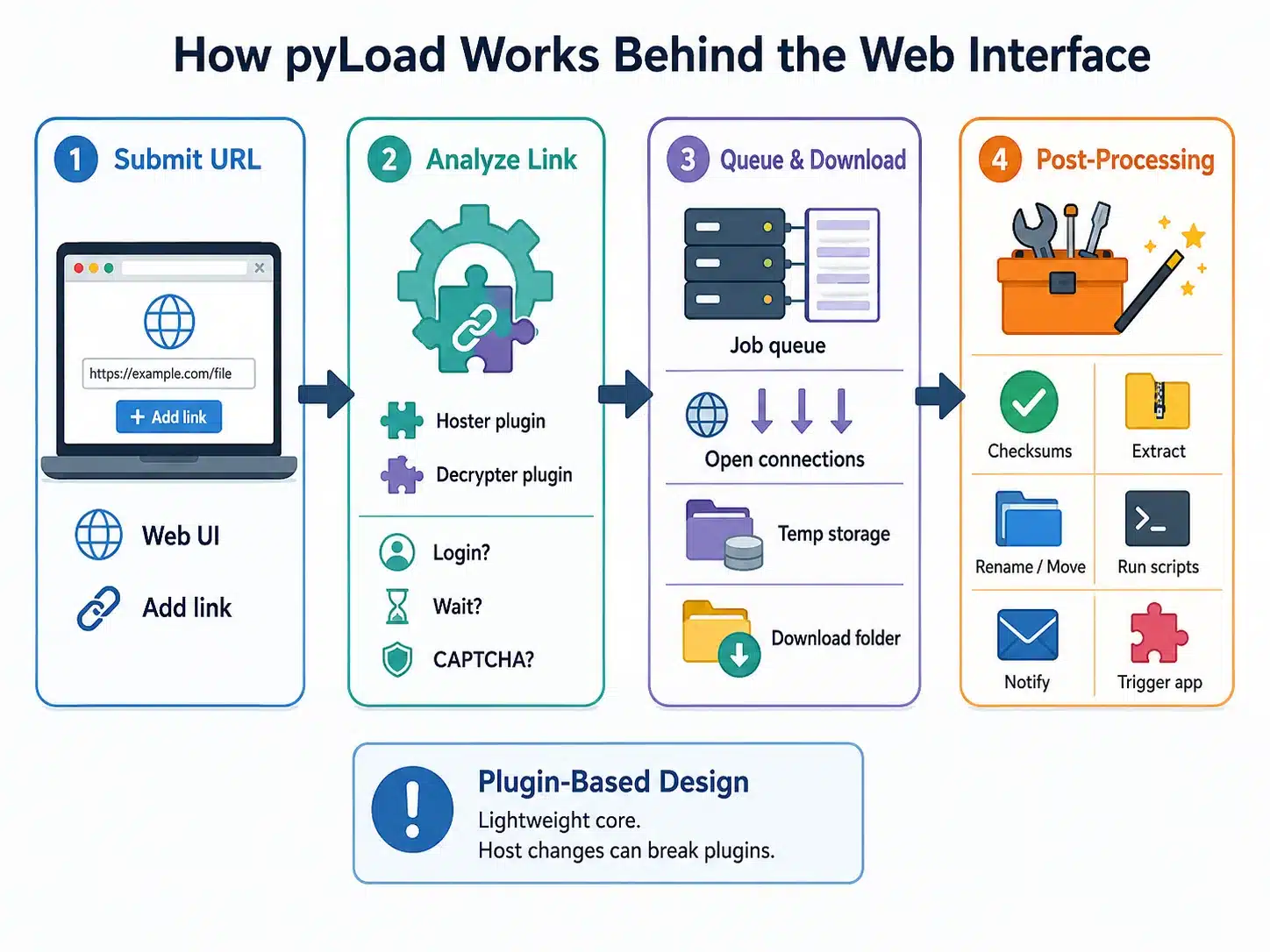
pyLoad separates the browser interface from the background download process.
When you submit a URL, pyLoad will first analyze it and try to match it with a hoster or decrypter plugin. The plugin decides how to get the actual file URL, whether you need to sign in, and whether the source has waiting periods or CAPTCHA checks.
The job that’s been created gets put in the queue, and then pyLoad opens up the number of connections that’s allowed, writes the data to temporary storage, and moves the result that’s been completed into the download directory that’s been set up.
Post-processing plugins can then:
- verify checksums
- extract supported archives
- rename or move files
- run external scripts
- send completion notifications
- trigger another application
This plugin-based design keeps the core application nice and lightweight, but it also means individual file hosts can stop working when they change their login pages, APIs, anti-bot systems, or URL structure.
Common Seedbox pyLoad Problems
The pyLoad Web Interface Does Not Open
If your web interface is playing up, it’s probably because the application has stopped, the port isn’t mapped, the service is only listening on localhost, or the seedbox firewall is blocking the connection.
For Docker, check:
|
1 2 |
docker compose ps docker compose logs --tail=100 pyload-ng |
Confirm that port 8000 is present in the Compose file and not already used by another application.
If the provider uses a reverse proxy, open the application through the URL supplied in the control panel rather than the raw IP address and port.
pyLoad Cannot Write to the Download Folder
Permission errors tend to pop up when the Docker container user doesn’t match the owner of the host download directory.
Check the folder:
|
1 |
ls -ld "$HOME/downloads" |
Check your user and group IDs:
|
1 |
id |
Make sure the PUID and PGID values in the Compose file match your seedbox user. Restart the container after changing them:
|
1 2 |
docker compose down docker compose up -d |
Avoid fixing the problem with unrestricted chmod 777 permissions. Correct ownership and user mapping are safer.
pyLoad Downloads an HTML File Instead of the Real File
If you see an HTML result, it usually means the submitted URL was a webpage rather than a direct file, the link expired, authentication failed, or the host presented a CAPTCHA or anti-bot page.
Open the downloaded HTML file as text and take a look at the pyLoad log. It might show an error page, login form, expired link notice, or unsupported challenge.
Try these fixes:
- create a fresh link
- confirm the host plugin is enabled
- update pyLoad and its plugins
- verify premium account credentials
- use the final direct-download URL
- reduce connection counts
- check whether the host blocks data-center IPs
Don’t keep on retrying the same invalid URL. Some hosts temporarily lock accounts after too many failed requests.
Downloads Remain in the Queue
There might be a download in the queue waiting for a free slot, or a host-imposed timer, reconnect window, CAPTCHA response, account limit, or available disk space.
Open the package details and logs rather than deleting and re-adding it straight away.
Also, it’d be worth checking the maximum parallel-download setting. Sometimes a package can get stuck in the queue just because every slot for a download is already taken.
Archive Extraction Fails
Extraction often fails for a few reasons. The archive password is missing, one part of a multi-part archive didn’t download, the server doesn’t have the required extraction utility, or there isn’t enough free space.
A compressed archive can sometimes need close to twice its own size: one copy for the downloaded archive and another for the extracted files.
Make sure you check every part before you start extraction again.
The Seedbox Runs Out of Space
Set pyLoad’s minimum free-space threshold and monitor storage regularly.
Clear out any packages that didn’t make it, old archives, duplicate extracted files, logs, temporary files and completed downloads that have already been transferred.
A full filesystem can affect pyLoad as well as the seedbox’s torrent clients, databases, media applications, and operating system.
How to Secure pyLoad on a Seedbox
You should treat a pyLoad web interface like any other server administration panel.
Use these controls:
- Change the default username or password immediately.
- Prefer the provider’s HTTPS application URL.
- Place self-hosted instances behind an HTTPS reverse proxy.
- Restrict port 8000 with a firewall, VPN, or IP allowlist.
- Do not expose Click’N’Load port 9666 unless you use it.
- Run the container with the correct non-root user IDs.
- Keep pyLoad, Docker, and the container image updated.
- Remove unused plugins and user accounts.
- Review logs for failed logins and unusual activity.
- Back up the
/configdirectory before major upgrades.
Using encrypted access does not make every source file trustworthy. Scan unfamiliar downloads and follow the precautions in our safe downloading guide.
TL;DR: Seedbox pyLoad Summary
- What it is: A seedbox pyLoad setup is a remote, always-on download manager for direct links, one-click file hosts, cloud links, and multi-part packages.
- How it works: You add URLs through a browser. pyLoad analyzes them through plugins, downloads the files to seedbox storage, and optionally performs actions such as extraction, verification, or notifications.
- Key components: pyLoad-ng, a seedbox, web interface, hoster plugins, download queue, and mounted storage directory.
- Setup difficulty: Beginner when the provider offers an installer; intermediate when using Docker or a Python virtual environment.
- Best for: Users who want low-resource, unattended direct downloads without leaving a home computer online.
- Costs: pyLoad is free and open source. The seedbox, premium file-host accounts, CAPTCHA services, or debrid services may have separate fees.
- Alternatives: JDownloader 2 provides more advanced hoster workflows, while aria2 is better for scripts and command-line automation.
- Bottom line: pyLoad is a strong seedbox download manager when your sources are supported by its plugins, and you want a lightweight web interface. Use a dedicated torrent client for BitTorrent and JDownloader when browser-heavy hoster workflows are more important than low resource consumption.
Frequently Asked Questions About Seedbox pyLoad
Is pyLoad a Torrent Client?
pyLoad is basically a tool for downloading stuff directly from HTTP links, file hosts, cloud services, and link containers. While plugins or external workflows can add extra features, qBittorrent, Deluge, Transmission and rTorrent are better for downloading and seeding torrents.
What Port Does pyLoad Use?
The pyLoad web interface normally uses TCP port 8000. The optional Click’N’Load service uses port 9666. Just so you know, your seedbox provider might use something like pyLoad behind a custom HTTPS address, so it’s best to use the application URL from the control panel when one is provided.
Can pyLoad Run Continuously on a Seedbox?
pyLoad is great for systems that are always on, like remote servers, NAS devices and routers. When you set it up as a Docker container or daemon, it can keep downloading things even if you close your browser or turn off your computer.
Can I Use a Premium File-Hosting Account With pyLoad?
Yes, pyLoad is great for premium accounts, and it works with compatible hoster plugins. The file host needs to allow access from the seedbox IP, and the plugin has to be able to use its current authentication system. Just a heads-up, though – some services restrict data-center or shared-server addresses, so it’s worth checking the host’s terms.
Why Is pyLoad Downloading HTML Files?
Sometimes, when the submitted URL takes you to a webpage, expired link, login form, CAPTCHA or anti-bot response instead of the actual file, pyLoad will download HTML. Refresh the link, check the authentication, update the relevant plugin, and inspect the logs to identify the returned page.
Is pyLoad Free?
Yeah, pyLoad is free and open-source software. You might still have to pay for the seedbox itself, premium hoster accounts, external CAPTCHA-solving services, debrid subscriptions, or extra storage.
Start Using pyLoad on Your Seedbox
I’d suggest starting with one legal, publicly available test file before adding a large queue. Make sure that pyLoad saves it to the right directory, that the file survives a container restart, and that you can transfer it through SFTP.
Once that workflow is working, add your host accounts, extraction settings, and automation bit by bit. A RapidSeedbox Premium server gives you the SSH access, storage, network capacity, and application flexibility needed to build a complete remote download setup.
Want to run pyLoad continuously without tying up your home computer?
A RapidSeedbox server gives you an always-online environment for managing pyLoad downloads remotely. Benefit from fast network speeds, generous storage, and convenient browser-based access while keeping demanding downloads off your local connection.
0Comments